

Calendar view and grid view
The timesheet has two views of the same entries. Switch between them with the two buttons next to the Timesheet title, Grid view and Calendar view. The first time you open your timesheet it shows the calendar view; after that, Beebole remembers the view you used last.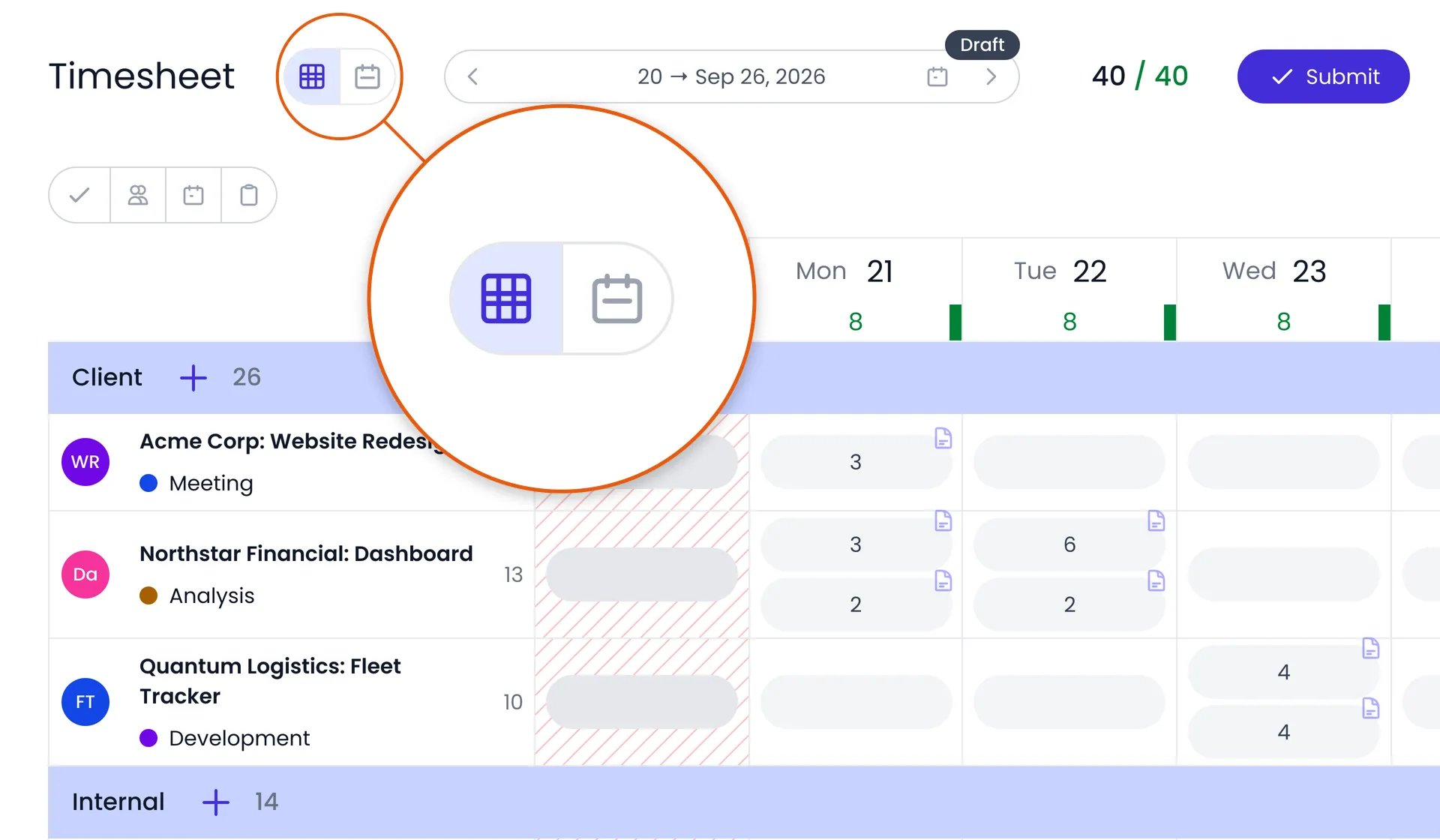
The Grid view and Calendar view buttons next to the Timesheet title
Moving between periods
Use the arrows on each side of the date range at the top of the page to move one period back or forward. Click the date range itself to open the date picker: pick any day in the two months it shows, or use a shortcut such as This week, Last week, This month, or Today.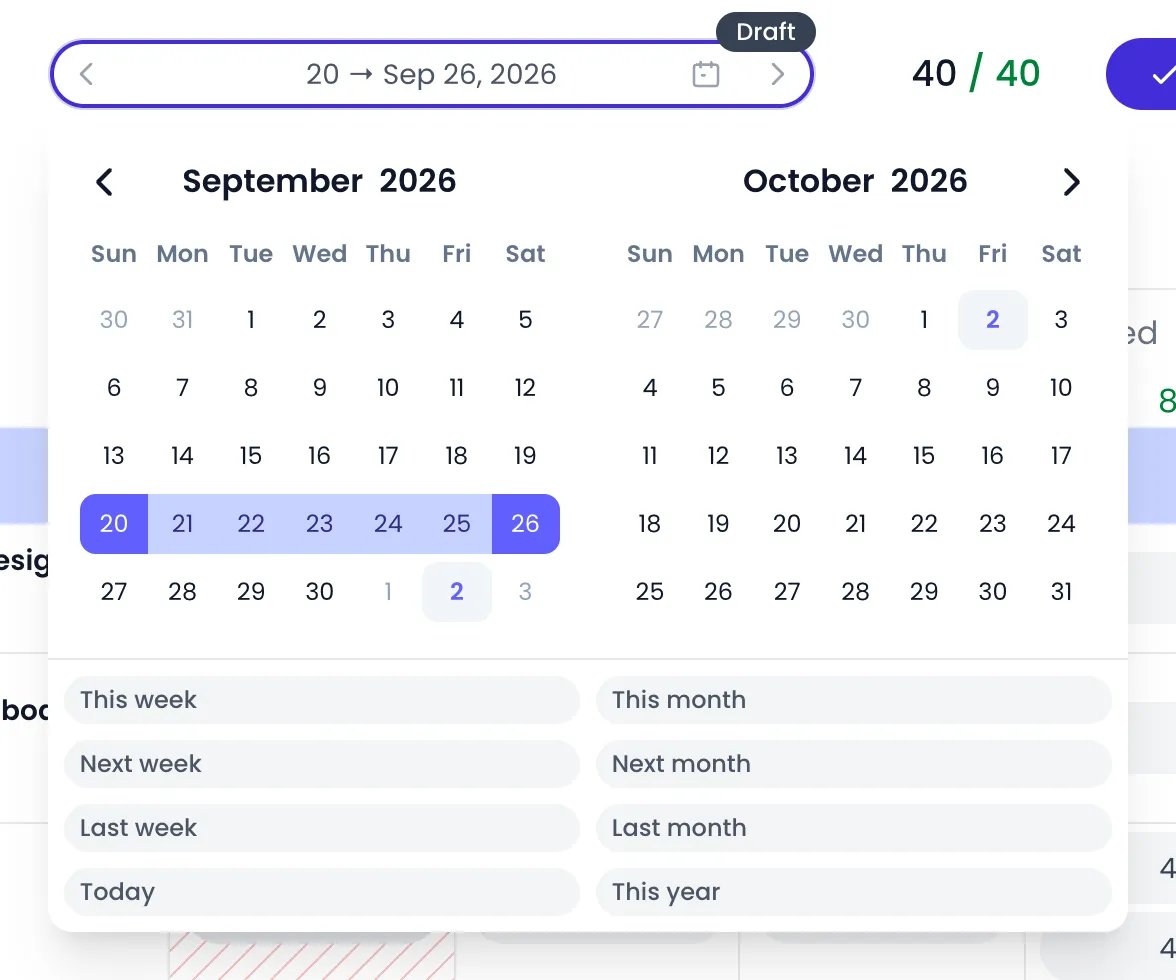
The date picker opened from the date range
Calendar view
The calendar view gives each day of the period a column and draws each entry as a block, so you place time instead of typing it.- When your account records start and end times, each column is a day by the hour, today shows a line at the current time, and every entry sits at its real start and end.
- When your account records durations only, there is no hour scale. Entries stack one after another from the top of each day, and the height of a block is its duration.
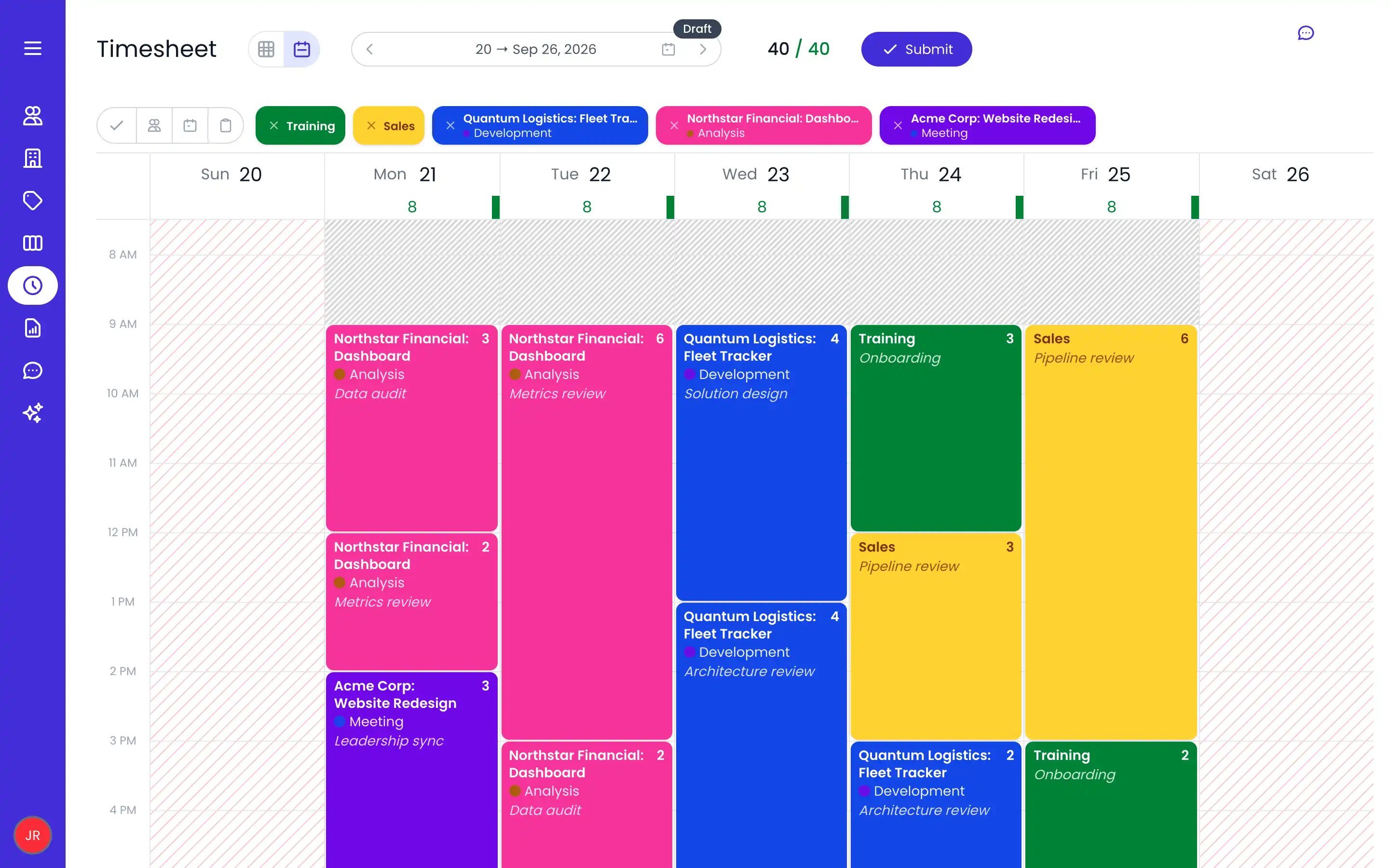
A week in the calendar view, with the favorites bar above the day grid
Adding and changing entries
- Create an entry: click and drag across an empty time slot. The selection shows the total duration alongside the start and end times as you draw. The entry popup opens with the activity picker built in, and the entry is created as soon as you pick the project, task, or absence type. You can still drag the new block to another time or day, or resize it from either edge, before you’re done.
- Create an entry with one click: click an empty slot without dragging. When your account doesn’t record start and end times, the new entry is pre-filled with the time still missing from that day’s schedule, the same figure the day header shows, so the last entry of the day always completes it. On a full, overrun, or unscheduled day, and whenever start and end times are on, the click places a one-hour entry instead.
- Add an entry to a full day: without start and end times, the calendar keeps an hour of free space under each day’s last entry, unless a No overtime beyond the schedule restriction stops you from logging more. Click it to add an entry after the day’s last one. You can also open the day as a list and click Add an entry.
- Move an entry: drag it to another slot or day. Its duration is preserved.
- Resize an entry: drag its top or bottom edge to change the start or end time. Edges snap to 15-minute steps, or to the Minimum time interval accepted when your administrator set a longer one; hold ⌘ (Ctrl on Windows/Linux) while dragging an edge to snap to whole hours instead.
- Give an entry a time: when start and end times are recorded, an entry that has none yet (typed in the grid view, for example) sits stacked at the top of its day. Drag it to a slot and it takes the clock time where you release it.
- Duplicate an entry: hold ⌘ (Ctrl on Windows/Linux) while dragging an entry to a new slot.
- Edit an entry: click it to open its entry details.
- Delete an entry: hover over it and click the delete button that appears.
- Work on several entries at once: Shift-click to select a range, or ⌘-click (Ctrl-click on Windows/Linux) to pick individual entries, then move, duplicate, resize, or delete the whole selection. One undo step reverses the batch.
Keyboard shortcuts
Click an entry to select it, then:Favorites
Above the calendar, a favorites bar shows up to five of your activities. The rows you pinned in the grid view come first, followed by the rows of your timesheet and the projects and tasks you used most recently.- Drag a favorite onto the calendar grid to create an entry for that activity on the day and at the time where you release it. The entry takes your usual duration for that activity (or one hour when your recent entries on it vary), trimmed to the hours still missing for the day, or to one hour at most once the day is full. Click the new entry to adjust its details.
- Drop a favorite on a suggested entry to accept that suggestion as the favorite’s activity instead.
- Remove a favorite with the × (Remove from favorites) on the left of its chip. When the favorite comes from a row of your timesheet, that row is removed from the grid view too.

The favorites bar in the current week, each chip with its remove button on the left and its play button on the right
Opening a day as a list
Click a day header to open that day as a list. At the scale of a whole period, short entries are hard to read: the list gives every entry of the day its own line, however short. The list belongs to the calendar view; the grid view has no equivalent.- Each line shows the entry’s start and end times when it has them (+1 marks a time on the next day), the activity, its note, and its duration. Entries with times come first, in the order they were worked, followed by the entries without times.
- Click a duration to change it in place. An absence counted in days shows the half-day and full-day buttons (Half day and Full day) instead. Click anywhere else on a line to open the entry’s details.
- Entries whose times overlap are bracketed together under In parallel.
- The day’s suggested entries sit among the entries as dashed lines. Click the check button (Accept) at the end of a line to accept it, or the line itself to open its popup. When you have hidden the suggestions, a Show N suggestions link under the list brings them back.
- Add an entry, under the list, opens a new entry that starts where the day’s last one ends.
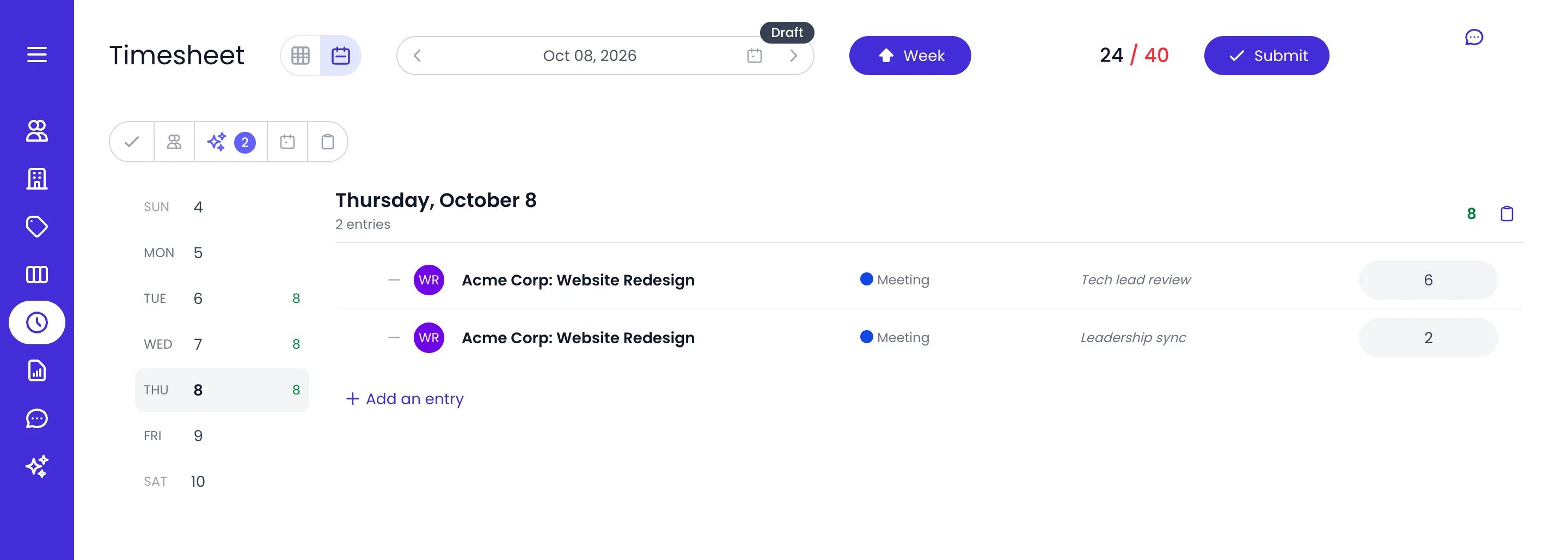
Thursday opened as a list in the calendar view
Suggested entries in the calendar
Suggested time entries show up as ghost entries in the calendar, and as dashed lines in a day opened as a list. Drag a suggestion to a time slot to schedule it, or accept it as it is. Click a suggestion to open its popup: when you accept it from there, the entry details open on the entry it became, so you can complete it right away. The suggestions button (Suggested entries) in the button cluster shows or hides them. Hiding them and showing them again also brings back the period’s dismissed suggestions, and accepted ones whose entries you have deleted since, except on locked days and in periods already submitted or approved.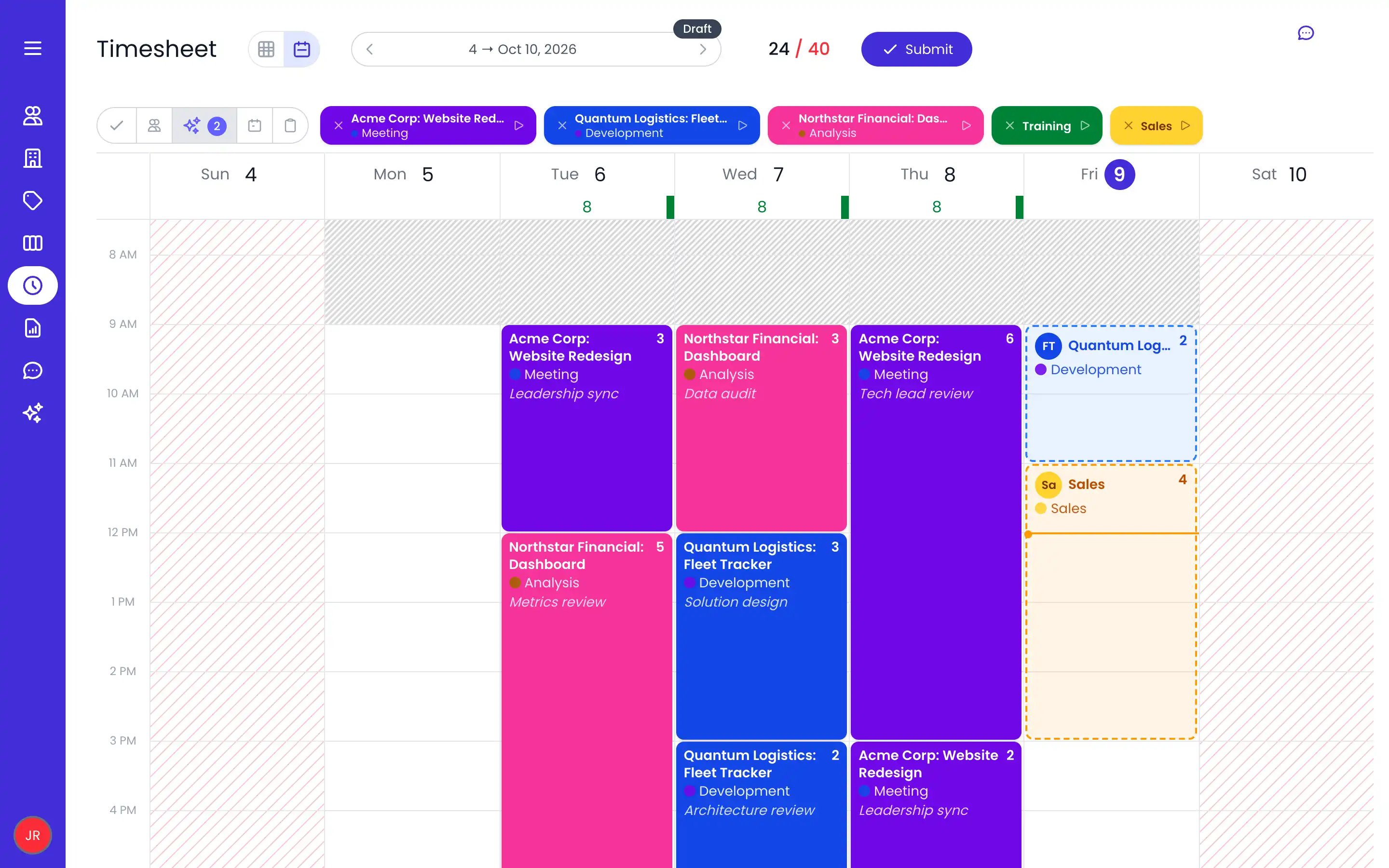
Today's two suggestions as ghost entries in the calendar
Grid view
The grid view is a table of the period:- Sections group rows by the project or task categories your administrator selected in Timesheet and Planning Settings. A Time Off section appears when recording time off is allowed.
- Rows are what you track time against: a project (or chain of projects), a task, or an absence type. Each row shows its total for the period.
- Columns are the days of the current period. Today’s date is highlighted, and each day’s header shows the time reported so far against your scheduled hours.
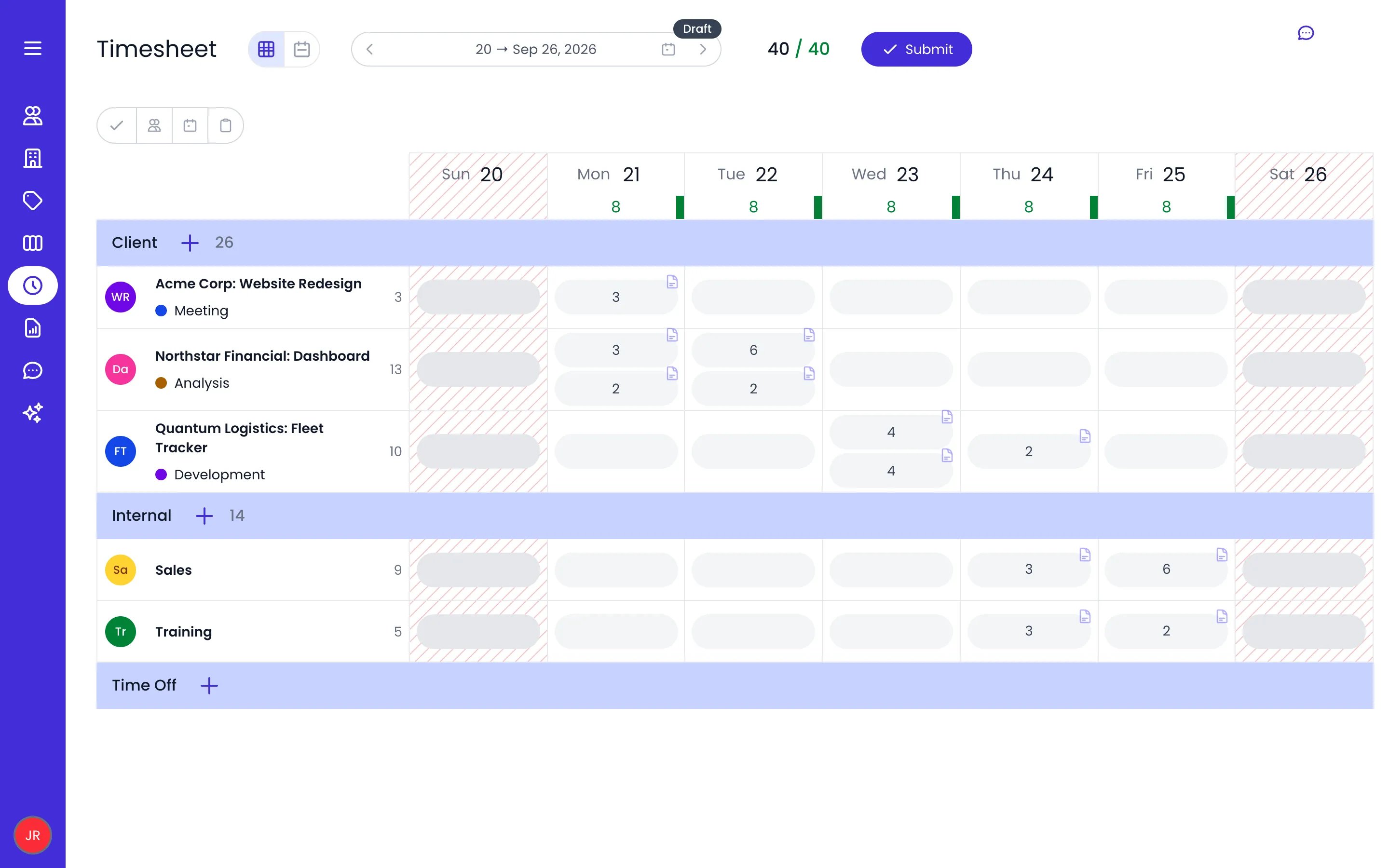
A weekly timesheet in the grid view, with Client, Internal, and Time Off sections, and each day's reported hours against the schedule
Entering time in the grid
Add a row
Type your time in a day cell
Managing rows
Each row has a ⋯ action menu with:- Pin to top / Unpin: keep the row at the top of its section.
- Edit: change the row’s project, task, or absence type selection. The row’s entries in the current period move with it, in one undo step.
- Set as done: on a task row, for people allowed to manage tasks. It marks the task Done once its work is finished, so the row leaves your timesheet and the task leaves the active planning views. Hours already logged on the task are kept and still appear in reports. To bring the task back, click Show Done on the Planning page, then Reopen the task (see Marking tasks done and deleting them).
- Remove row: take the row off your timesheet.
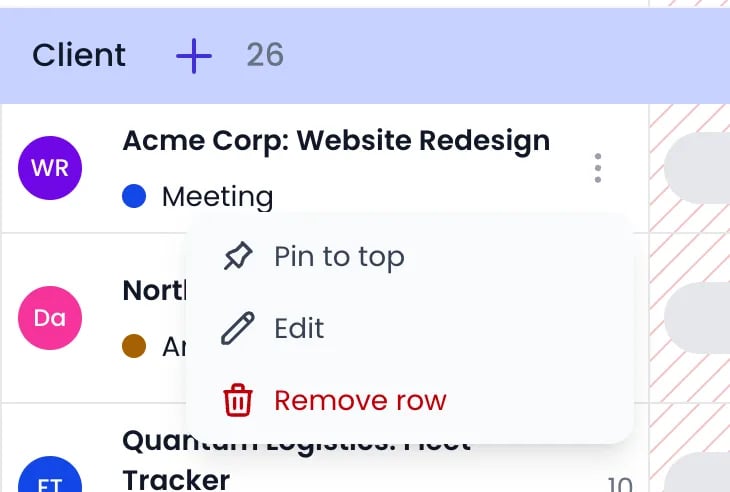
A row's action menu
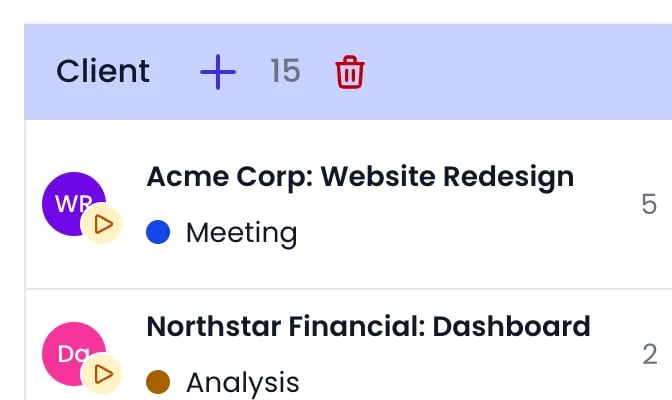
The trash button that appears on hovering a section header
Suggested entries in the grid
In the grid view, the suggestions button (Suggested entries) in the button cluster opens the suggested time entries in a pane next to the grid. Opening the pane also brings back the period’s dismissed suggestions, and accepted ones whose entries you have deleted since, as hiding and showing them does in the calendar view.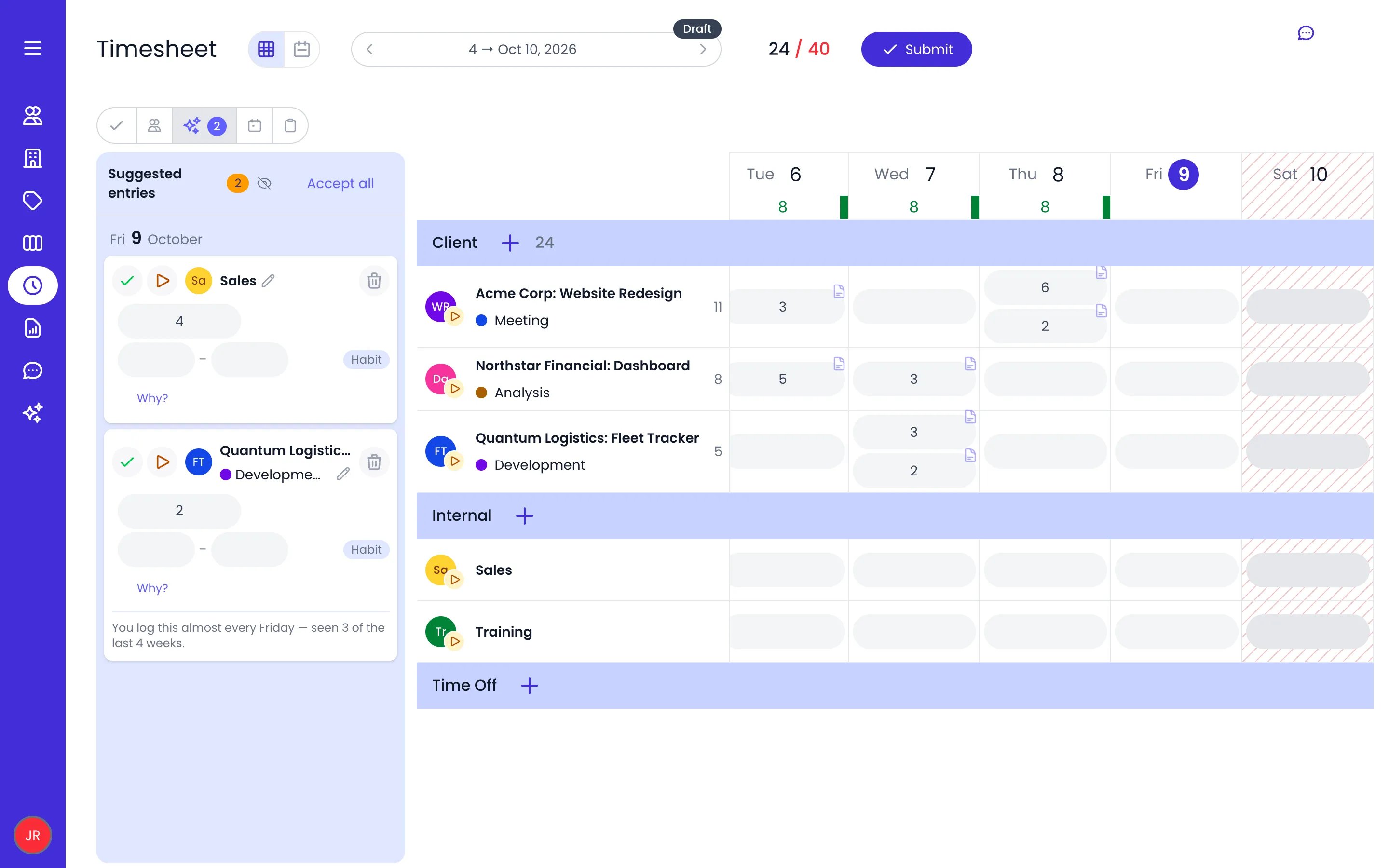
The Suggested entries pane next to the grid
Entry details
Every entry has the same details, whichever view you use. In the calendar view, click the entry. In the grid view, hover over a cell and click the info icon that appears in its corner. Depending on your account’s settings, an entry can hold: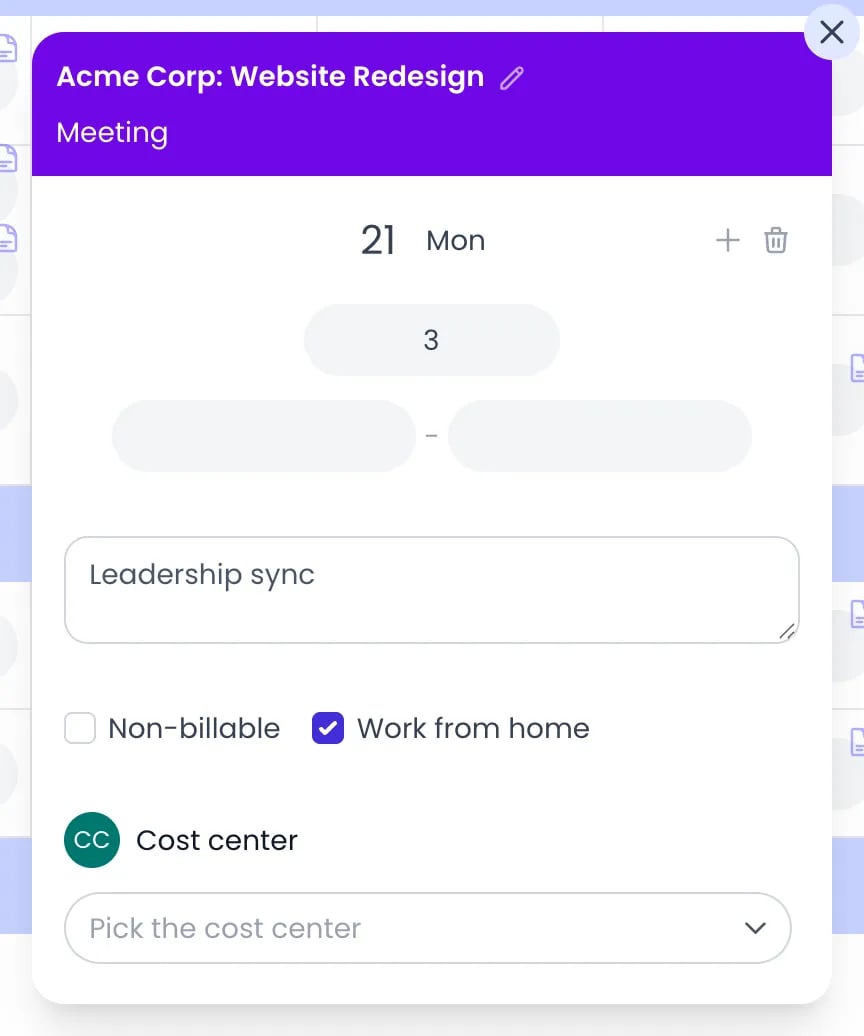
The entry details of a three-hour meeting, with a note and Work from home checked
Using the timer
The timer only shows when your administrator has enabled it, in either view. Where you start it depends on the view, and the timer button on each row belongs to the grid view only:Start the timer
Keep working
Pause it when you stop
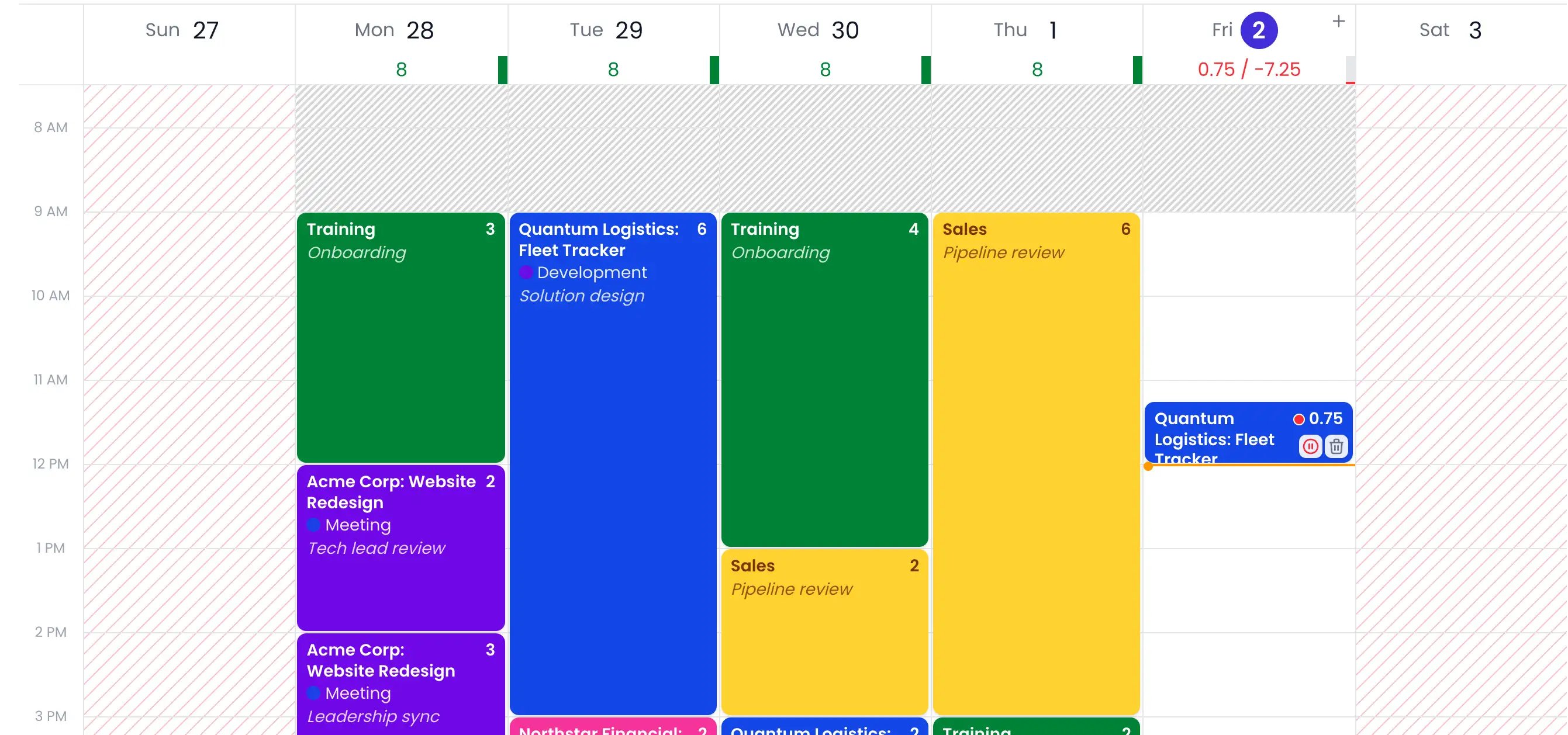
In the calendar view, the entry being timed shows a red dot and its running total, with the pause button on hover
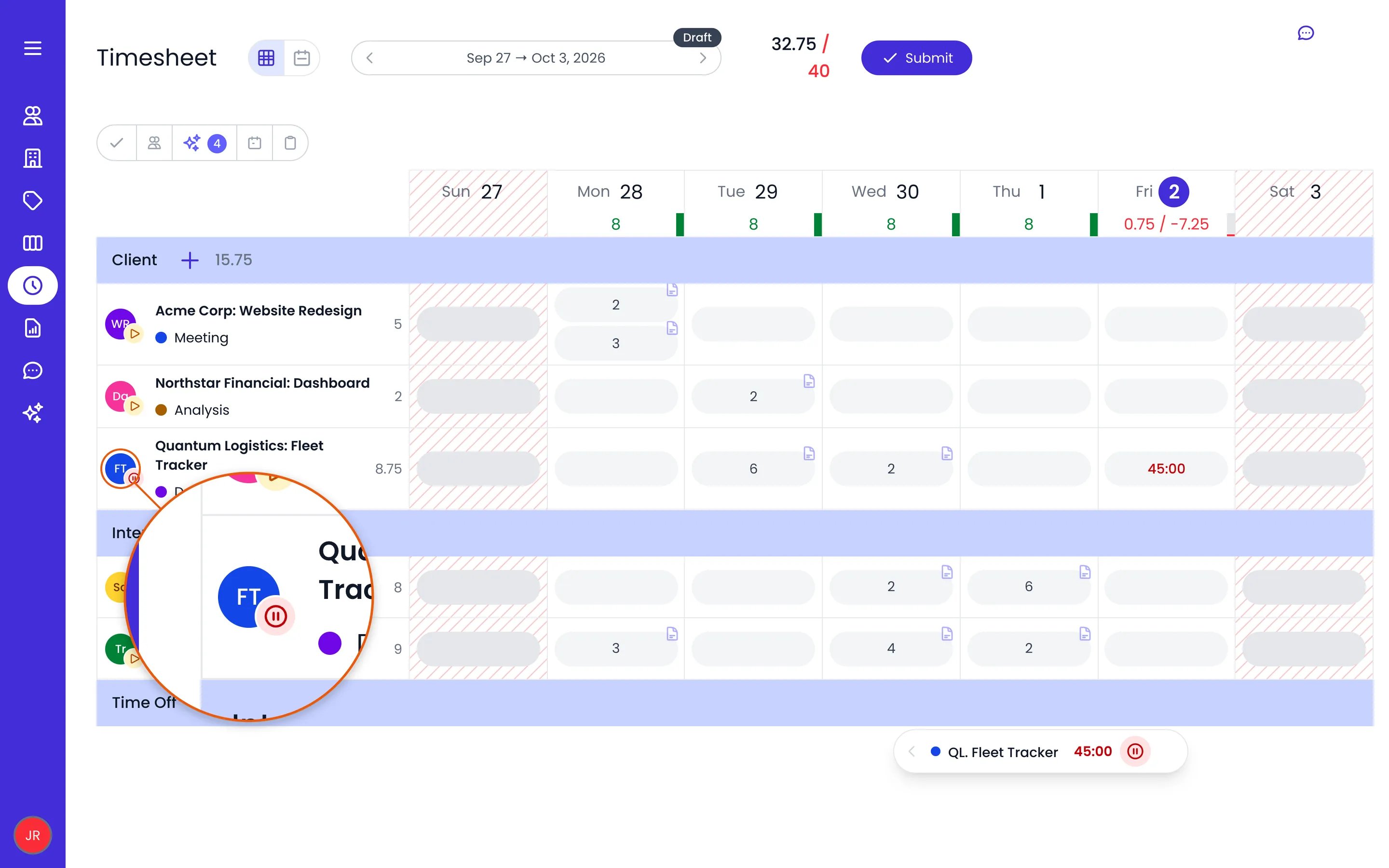
The timer button on a row in the grid view, running for 45 minutes, and the floating timer at the bottom of the page
The floating timer
On desktop, a floating panel appears as soon as a timer runs, whichever view or page you are on. Drag it anywhere on the page, grabbing it by any spot including the activity names, and it stays where you leave it. It lists the activities you timed today, one line each. Each line names what the timer belongs to: the project or task, with its parent projects shortened to initials, for example AC. Website Redesign for Website Redesign under Acme Corp. Hover the name to see the full path.- A running line shows a pulsing dot, its name, a live counter, and a Pause timer button.
- A paused line stays listed with the time saved on its entry. Its play button resumes it (a plain click pauses the others first, ⌘-click or Ctrl-click adds it to the ones running) and the × (Remove from the timer list) takes it off the panel. A running line has no ×: pause it first, so time is never discarded while it is still counting.
- When more than one timer is running, a Pause all button appears under the lines and stops them all at once, saving each entry’s own time.
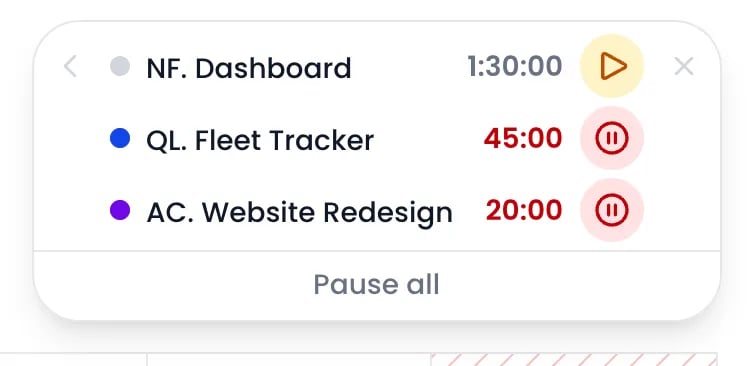
Two timers running and one paused activity on the floating timer
Timers left running
Beebole stops a timer you forgot to pause, at the first of these that applies:- The end of your scheduled hours that day, from your work schedule. When your schedule gives the day hours but no clock times, the timer stops once the entry holds the day’s scheduled hours.
- When the schedule gives no end, on a day off or for a timer started after your working hours, the end of the planned task the timer runs on.
- At the latest, the end of the day after the one the timer started.
Copying a period
To reuse a period’s rows and entries, in either view: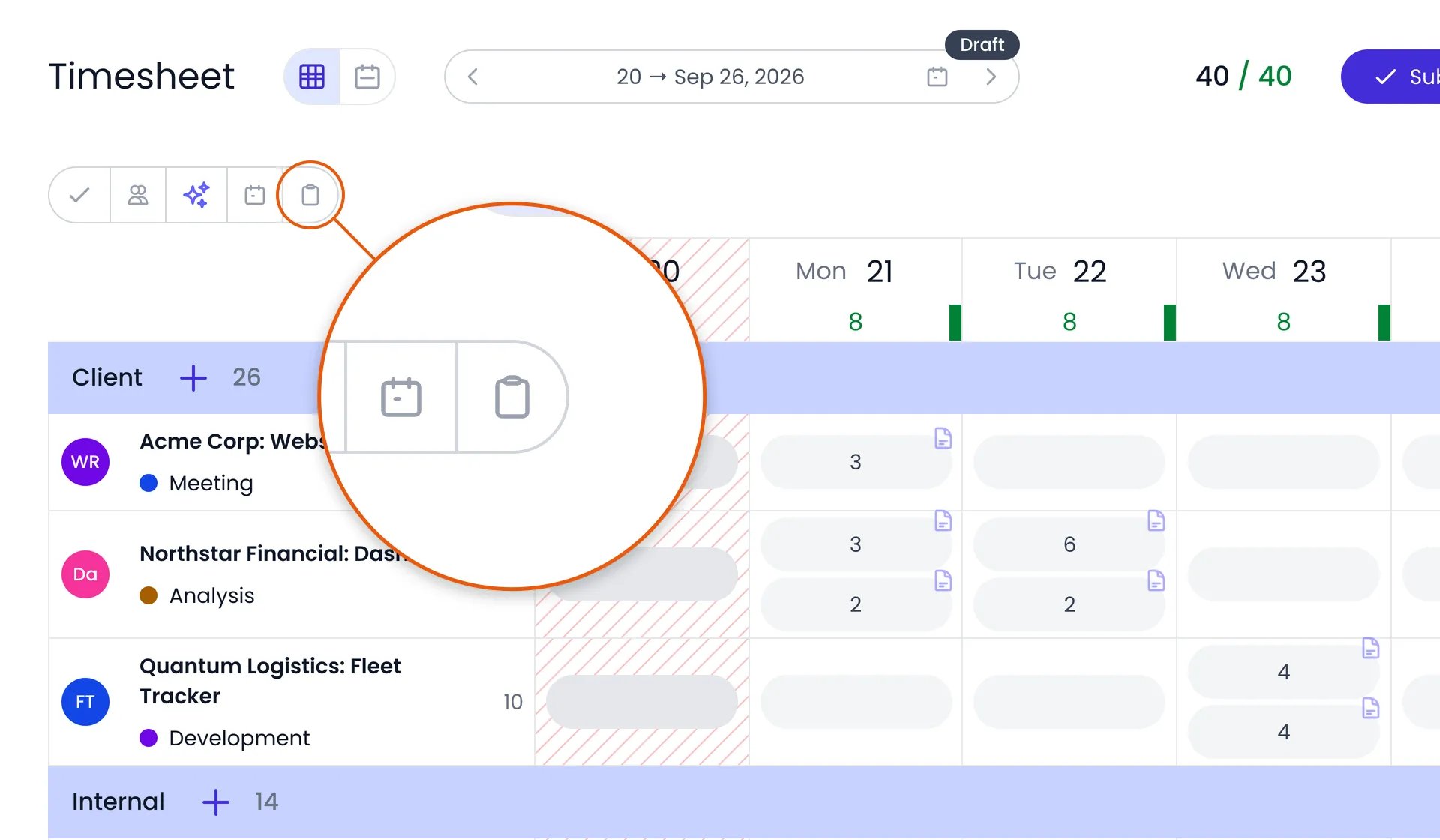
The copy button in the button cluster at the top left of the timesheet
Copy the current period
Go to another period
Paste

Pasting on a period that already has time entries
Undoing and redoing changes
Beebole tracks your recent changes across the app, in both views: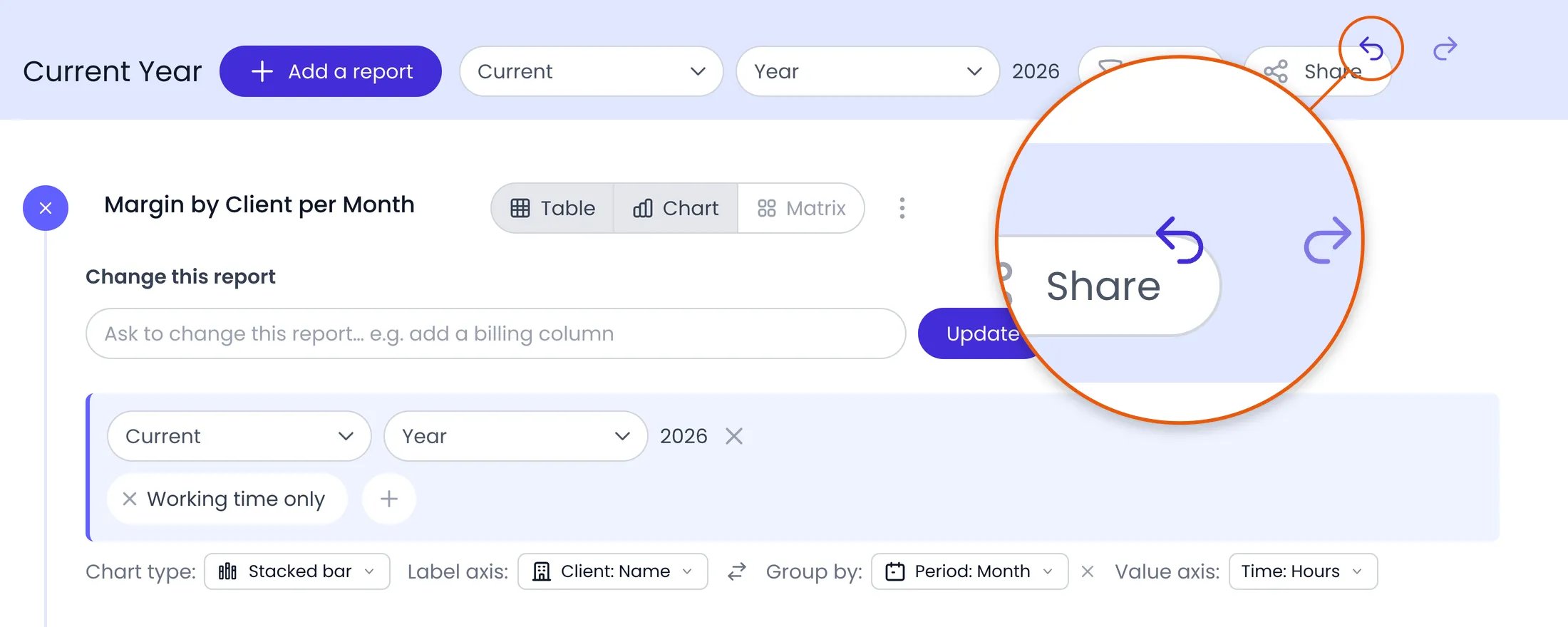
The undo and redo buttons at the top right, after a change
Recording time off
When your administrator allows recording time off, you can record it in either view. In the calendar view, create an entry and pick an absence type in the activity picker. In the grid view, click the + button (Add a row) of the Time Off section, pick an absence type, and enter the time. Absence types tracked in days are entered as full or partial days. See Time off for absence types, allowances, and approval.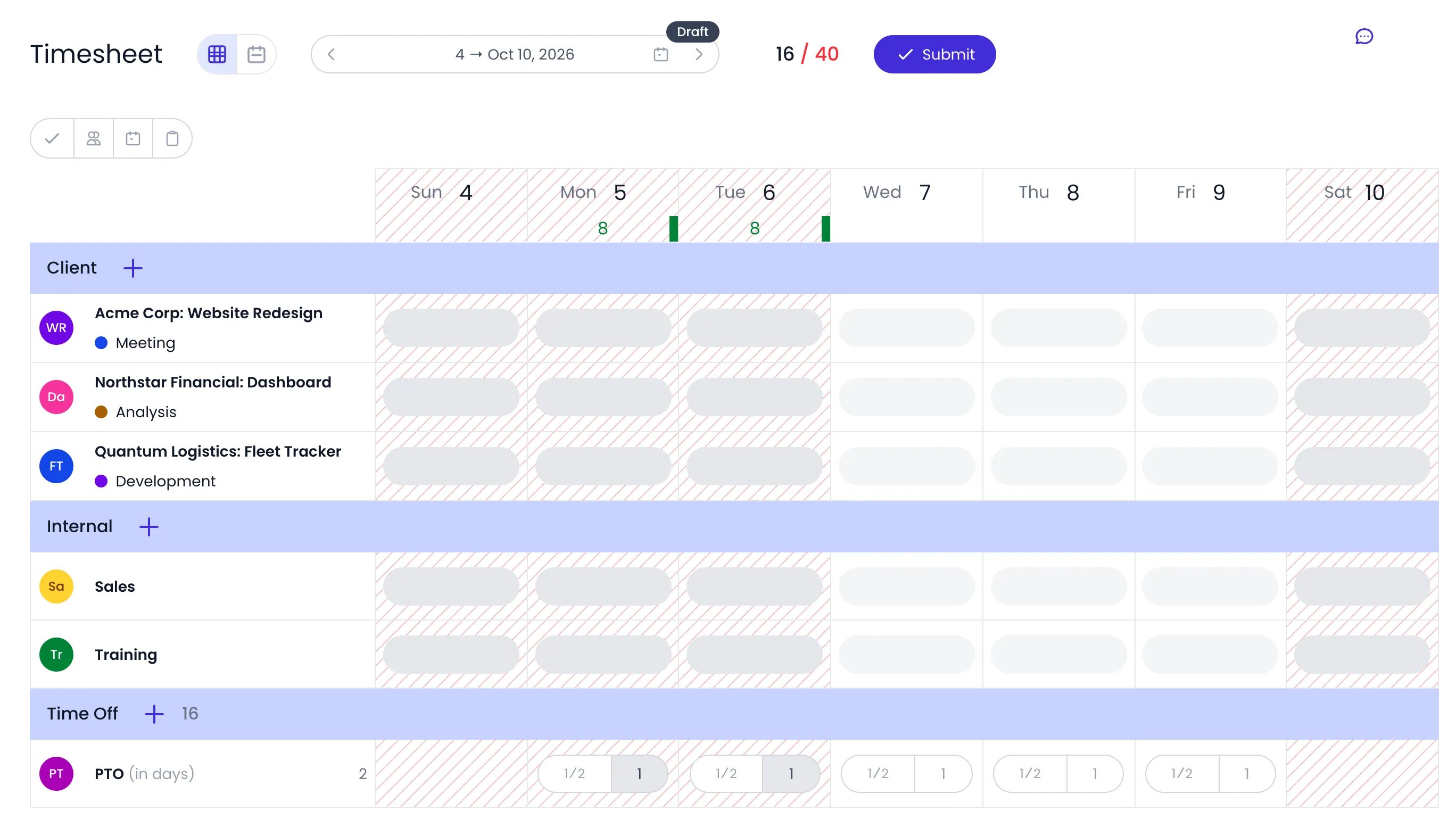
Two days of PTO booked ahead in the Time Off section of the grid view
When only planned tasks are allowed
Your administrator can tie your timesheet to your plan with the Allow only planned tasks in the timesheet restriction in Timesheet and Planning Settings. You then record time only on the tasks you own (the tasks where you are the Owner), and only on their planned dates.- In the grid view, each task you own appears on its own as a row, in a section for its planning, in every period its planned dates reach. Its cells take time only on its planned dates; the other days are locked, and a task without planned dates takes no time. Project sections no longer appear, except one that already holds your entries.
- No row can be added. The + button (Add a row) is gone from the project and task sections, and hovering a section name explains why. A row’s ⋯ action menu has no Edit either, since each row is its planned task.
- In the calendar view, the activity picker offers only your own tasks planned for that day, and the favorites bar keeps only your own tasks. The suggested entries stay on show: the suggestions button doesn’t hide them.
- The copy and Paste period buttons disappear, so periods can’t be copied.
- Time off works as usual, in both views.
Importing calendar events
You can bring your Google or Microsoft calendar events into the timesheet instead of re-typing meetings. Events are assigned to a row, so this is done in the grid view.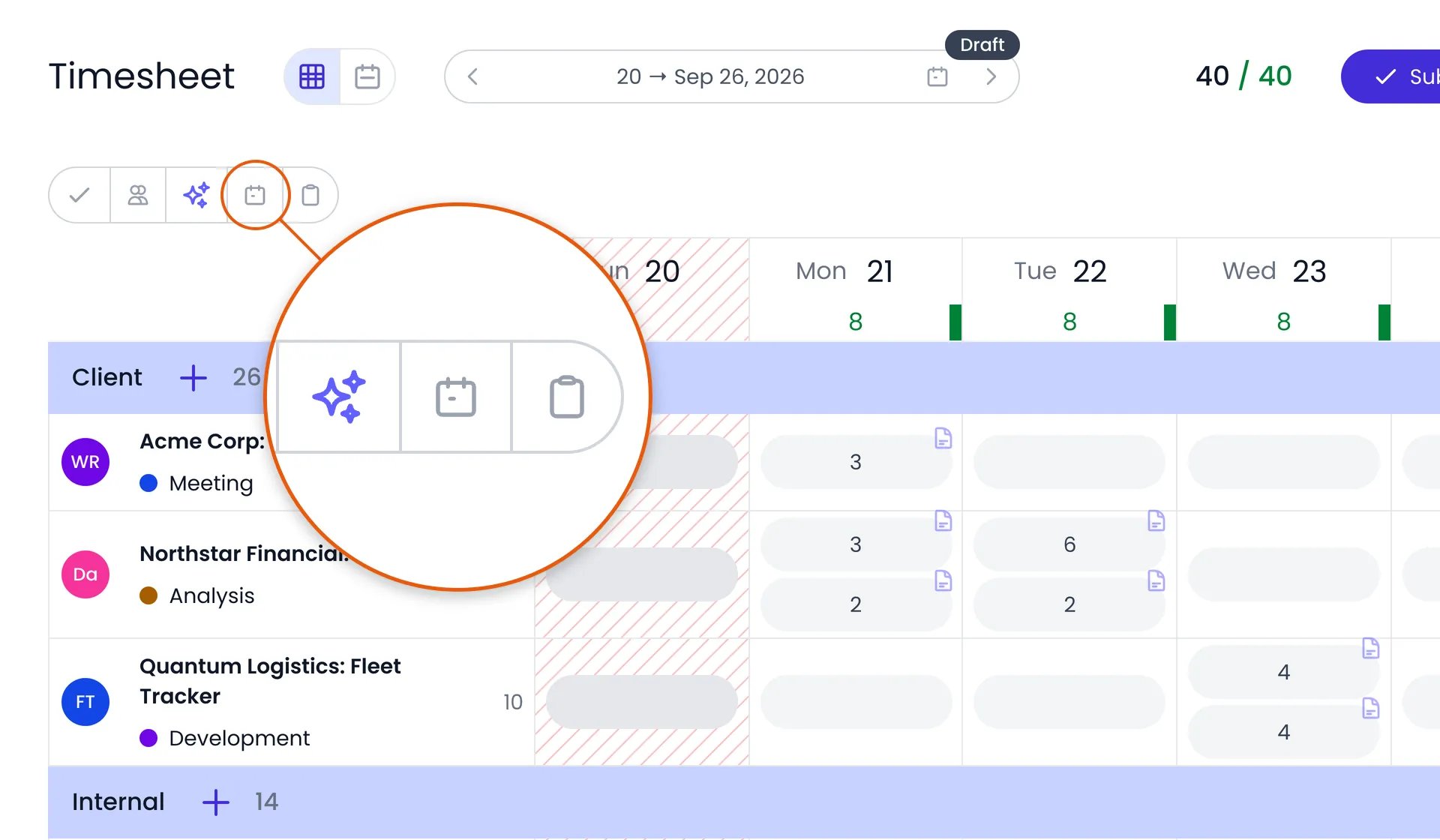
The calendar button that opens the calendar pane
Open the calendar pane
Connect your calendar
Assign events to a row
Importing time entries in bulk
The timesheet itself has no import button for a CSV file or a spreadsheet. Pasting rows from a spreadsheet exists for adding people, projects, tags, and tasks in bulk, not for hours. Bulk import of time entries is done outside the timesheet, through Beebole’s API or its MCP server, or by one of the in-app shortcuts:- The MCP server: connect Claude, ChatGPT, or another AI assistant to Beebole and hand it the spreadsheet. Its
record_timetool creates one entry or many at once, for you or for other people. See MCP server. - The API: create entries for any number of people with
addTimeRecord, from a script that reads your file. See Mutations and the worked example. - Copy a period: reuse a person’s own rows and entries from another period. See Copying a period.
- Import calendar events: turn Google or Microsoft calendar events into entries. See Importing calendar events.
- A legacy migration: historical time from a legacy Beebole account is imported by Beebole’s support team. See Legacy migration.
Submitting your timesheet
When your period is complete, click Submit at the top of the timesheet, in either view, next to the period’s total. For 3 seconds the button reads Submitting… and a notice at the bottom of the screen offers Undo: click it, or press ⌘+Z (Ctrl+Z on Windows/Linux), to cancel before anything is sent. The timesheet then enters the approval workflow and is locked while it waits for review. From then on, only a rejection by an approver or an administrator reopens it. Once it is rejected, fix your entries and click Resubmit.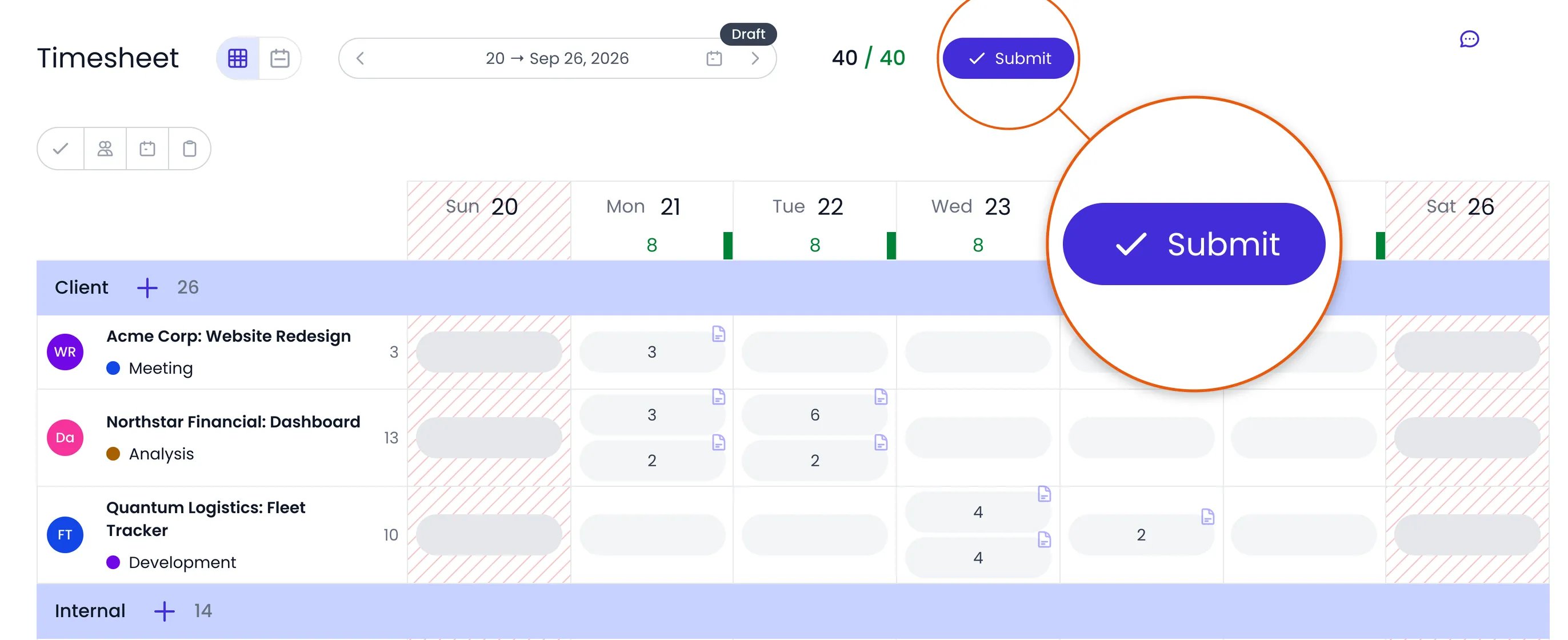
The Submit button, next to the hours logged against the hours scheduled
Reviewing your team
Managers and administrators see two extra buttons in the button cluster at the top left of the timesheet:- The approval button (Approval) opens the Pending pane with timesheets waiting for review. A red badge shows how many are pending. From here you can open a person’s timesheet and Approve or Reject submissions. A rejection needs a comment, so the person knows what to fix.
- The team button (Team) opens the Team pane listing your team members with their reported time for the period. For someone who has an approval workflow and whose timesheet is still a draft or was rejected, the bell button (Send reminder) reminds them to submit. Select several people to Remind them all at once.
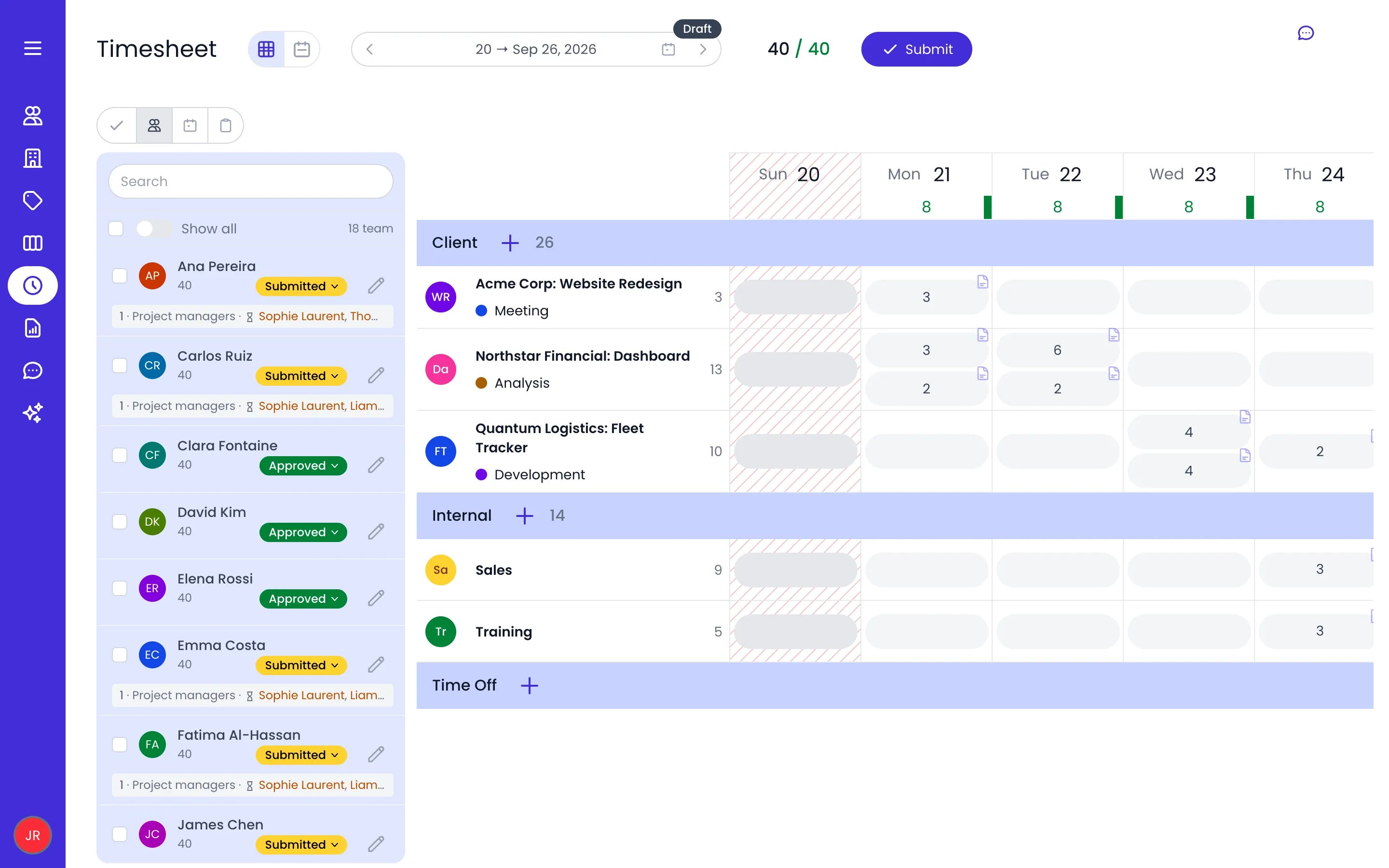
The Team pane next to the timesheet
Timesheet score
The timesheet score is a 0 to 100 measure of how reliably a person submits their timesheet. Each period scores 100 when submitted on time and loses 10 points per day late, down to 30. A period never submitted scores 0, and each rejection takes off 15 points. The score is the average over the periods. The team panes of the timesheet no longer show it around people’s pictures. Open the Compliance entry in the Reports menu instead, where the Score column gives each person’s score as a colored badge: green from 95, yellow from 80 to 94, and red below 80. The report leaves out people without an approval workflow, since they can’t submit. Next to the score, each of the person’s periods is marked On time, Late, or Not submitted, and hovering a period shows its Deadline, when it was Submitted, the Days late, and any Rejections. Click the Score column header to switch between worst first and best first. See Timesheet Compliance for the report’s filters, period, and access. Developers can also read a person’s score through the API’sgetTimesheetScore query, see Queries.
Related content
Timesheet and Planning Settings
Approvals
Time off
Mobile and tablet
Frequently asked questions
Can I recall or cancel a timesheet I already submitted?
Can I recall or cancel a timesheet I already submitted?
Can I track time on my phone?
Can I track time on my phone?
Can I import hours from Excel, a CSV file, or a spreadsheet?
Can I import hours from Excel, a CSV file, or a spreadsheet?
addTimeRecord mutation from a script. Inside the app, only people, projects, tags, and tasks can be pasted in bulk; for time, copy a period or import calendar events. See Importing time entries in bulk.What are the ways to record time in Beebole?
What are the ways to record time in Beebole?
Why can't I switch my timesheet between day, week, and month?
Why can't I switch my timesheet between day, week, and month?
How do I move time logged on the wrong project?
How do I move time logged on the wrong project?
update_time_record tool changes an entry’s project, task, or absence type, or use the API’s editTimeRecordProjects mutation, see Mutations. Once nothing is logged on the wrong project, archive it or delete it: Beebole refuses to delete a project that still holds time entries.