

How approval works
- A person completes their timesheet and clicks Submit at the top of the page. The button appears only when an approval workflow applies to them. The timesheet locks and enters the first approval stage.
- The stage’s approvers are notified. Depending on the stage’s quorum, either any one of them or all of them must approve.
- Once the stage is complete, the timesheet advances to the next stage, whose approvers are notified right away. When the last stage approves, the timesheet is Approved and its owner is notified.
- If any approver rejects — a comment is always required — the timesheet becomes Rejected and returns to its owner, who is notified with the reason and can correct it, then click Resubmit.

The stage breakdown of a submitted timesheet, opened from its badge in the Team pane
Configuring the approval workflow
The workflow is a list of sequential stages. It lives in the Approval workflow panel, which exists at three levels: your organization’s Account Settings, every tag, and every person’s profile. Like other cascading settings, the most specific level wins — a workflow set on a person overrides one set on their tags, which overrides the account default. An icon next to the panel shows where the current workflow is inherited from. A workflow set on a tag applies to everyone under that tag, so each team can follow its own sign-off process.Open the Settings menu
Go to Account Settings
Open the Approval workflow panel
Add a stage
Choose the stage's type and quorum
Add and order more stages (optional)
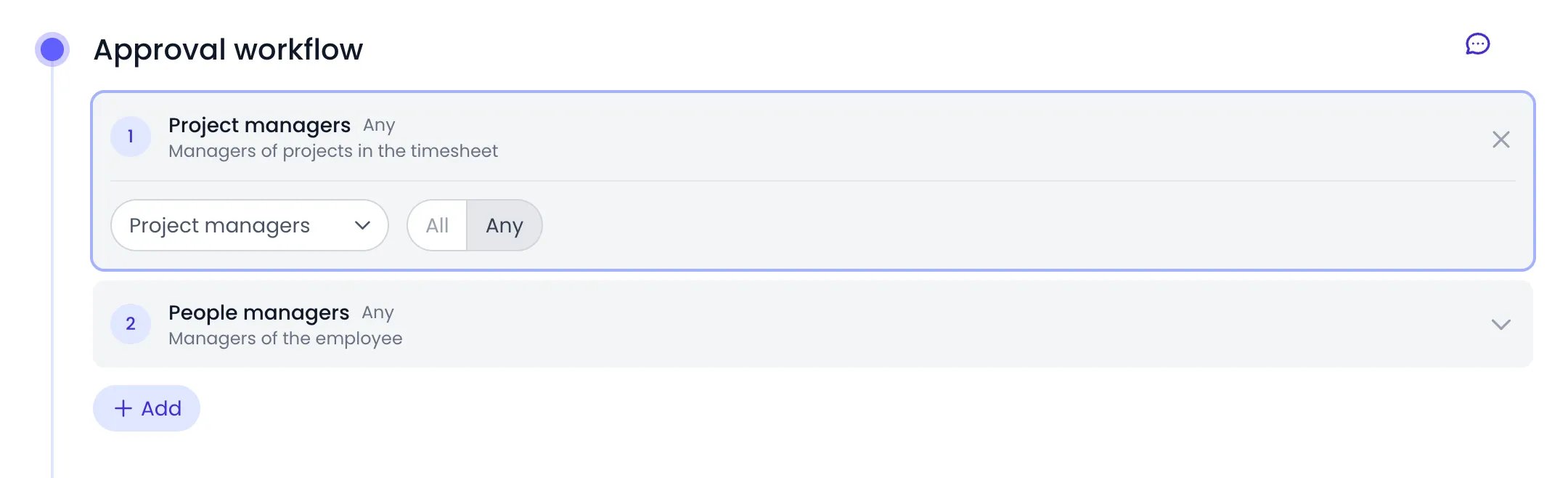
A two-stage workflow: the project managers, then the person's managers
Approver types
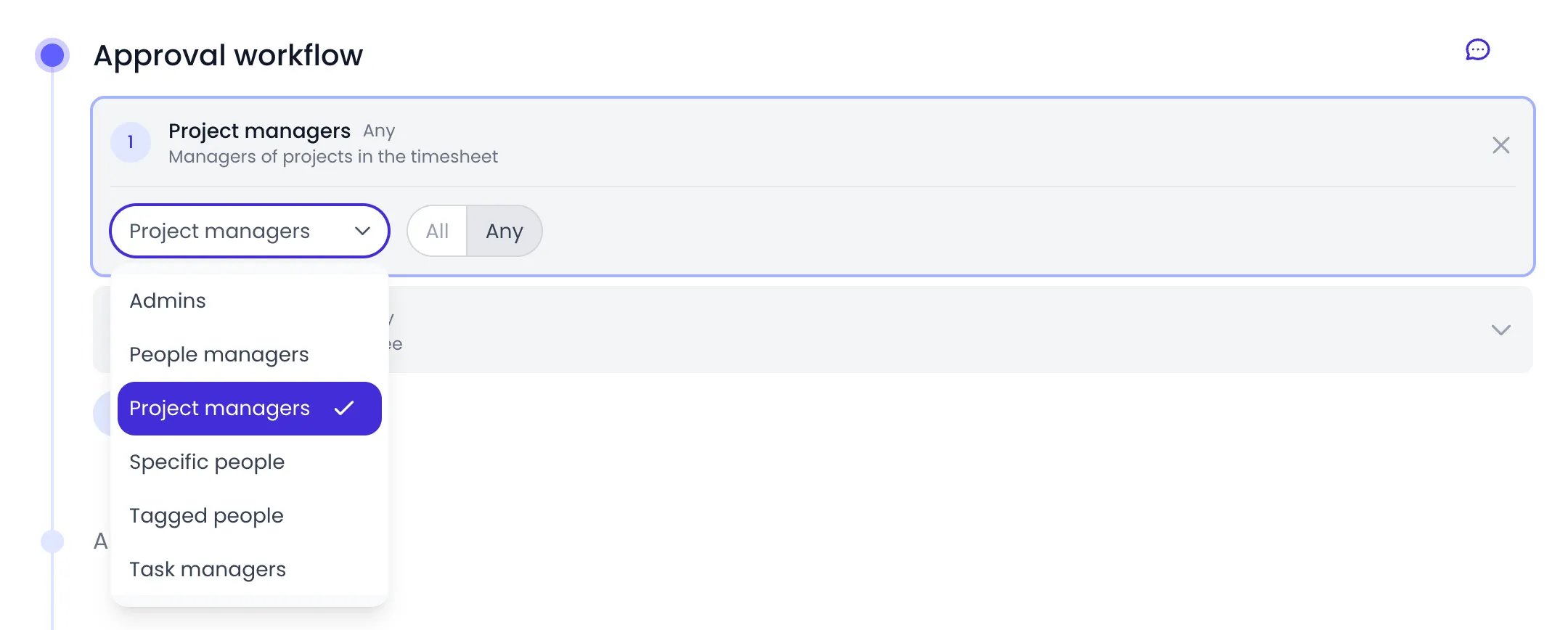
A stage's approver type, picked from the six types
Reviewing and approving your team’s timesheets
Approvers can act from four places: the Timesheet page, the Journal, directly from email, or from a phone.From the Timesheet page
Managers and administrators see an approval button (Approval) in the button cluster at the top-left corner of the timesheet, in either view, with a red badge counting submissions waiting for them. It opens the Pending pane:- The pane lists each timesheet waiting for your approval, with Late submissions grouped at the top. It also lists timesheets waiting at a People managers stage on a manager who reports to you, because you can approve or reject them in that manager’s place. Turn on Show all to include every pending submission you are allowed to see, not just those waiting for you.
- Click a person to open their timesheet for the submitted period. Approve and Reject buttons appear at the top of the timesheet whenever you are a pending approver, an administrator, or, on a People managers stage, a manager one level above the person’s managers.
- Select several submissions with the checkboxes to act in bulk with Approve and Reject.
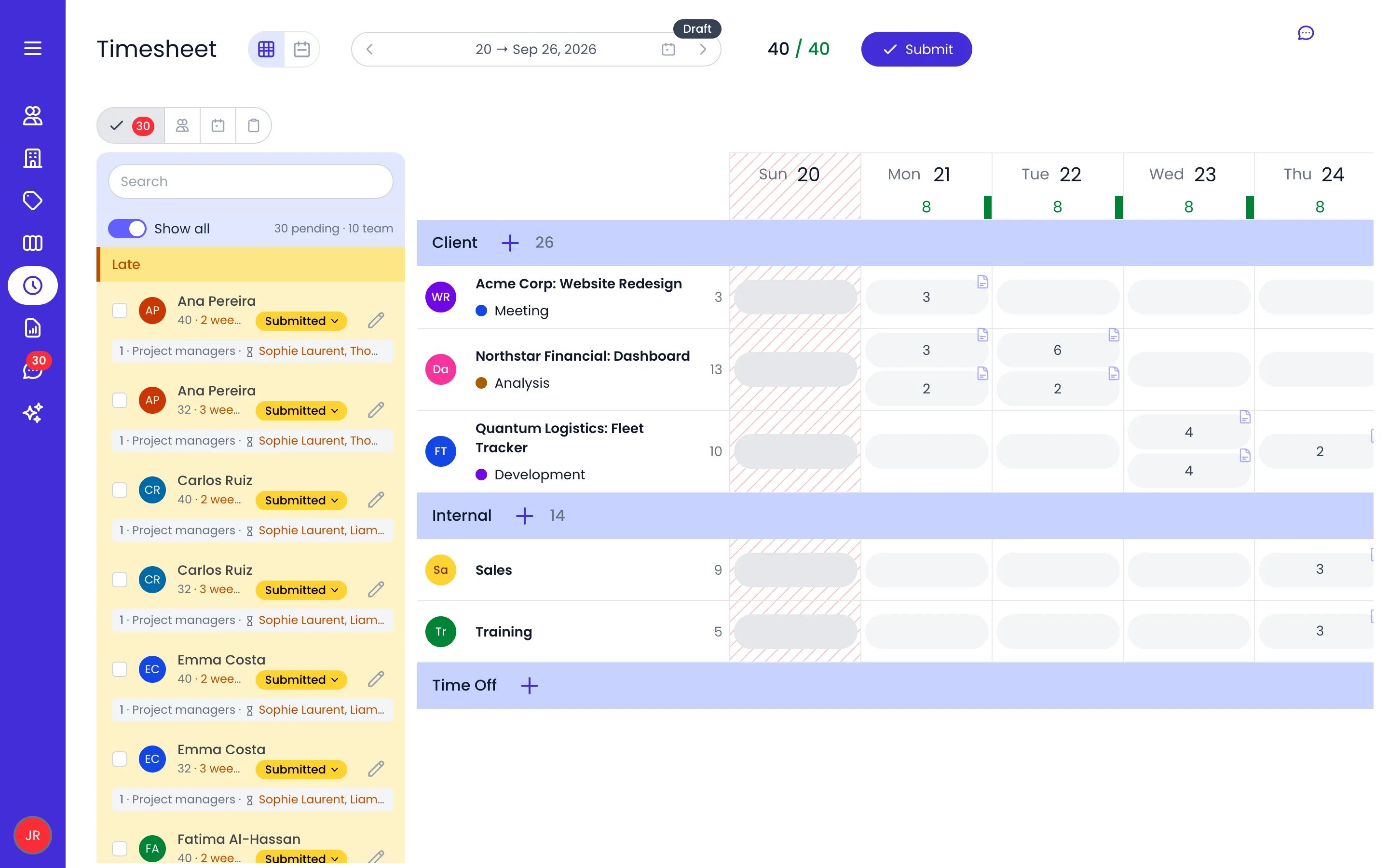
The Pending pane with Show all on, late submissions first
- Approve and Reject act on the selected timesheets submitted for the period on screen and waiting for you — as an administrator, on any submitted one.
- Remind goes to the selected people who have an approval workflow and whose period is a draft (empty or not) or rejected. People without a workflow have nothing to submit, so they are skipped, and people whose timesheet is approved, or submitted and waiting for someone else, are never reminded. Once the reminders are sent, those people are deselected and the submitted ones stay selected for approval.
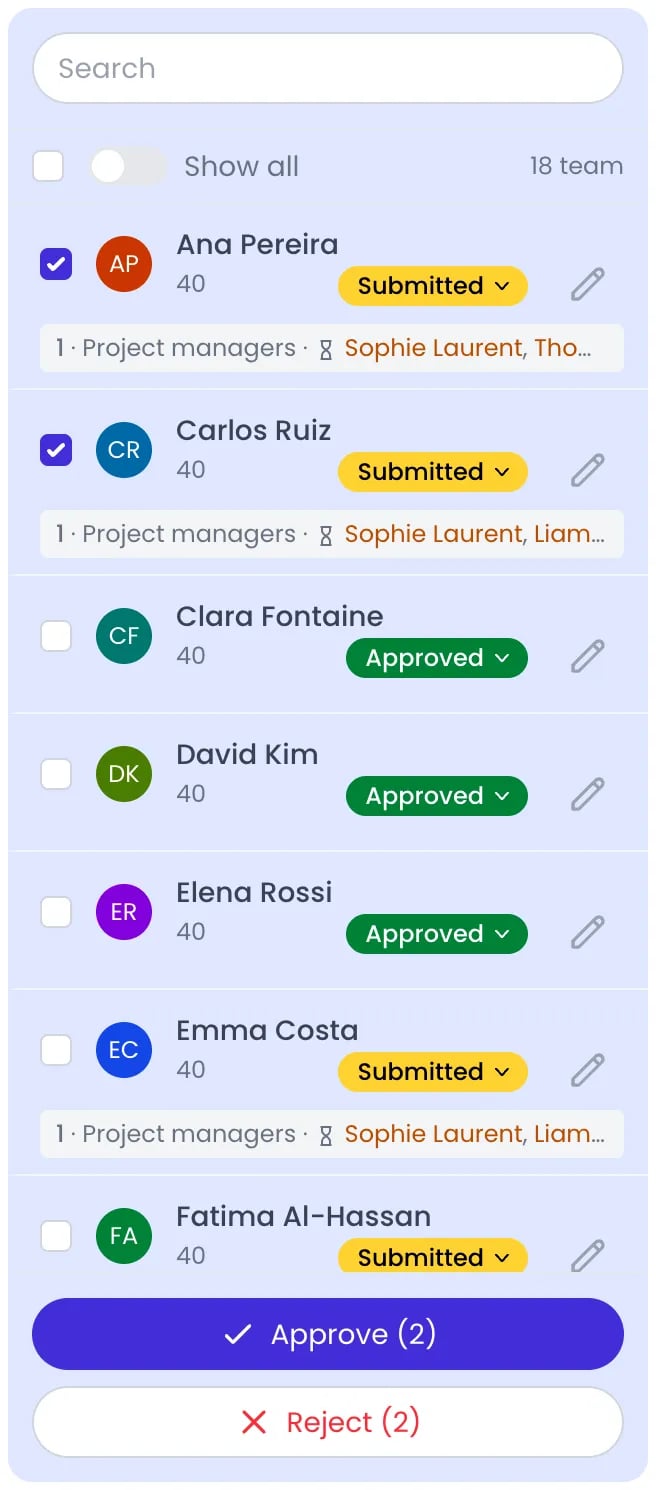
Two submitted timesheets selected in the Team pane
From the Journal
Click Journal in the left sidebar. Approvers see a banner at the top of the feed — 1 timesheet to approve, or the total count — or All caught up when nothing is waiting. Expand the banner to review without leaving the page:- Each pending submission shows its total Hours and Billing amount — plus Cost, if your role can see costs.
- Click a person’s name to split their total by project, task, and absence type, or click View records for the day-by-day entries with their comments.
- Approve or reject one row, or select several and act in bulk.
From your email
Approval notification emails include a summary of the submitted timesheet and Approve and Reject links that work straight from your inbox, without signing in. Approve applies the approval and opens the timesheet it acted on; Reject opens the same timesheet with the rejection dialog ready, since a reason is always required. Timesheet reminder emails likewise include a Submit now link when the period already holds entries, so your team can submit a completed period directly from the reminder. You can also decide by replying to the email — the approval email and the approval reminder both end with a note about it:- Reply with approve alone on the first line to approve.
- Reply with reject followed by your reason — on the same line or the lines below — to reject. A reject with no reason changes nothing.
From a phone
On a phone, the approval panes become a bottom sheet. Managers and administrators see a team icon in the header with a badge counting pending approvals; tapping it opens the same Pending and Team tabs, and Approve and Reject sit in the header of the timesheet you open, with bulk actions for several at once. The team icon only appears for people who can approve or review timesheets — if all you see are your own tracking controls, your role has no one to review. See Approving team timesheets on mobile.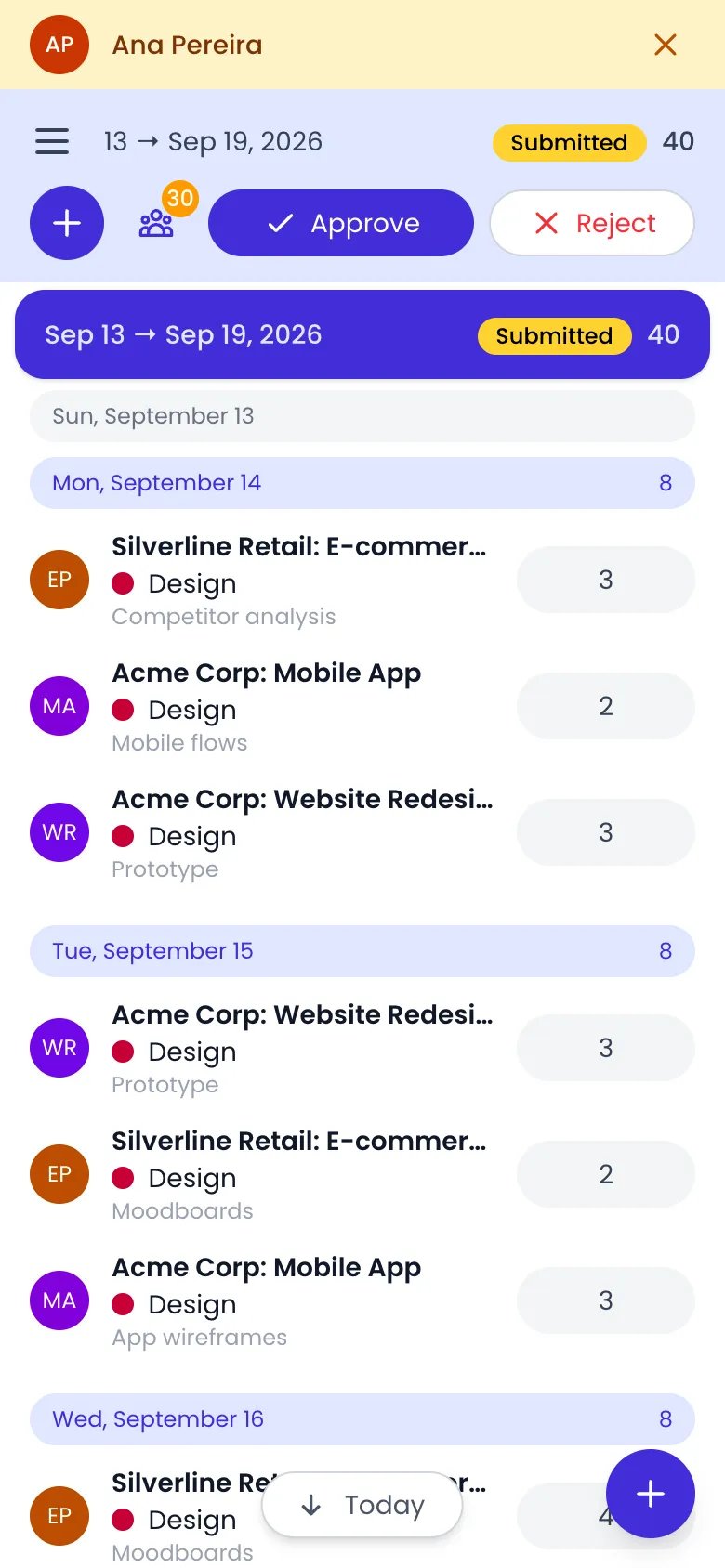
A submitted week opened on a phone, with Approve and Reject in the header
Rejecting a timesheet
Rejecting always requires an explanation. When you click Reject, a dialog opens with a comment box (Enter a reason for rejection…) — the Reject button stays disabled until you write one. The reason is delivered to the person, by email or push notification following their Approval updates setting, and recorded in their Journal.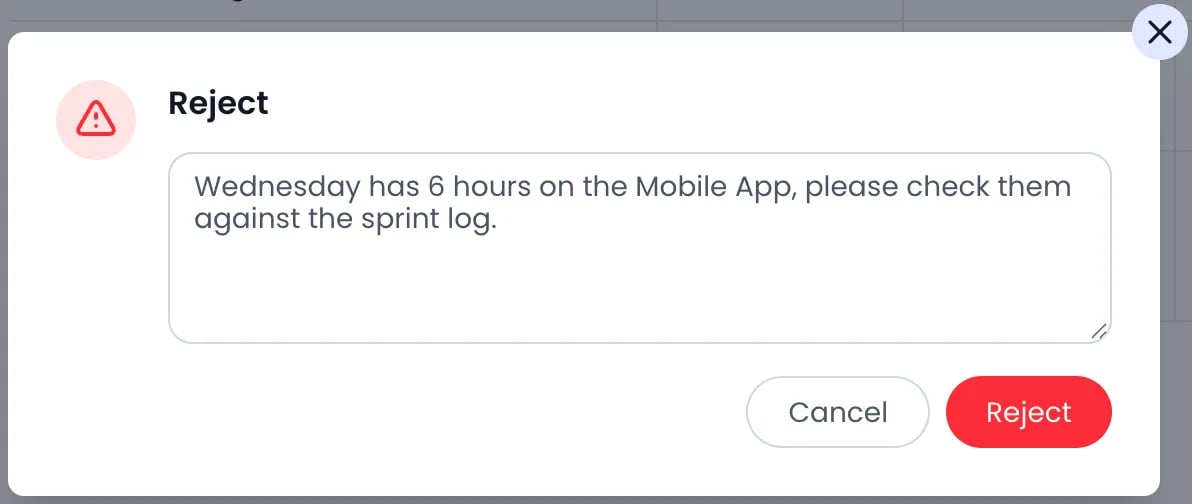
The Reject dialog, with the reason the person receives
Time off approval
Time off goes through the same workflow as work time. When someone records an absence on their timesheet and submits the period, the configured approval stages review it along with the rest of the timesheet. The absence counts against the person’s allowance as soon as it is recorded — approval reviews and locks the entry but does not gate the balance. See Time off for absence types and allowances.Editing a submitted or approved timesheet
Submitting locks a timesheet for its owner, but it doesn’t have to be rejected to be corrected: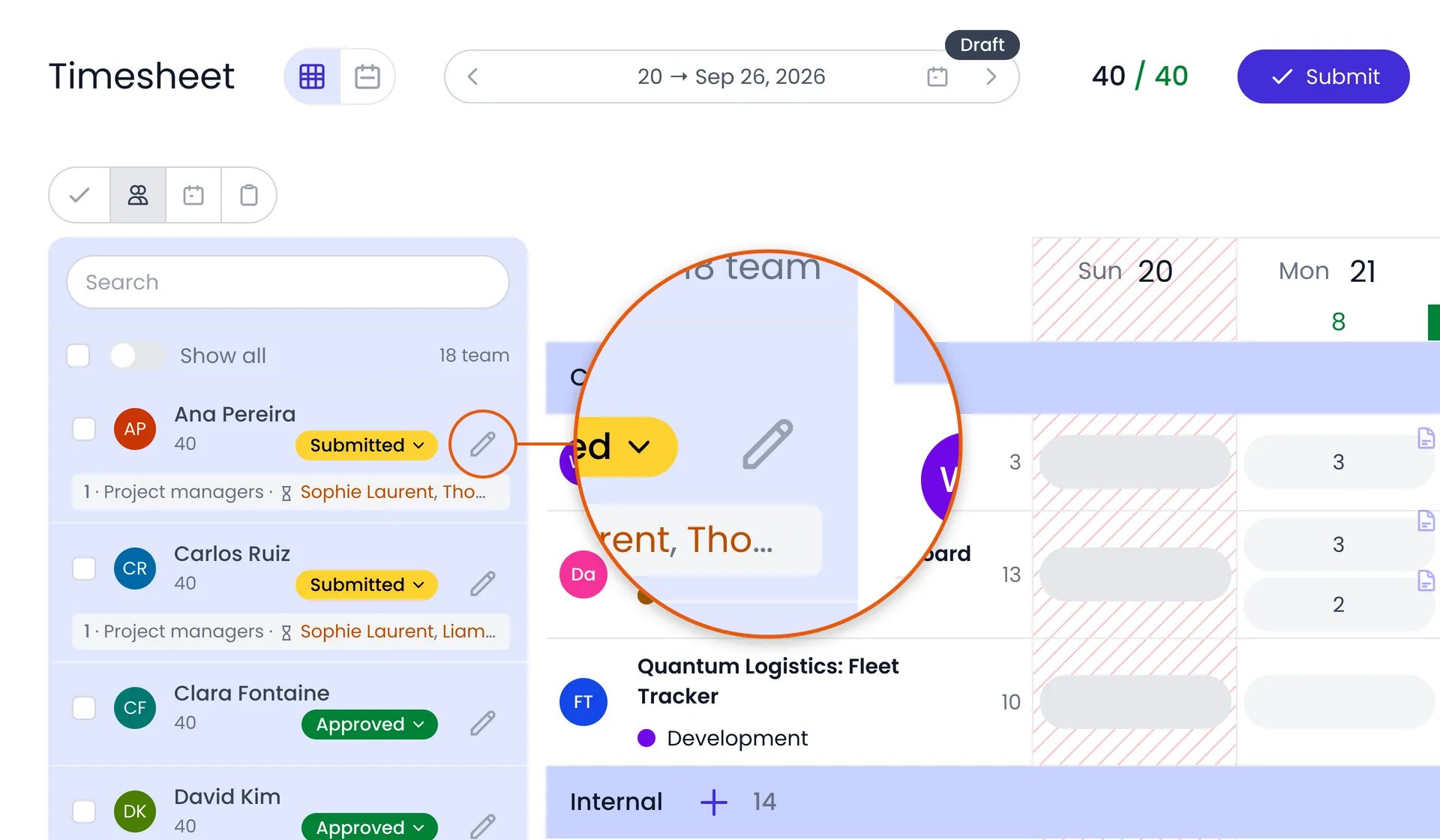
The edit button (Edit timesheet) on a person's row in the Team pane
Force approve and reject Admin only
Administrators can unblock the pipeline without reconfiguring it: they can Approve or Reject any submitted timesheet, even when they are not approvers for the current stage. When an administrator approves a stage they are not an approver of, their approval completes that stage whatever its quorum, but it doesn’t skip the stages after it: each later stage still needs its own approvers (or another administrator approval). An already-approved timesheet can also be rejected — by an administrator, or by someone who was an approver on its last stage — which sends it back to its owner. To reach an approved timesheet, open it from the Team pane, not the Pending pane: Pending only lists submissions still waiting for a decision, so an approved period is never there. Pick the person in Team, navigate to the approved period, and Reject appears at the top of their timesheet. Rejecting unlocks the period for its owner, who corrects the entries and clicks Resubmit. To fix an entry without sending the whole period back, use the edit button (Edit timesheet) described above instead.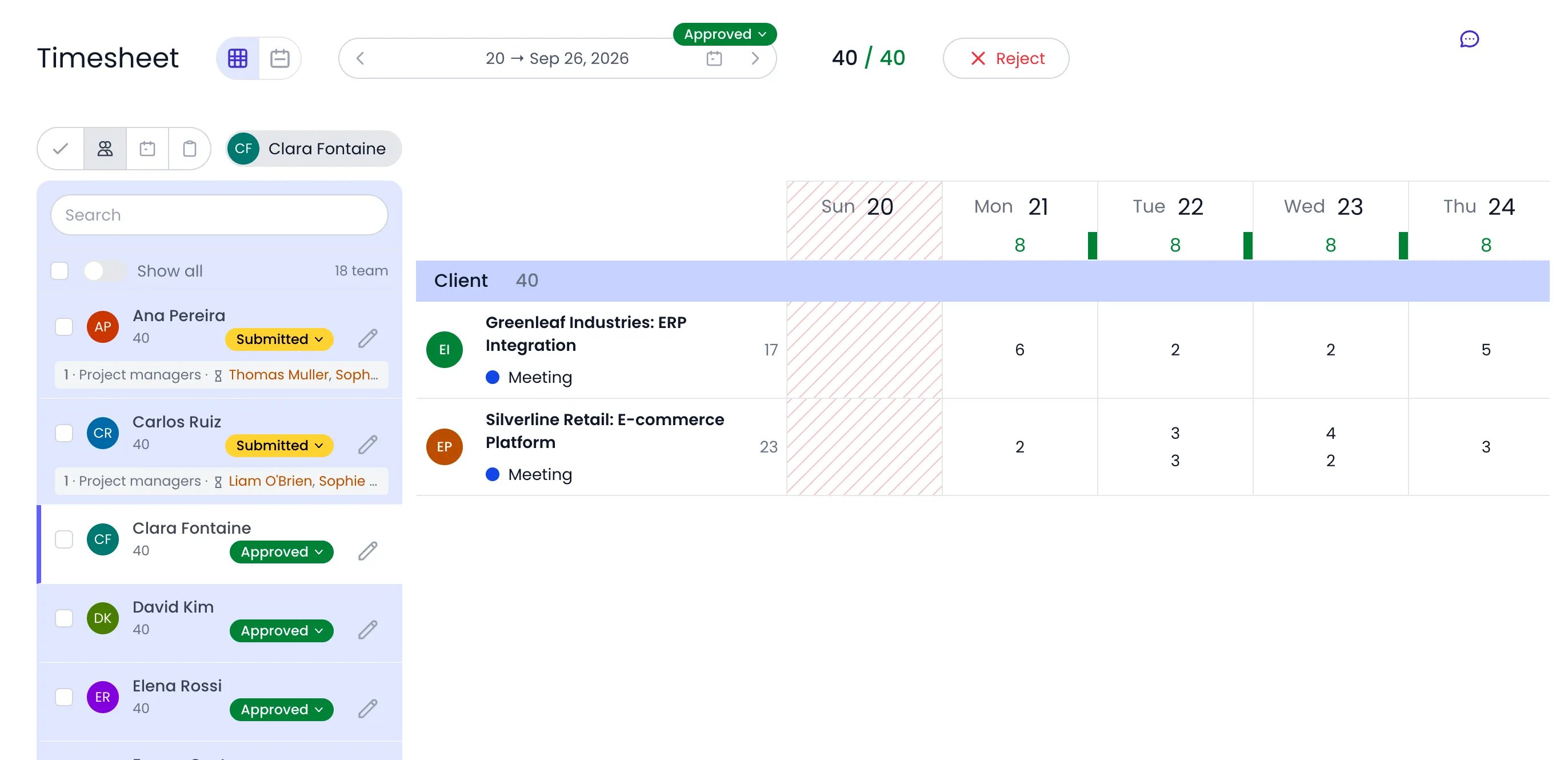
An approved week opened from the Team pane, with Reject at the top
Reminders and notifications
- Remind approvers after a number of days if not yet approved, in the Reminders tab of the Timesheet and Planning Settings panel, automatically follows up on submissions still waiting for review. While a timesheet stays pending, Beebole sends each pending approver up to four reminders, at growing intervals, then alerts the administrators five days after the last one. Set it account-wide in Account Settings, or override it on a tag or a person, just like the approval workflow itself.
- The Remind button in the Team pane sends a one-off reminder to people who have an approval workflow and haven’t submitted.
- Each person controls how they receive Approval updates in their notification settings: by email, as push notifications, or both, and instantly or as a digest. Approval updates cover both the timesheets submitted for their approval and the decisions on their own timesheets. See Notifications.
Approval history
Every approval action is logged in the person’s Journal feed: Submitted for approval, Approved by and Rejected by entries with the approver’s name and the rejection reason, plus Auto-submitted and Auto-approved events, each tagged with its stage. For who approved what on the current submission, click the timesheet’s status badge to open the stage breakdown.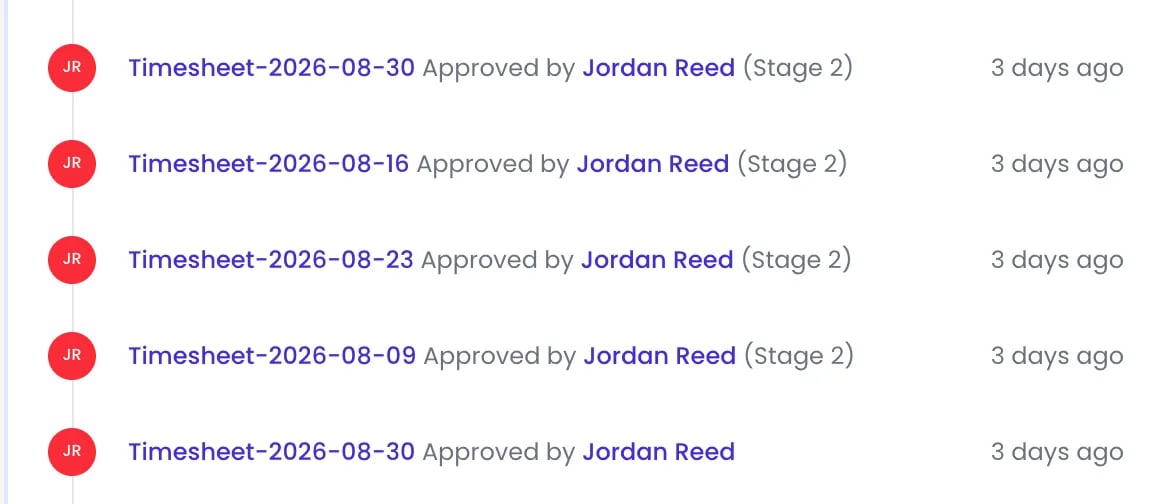
Approval events in a person's Journal
Related content
Timesheets
Timesheet and Planning Settings
Time off
Journal
Frequently asked questions
Can someone else approve while a manager is away?
Can someone else approve while a manager is away?
How do I require only one approval, from the manager or an administrator?
How do I require only one approval, from the manager or an administrator?
What happens if no approval workflow is configured?
What happens if no approval workflow is configured?
How do I reopen an approved timesheet so its owner can edit it?
How do I reopen an approved timesheet so its owner can edit it?
Can I approve timesheets from my phone?
Can I approve timesheets from my phone?
Can I reject a single time entry instead of the whole timesheet?
Can I reject a single time entry instead of the whole timesheet?