

Adding time off types in Beebole
Understanding absence types
An absence type represents a category of leave your organization recognizes. Common examples include vacation, sick leave, parental leave, and personal days — but you can create as many types as you need. Each absence type has:- A name, the label your team sees when logging time off (for example “Vacation” or “Sick Leave”).
- A unit: absences of the type are tracked in Hour or Day units.
- A paid setting that decides whether absences of this type count toward people costs. See Time off and people costs.
Creating absence types
Open the Time Off settings
Add a new absence type
Choose the unit
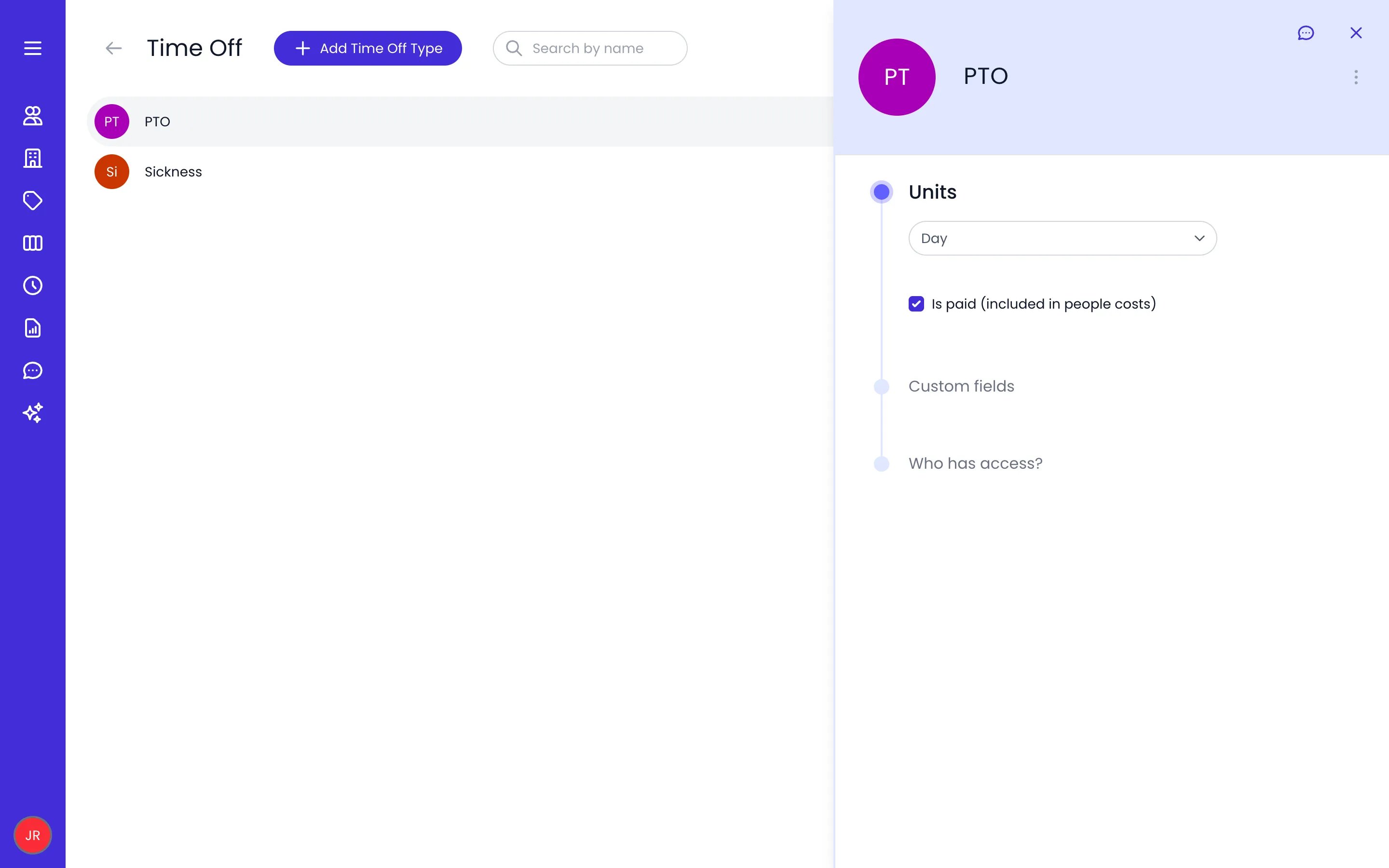
The Time Off list with the PTO absence type open on its Units panel
Archiving absence types
When a leave category is no longer offered, archive its absence type instead of deleting it — past time-off records stay intact while the type disappears from day-to-day use.- Go to Settings > Time Off and open the absence type.
- Click the ⋯ action menu next to its name, then Archive.
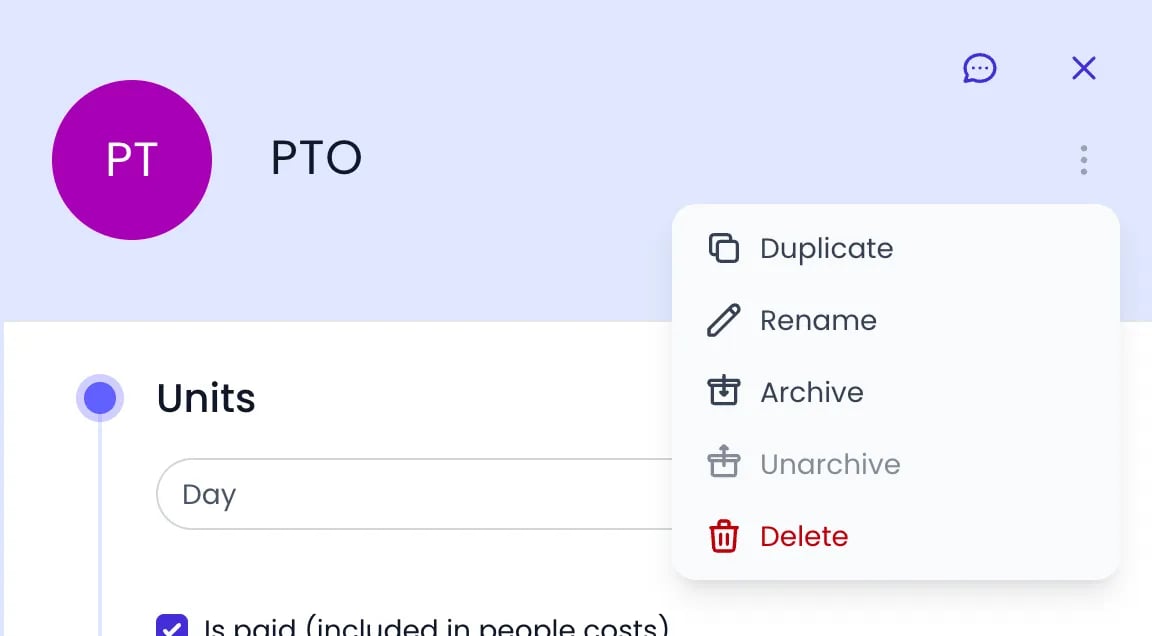
The action menu next to an absence type's name
Setting up allowances
An allowance — Beebole’s term for a time-off quota or entitlement — defines how much time off a person receives for a given absence type within a specific period. You can set allowances on the organization for everyone, on a tag for a group, or on an individual person.Open the Absence allowances panel
Add the allowance
Define the period
Set the amount
Carrying unused time off forward
Unused allowance carries into the next period only when the allowance has a Valid until date after the end of its period. Without one, nothing carries over, and whatever is left expires when the period ends. Two fields on the allowance control carry-forward:- Valid until: the last day the carried balance can be used. Carried time still unused after that date expires.
- Carry forward limit: the maximum amount that carries over. Anything above the limit expires at the end of the period. Leave it at 0 for no cap, so the whole remaining balance carries.
Tracking balances
Beebole tracks time-off balances from the allowances, their manual Accrued amounts, and the absences recorded on timesheets. Allowance, Consumed, and Accrued sit at the top of each card in the Absence allowances panel, right after the absence type, and every figure carries its unit (days or hours) in the input and in the card’s summary line: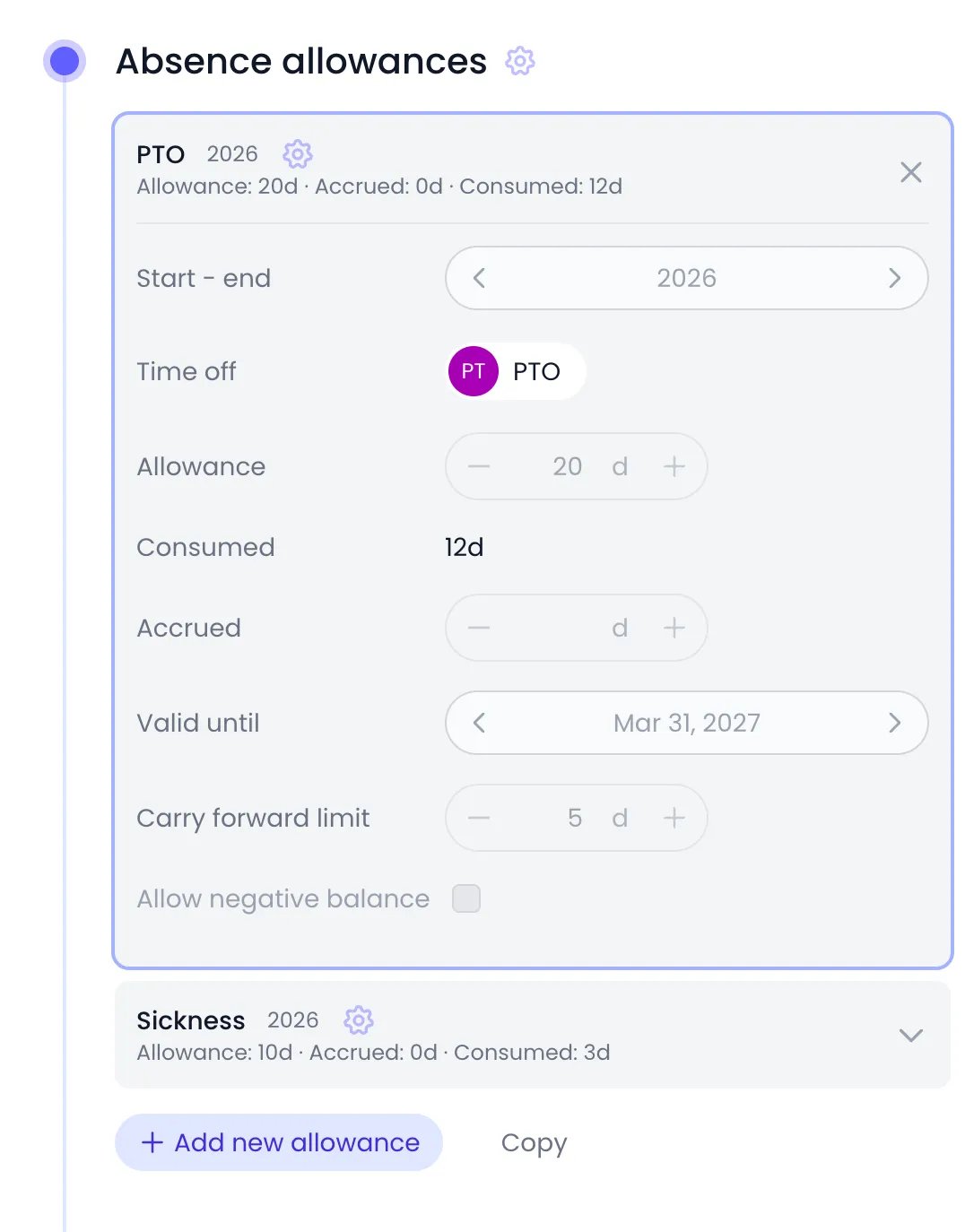
A person's PTO allowance, inherited from the organization, opened to show the days consumed
Negative balance controls
By default, Beebole prevents people from booking more time off than their available balance. You can change this behavior per allowance. To let a balance go below zero — useful for organizations that handle overdrawn leave manually or at year-end — open the allowance in the Absence allowances panel and check Allow negative balance. The change is saved automatically. When the box is unchecked, Beebole blocks time-off entries that would push the balance below zero.Time off and people costs
Each absence type decides whether its time off counts as a people cost, through the Is paid (included in people costs) checkbox. It sits in the type’s Units panel, right below the unit, and it is checked on every new absence type. To change it, go to Settings > Time Off, open the absence type, and check or uncheck the box. The change is saved automatically.Absence approval
Time-off entries follow the same approval workflow as regular time entries. When a person records an absence on their timesheet and submits it, the assigned manager reviews and approves or rejects it. Approval does not gate the balance: every recorded time-off entry counts against the allowance immediately, even before it is reviewed. Approving locks the timesheet; if an absence is rejected, the person can edit or remove the entry, which restores the balance.Recording time off on the timesheet
Team members record absences directly on their timesheets, just like regular time entries, in either the calendar view or the grid view.Open the timesheet
Add the absence
Enter the time off
Submit the timesheet
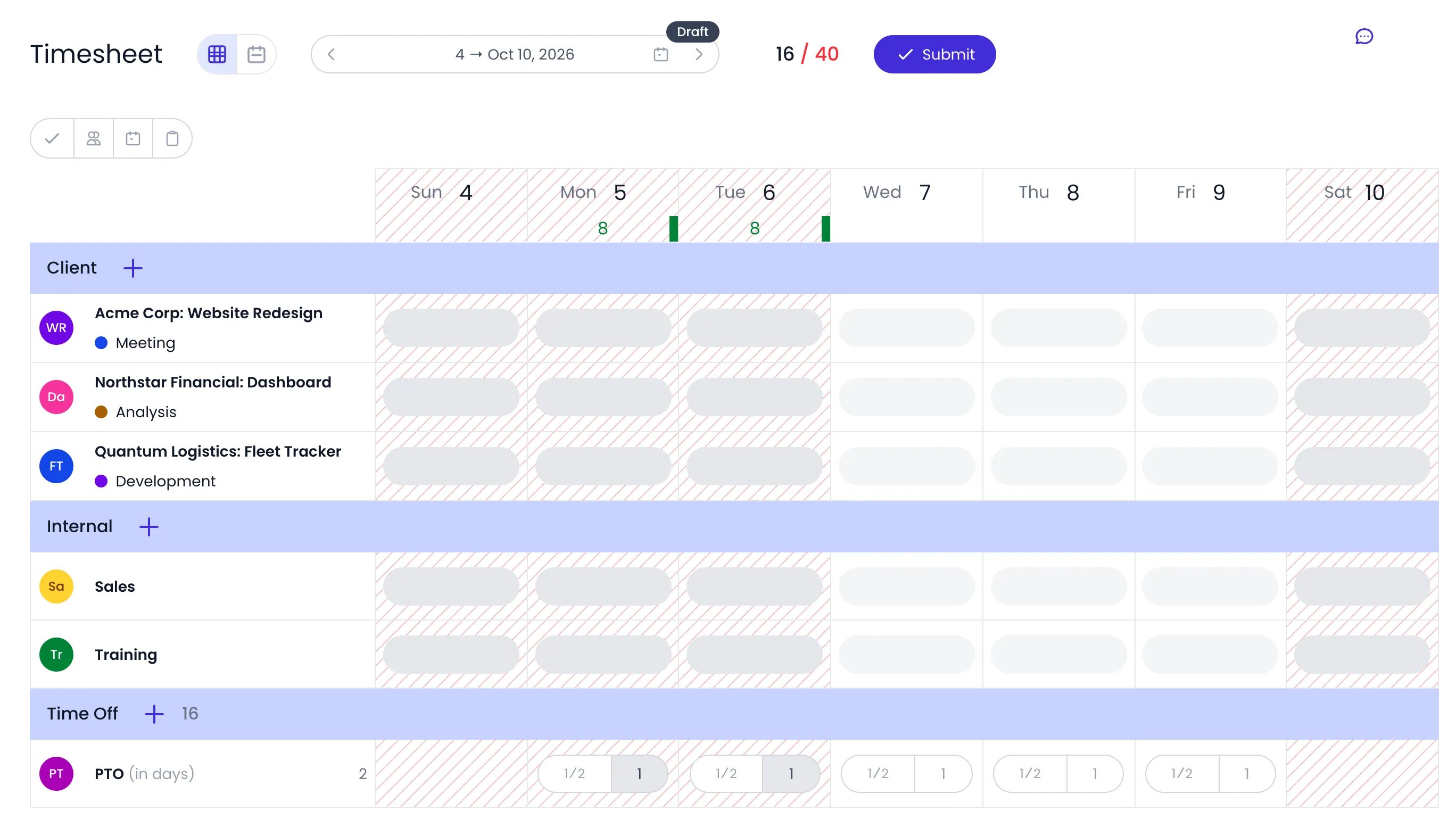
Two days of PTO on a PTO row, under the Time Off section of the grid
Related content
Accruals
Public Holidays
Work Schedule
Approvals
Frequently asked questions
Can I set different time-off allowances for different people?
Can I set different time-off allowances for different people?
What happens when someone exceeds their time-off balance?
What happens when someone exceeds their time-off balance?
How does time off interact with approvals?
How does time off interact with approvals?
How do I cancel time off I already booked?
How do I cancel time off I already booked?
Can I track time off in both hours and days?
Can I track time off in both hours and days?
Does Beebole accrue time off automatically?
Does Beebole accrue time off automatically?
Why can't I book a day off on a public holiday?
Why can't I book a day off on a public holiday?
Where do I find absence quotas in Beebole?
Where do I find absence quotas in Beebole?
Where can I see how much time off I have left?
Where can I see how much time off I have left?