

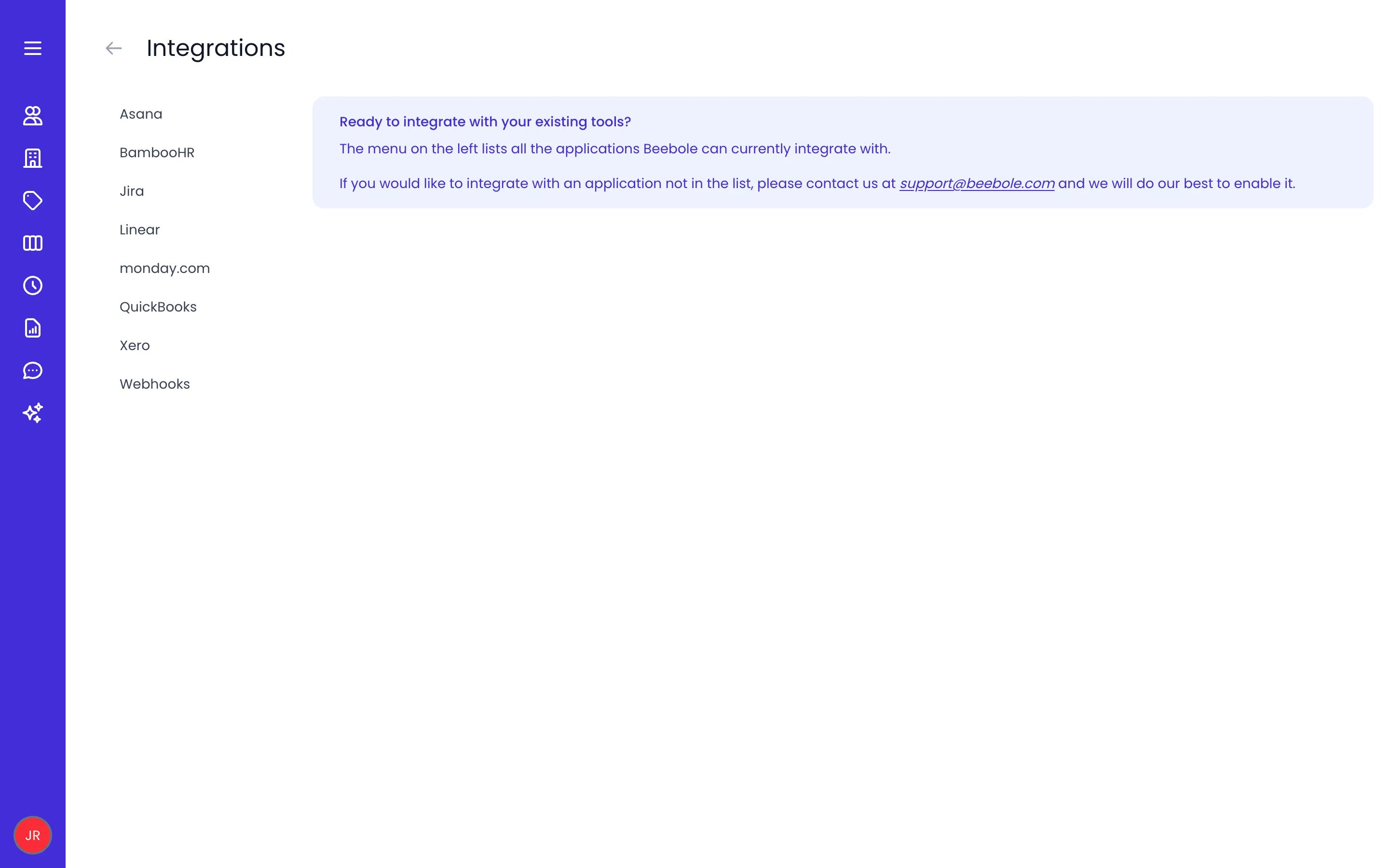
Settings > Integrations lists every integration on the left
You need a role with administrative permissions to set up the integrations under Settings > Integrations.
Project management
Import your projects and work items from project management tools into Beebole, then track time against them without duplicating data.Asana
Import Asana projects and work items into Beebole and keep them in sync.
Jira (coming soon)
Import Jira projects and issues into Beebole for time tracking and planning, once the integration is available.
Linear
Import Linear projects and issues into Beebole and reflect changes automatically.
monday.com
Import boards and items from monday.com into Beebole to track time against them.
Accounting
Export your Beebole time and expense data to accounting tools to streamline invoicing and reporting.QuickBooks Online
Import QuickBooks customers and items as projects, and export time entries to QuickBooks Online.
Xero
Export time and expense data from Beebole to Xero.
HR
Bring your employees and their approved time off from your HR system into Beebole, so your team list and absences stay current.BambooHR
Import employees, time-off types, and approved time-off requests from BambooHR into Beebole.
AI assistants and developer connections
Connect the AI assistant you already use, or build your own connections to Beebole. The MCP server and webhooks pages live in the Developers tab, alongside the API reference.MCP server
Connect Claude, ChatGPT, and other AI assistants to your Beebole data with your permissions.
Webhooks
Send real-time Beebole event notifications to your own services.
Custom integrations
Build your own integrations with the Beebole GraphQL API.
Sign-in and calendar
Two connections live outside Settings > Integrations. You can sign in to Beebole with your Google or Microsoft account, and each person can connect their own calendar to bring meetings into their timesheet.The calendar connection is per-person and lives in the timesheet’s external-calendar pane, not under Settings > Integrations. It is read-only: you click or drag calendar events onto your timesheet rows.
Google sign-in
Sign in to Beebole with your Google account.
Microsoft sign-in
Sign in to Beebole with your Microsoft account.
Google Calendar
Bring Google Calendar events into your timesheet.
Microsoft Calendar
Bring Microsoft Calendar events into your timesheet.
Related content
Custom integrations
Build your own integrations with the Beebole GraphQL API.
API introduction
Authenticate with the Beebole GraphQL API and send your first request.
Frequently asked questions
Where do I find integrations in Beebole?
Where do I find integrations in Beebole?
Most Beebole integrations are managed from Settings > Integrations, opened from the button with your initials at the bottom of the sidebar. You need a role with administrative permissions to configure them. The calendar connection is the exception — it lives in each person’s timesheet rather than under Settings.
Can I use several integrations at the same time?
Can I use several integrations at the same time?
Yes. You can configure multiple Beebole integrations at once. For example, you can import projects from Asana, sync people from BambooHR, and export time data to QuickBooks Online together.
What happens to my data if I disconnect an integration?
What happens to my data if I disconnect an integration?
Disconnecting an integration stops future syncing, but the records already brought into Beebole stay in your account. You can reconnect the integration later to resume syncing.
How is calendar different from the other integrations?
How is calendar different from the other integrations?
The calendar connection is per-person and read-only. Each person connects their own calendar from the timesheet’s external-calendar pane and clicks or drags events onto their timesheet rows. It is not set up under Settings > Integrations like the project, accounting, and HR integrations.
Can I build my own integration with Beebole?
Can I build my own integration with Beebole?
Yes. Beebole provides a GraphQL API you can use to build custom integrations with any tool or internal system, and webhooks to receive real-time event notifications.