

An assistant connected to Beebole acts as you: it sees only the data your role allows, and its actions are recorded like your own. This page is about connecting external assistants to your data — Beebole’s built-in AI features are covered in Beebole AI.
What a connected assistant can do
The server exposes a set of tools grouped around the things people actually do in Beebole, always bounded by your permissions. The list below covers the main ones rather than every tool:
So you can ask your assistant things like “log 2 hours on Website Redesign for today”, “what did I track this week?”, “how much of the Acme budget is left?”, “set up a 4-day week schedule and put Alice Martin on it from October 1”, or — if you’re an approver — “approve the timesheets waiting on me”.
The same project or task name can appear in several places, so the assistant names projects and tasks with their full path, such as Acme Corp › Website Redesign, and asks you which one you mean when a name matches several items. It also recognizes staffing bookings (a person planned on a project for a period): a booking takes no time entries of its own, so time you ask to log on one is recorded on the booking’s project.
Each tool tells your assistant whether it only reads data or changes it, and which changes are destructive, so a well-behaved assistant asks before deleting anything. Everything runs through the same rules as the app: the lock date, entry restrictions, approval status, and your role all apply, and a refusal comes back to the assistant as the reason Beebole gives. For example, an entry on a day on or before the lock date is refused with the explanation that the day can no longer be changed by anyone, admins included, and that only moving the lock date reopens it.
For work schedules,
set_schedule takes the whole cycle at once. For a weekly schedule, each weekday gets a number of hours, a list of time pairs such as 09:00 to 12:30 and 13:30 to 17:00, or both together with a work-from-home flag; a weekday left out is a non-working day. Every call replaces the full cycle rather than merging into it, so the assistant reads the current schedule with list first and sends it back complete with the change. It passes schedule_id to rewrite an existing schedule (and a name to rename it at the same time) or a name alone to create one, and describes a rotating roster that is not a week by listing its days in cycle order with cycle_days. A new schedule has nobody on it until the assistant assigns people to it from a start date — the same rules as in Work schedules.
Deleting is for undoing a batch that was just created. Beebole refuses to delete anything still in use — a project, task, or person with time entries, an expense type with expense entries, a time off type with allowances, a custom field that already holds values, or a role or work schedule people are still assigned to — and the assistant receives the reason together with the suggestion to archive instead. Archiving keeps the item’s history in reports but takes it out of timesheets and of every picker, and unarchive brings it back.
Find your server URL and API key
Everything you need is on the Assistant page — click Assistant in the sidebar:- Server URL — the address of your Beebole MCP server, with a Copy button.
- API key — click Show my API key to reveal it, then Copy. Only needed for developer tools; hosted connectors sign in instead.
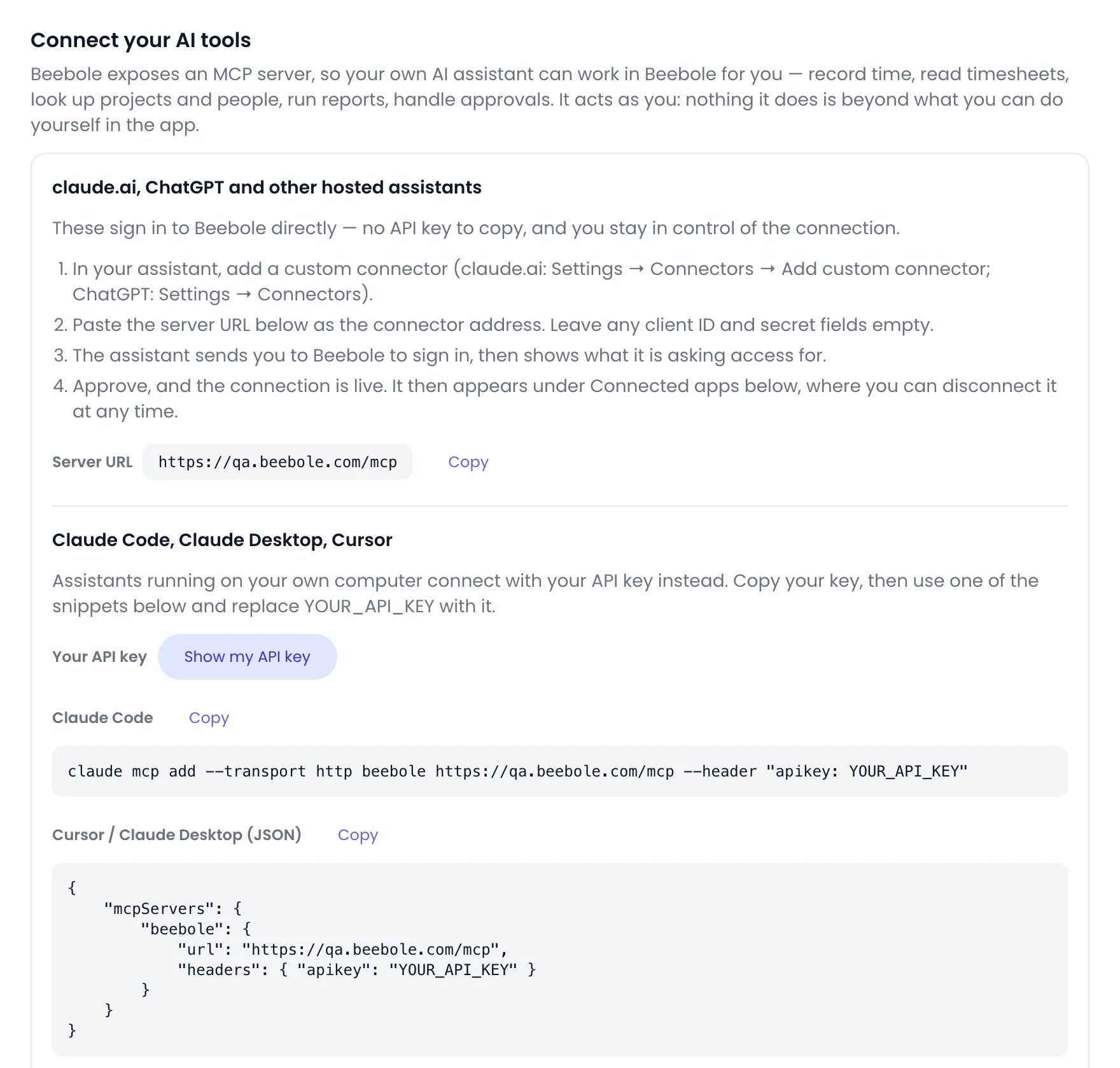
The Connect your AI tools section of the Assistant page
Connect a hosted assistant (claude.ai, ChatGPT)
1
Copy the server URL
On the Assistant page, copy the Server URL.
2
Add it as a custom connector
In claude.ai or ChatGPT, add the URL as a custom connector.
3
Sign in and authorize
You are asked to sign in to Beebole and authorize the access — no API key needed. This is a standard OAuth 2.1 sign-in, so the assistant never sees your credentials and receives an access token it has to refresh. Once authorized, the assistant appears under Connected apps.
Connect a developer tool
- Claude Code
- Cursor / Claude Desktop
Run this command, replacing
YOUR_API_KEY with your API key and the URL with your Server URL:Review and disconnect connections
Assistants you authorized through sign-in appear on the Assistant page under Connected apps, with the app’s name and when it was connected. Click Disconnect to revoke a connection — the assistant loses access immediately and must be authorized again to reconnect. Tools connected with your API key are not listed there; they stop working when you Reset the key.Related content
Beebole AI
Beebole’s built-in AI: suggested entries, report builder, and approval review.
Beebole API
Query and mutate your Beebole data programmatically with GraphQL.
Roles & permissions
What your role allows — and therefore what a connected assistant can do as you.
Webhooks
Push Beebole events to external systems in real time.
Frequently asked questions
Which AI assistants work with Beebole?
Which AI assistants work with Beebole?
Any assistant that supports the MCP standard. Hosted assistants like claude.ai and ChatGPT connect through a custom connector with a sign-in flow, while developer tools like Claude Code, Claude Desktop, and Cursor connect with your Beebole API key.
What data can a connected assistant access?
What data can a connected assistant access?
Exactly what you can. The connection carries your permissions, so the assistant sees the projects, tasks, and timesheets your role allows — nothing more. It records time on your own timesheet by default, and on someone else’s only where your role already lets you do that; it can act on approvals only if you are an approver. There is no separate permission layer for the assistant: Beebole refuses whatever you could not do yourself, and the assistant gets the refusal.
How do I revoke an assistant's access to Beebole?
How do I revoke an assistant's access to Beebole?
For hosted assistants, click Disconnect next to the app under Connected apps on the Assistant page. For tools connected with your API key, click Reset next to the key — every tool using the old key loses access immediately.
Do I need an API key to connect claude.ai or ChatGPT?
Do I need an API key to connect claude.ai or ChatGPT?
No. Hosted connectors use a sign-in flow: add Beebole’s server URL as a custom connector, sign in, and authorize the access. The API key is only for developer tools that can’t open a sign-in window.
Can a connected assistant delete things in my Beebole account?
Can a connected assistant delete things in my Beebole account?
Only what your role allows, and only what is not in use. The
delete tool is flagged as destructive, so a well-behaved assistant asks before using it, and Beebole refuses to delete a project, task, person, role, time off type, expense type, work schedule, or custom field that still has time entries, expense entries, allowances, custom field values, or people assigned to it. The refusal reaches the assistant with the reason and the suggestion to archive instead, which keeps the history in reports and is reversible with unarchive.