

First, rule out the basics: reload the page, and try a different network — for example your phone’s mobile data. If Beebole works there, the issue is in the original network, not your account.
”Can’t establish a secure connection”
If Beebole can’t open its real-time connection at all, it stops with the message Can’t establish a secure connection: Beebole needs a secure real-time (WebSocket) connection to load, and it couldn’t be established. This is usually caused by a corporate firewall, VPN, or proxy blocking it.- Try a different network — for example your phone’s mobile data — to confirm the block.
- Ask your IT team to allow secure WebSocket connections (
wss) to your Beebole site. - Click Try again once the network is fixed.
”Running in slower compatibility mode”
When the real-time connection is blocked but Beebole can still reach its servers another way, the app keeps working in a slower fallback mode and shows an indicator in the sidebar: a broken-link icon above your initials, whose tooltip reads Running in slower compatibility mode.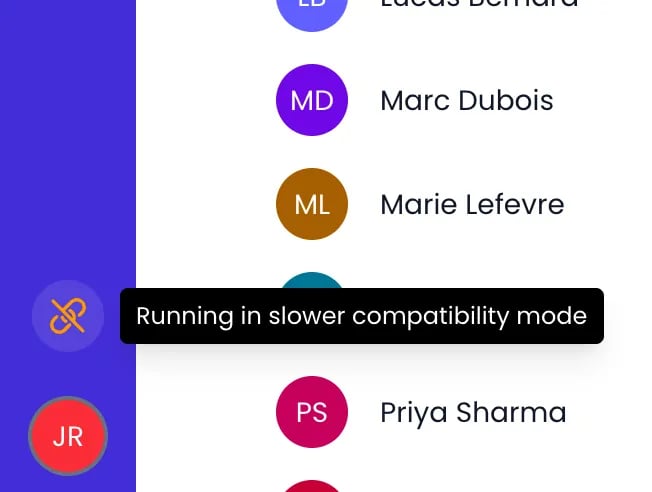
The compatibility mode indicator in the sidebar, with its tooltip
wss) connections to your Beebole server.
Run the diagnostics page
For anything beyond the basics, Beebole ships a standalone Connection Diagnostics page. Open/diagnostics on your Beebole server address — for example app.beebole.com/diagnostics. It works even when the app itself won’t load.
The page runs automatically and shows:
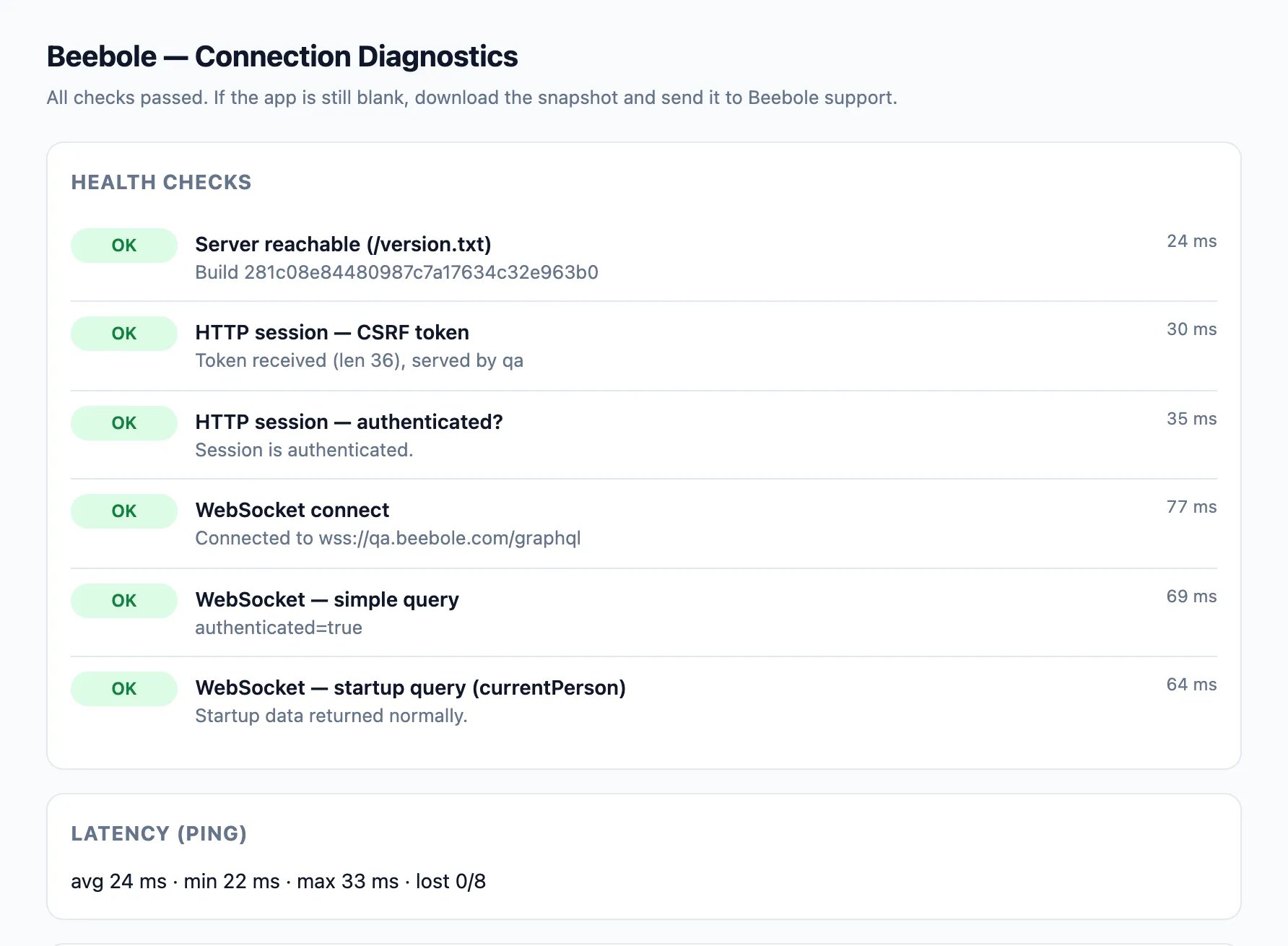
The Connection Diagnostics page with every health check passed
Share the results with support
Click Download snapshot (.json) or Copy snapshot and send the result to support@beebole.com — it contains exactly the technical context needed to diagnose your case quickly.Reset the local app data
The Actions section offers two cleanup buttons:- Clear app cache — wipes only the app’s offline database. Beebole re-downloads your data on the next load; nothing on the server is touched.
- Clear ALL site data — also removes local and session storage, service workers, and readable cookies, then reloads.
Timesheet issues
No projects to pick when adding a row
If the Select a project list is empty when you add a row — or the timesheet only offers time off — nothing is broken: no project has been made available to you yet. Two settings decide what the list holds:- Project access. A project appears only if it is available to you: either Show all projects is on in the account’s Show or hide by default, or the project — or its whole category — was granted to you or to one of your tags. An administrator or your manager adds it under Who has access? on the project, or under Show projects on your profile. See Assignments.
- Timesheet categories. A row can only be added for the project categories listed under Record time on these project categories in Timesheet and Planning Settings. A category left out there never appears, whatever your access.
A task is missing from one person’s timesheet
A task assigned to a tag — the tag is one of its Potential owners — is available to everyone in that tag. Being a potential owner does grant the task; it is not just a display. When the task still shows for some tagged people and not for one of them, check that person, in this order:- Are they really in the tag? Open their profile and look at the Tags panel — a person tagged with a sibling tag rather than the one on the task is the usual cause.
- Does their timesheet accept the task’s planning? Record time on these plannings in Timesheet and Planning Settings is resolved per person: the account value, overridden by their tags, overridden by their own profile. A planning missing from their list hides every task in it, even assigned ones.
- Does their role cover assigned tasks? The Tasks permission of their role must include Assigned tasks under View. The built-in roles do; a custom role may not.
For IT teams
To give Beebole full speed on a managed network, allow outbound secure WebSocket (wss) connections to your Beebole server’s domain. Beebole’s fallback mode exists precisely for networks where that isn’t possible — but native real-time is faster and lighter for your users.
Related content
Key concepts
How Beebole’s real-time sync and local caching work in normal operation.
Mobile app (PWA)
Install Beebole on your phone or tablet, then log time, approve timesheets, and follow your tasks there.
Notifications
Web push and email notifications, and their delivery settings.
Frequently asked questions
Why is Beebole slow on my office network but fine at home?
Why is Beebole slow on my office network but fine at home?
Your office firewall, VPN, or proxy is probably blocking Beebole’s secure real-time (WebSocket) connection, so the app falls back to a slower compatibility mode — the sidebar shows Running in slower compatibility mode when this happens. Ask your IT team to allow secure WebSocket (wss) connections to your Beebole server.
How do I run a connection diagnostic for Beebole?
How do I run a connection diagnostic for Beebole?
Open
/diagnostics on your Beebole server address — for example app.beebole.com/diagnostics. The page checks the connection, measures latency, and lists environment details, and it loads even when the app itself won’t. Use Download snapshot (.json) to save the results.Will clearing the app cache delete my time entries?
Will clearing the app cache delete my time entries?
No. All records live on Beebole’s servers — Clear app cache only wipes the local offline copy, and Beebole re-downloads your data the next time it loads. Only unsynced local state is discarded, so use it when support suggests it.
What should I send to Beebole support about a connection problem?
What should I send to Beebole support about a connection problem?
A diagnostics snapshot. Open
/diagnostics on your server address, let the checks finish, click Copy snapshot or Download snapshot (.json), and include it in your email to support@beebole.com along with what you were doing when the problem appeared.Why does my timesheet show no projects, only time off?
Why does my timesheet show no projects, only time off?
Because no project is available to you yet, or the project’s category isn’t offered in the timesheet. In Beebole a project has to be granted — under Who has access? on the project or Show projects on your profile, unless Show all projects is on for the account — and its category must be listed under Record time on these project categories in Timesheet and Planning Settings. Ask an administrator to check both. If the project sections are gone and the task sections have no + button on a period you haven’t submitted, the Allow only planned tasks in the timesheet restriction is on instead: your timesheet then only shows the tasks you own, on their planned dates, plus time off.