

How work schedules work
A work schedule is a repeating pattern. Each day of the cycle defines the expected Hours, optional Intervals with Start and End times, and whether it is a Work From Home day. The cycle is 7 days by default — a weekly pattern — but the Length in days can be any number, so rotating patterns are possible too. Beebole supports multiple work schedules in one account. Create one schedule per work pattern — full-time, part-time, shift rotation — and assign each to the right people.Creating a work schedule
Open the Work Schedules settings
Add the schedule
Define the daily pattern
Refine each day if needed
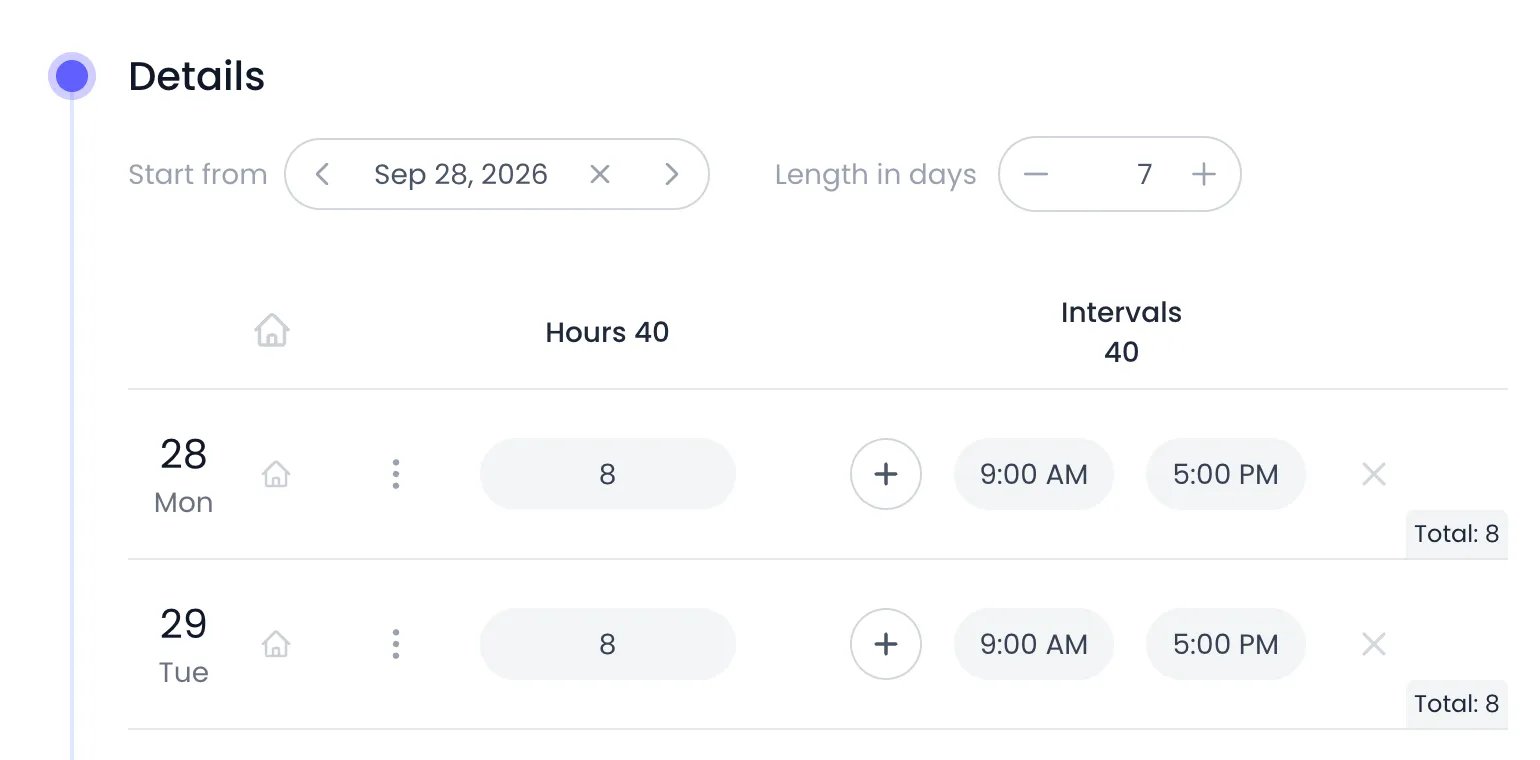
The Details panel of a full-time schedule: 8 hours a day, from 9:00 AM to 5:00 PM
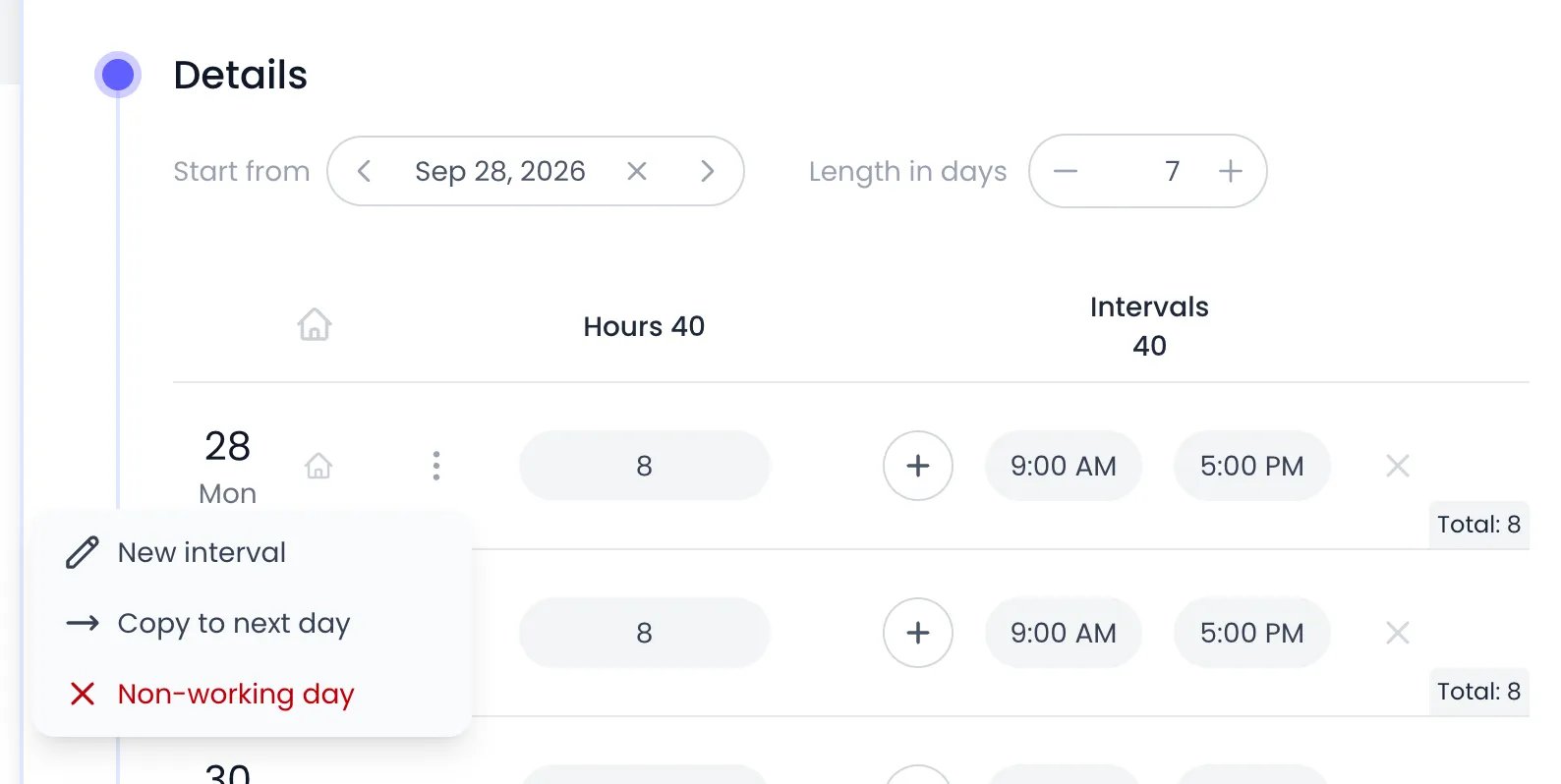
A day's ⋯ menu: add an interval, copy the day to the next one, or make it a non-working day
Cycles longer than a week
A work schedule doesn’t have to repeat weekly. Increase the Length in days to build longer rotations — for example a 14-day cycle where the two weeks differ, or a 10-day shift rotation. Each day in the cycle gets its own hours, and Beebole repeats the full cycle indefinitely. Use Start from to anchor day 1 of the cycle to a calendar date, so Beebole knows where the rotation begins.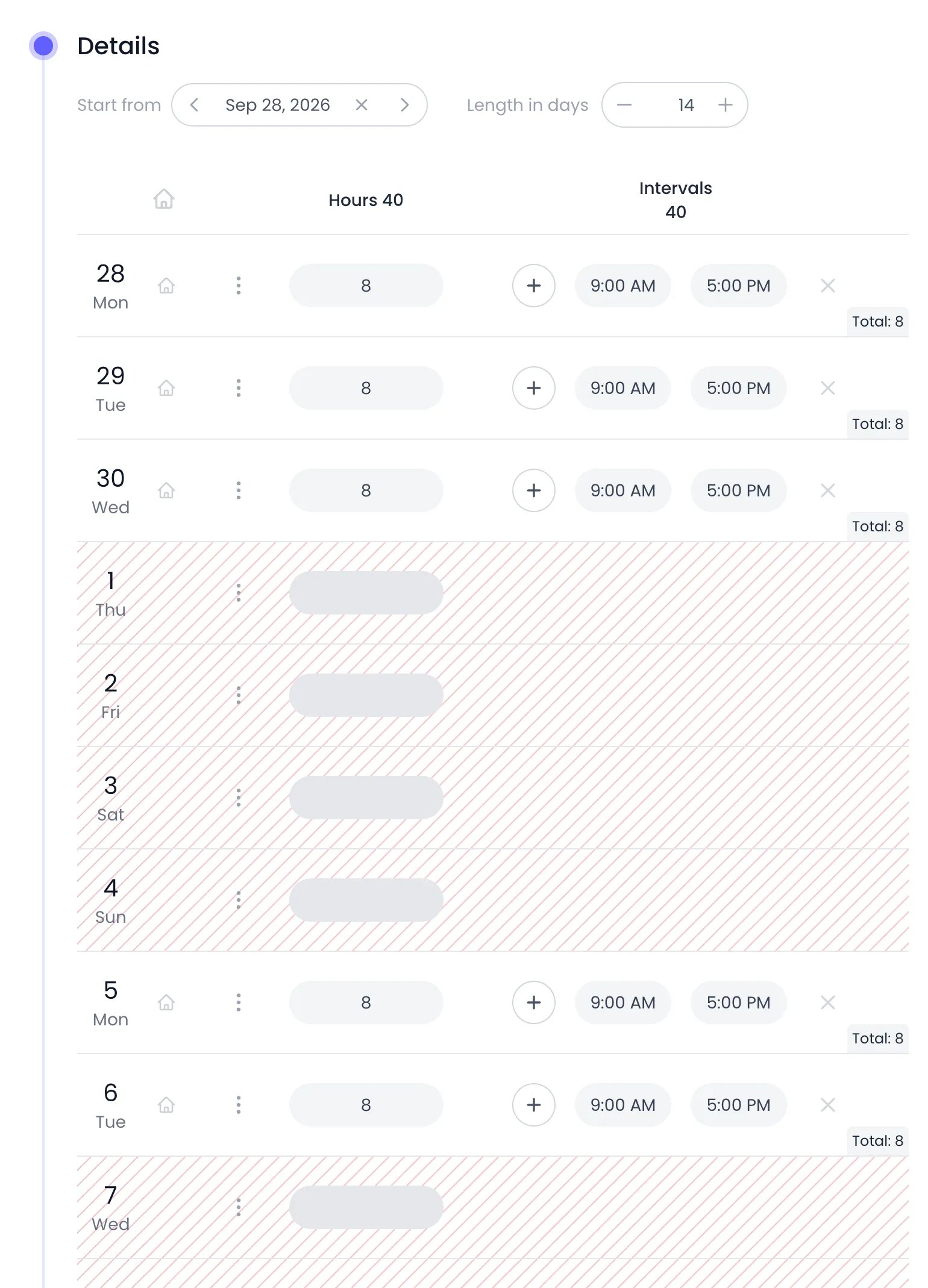
A 14-day cycle: three working days the first week, two the second
Assigning a work schedule
You can assign work schedules at three levels. The most specific assignment wins: a person’s own schedule overrides their tag’s, and a tag’s schedule overrides the organization default.
A person's Work schedule panel: Full Time comes from the organization, as the gear next to it shows
Changing a schedule over time
Work patterns change — someone moves from full-time to part-time, or a team adopts a 4-day week. In Beebole, you don’t end one assignment and start another: you simply assign the new schedule, and it takes over from its start date.- While a single schedule is assigned, it applies without any date.
- When you assign a second schedule, each assignment shows a Start date: with a date picker so you can adjust when it begins. This includes a schedule the person inherits from the organization or a tag: it stays in the list, marked with the inherited-value icon, and keeps applying until the new one starts.
- On any given day, the assignment with the most recent start date on or before that day applies. Days before the earliest dated assignment follow the first schedule in the list.
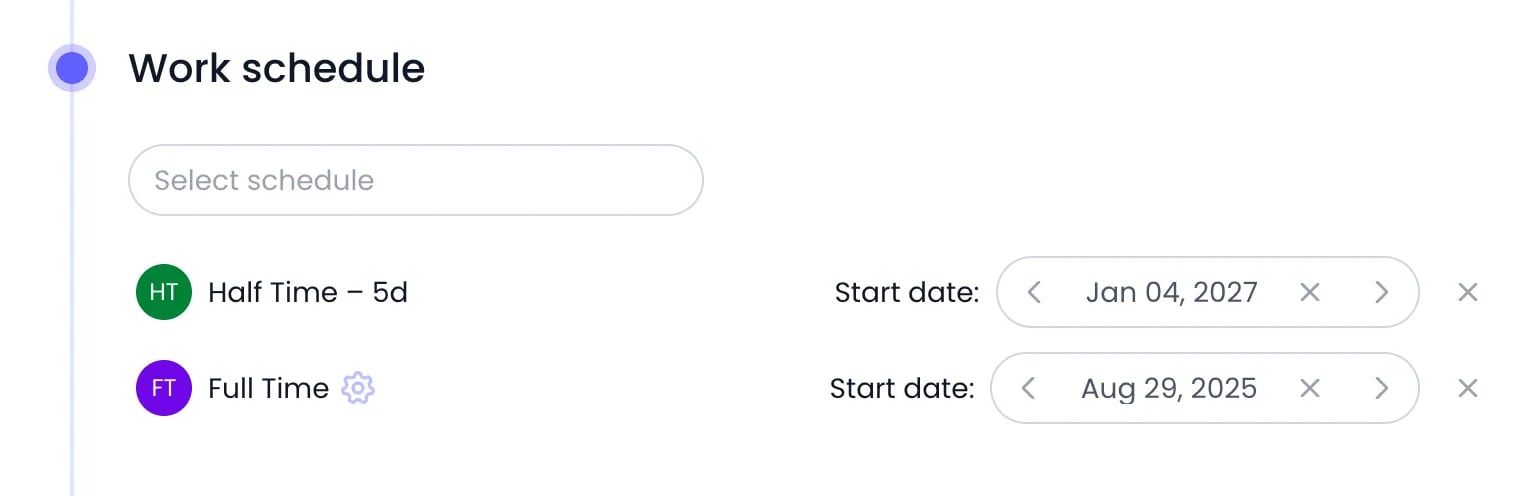
A move to part-time: Half Time – 5d takes over from January 4, 2027, after the Full Time schedule inherited from the organization
Archiving and deleting a work schedule
To retire a schedule you no longer assign, open it in Settings > Work Schedules and click the ⋯ action menu next to its name. The menu offers Duplicate, Rename, Archive, Unarchive, and Delete.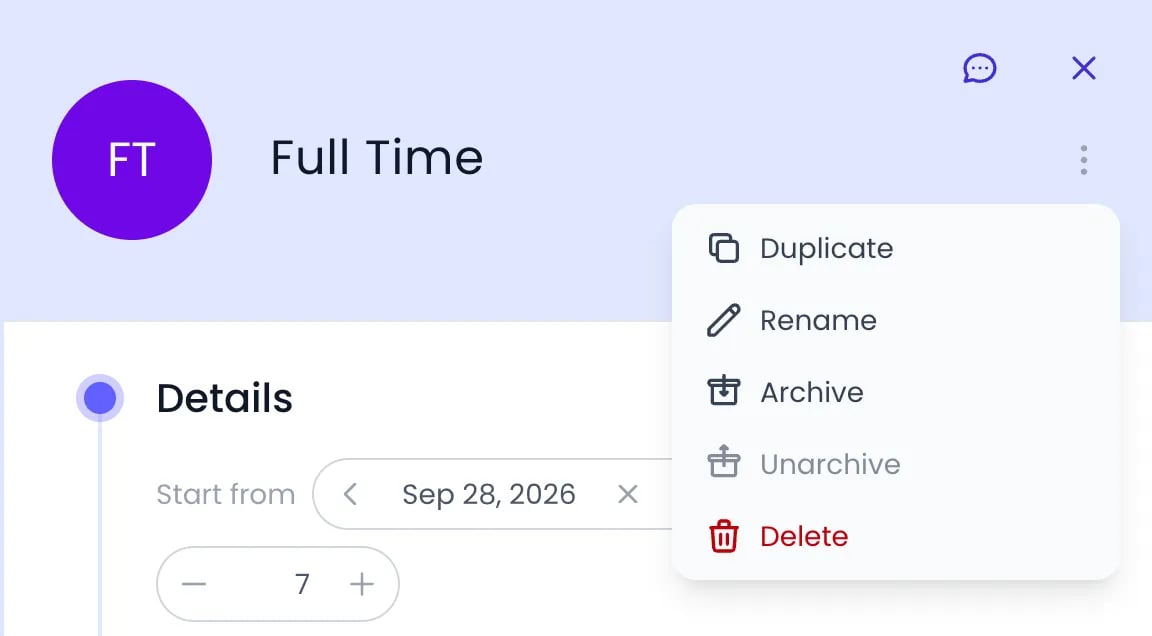
The action menu next to a work schedule's name
Where Beebole uses work schedules
- Timesheets — Each day’s header on the timesheet shows time reported against scheduled hours, non-working days appear hatched, and the total row compares logged time with the scheduled total. See Timesheets.
- Reports — Reports can compare worked hours against scheduled hours to surface overtime, and break down work-from-home time. See Reports.
- Time off — When absences are tracked in days, a full day off converts to the hours defined in the person’s schedule for that day. See Time off.
- Task planning — The Gantt chart workload heatmap measures planned effort against each person’s capacity, which comes from their work schedule.
Related content
People
Tags
Timesheets
Time Off
Frequently asked questions
Can I have different work schedules for different teams?
Can I have different work schedules for different teams?
What happens if a person has no work schedule assigned?
What happens if a person has no work schedule assigned?
How do I change someone's schedule from a specific date?
How do I change someone's schedule from a specific date?
How do I set up a part-time schedule in Beebole?
How do I set up a part-time schedule in Beebole?
Can a work schedule fill in timesheets automatically?
Can a work schedule fill in timesheets automatically?
How do I report overtime in Beebole?
How do I report overtime in Beebole?