

Step 1: Create your account
Go to app.beebole.com/signup, and fill in your name, work email, and company name — or sign up with Google or Microsoft. Beebole is passwordless: instead of setting a password, you’ll confirm your email with a one-time code each time you sign in. A short welcome questionnaire follows, then you’re in.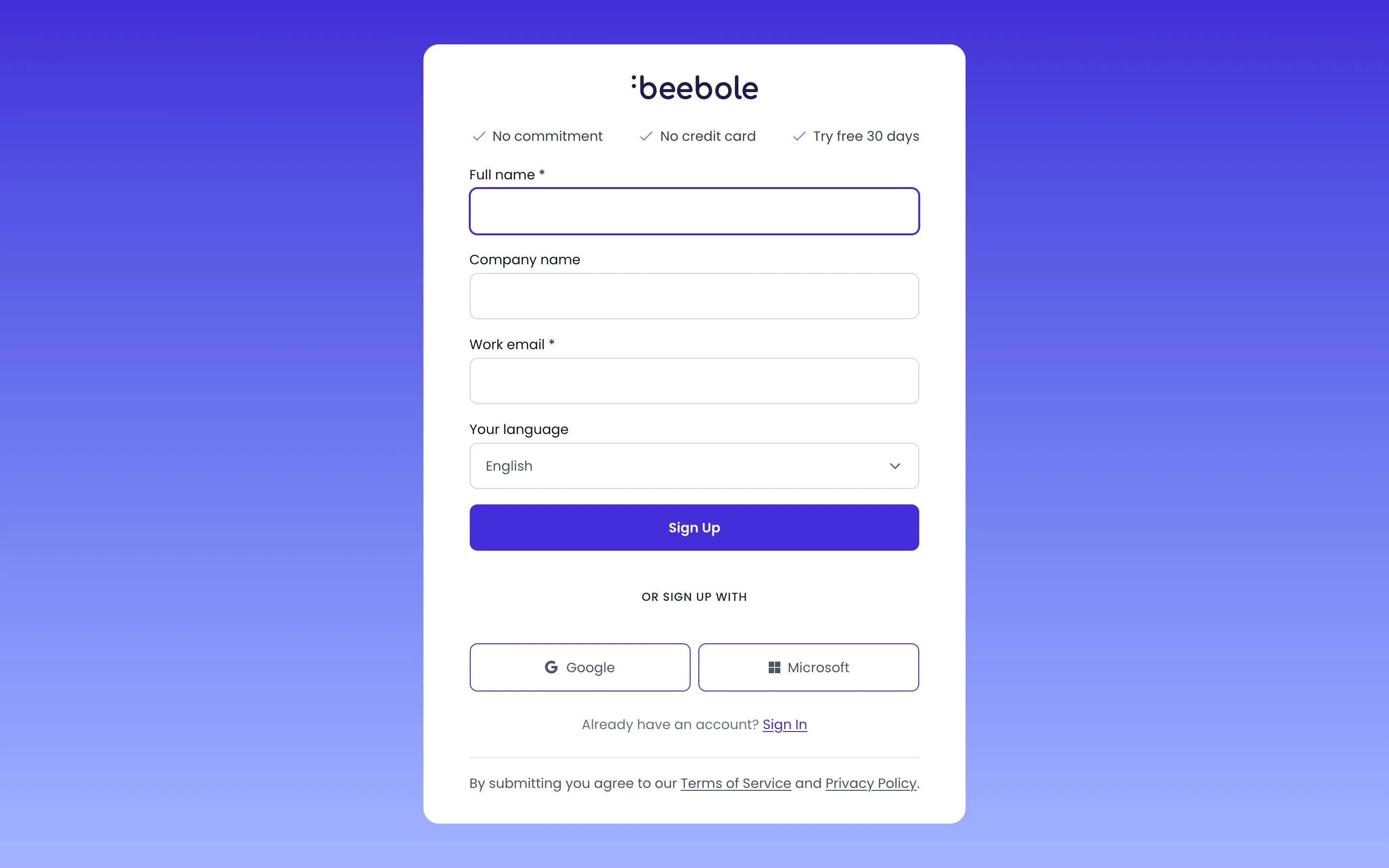
The Beebole sign-up form
Step 2: Create your first project
Projects are what your team logs time against. Projects live inside categories — your new Beebole account already includes three: Client, Internal, and Activity — and each category comes with some sample projects so you can see the structure in action.Creating a project in Beebole
Go to Projects
Pick a category
Add the project
Name the project and confirm
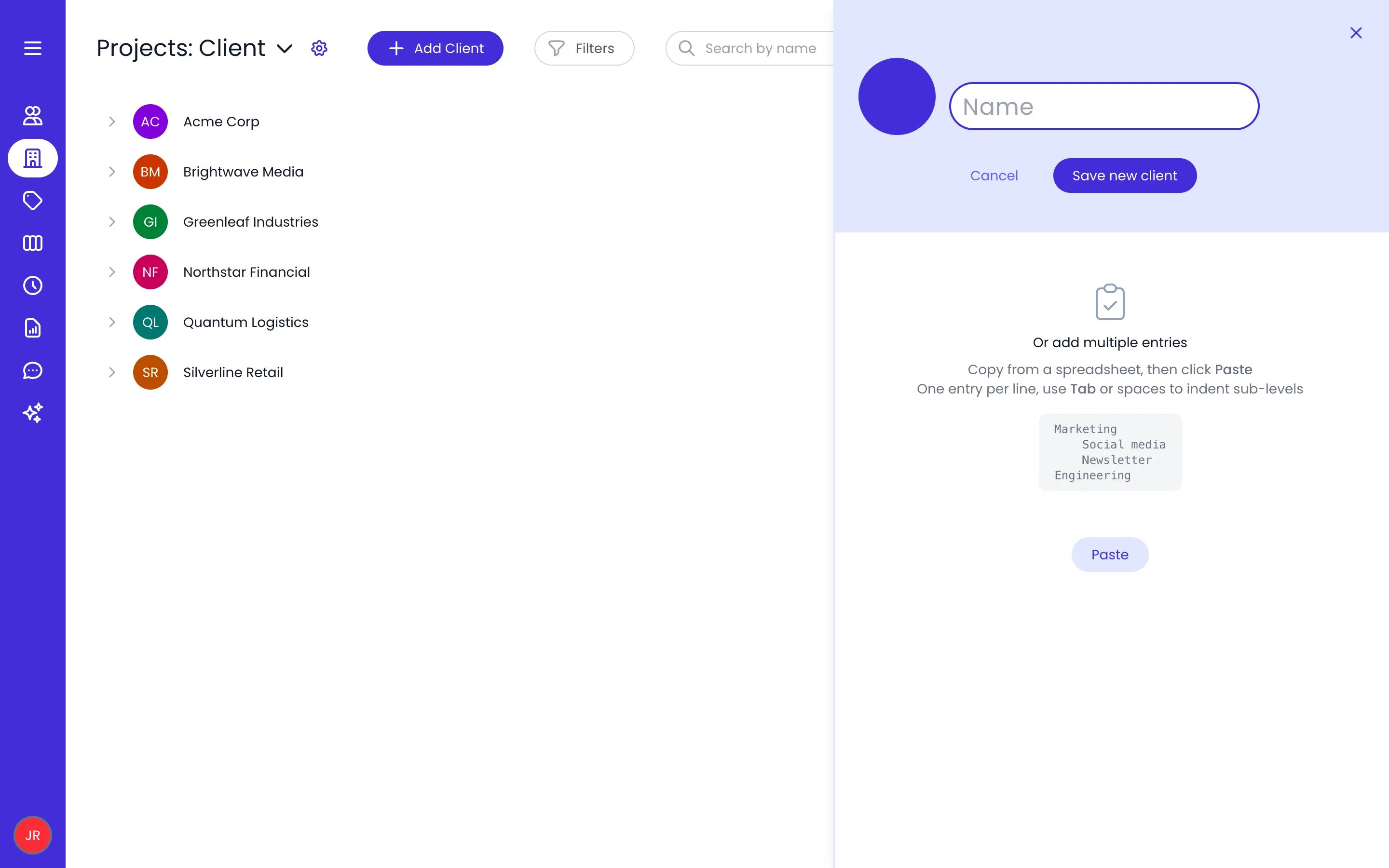
The add panel of the Client category, with the Or add multiple entries area below
Step 3: Invite your team
Each team member gets their own profile and logs their own hours. Your account comes with four ready-made roles that control what each person can see and do in Beebole: Admin, Employee, People manager, and Project manager.Adding a person in Beebole
Go to People
Add a team member
Confirm
Invite them
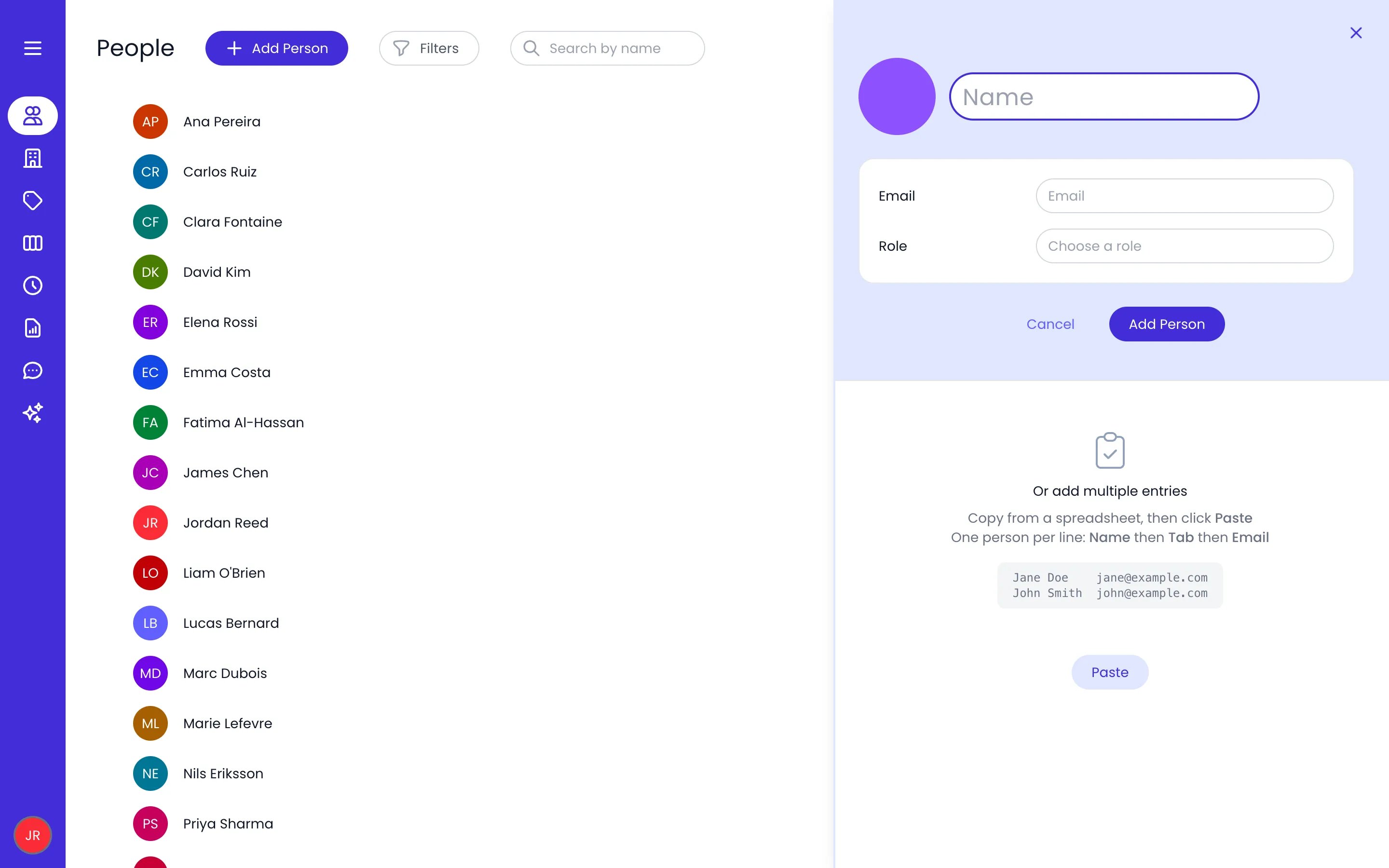
The Add person panel: name, email and role, with the Or add multiple entries area below
Step 4: Track your first hours
This is where Beebole delivers its core value. Logging a first entry confirms your setup works and gives you data to report on.Open your timesheet
Add a row
Log your time
Add details to a time entry
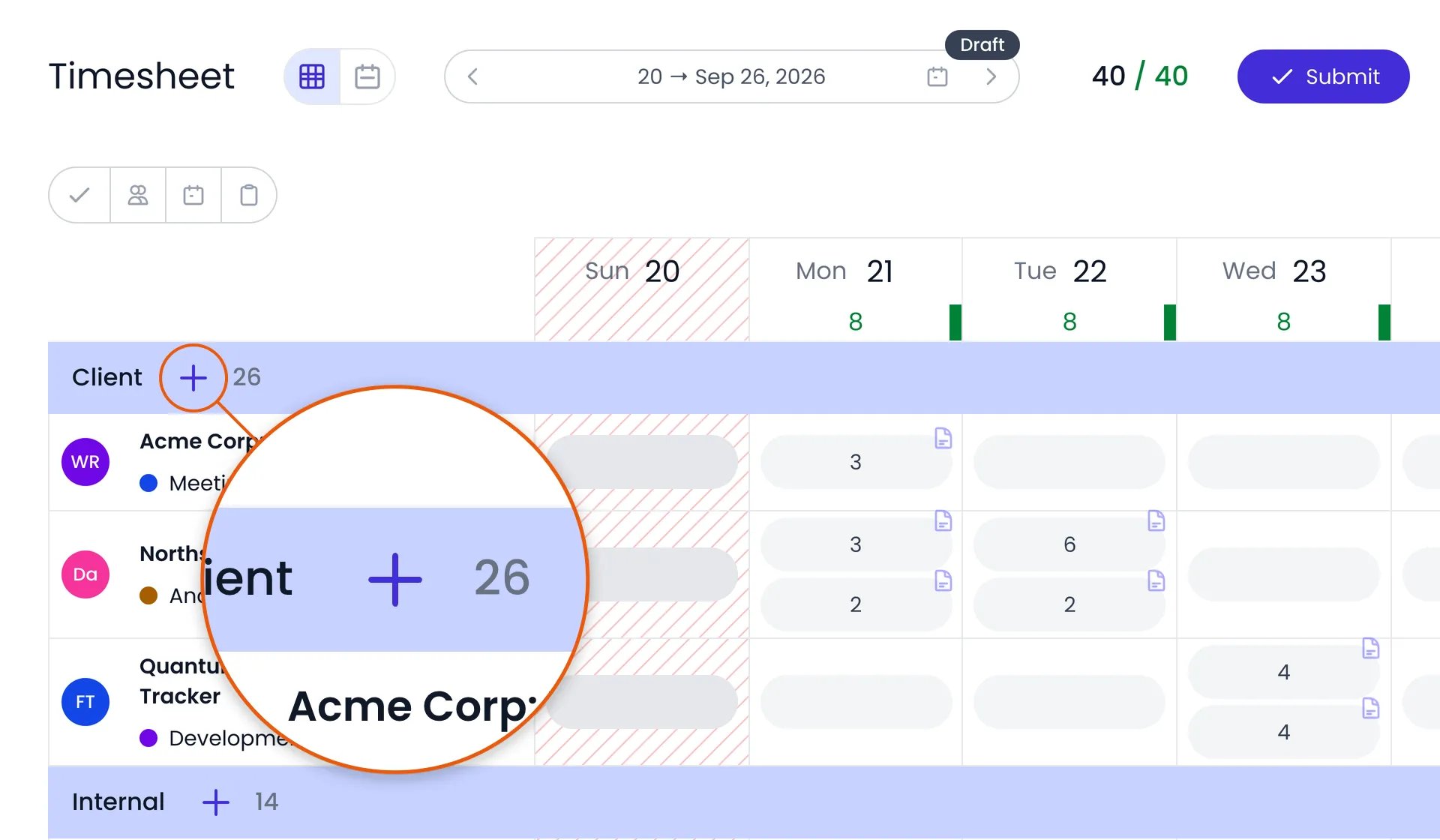
The Add a row button in a section's header
Step 5: Run your first report
With a project and at least one time entry in place, you can turn raw hours into insights. The first time you open the Reports section, Beebole shows sample folders with a few ready-made reports inside.Open Reports
Run a sample report
Refine and share
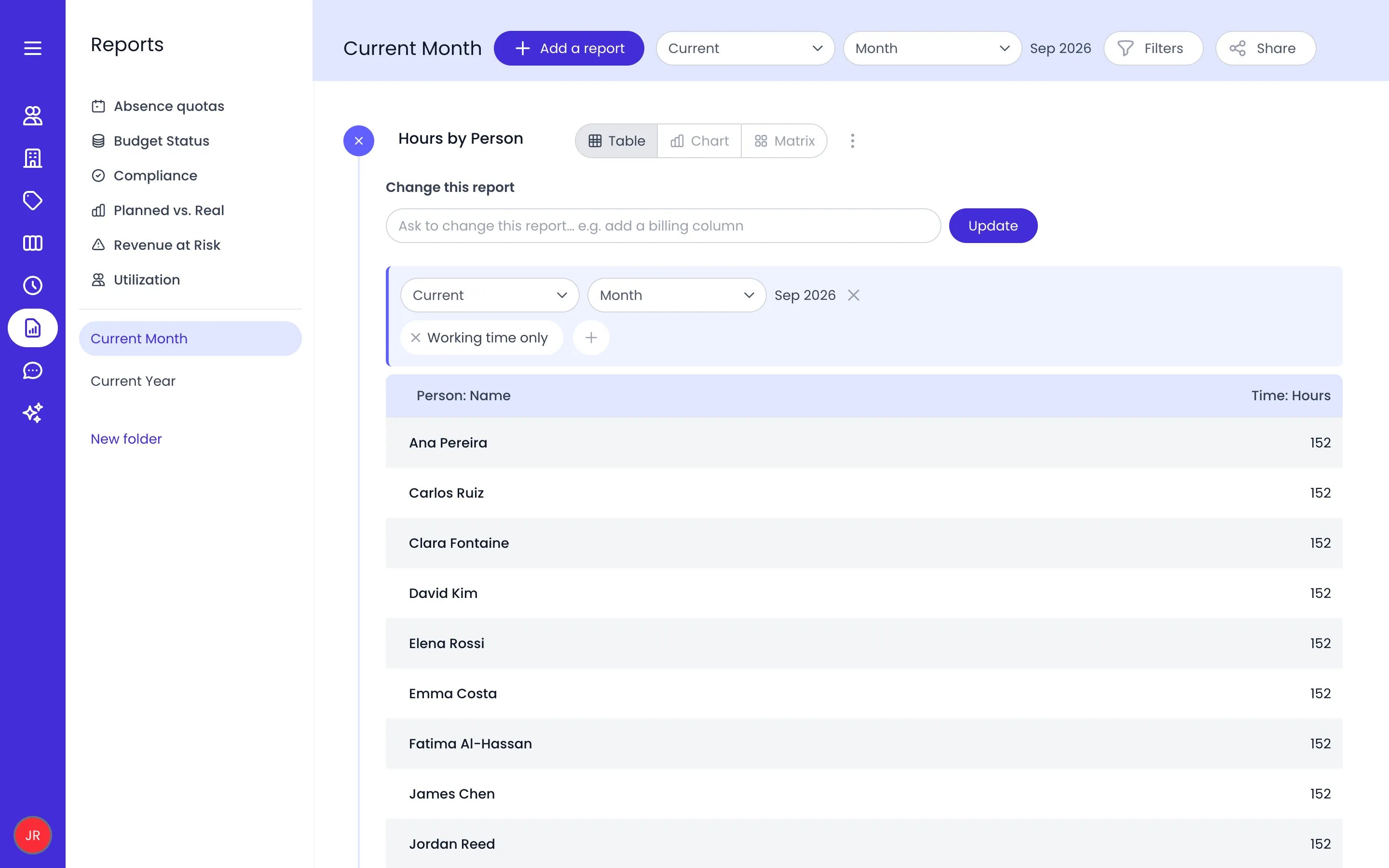
The Current Month folder with the Hours by Person report run as a table
Step 6: Adjust the basics
Beebole’s account-wide configuration lives in the Settings area: click the button with your initials at the bottom of the sidebar, then Account Settings. The Settings menu on the left lists the other settings screens. The defaults work out of the box, but these are worth a first look:Before you continue: a note on tags
Before you start assigning settings across your projects, people, and tasks, it’s worth taking a moment to plan your tags. Tags are Beebole’s cross-cutting labels. Unlike projects or people, which live in their own sections, tags let you group and compare across entities in any way that matters to your business. Once applied, they become filters and dimensions in every report. Your account starts with one tag category, Department. To add your own, click Tags in the sidebar, open the category menu next to the Tags: heading, type a name in the field at the bottom, and click Add. A few minutes spent deciding which tag categories reflect how your business actually measures work will pay off every time you open a report or apply new settings. See Tags for the full reference.What’s next?
You’ve completed the essential setup. Here’s where to go depending on what matters most for your team:Related content
Key Concepts
Timesheets
People
Projects
Frequently asked questions
Can I add multiple people at once instead of one by one?
Can I add multiple people at once instead of one by one?
Can I import my existing data into Beebole?
Can I import my existing data into Beebole?
What's the difference between a project and a category?
What's the difference between a project and a category?
Will my team members see each other's time entries?
Will my team members see each other's time entries?
Is there a limit to how many projects or people I can add during the trial?
Is there a limit to how many projects or people I can add during the trial?