

Custom fields come with the Advanced plan, and can be added to the Essential plan as an add-on. If your subscription doesn’t include them, the Custom Fields entry in Settings shows an upgrade button instead of opening the page.
Creating a custom field
1
Open the Custom Fields settings
Click the button with your initials at the bottom of the sidebar, then go to Settings > Custom Fields.
2
Add the field
Click Add Custom Field, type a name — for example “Employee ID” or “Cost center” — and click Add Custom Field to confirm.
3
Choose the field type
In the Custom field details panel, pick a Field type: Text, Date, Date & time, Number, URL, Boolean, or Unique ID.
4
Configure the type's options
The options for the selected type appear below it: limits, validation, and for some types a Placeholder text. Every change is saved automatically.
5
Choose where the field appears
In the Custom field visibility panel, turn on Visible for People, Visible for Absence types, Visible for Time Records, Visible for Projects, or Visible for Tasks. A single field can apply to several. The field then appears on the matching records — see Choosing where a field appears.
Field types
Beebole supports seven field types, each suited to a different kind of data:
You can change a field’s Field type later from the Custom field details panel — the type-specific options switch accordingly.
Field options and validation
Each type comes with its own options, all edited in the Custom field details panel and saved automatically:
Custom fields don’t carry default values — a field starts empty (or shows its Placeholder text) until someone fills it in.
Turn on Use predefined values to restrict a text field to a fixed list: add each entry under Allowed values, and users pick a value from that list instead of typing freely.
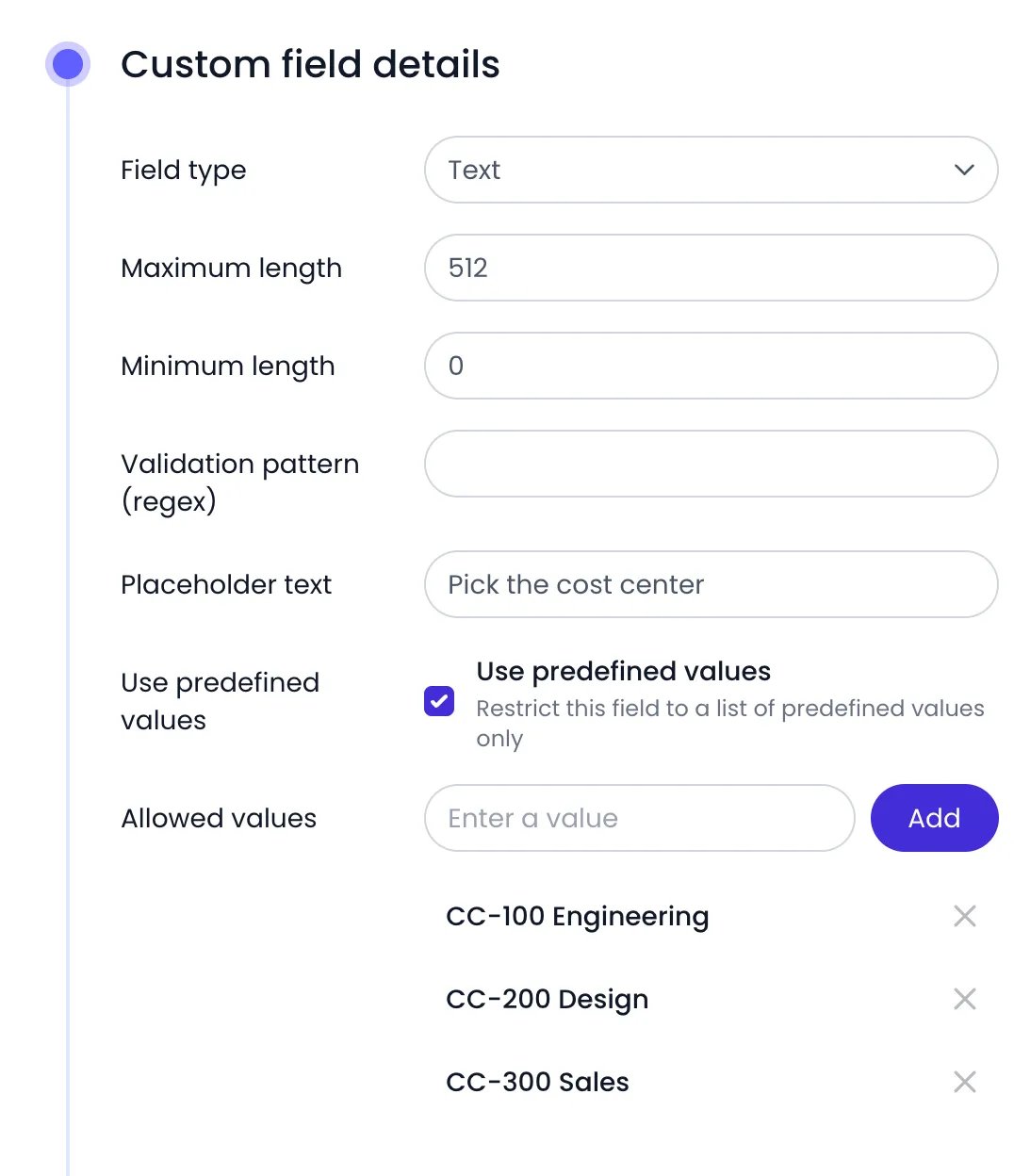
A text field restricted to a list of predefined values
Beebole validates values as people enter them. An entry outside the allowed range or format is flagged with an error and not saved until corrected.
Unique ID fields
A Unique ID field holds an identifier that only one item can carry, such as an employee number or the code a project has in your ERP. Each non-empty value can belong to only one item across everything the field is used on, whatever its type: if a person holdsEMP-0042, no other person, project, task, or time entry can take it.
- Matching ignores upper and lower case and any spaces before or after the value, so
emp-0042counts asEMP-0042. Beebole removes those surrounding spaces when it saves the value. - Archived items keep their values, so archiving an item doesn’t free its ID. Deleting the item does.
- Empty values don’t count: any number of items can leave the field blank.
^EMP-\d{4}$ for EMP followed by four digits. A Unique ID field has no length limits and no list of allowed values.
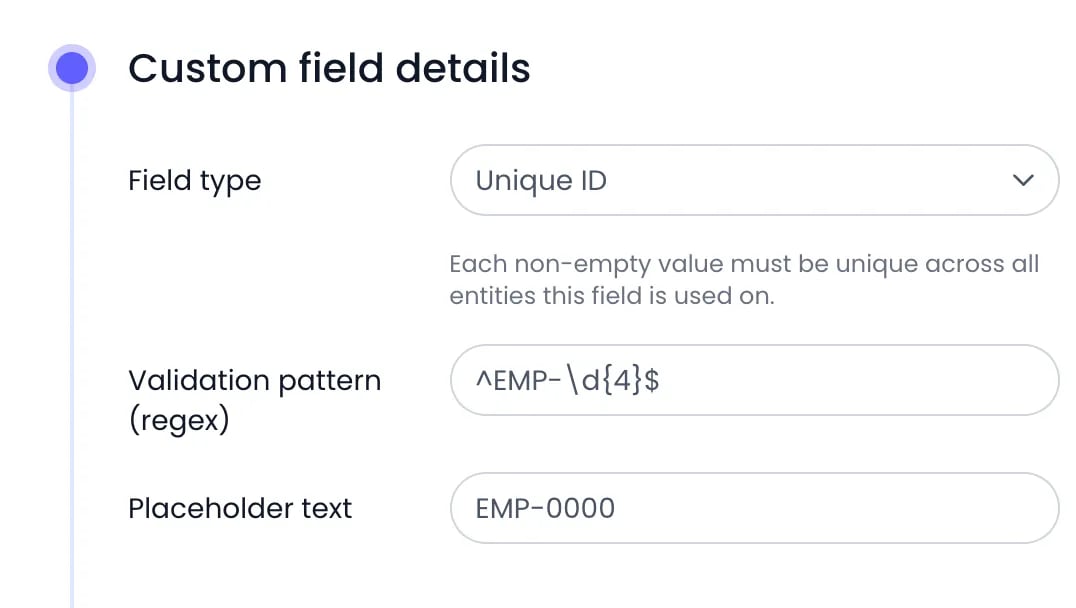
A Unique ID field for employee numbers, with a format and a placeholder
Choosing where a field appears
The Custom field visibility panel controls which items carry the field. A single field can apply to several, and each toggle is saved automatically:- Visible for People — The field appears on every person’s profile.
- Visible for Projects — Turn it on, then use Add a category to choose the project categories where the field applies. Within each category you can tick the hierarchy levels — for example top-level projects only, or their subprojects too.
- Visible for Tasks — Turn it on, then choose the task categories where the field applies.
- Visible for Time Records — The field appears when filling in a time entry’s details on the timesheet. Narrow it down with Project categories and Plannings, and turn on Absences to also show the field on time-off entries. A field scoped to a planning applies to tasks at every level of that planning.
- Visible for Absence types — The field applies to your time off types. It appears in the Custom fields panel of each type, and it becomes a column you can review and fill in for time off types in Master data review.
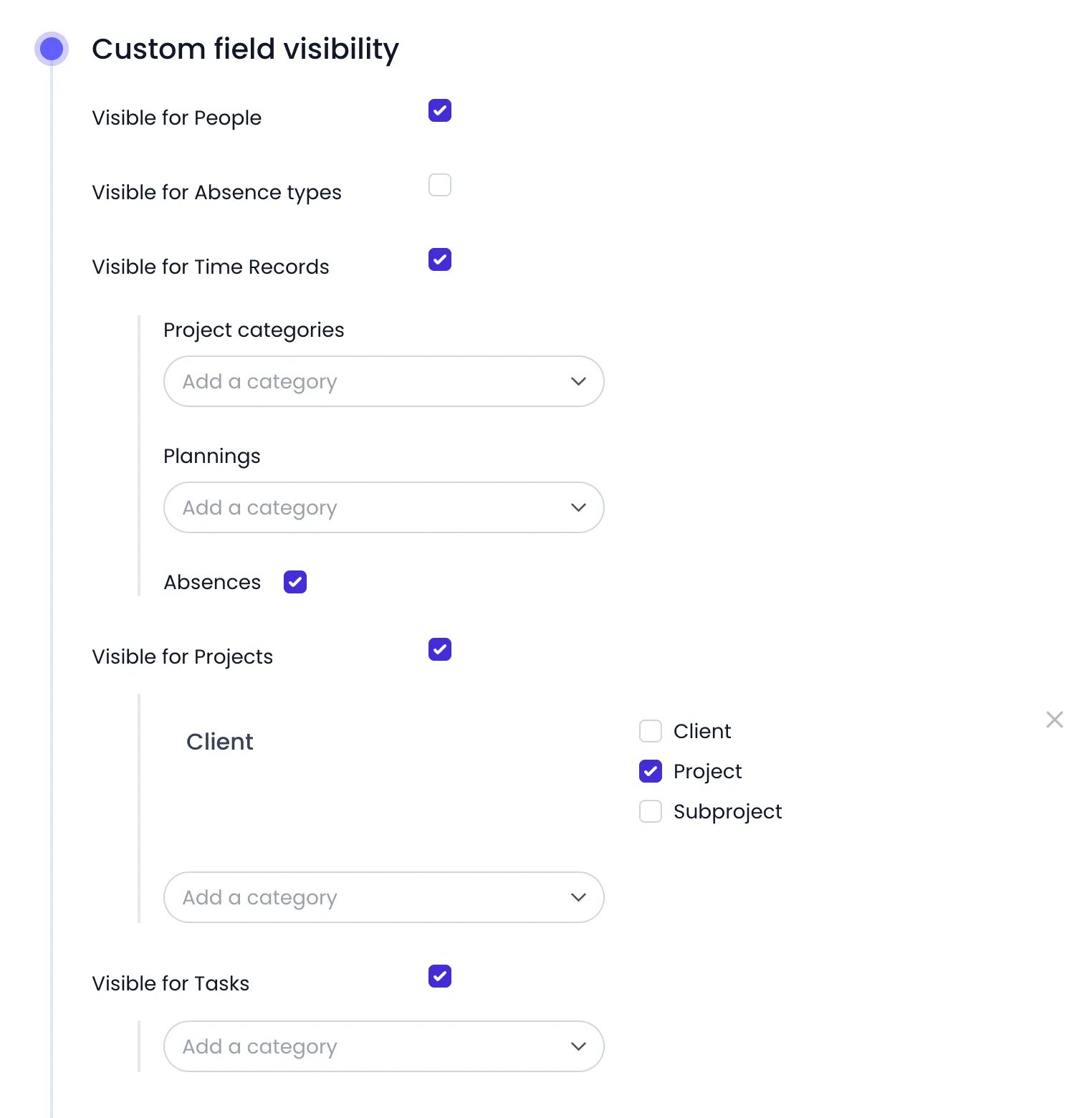
The Custom field visibility panel of a field shown on people, time records, Client projects and tasks
Who a field is asked of
Visibility decides which kind of record can carry the field. The field’s Who has access? panel then decides which records actually get it, with sections for people, tags, projects, tasks, and time off types. When Show all custom fields is on in Show or hide by default, those sections flip into exclusion lists instead. See Assignments for how the two directions work together. On a time record, the field follows the person the timesheet belongs to — not whoever types the entry — and Beebole checks every link the entry offers: the person and their tags, the projects on the entry and their parents, its task, and, on a time-off row, the time off type it is booked against. A match on any one of them brings the field in, which is what makes an assignment to a time off type show the field on absences of that type.Entering values
Which records show a field depends on Show all custom fields, in the Show or hide by default panel of Account Settings. While it is on, as in a new account, a field visible for a given type appears automatically on every matching record, except the ones excluded in its Who has access? panel. With it off, the field appears only on the people, tags, projects, tasks, and time off types listed in that panel, directly or through a tag. See Who a field is asked of. Open a person, project, or task and fill in the field in its Custom fields panel; values are saved automatically as you enter them. For time records, open the entry’s details on the timesheet and fill in the field there.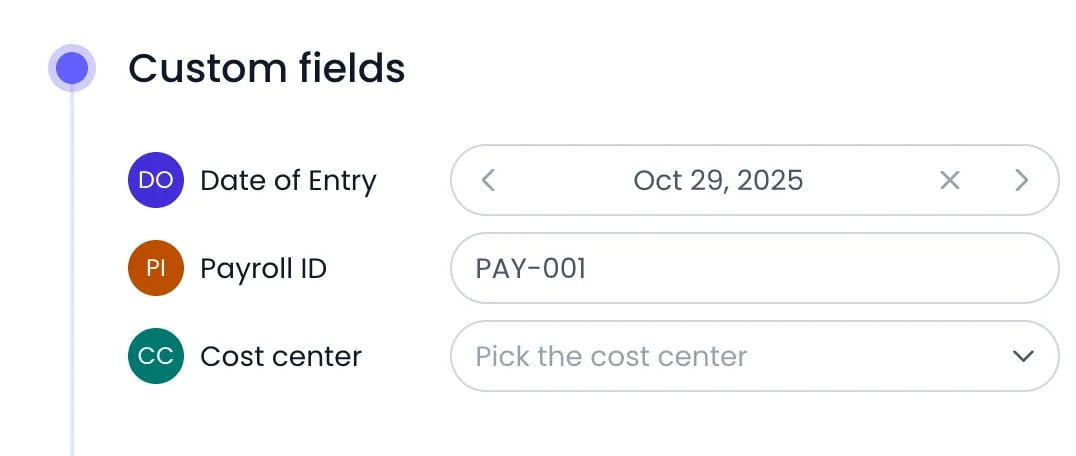
A person's Custom fields panel with a date and a text value filled in
Custom fields in reports
Custom field values flow into reporting. When you build a custom report, a custom field is offered at the bottom of the field list of the report columns that match its visibility, so a field like a client reference or region becomes a regular report dimension:- Fields visible for people appear in the Person column.
- Fields visible for projects appear in the column of each project category they apply to, at the levels you ticked. Fields visible for tasks appear in the column of each planning they apply to.
- Fields visible for time records appear in the Time column.
- Fields visible for absence types appear in the Absence type column.
Custom fields in the API
Definitions and values are both exposed in Beebole’s GraphQL API: read them withgetCustomFields and getCustomFieldValues, write values with addCustomFieldValue and its edit mutations. This is how an identifier from another system — an HR or payroll ID kept in a text field, or the External ID field a legacy migration creates — is looked up or filled in from a script. See Custom fields on the Queries page and Custom fields on the Mutations page.
Managing custom fields
To manage an existing field, open it in Settings > Custom Fields and click the ⋯ action menu next to its name. The menu offers Duplicate, Rename, Archive, Unarchive, and Delete. Archived fields disappear from the list. Click Show Archived to display them, then use the ⋯ action menu and Unarchive to restore one.Related content
People
Manage the profiles where person-level custom fields appear.
Projects
Organize projects into the categories that drive field visibility.
Timesheets
See where time-record custom fields show up when entering time.
Custom Reports
Use custom field values as columns in your report layouts.
Frequently asked questions
Which field types does Beebole support?
Which field types does Beebole support?
Beebole offers seven custom field types: Text, Number, Date, Date & time, URL, Boolean, and Unique ID. Each type has its own options, such as length limits and patterns for text or earliest and latest dates for date fields. A Unique ID field also makes sure no two items share the same value.
Do custom fields appear on the timesheet?
Do custom fields appear on the timesheet?
Yes. Turn on Visible for Time Records and the field appears when filling in a time entry’s details on the timesheet. You can limit it to specific Project categories and Plannings, and the Absences toggle also shows it on time-off entries. On a time record the field follows the person the timesheet belongs to, so an assignment made through that person, one of their tags, the entry’s projects or task, or its time off type all bring the field in.
Can I restrict a custom field to a list of allowed values?
Can I restrict a custom field to a list of allowed values?
Yes. On a Text field, turn on Use predefined values and add the entries under Allowed values. In Beebole, users then pick from that list instead of typing free text.
Can I show a custom field only for some project categories?
Can I show a custom field only for some project categories?
Yes. Under Visible for Projects, add only the project categories where the field belongs, and tick the hierarchy levels it should cover. Projects in other categories won’t show the field.
Can I change a custom field's type after creating it?
Can I change a custom field's type after creating it?
Yes. Open the field in Settings > Custom Fields and pick another Field type in the Custom field details panel. The type-specific options change with it, so review the limits, validation, and Placeholder text after switching. Beebole refuses a switch to Unique ID while two items hold the same value — remove the duplicates first.
Why doesn't my custom field appear on a person?
Why doesn't my custom field appear on a person?
Check two things in Beebole. First, the field needs Visible for People turned on in its Custom field visibility panel, under Settings > Custom Fields. Second, the person must be covered by the field’s Who has access? panel. When Show all custom fields is off in Show or hide by default, add the person, or one of their tags, to that panel; you can also add the field from the Show or hide panel of the person or the tag. When it is on, check that neither the person nor their tags are listed there as excluded.