

Adding your team
Adding a person in Beebole
Open the People page
Add a person
Add
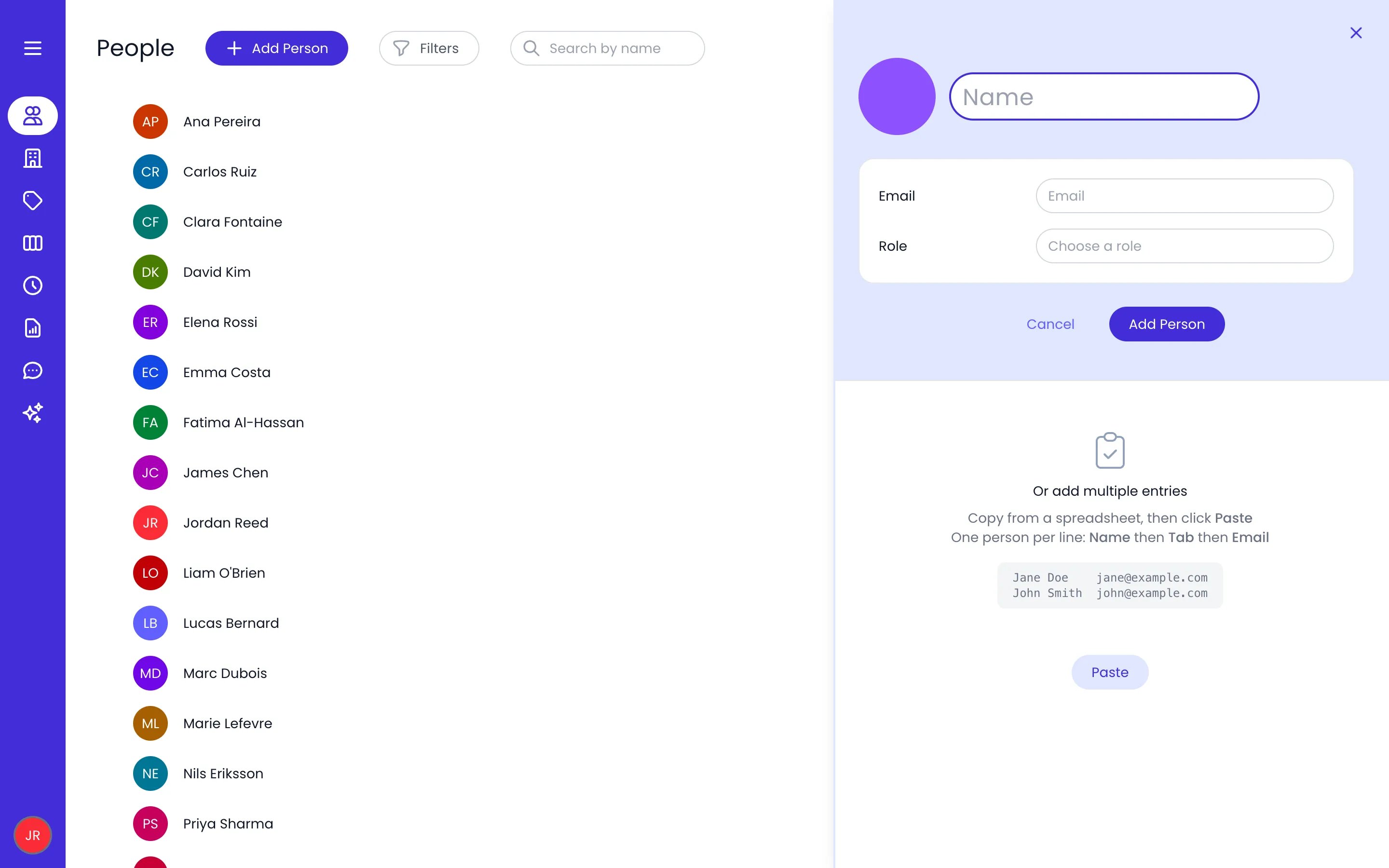
The Add person panel: name, email and role, with the Or add multiple entries area below
Adding several people at once
To add a large team in one go, use the Or add multiple entries area of the same add panel:- Copy rows from a spreadsheet, one person per line: name, then Tab, then email.
- Click Paste. Beebole first asks you to pick a role (“Please select a role for the people you want to add”): choose it in the Choose a role selector. That one role applies to everyone in the batch, and you can change it per person later.
- Check the rows in the Import preview, which shows each person’s name, email, and role.
- Click Import entries. The button shows how many people will be created. If something went wrong, click Undo to remove every person the import created.
Duplicating a person
To set up a new person like an existing one, duplicate the existing profile instead of configuring the new one from scratch. Open the person’s profile, click the ⋯ action menu next to their name, and choose Duplicate. Enter the new person’s name — Beebole proposes an email address on the same domain, which you can change — pick a Role if it differs from the original’s, and click Duplicate. The copy carries over the original’s settings and links, such as tags, managers, and project access; the profile picture and the tasks the original owns are not copied. The new person is created without an invitation, so send one when they are ready to sign in.Sending invitations
Open the person's profile
Send the invitation
Share the link if needed
Track status
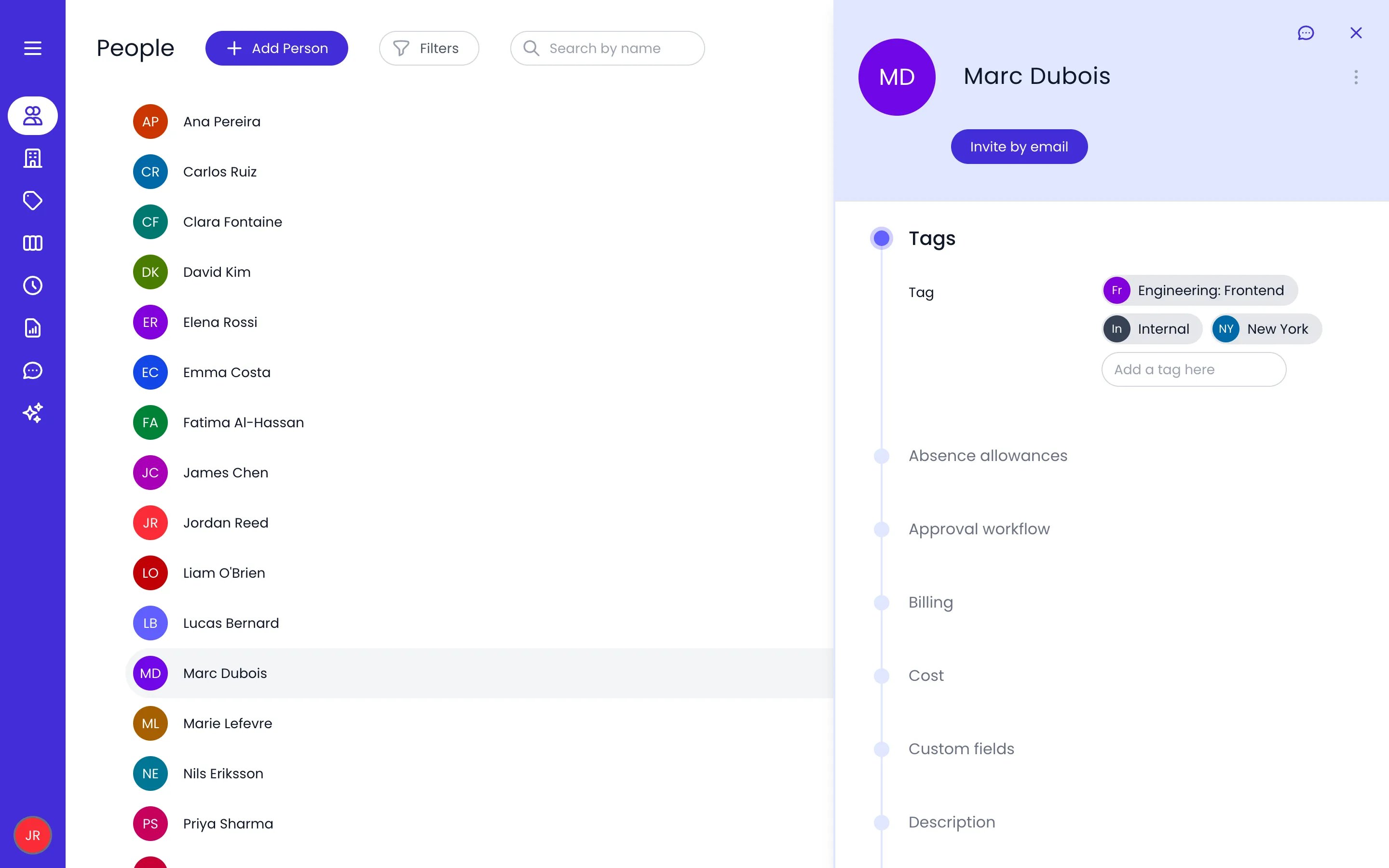
A person's profile opened from the People list, with the Invite by email button
Bulk invitation
To invite several people at once, select multiple people from the list using the checkboxes, then click Invite in the bar that appears at the bottom of the list. Beebole sends invitation emails to all selected people in a single operation. This is useful when onboarding a new team or following an import. Notifications then report the result: how many invitations were sent, how many selected people are already in the organization, and how many have no email address. Beebole skips the people already in the organization, since they already have access. It also skips the people with no email address: add one to their profile, then invite them again.Configuring person profiles
Click a person’s name to access their profile settings, for example:- Manages: who this person manages and who manages them. See Managers and the Manages panel.
- Tags: the departments, teams, or locations the person belongs to. See Tags.
- Custom fields: your own data on the person, like an employee ID or an office location. See Custom fields on persons.
- Localization: the person’s own time zone, number, clock, and date formats. See Localization per person.
- Description: free notes about the person, written in a rich-text editor.
Managers and the Manages panel
The Manages panel of a person’s profile sets what this person manages and who manages them. It has four lists:- Team members: the people this person manages. Add one with Add a person here.
- Projects: the projects they manage, added with Add a project here.
- Tasks: the tasks they manage, added with Select task.
- Entities tagged with: the tags they manage, added with Add a tag here. People, projects, and tasks that carry one of these tags, or a tag below it, count as managed by this person. Managing a team tag therefore puts everyone tagged with it in their team.
Role assignment
Each person is assigned a role that controls what they can see and do in Beebole. You set the role when creating a person, but you can change it at any time. Open the person’s profile and go to the Email & role panel. Next to Role, hover over the current role, click the × on it, and pick a new role from the Choose a role selector. The change takes effect immediately — the person’s next page load reflects their updated permissions. See Roles & permissions for details on what each role can access.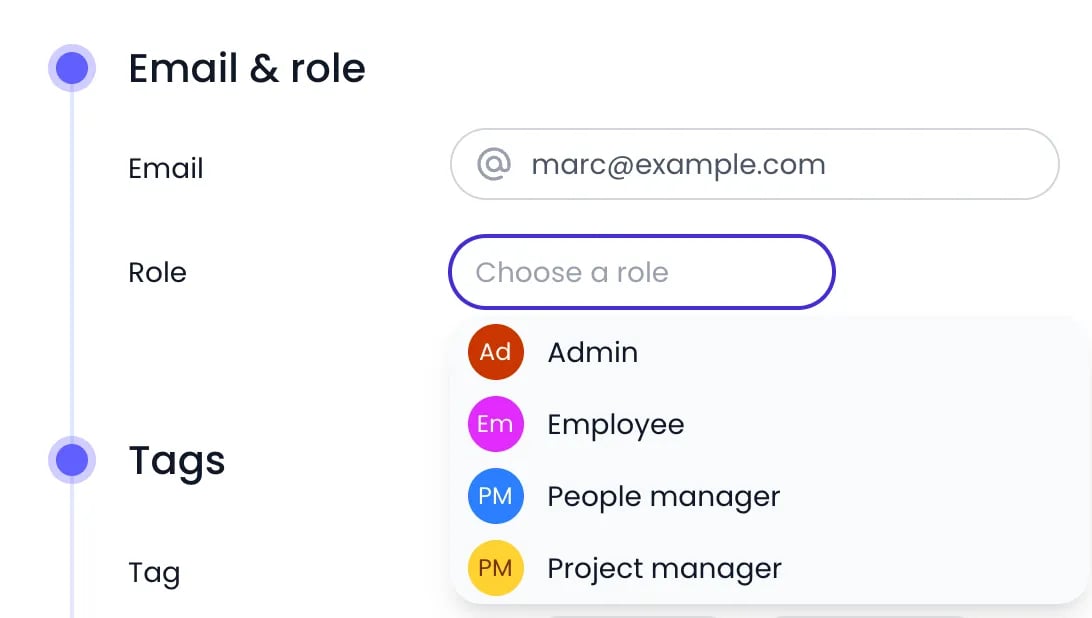
The Choose a role selector in a person's Email & role panel
Schedule assignment
Work schedules define a person’s standard working hours and days. To assign a schedule, open the person’s profile, go to the Work schedule panel, and type the name of a schedule in the Select schedule picker. Optionally set a start date so historic data is not affected. Schedules on a person override any schedule inherited from their tags or the organization default. See Work schedules.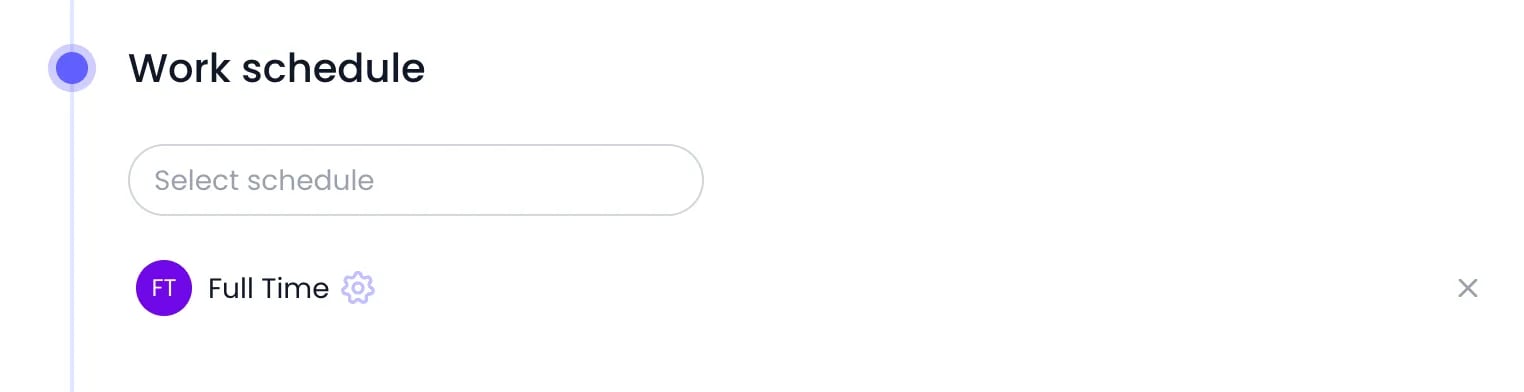
A person's Work schedule panel: Full Time comes from the organization, as the gear next to it shows
Valid period for time entry
A person’s profile can carry a Valid period for time entry — a From and/or To date bounding when time can be recorded for them. Set it to a contractor’s engagement dates or an employee’s start and end dates: entries outside the window are refused, with a message naming the person whose validity period blocks them. Leave either date empty for an open-ended window.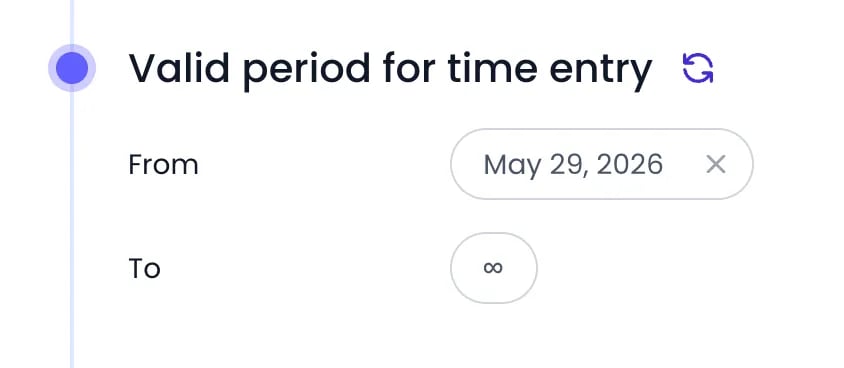
A contractor's window, open from their start date with no end date
Localization per person
You can override the organization’s locale settings for any individual. Open the person’s profile, then the Localization panel, to set their Time zone, First day of the week, Currency, Decimal format, Thousands separator, Clock format (3:45 PM or 15:45), and Date format. These settings affect how the app displays dates and times for that person only — useful for team members in different countries or who prefer a specific format. Only administrators can change First day of the week, since it decides where the person’s timesheet periods start. A gear next to a setting means its value comes from the organization. Once you change a setting on the person, the gear gives way to a reset button that brings back the inherited value. A tag can carry the same settings for everyone tagged with it, which saves setting them person by person for a whole office. See Tags.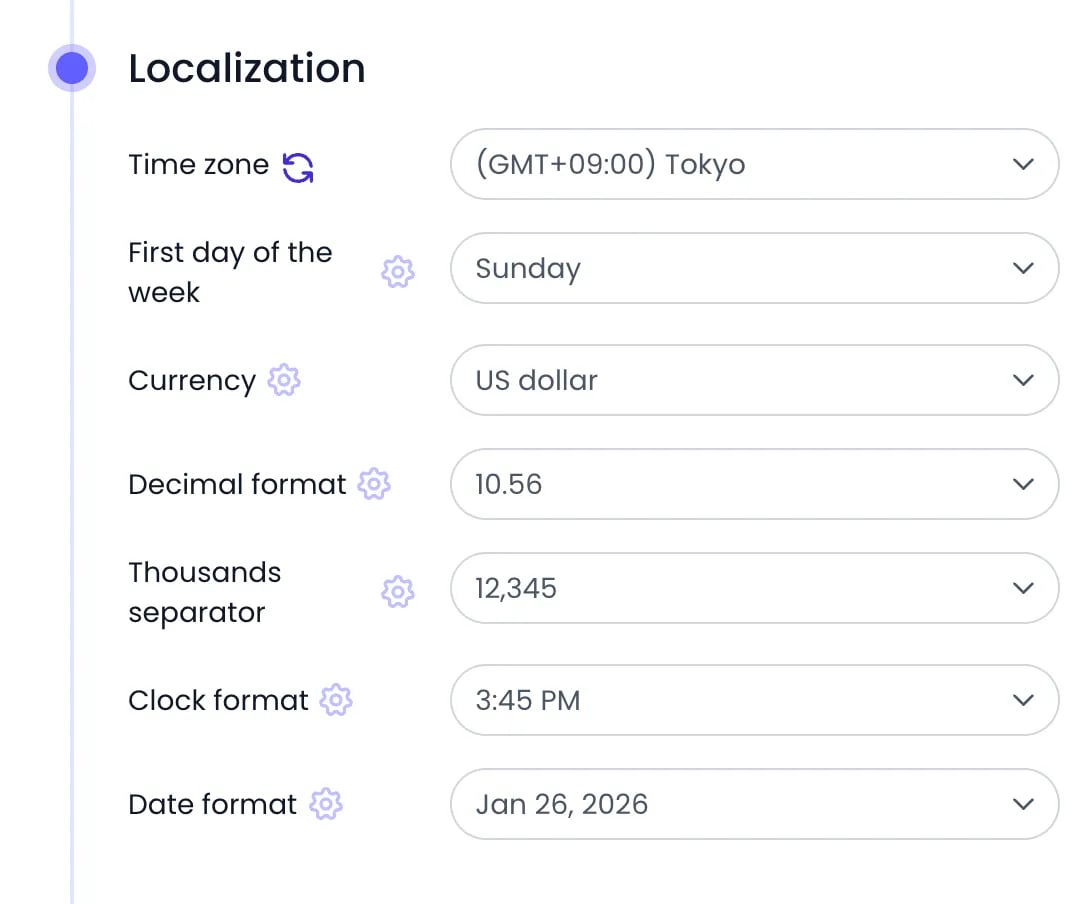
A person in Tokyo: the time zone is set on her profile, the other settings come from the organization
Rates and quotas on people
Billing and cost rates per person
To set a person’s rates, open their profile and go to the Billing or Cost attribute section. Click Add to create a new rate entry. Choose the rate type (hourly, daily, or fixed), enter the amount and currency, and set the effective date. You can add multiple rate entries over time to reflect salary changes or contract updates — Beebole uses the rate that was active on the date of each time record. See Billing rates and Cost rates.Absence quotas per person
Absence quotas define how much time off a person is entitled to for each absence type (for example, 20 days of annual leave). To configure a person’s allowances, open their profile and go to the Absence allowances attribute section. Click Add new allowance, select the absence type, enter the amount, and set the validity period. You can also enable carry-forward and allow negative balances depending on your policy. See Time off. A person’s own allowances replace the whole set they would otherwise inherit, not only the allowance for the same absence type. Beebole uses the allowances of the most specific level that has any: the person, then their tags, then the organization. So if the organization grants PTO and Sickness and you add a single PTO allowance on a person, that person no longer inherits the Sickness allowance, and Sickness has no limit for them. To change one allowance for someone, click Copy in the Absence allowances panel where the set is defined (Account Settings or the tag), click Paste in the person’s panel, then adjust the allowance that differs. See Attribute copy and paste.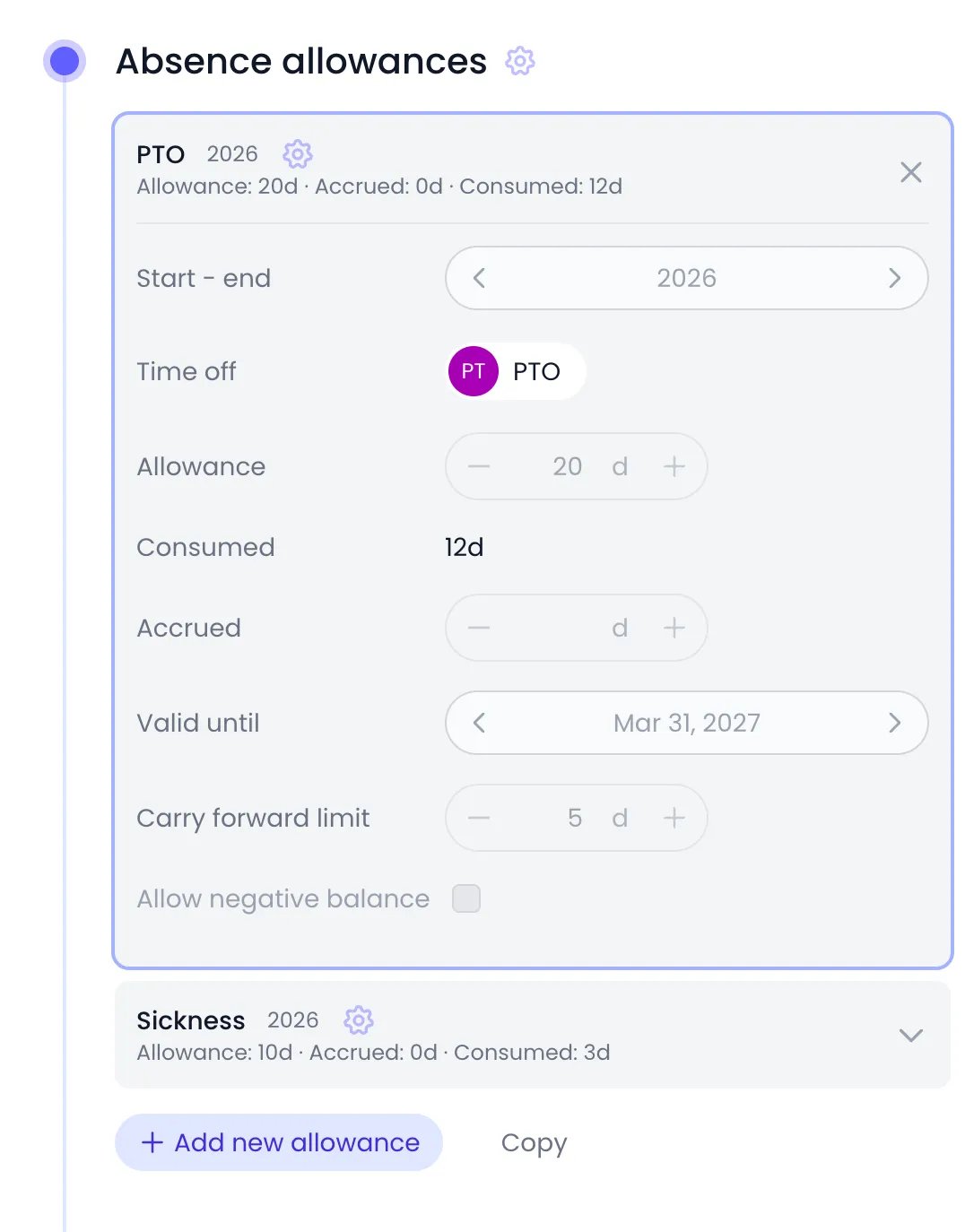
A person's PTO allowance, inherited from the organization, opened to show the days consumed
Custom fields on persons
Custom fields let you extend a person’s profile with structured metadata beyond the built-in fields. Common uses include storing an employee ID, cost center, office location, or contract type. To add a value, open the person’s profile and fill it in the Custom fields panel; values are saved automatically. The fields themselves are defined in Settings > Custom Fields, and not every field appears on every person. A field shows on a person only when Visible for People is on for it and the person is covered by the field’s Who has access? list, directly or through a tag, or when Show all custom fields is on in your Show or hide by default settings. See Who a field is asked of.Archiving and offboarding
To archive a person, open their profile, click the ⋯ action menu next to their name, and select Archive. You can unarchive them at any time from the same menu.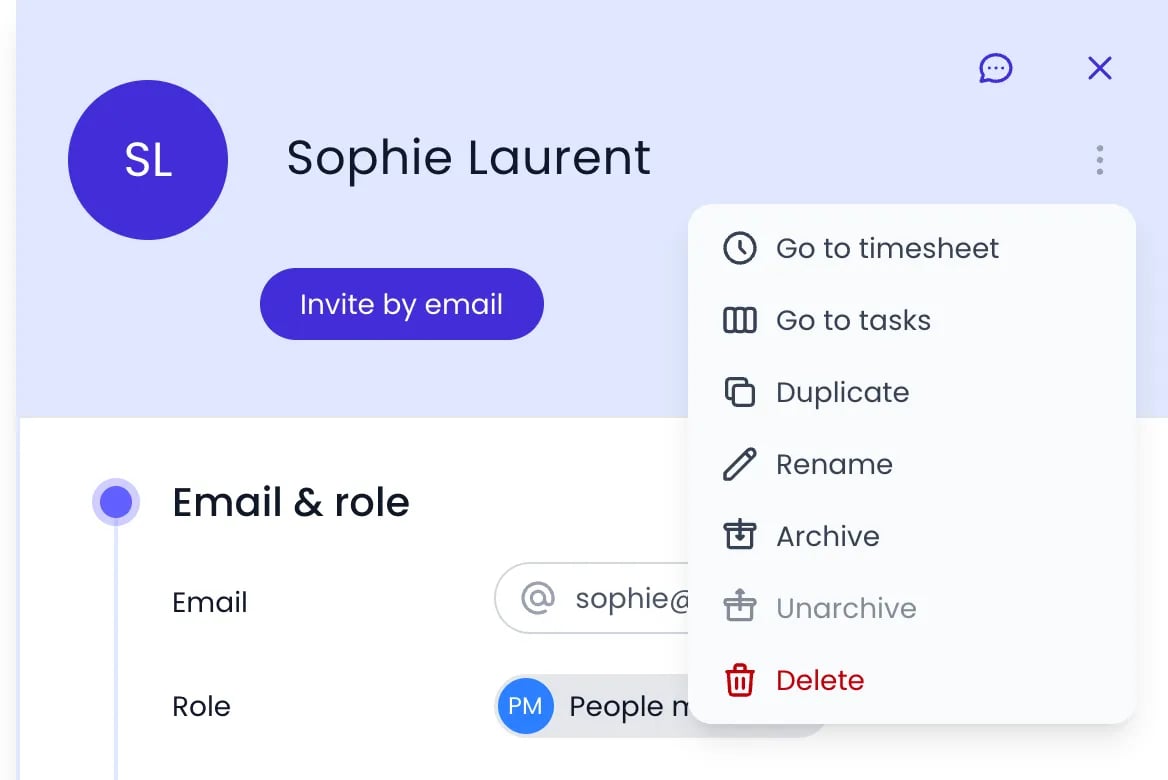
A person's ⋯ action menu, with Archive and Unarchive
Bulk operations Admin only
Select multiple people from the list using the checkboxes to perform actions in bulk. A bar appears at the bottom of the list with Select All, the number of people selected, and the bulk actions:- Invite — Send invitation emails to all selected people at once.
- Archive — Archive multiple active people in a single step.
- Unarchive — Restore multiple archived people (requires available seats).
- Delete — Delete people added by mistake. If any selected person has time records, approval history, tasks they own, or people they manage, Beebole deletes none of them and names what blocks the deletion. Otherwise a notification names the deleted people with an Undo button for a few seconds. After that the deletion is permanent, and deleted people can no longer sign in to Beebole.
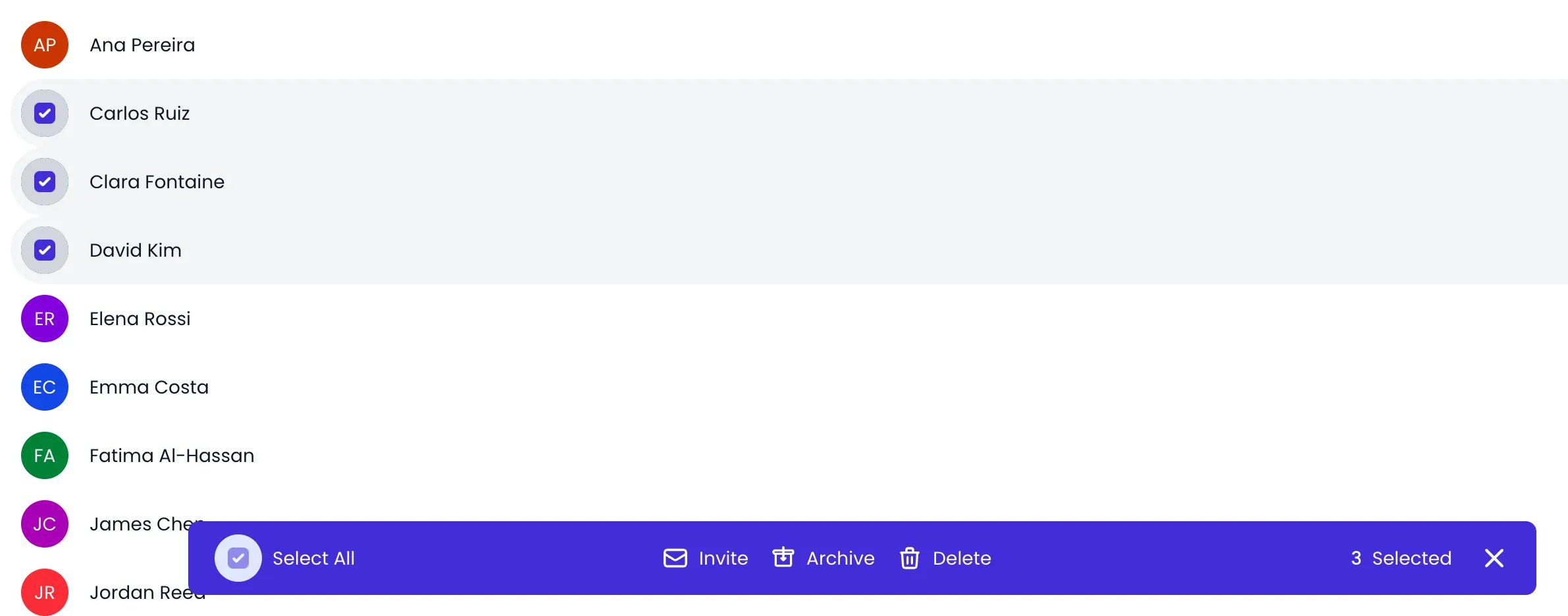
Three people selected, with the bulk bar at the bottom of the list
Related content
Roles & permissions
Tags
Work schedules
Cost rates
Frequently asked questions
What happens when someone leaves the company?
What happens when someone leaves the company?
Can I create custom roles beyond the four built-in ones?
Can I create custom roles beyond the four built-in ones?
What happens if I add a person when all seats are taken?
What happens if I add a person when all seats are taken?
Can I sign in as another user for troubleshooting?
Can I sign in as another user for troubleshooting?
How do I copy an existing person's setup to a new person?
How do I copy an existing person's setup to a new person?