Beebole works on any device with a web browser — phone, tablet, or desktop. You can also install it as an app on your device for a native-like experience, complete with an app icon and full-screen mode.
This page covers installing the Beebole web app on your device (PWA). The separate Beebole desktop app is a companion that drafts time entries from your computer activity — you can use both.

Installing Beebole as an app

Beebole is a Progressive Web App (PWA), which means you can install it directly from your browser without going through an app store. Once installed, Beebole appears as a standalone app on your home screen or taskbar.

On iPhone or iPad

1

Open Beebole in Safari

Navigate to your Beebole account URL in Safari.
2

Tap the Share button

Tap the Share icon at the bottom of the screen.
3

Add to Home Screen

Scroll down and tap Add to Home Screen. Give the app a name and tap Add.
Adding Beebole to the Home Screen is also what lets an iPhone or iPad receive push notifications: Safari doesn’t deliver them to a browser tab. Open Beebole from its Home Screen icon and, in your own Notifications panel, check Push notifications. If it is already checked, tap Enable on this device under it. Opened in a Safari tab, the panel shows a reminder to add Beebole to the Home Screen instead. See Push notifications on your devices.

On Android

1

Open Beebole in Chrome

Navigate to your Beebole account URL in Chrome.
2

Tap the install prompt

Chrome displays an Install banner or you can tap the menu (three dots) and select Install app or Add to Home screen.
3

Confirm installation

Tap Install. Beebole appears as an app on your home screen.

On desktop (Windows, macOS, Linux)

1

Open Beebole in your browser

Navigate to your Beebole account URL in Chrome, Edge, or another compatible browser.
2

Install the app

Click the install icon in the address bar, or go to the browser menu and select Install Beebole.
3

Launch from your desktop

Beebole now appears in your applications list and can be pinned to your taskbar or dock.
The installed app runs in its own window without browser navigation bars, giving you more screen space for your timesheets and reports.

Responsive layout

Beebole’s interface adapts automatically to the width of your screen. It has two layouts:
  • Desktop — On screens 1280 pixels wide or more: sidebar navigation, the weekly grid, detailed tables, and side panels.
  • Touch — On narrower screens, which covers phones and most tablets: a compact layout with the sidebar behind a menu button and bottom sheets instead of pop-ups. Below 1024 pixels, the timesheet also becomes a list of days and the Planning page a list of your own tasks (see Planning on mobile).
A tablet turned sideways can cross the threshold and switch to the desktop layout. You do not need to switch between different apps or URLs. The same Beebole account works seamlessly across all devices.

Theme settings

Beebole supports three theme options to match your visual preference: To change your theme, click the button with your initials at the bottom of the sidebar to open the user menu, then pick Light, Dark, or Auto.
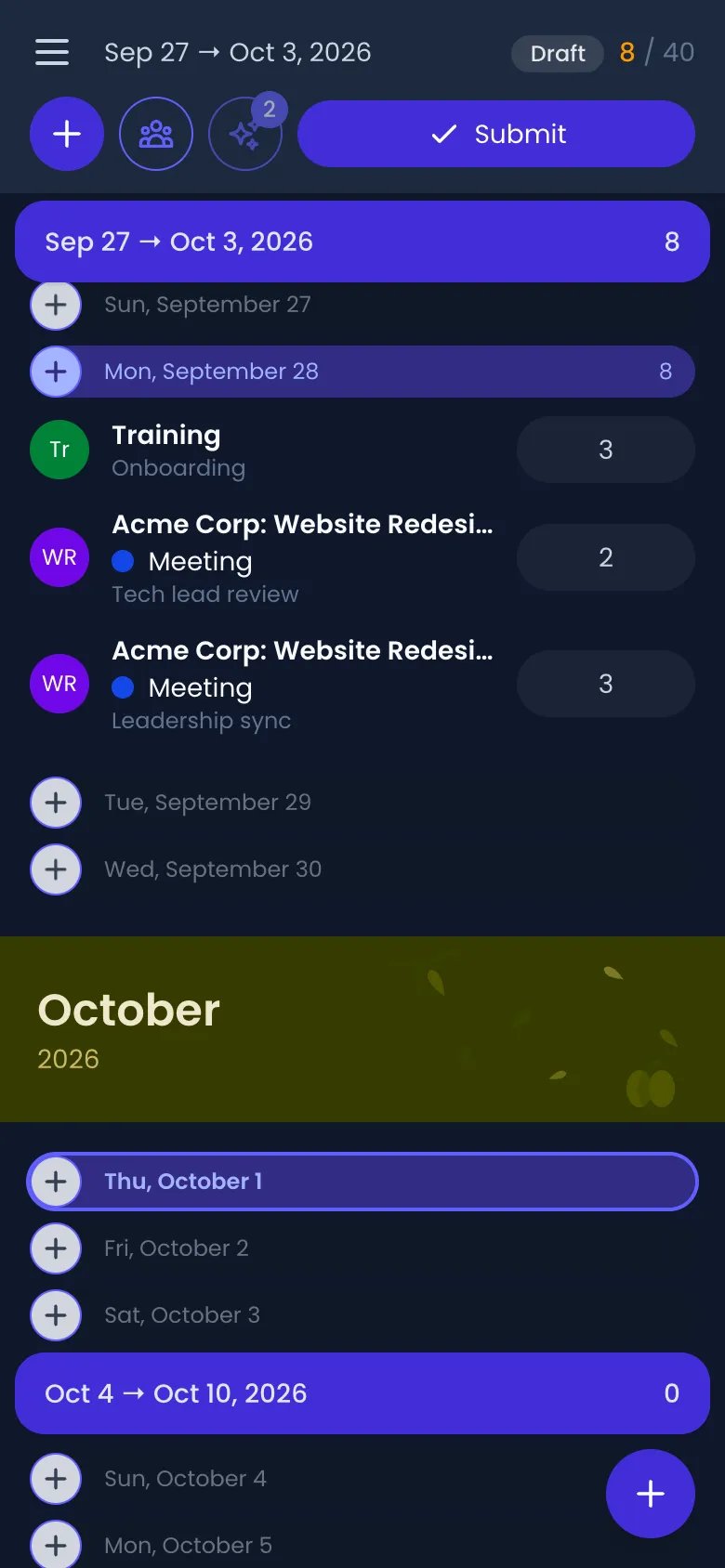
Beebole timesheet on a phone in dark mode: a dark background with the week header, Monday's three time entries on dark cards, the October month banner and today highlighted

The timesheet on a phone in dark mode

The theme setting is personal and applies only to your account. It does not affect other people in your organization.

Logging time on mobile

The mobile timesheet is optimized for touch interaction. It presents your time entries as a scrollable list of days rather than a weekly grid, making it easier to navigate on a small screen.
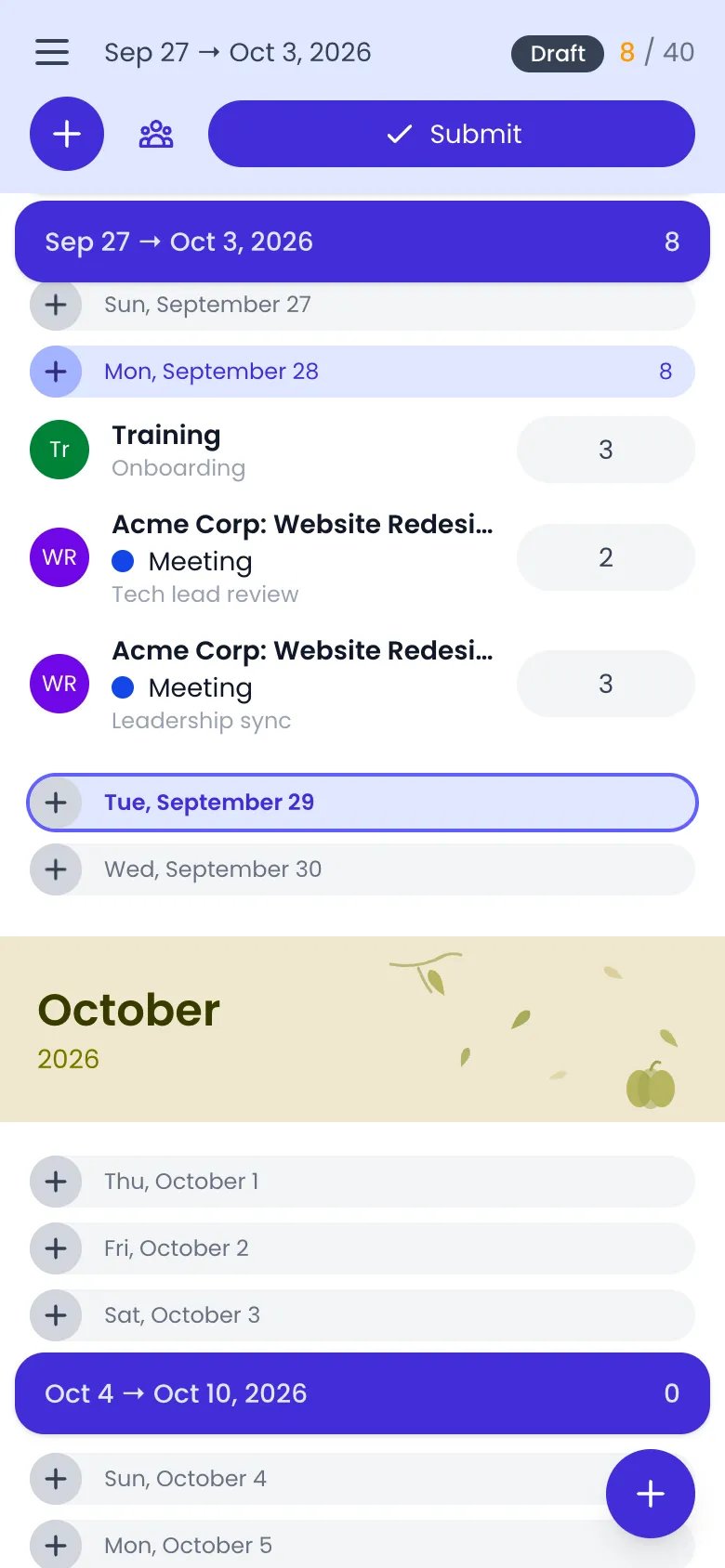
Beebole timesheet on a phone showing the current week as a list of days, Monday with three time entries, today highlighted, the Submit button at the top and the floating + button at the bottom right

The timesheet on a phone: a list of days grouped by week, with the + button at the bottom

How to log hours

1

Open your timesheet

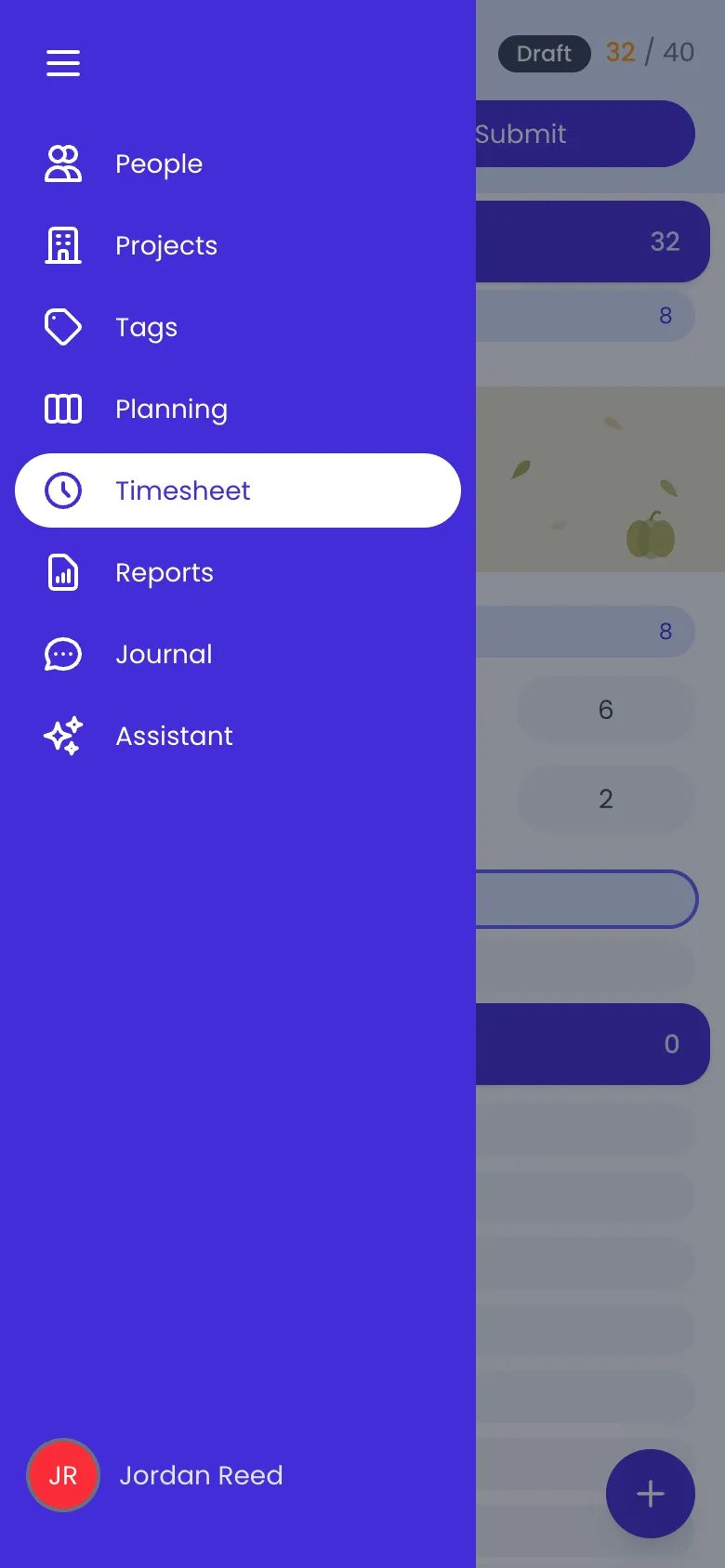
Tap the hamburger menu icon in the top-left corner to open the sidebar, then tap Timesheet.
Beebole sidebar open on a phone over the timesheet, listing People, Projects, Tags, Planning, Timesheet (selected), Reports, Journal and Assistant, with Jordan Reed at the bottom

The sidebar opened from the menu button

2

Add a time entry

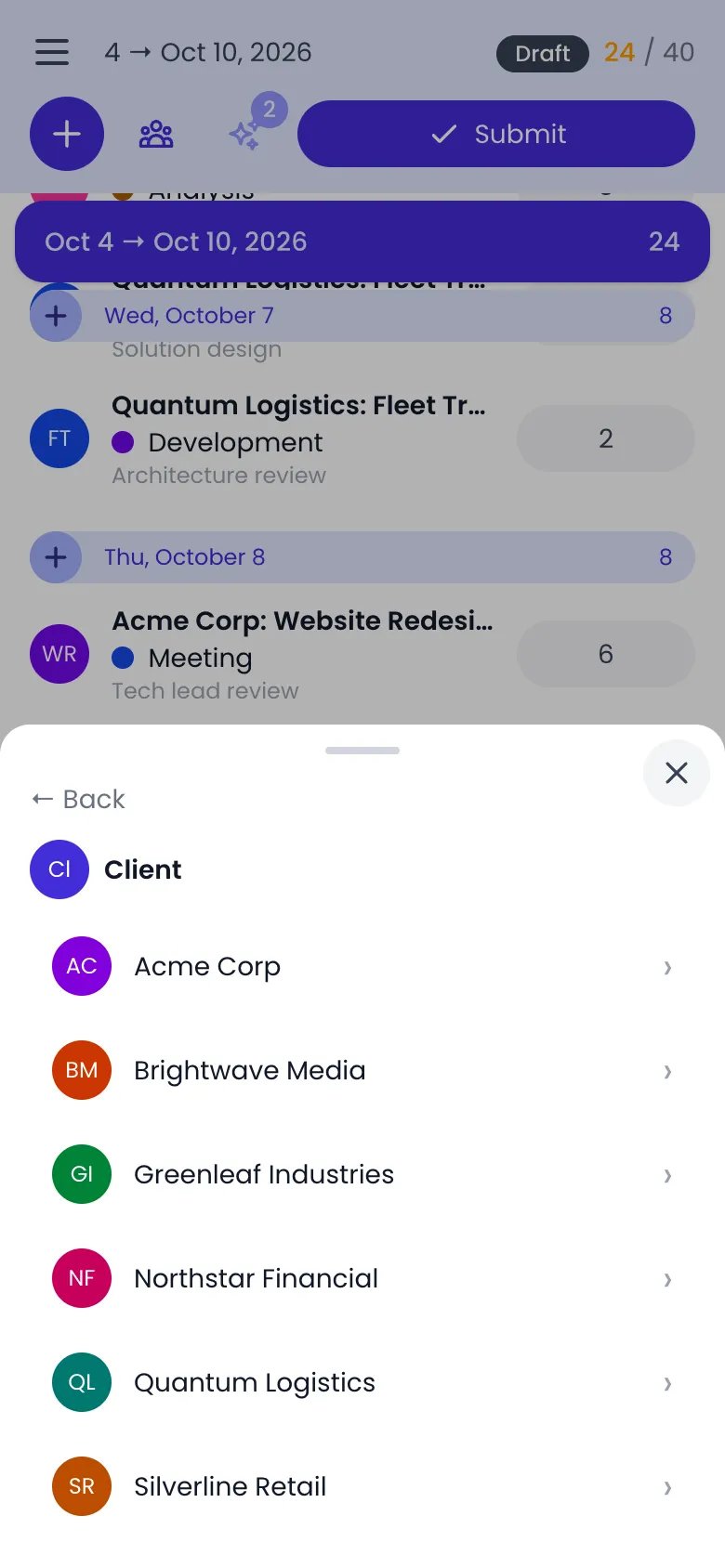
Tap the + button at the bottom of the screen (floating action button) or the + icon next to a specific day. The activity selector opens as a bottom sheet: your recent activities under Your activities, and the Working activity, Task, and Time off buttons. Task and Time off only show when your timesheet settings let you record time on tasks or time off. With the Allow only planned tasks in the timesheet restriction, Working activity is gone and Task offers only your own tasks planned for that day.
3

Select a project, task, or absence

Tap one of your recent activities, or tap Working activity and work down from a category to the project, Task to pick a task, or Time off to pick an absence type. Your choice opens the time entry editor.
Beebole activity selector bottom sheet on a phone showing the Client category with Back above it and the clients in alphabetical order, Acme Corp, Brightwave Media, Greenleaf Industries, Northstar Financial, Quantum Logistics and Silverline Retail, each with an arrow

Working activity, then the Client category: its clients, each opening its projects

4

Enter your time

In the editor bottom sheet, enter the duration or set start and end times (depending on your account configuration). Your entry saves automatically — tap the back arrow to return to the list.

Editing and deleting entries

  • Tap a time entry card to open the editor bottom sheet and update the duration, project, or comment.
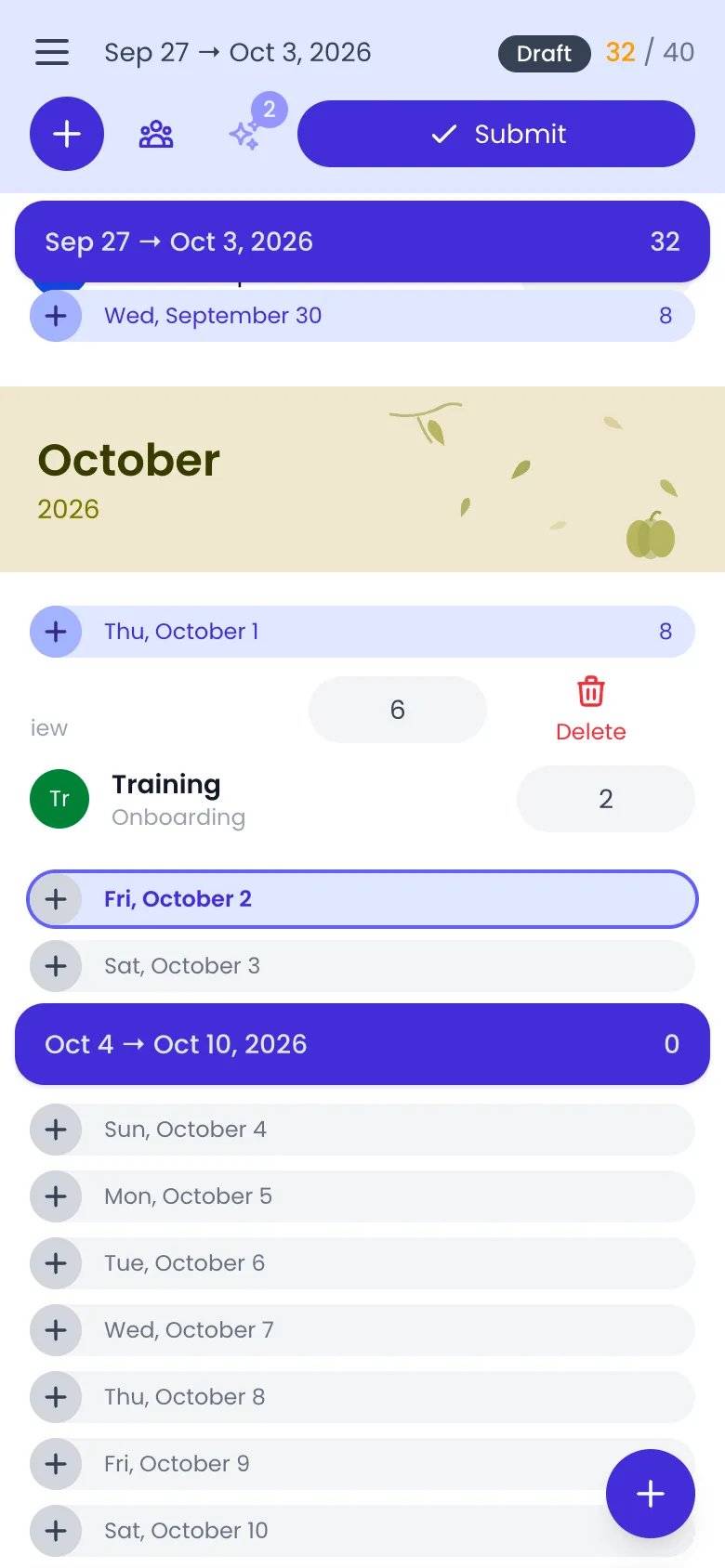
  • Swipe left on a time entry to reveal the delete action. Confirm deletion in the dialog that appears.
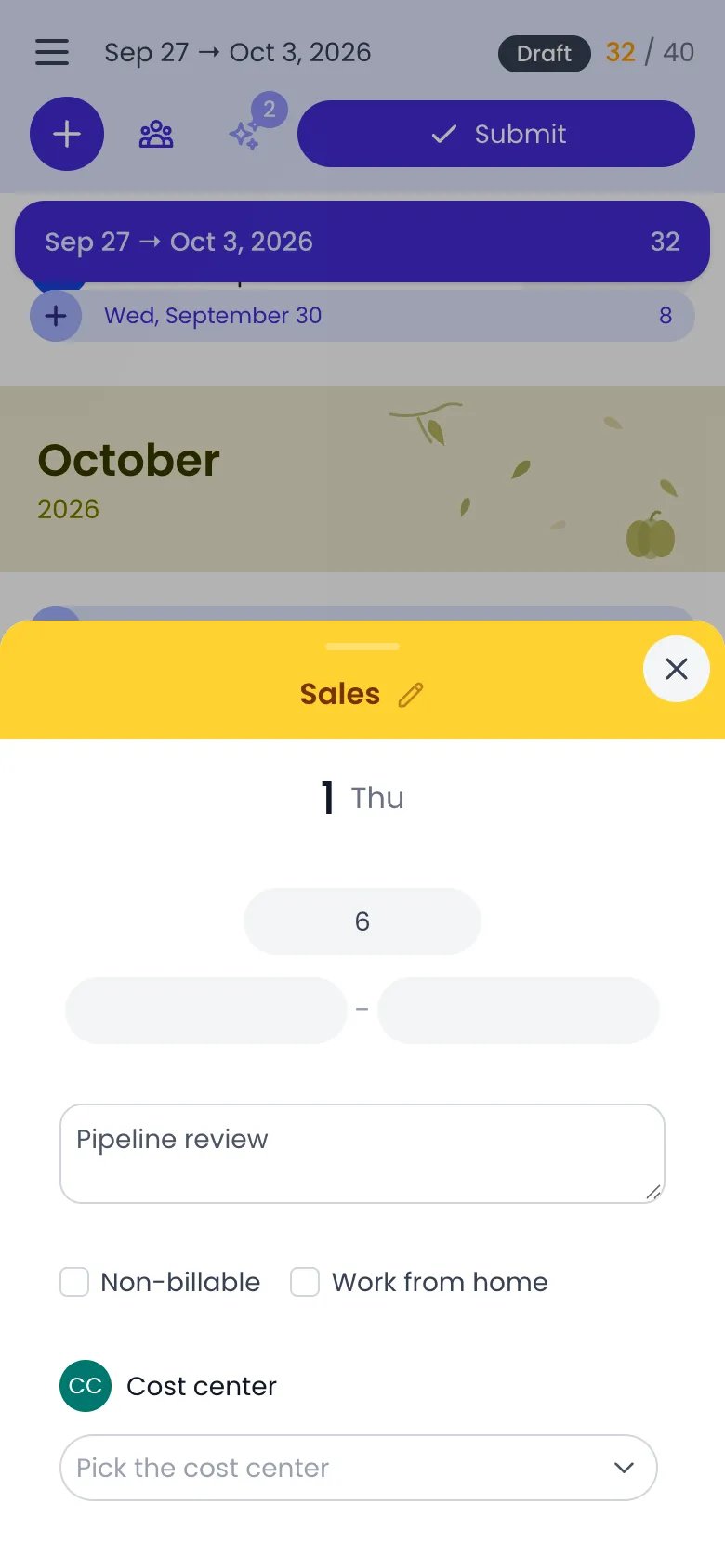
Beebole editor bottom sheet on a phone for a Sales entry on Thursday the 1st: the duration 6, empty start and end times, the comment Pipeline review, the Non-billable and Work from home checkboxes and a Cost center field

An entry opened in the editor sheet

Beebole timesheet on a phone with Thursday's Sales entry slid to the left, showing its 6 hours and a red Delete button with a bin icon, next to the Training entry below

A left swipe on an entry reveals Delete

Editing and deleting are disabled when the timesheet period is locked (submitted or approved). The swipe-to-delete gesture and tap-to-edit are both blocked until the period is unlocked.

Using the timer on mobile

1

Start the timer

On a time entry card, tap the play button on the right side of the card. The timer starts and the entry shows a running red counter.
2

Monitor the timer

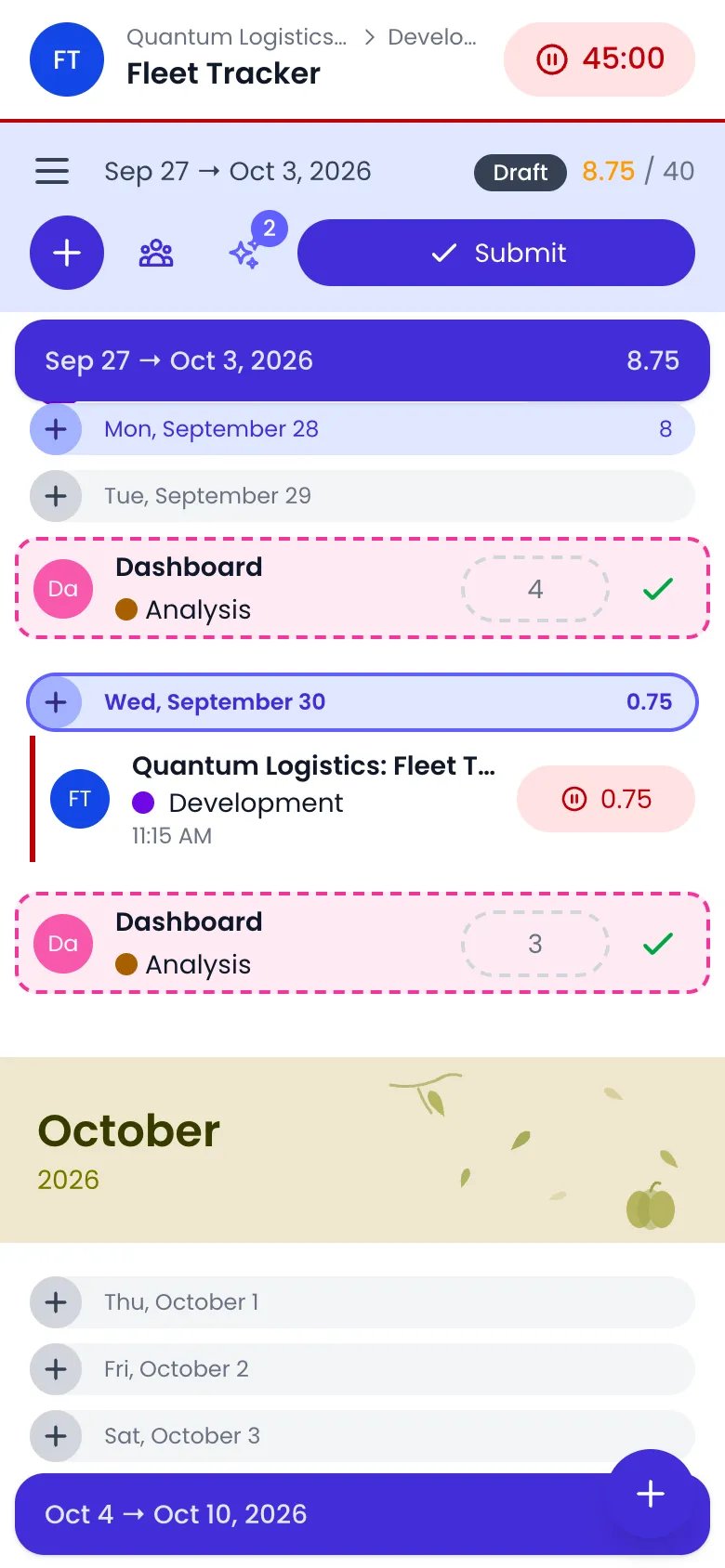
While the timer is running, a timer bar appears at the top of the header showing the active project and elapsed time.
Beebole timesheet on a phone with the timer bar at the top showing Fleet Tracker, its client path and the elapsed time on a red pause button, and today's Fleet Tracker Development entry card with its running red counter

A running timer on a phone: the timer bar at the top and the counter on today's entry

3

Stop the timer

Tap the red pause button in the timer bar or on the entry card. Beebole saves the elapsed time as the entry’s duration.
The timer only appears on today’s entries and is disabled when the timesheet is locked.

Accepting suggestions on mobile

Suggested time entries reach the mobile timesheet too. They appear as ghost rows inside each day, next to your real entries, so you see the day Beebole is proposing alongside the one you have already logged. The sparkles button in the header, with the number of suggestions on it, shows or hides them.
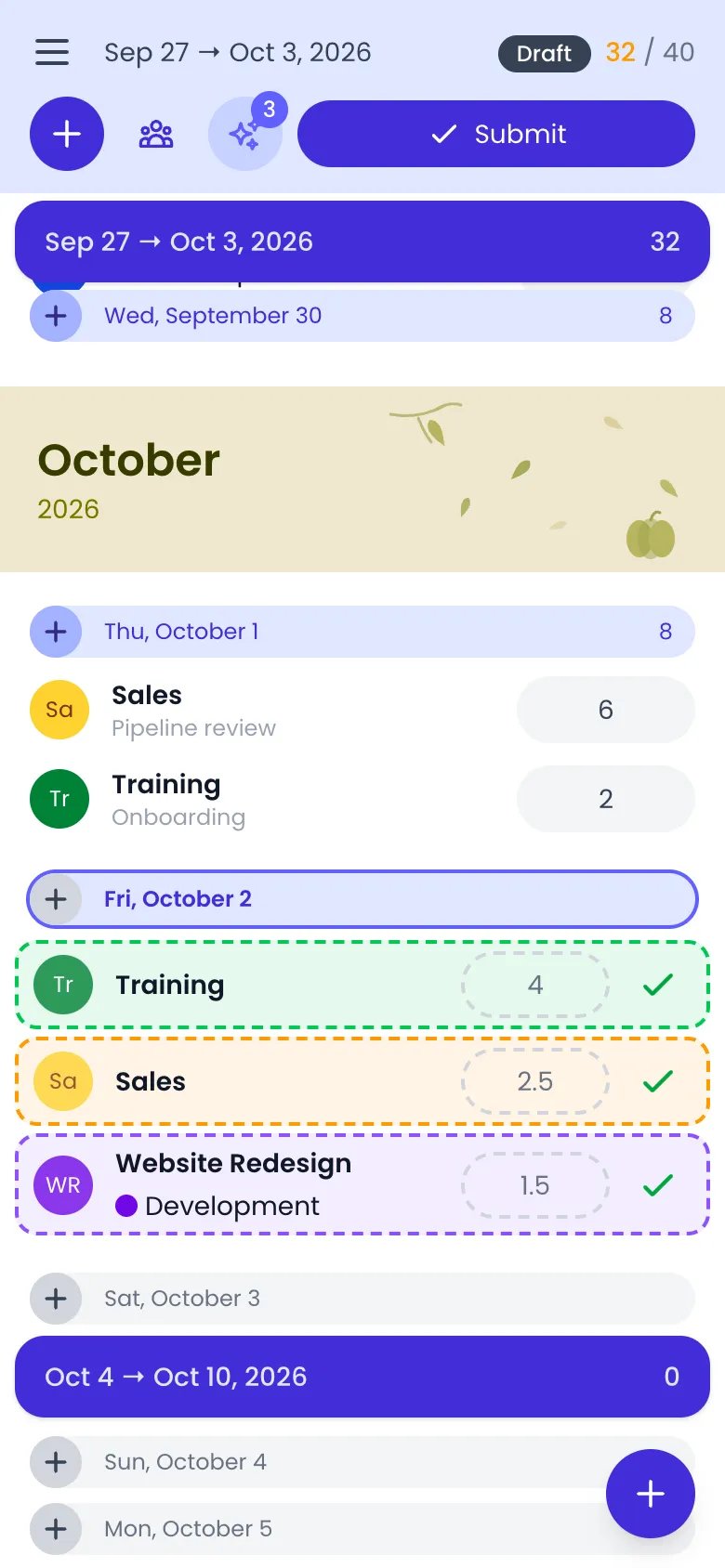
Beebole timesheet on a phone with three suggested entries on Friday, October 2 drawn as dashed rows (Training 4, Sales 2.5, and Website Redesign Development 1.5), each with a green check, under Thursday's logged Sales and Training entries, and the sparkles button showing 3 in the header

Three suggestions on today, with dashed borders and a check to accept each

  • Accept it as it stands — Tap the check on the row. The suggestion becomes a normal time entry on that day.
  • Open it first — Tap the row itself. It opens in a sheet where you can change the duration, set or clear the start and end times, and point it at another task or working activity. The sheet carries three actions: the bin dismisses the suggestion, the play button starts a timer on it, and the check accepts it.
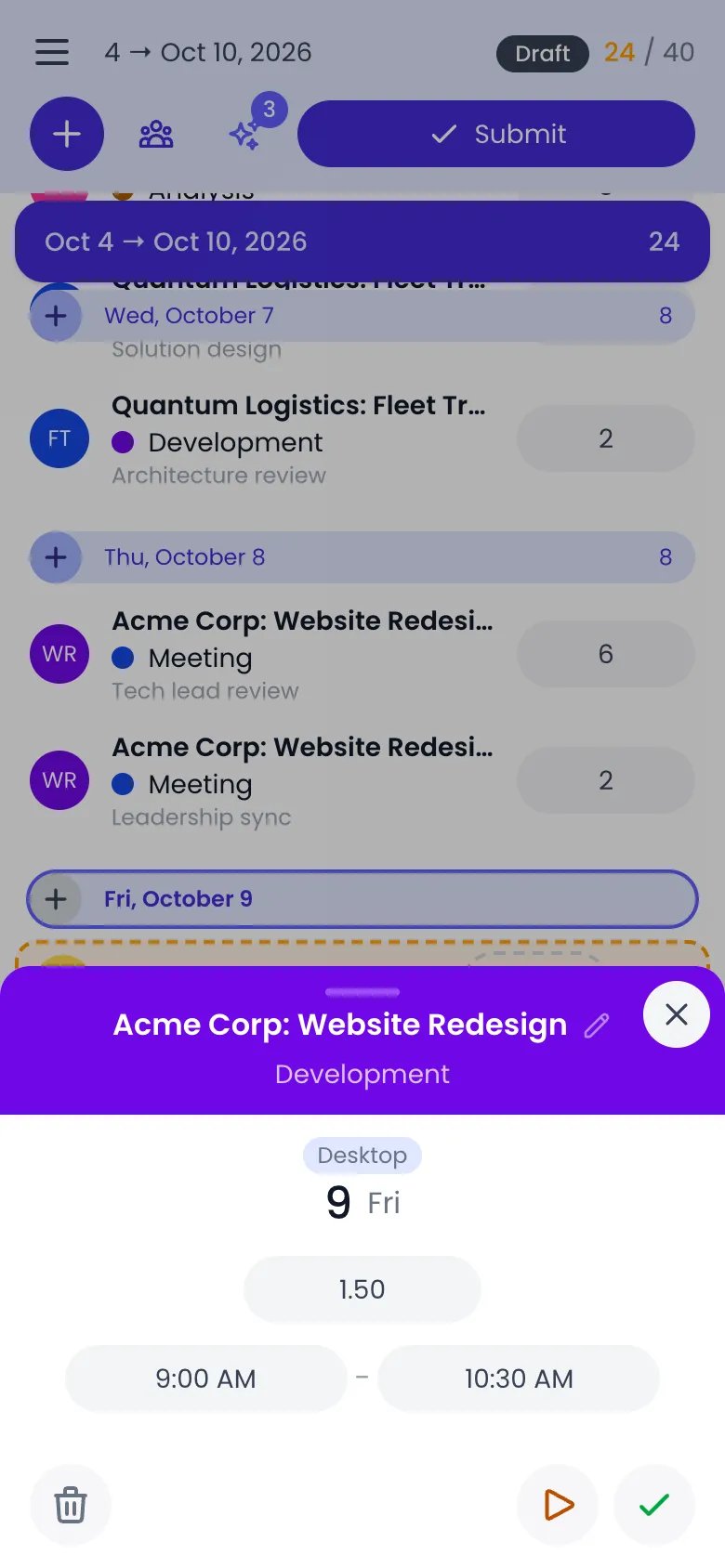
Beebole suggestion sheet on a phone for Acme Corp: Website Redesign, Development, with a Desktop badge, Friday the 9th, a duration of 1.50 from 9:00 AM to 10:30 AM, the bin at the bottom left and the play and check buttons at the bottom right

A suggestion opened in its sheet, with the bin, play, and check actions

A suggestion that carries no project of its own — one that came from a staffing booking, or one on a task your timesheet settings don’t let you log to — opens the picker instead of accepting straight away, with the message Choose the project to log this time on first. Pick the project and the suggestion accepts normally, keeping its link to the planned task.
Suggestions are private drafts. Nothing reaches your timesheet, or your approver, until you accept it.

Submitting timesheets on mobile

When your timesheet is ready for approval, tap the Submit button in the header. The button is visible when the period is in draft or rejected state, you are viewing your own timesheet, and an approval workflow applies to you. After submission, the period is locked and the header shows the Submitted status badge. If your approver rejects the timesheet, the period unlocks and a Resubmit button appears in its place. The mobile timesheet uses infinite scroll rather than week-by-week navigation:
  • Scroll down to load future periods automatically.
  • Pull down from the top of the list to load previous periods. A pull-to-refresh indicator shows when you have pulled far enough to trigger the load.
  • Month banners appear in the scroll list whenever the date crosses into a new month.
  • A Today button appears in the footer when today is out of view. Tap it to scroll back to the current day.
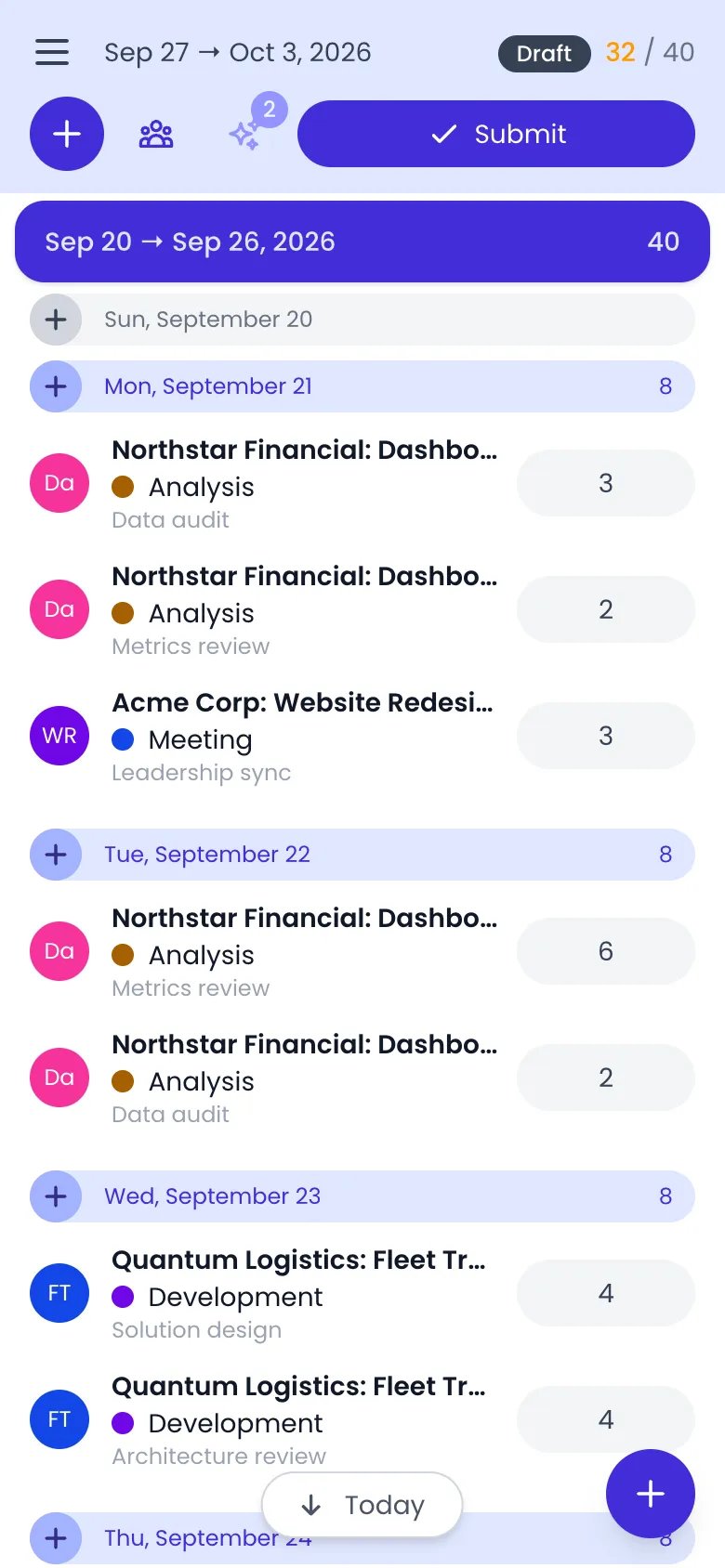
Beebole timesheet on a phone scrolled up to the week of Sep 20 to Sep 26, 2026, with its 40 hours, the days from Sunday, September 20 to Thursday, September 24 and their entries, and the Today button with a down arrow in the footer next to the add button

Scrolled up to last week: the Today button at the bottom brings you back

Approving team timesheets on mobile

Managers and administrators see a team button in the header (person group icon) with a badge showing the number of pending approvals.
1

Open the approval sheet

Tap the team icon in the header. The approval bottom sheet slides up with two tabs: Pending and Team.
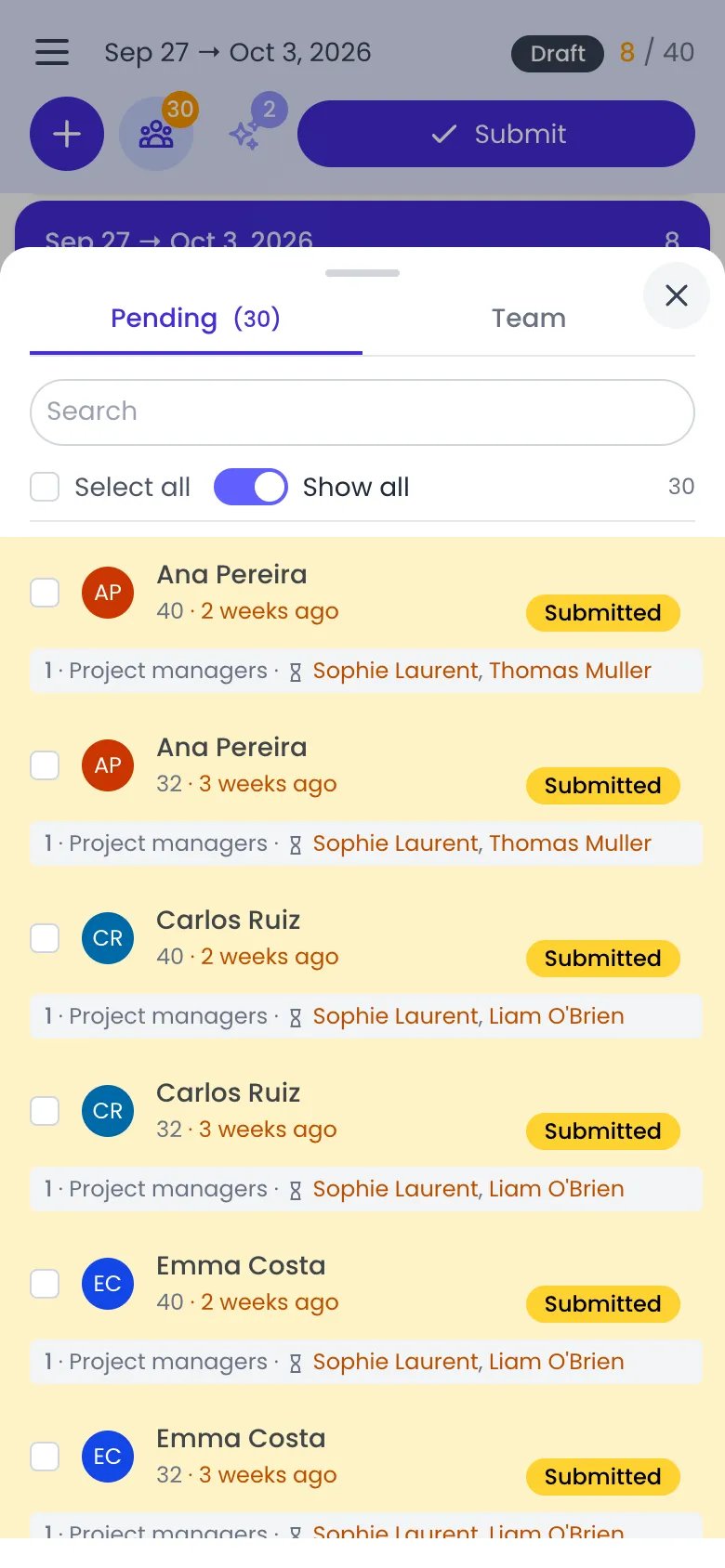
Beebole approval bottom sheet on a phone with the Pending tab selected showing 30 timesheets, a Search field, Select all and Show all, and one card per submitted week with the person, hours, how long ago it was submitted, a Submitted badge and the project managers it waits for

The approval sheet on its Pending tab, with each submitted week and who it waits for

2

Select a timesheet

Tap a person’s entry in the Pending tab to view their submitted timesheet.
3

Approve or reject

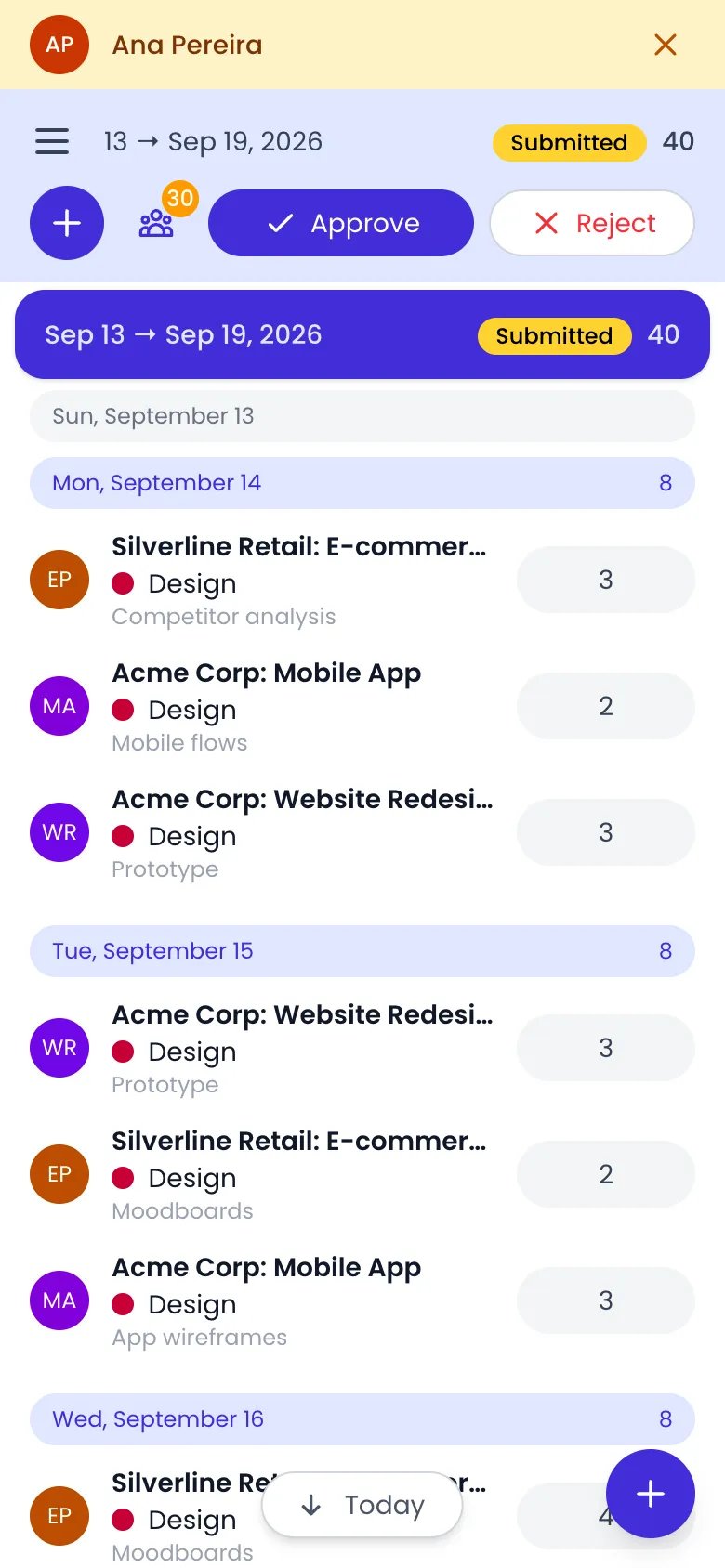
With the submitter’s timesheet open, tap Approve or Reject in the header. Rejection requires a comment.
Beebole timesheet of Ana Pereira on a phone, her name in a yellow bar at the top, the week of Sep 13 to Sep 19, 2026 marked Submitted with 40 hours, the Approve and Reject buttons in the header, and her entries day by day

A submitted week opened from the sheet, with Approve and Reject in the header

You can also select multiple timesheets using checkboxes and bulk-approve or bulk-reject them from the action bar that appears at the bottom of the sheet.

Planning on mobile

On a phone, or any screen narrower than 1024 pixels, Beebole’s Planning page becomes a personal list of your own work instead of the Gantt, Kanban, List, and Staffing views. Open it from the menu button in the top-left corner, then tap Planning. Creating and organizing tasks is done on a larger screen. The page has two tabs:
  • Calendar shows your dated tasks day by day: the tasks you own, and the tasks with no owner yet that you could take. Each month opens with a banner giving its number of tasks, a task spanning several days shows on each of them, and a task card shows the time you logged on it that day. Scroll down to load the following months, pull down from the top to load the previous one, and tap Today in the footer to jump back to the current day. The tab only appears when you have at least one dated task.
  • To-do lists the same kind of tasks when they have no start date: overdue ones first, then by deadline, then the ones without a deadline. A deadline reads Overdue with its date in red, Due today, or just the date. When the list is empty, it reads All caught up.
A task with no owner that is assigned to you, directly or through one of your tags, shows a + button (Take it) on its card when your role lets you manage tasks. Tap it to become the task’s owner.

Task details and adding time

Tap a task to open its details in a bottom sheet. Each line appears when the task has a value for it:
  • Status: tap it to move the task to another status of its planning, if your role lets you manage tasks.
  • Owner, Assignee (the other people the task is assigned to), Dates, its projects, and Tags.
  • Planned: the planned time, with a bar comparing it to the time you logged.
  • Description.
  • The time you logged on the task Today, This week, and in Total.
Tap Add time at the bottom of the sheet to log time on the task for the day you opened it from (today, from the To-do tab). The time entry editor opens, on your existing entry for that day when there is one. On a task you can still take, Take it replaces Add time.

Timesheets

Learn all the ways to log and manage time entries on desktop and mobile.

Approvals

Submit and approve timesheets from any device, including directly from email.

Planning

Create tasks, choose their owner and potential owners, and schedule their dates and planned time.

Notifications

Choose how Beebole notifies you, by email or push, and enable push on your devices.

Frequently asked questions

No. Beebole is a Progressive Web App (PWA) that you install directly from your browser. There is no app store download required.
The mobile layout is focused on day-to-day work: logging and editing time entries, running the timer, submitting your timesheet for approval, (for managers) approving or rejecting team timesheets, and following your own tasks on the Planning page, where you can change a task’s status, take an unowned task, and add time to it. More detailed configuration, planning, and reporting are best handled on a larger screen.
Beebole requires an internet connection to sync your data. However, the installed PWA may cache some interface elements for faster loading when you reconnect.
Click the button with your initials at the bottom of the sidebar to open the user menu, then pick Light, Dark, or Auto. The Auto option automatically follows your device settings.
No. Theme selection is a personal preference. Each person chooses their own theme independently.