

The four building blocks
Everything in Beebole revolves around four kinds of items:How everything fits together
The four building blocks don’t exist in isolation — they connect to create a complete picture of your organization’s work:- People work on projects and tasks. When someone logs time, they select a project (and optionally a subproject), or a task: time can be tracked on tasks as well as projects. This is the core relationship in Beebole.
- Tasks are independent planning items, not parts of a project. Where projects model what hours go into, tasks model the work to be done. A task can optionally be linked to a project — which connects your planning and time tracking — but it exists on its own, with its own dates, owner, and status, managed in the Gantt chart and Kanban board.
- Projects have hierarchies. Categories contain projects, which can contain subprojects, nested as deep as you need.
- Tags group people, projects, and tasks. A tag like “Engineering” can contain the engineering team members, the engineering projects, and engineering tasks, making it easy to filter and report by department.
- Tags have hierarchies too. Tags can be organized into parent/child structures (e.g., “Europe” > “France” > “Paris office”).
Shared configuration
Several features in Beebole aren’t tied to a single kind of item — they apply across projects, people, and tags. Understanding this pattern is key to configuring Beebole effectively.Billing and cost rates
Billing and cost rates can be set at multiple levels:Work schedules
Work schedules define expected working hours per day across a repeating cycle. Like rates, they can be assigned at the organization, tag, or person level, and the most specific assignment applies. Learn more about work schedules.Custom fields
Custom fields let you add your own data to Beebole’s built-in records. You can create fields that appear on:- People (e.g., Employee ID, Office Location)
- Projects (e.g., Priority, Contract Type)
- Tasks (e.g., Sprint, Story Points)
- Time entries (e.g., Activity Type, Deliverable)
Assignments
You control which projects, tasks, absence types, and expense types are available to each person in their timesheet. These assignments can be managed at the organization, tag, or individual level. Learn more about assignments.How it all comes together
Here’s a typical setup to illustrate how these concepts connect:- You create projects organized by category (e.g., Client or Internal) and engagement (e.g., Acme Corp or Website Redesign).
- You add people and assign them roles that control their permissions.
- You create tags for departments and teams, then tag both people and projects.
- You set billing rates on projects (what you charge clients) and cost rates on people (what they cost internally). Tags can provide default rates for entire departments.
- You assign work schedules to define expected working hours — at the organization level for most people, with overrides on specific tags or individuals.
- People log time against projects on their timesheets. Each entry captures who, what, when, and how long.
- Reports combine all of this — showing time, costs, billing, and budgets across any combination of projects, people, and tags.
Platform-wide features
A few features in Beebole apply globally, regardless of which section you’re working in.Search
Each list in Beebole — people, projects, tasks, tags, roles, custom fields, and other lists — has a Search by name field at the top of its panel. Beebole uses fuzzy matching, so typing characters that appear in order anywhere in a name returns a hit even when they’re not consecutive. Matched characters are highlighted in the results so you can confirm you’ve found the right record. Use the search field to:- Find anything by partial name. Typing
elamatches “Elena Rossi”, and also “Sophie Laurent”, where the e and the “La” are not next to each other. - Filter long lists. Searching narrows hierarchies like the project tree, expanding only the branches that contain matching entries.
- Move through results with the keyboard. Press the up and down arrow keys to step through the filtered list, and Escape to clear the search and restore the full list.
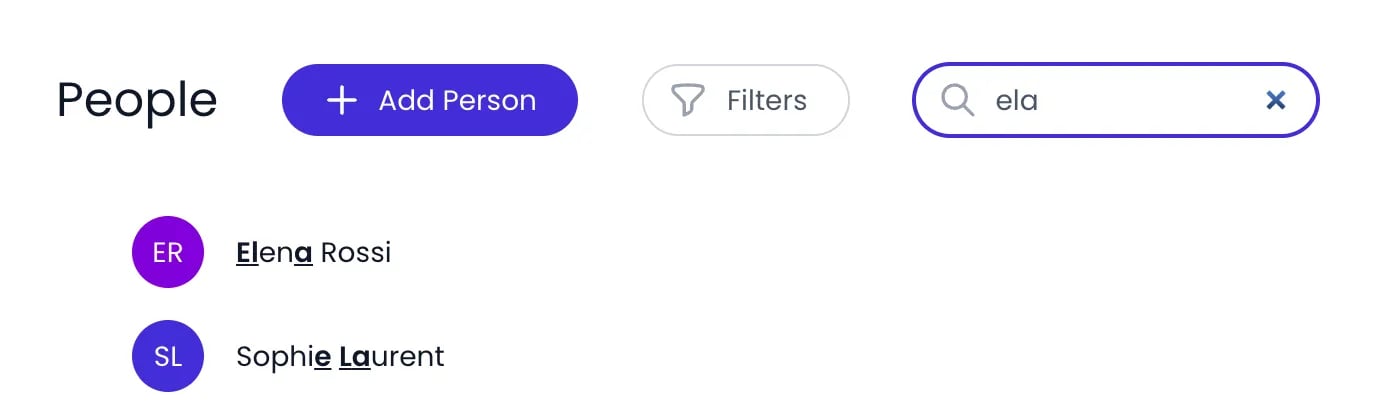
Fuzzy matching in the People list: the letters you typed are underlined in each result
Keyboard navigation in lists
The lists on the People, Projects, and Tags pages, and the lists in Settings, can be used without the mouse. The keys work whenever you are not typing in a field:Fast loading
Beebole caches your account data locally in your browser, so lists and timesheets appear near-instantly when you open a page. Beebole shows the cached data right away, then refreshes it from the server in the background. The local cache clears itself automatically when you switch organizations or when a new version of Beebole is deployed — you never need to clean it up manually.Real-time sync
Beebole keeps everyone in your account in sync without requiring a refresh. When a teammate creates, edits, archives, or deletes something — a project, a task, a time entry, an approval action, a journal message — the change appears for all other connected users within seconds. Real-time sync covers:- Record changes: adds, edits, archives, deletes, and renames.
- Approval actions: submitted, approved, and rejected timesheets update for the approver and the submitter at the same time.
- Planning and Gantt updates: task changes propagate to the planning view and the Gantt chart in real time.
- Journal messages and notifications: new mentions, replies, and notifications appear without polling.
When your network blocks real-time updates
Some corporate firewalls, VPNs, and proxies block the secure real-time connection Beebole prefers. When that happens, Beebole keeps working — it switches to a slower compatibility mode and shows an indicator in the sidebar: Running in slower compatibility mode. For what the indicator means, the built-in diagnostics page, and what to send support, see Troubleshooting.Undo and redo
Beebole lets you undo and redo most changes. Press ⌘+Z (Ctrl+Z on Windows/Linux) to undo, and ⌘+Shift+Z (Ctrl+Shift+Z) to redo. Undo and redo buttons also appear in the top bar whenever there is something to undo or redo.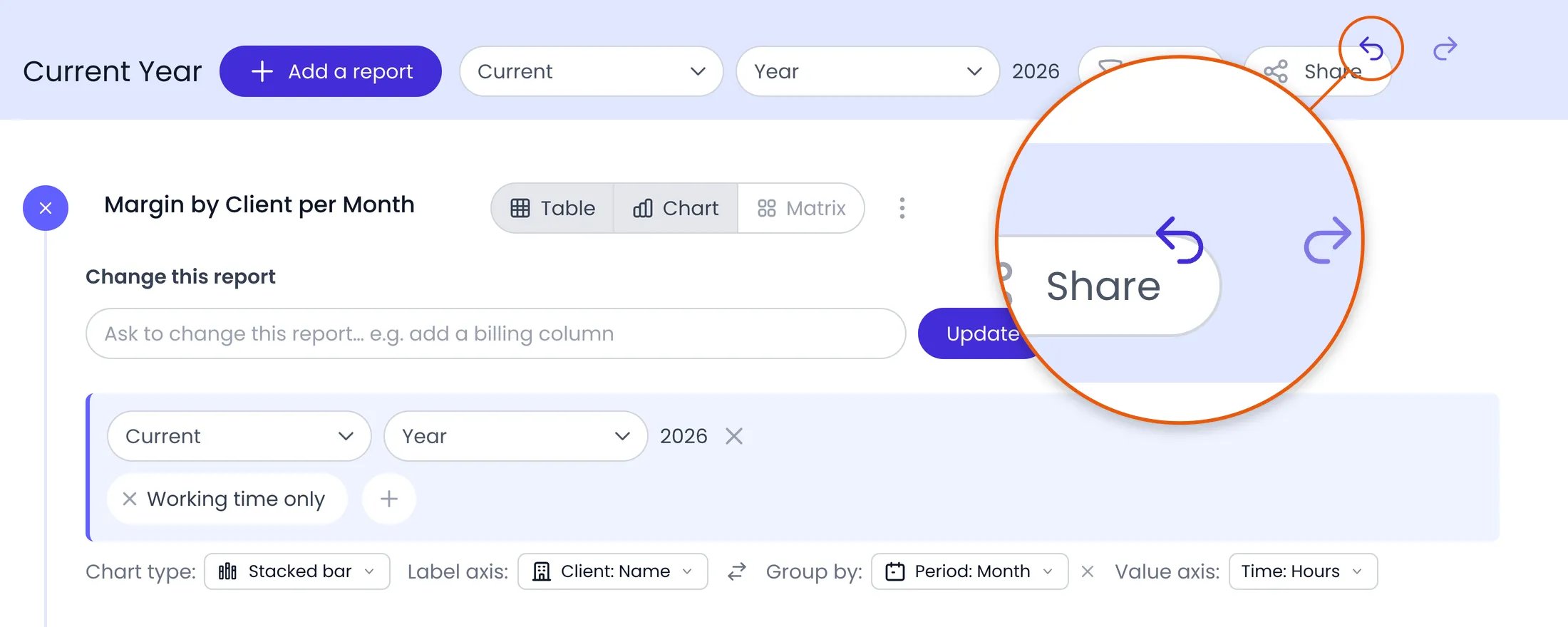
The undo and redo buttons at the top right, after a change
Delete protection
Beebole refuses to delete an item that something else still depends on. Instead of deleting it, Beebole shows a notification that explains what blocks the deletion and, in most cases, names the blocking item. Click the name to jump straight to the panel where the reference lives, remove it there, and try the deletion again.Duplication
Most records in Beebole support a Duplicate action that creates a copy with the same configuration as the original. Use it to bootstrap a new project from a template or set up a person record similar to an existing one. To duplicate something, open the ⋯ action menu next to its name and select Duplicate. For example, duplicating a project copies its subprojects, settings, and relations, and places the copy under the same parent as the original. Historical data such as logged time stays with the original.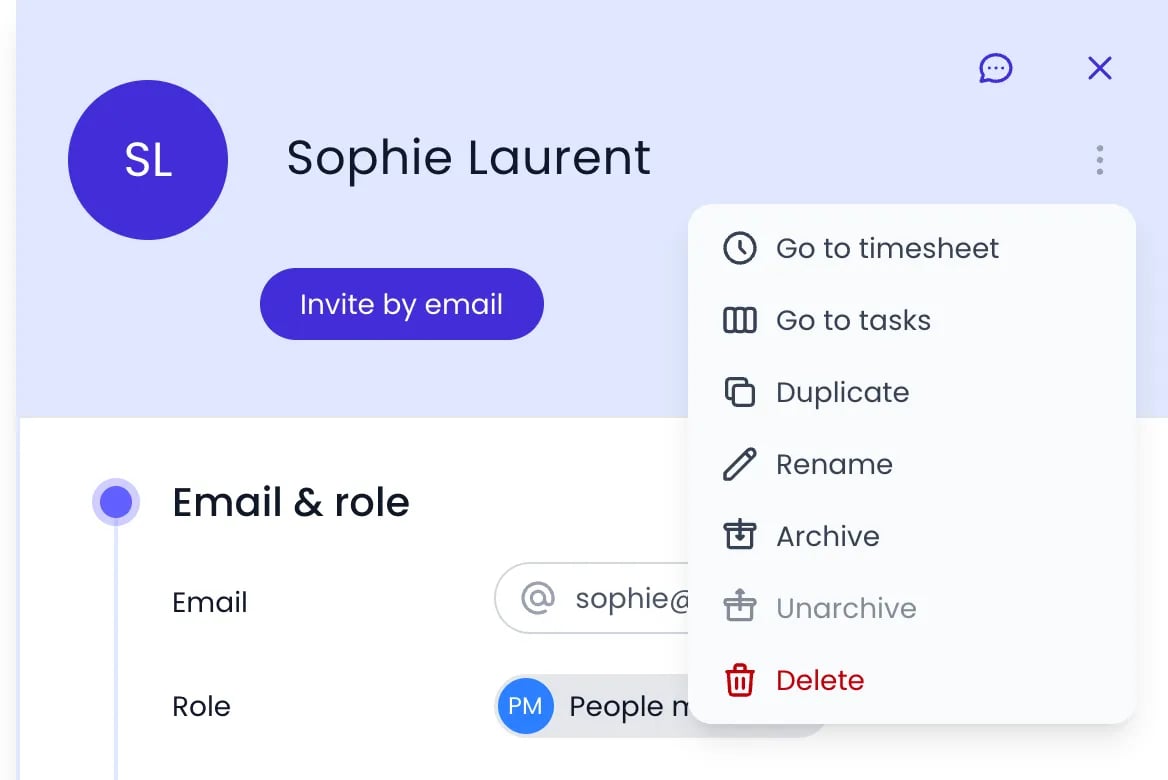
A person's ⋯ action menu, with Duplicate among its actions
Attribute copy and paste
In addition to duplicating an entire record, Beebole lets you copy a specific configuration block — billing rates, cost rates, budgets, or time-off allowances — from one record and paste it onto another. Use it to keep configurations consistent across similar projects, or to transfer one person’s allowance structure to a new hire. The basic flow:Open the source
Copy the attribute
Open the target
Paste the attribute
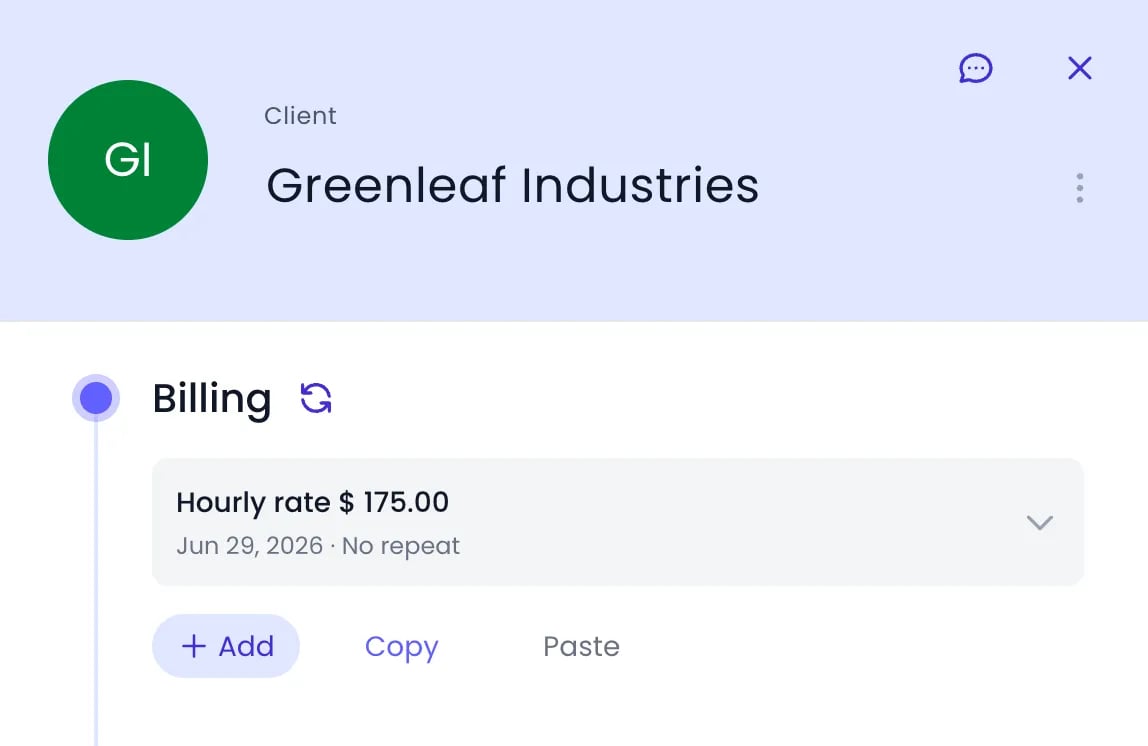
After copying Acme Corp's billing rates, the Billing panel of another client offers Paste
Attribute links
When you open a person, project, tag, or task, the detail panel lists its attributes — billing rates, work schedule, custom fields, and so on. The URL follows the attribute you are reading: as you scroll, the address updates to the attribute whose header sits at the top of the panel, and clicking inside an attribute selects it too. Copy the URL at any moment and the link opens the same record with that attribute at the top of the panel.- Switch records without losing your place. When you select another person, project, tag, or task while an attribute is in the URL, the panel opens the same attribute and scrolls it into view, so you can compare one setting across several records.
- Links stay put while the panel loads. An attribute opened from a link is held at the top of the panel while the rest of the content finishes loading, so sections that load later cannot push it out of view. It moves only once you scroll, click, or type inside the panel.
- Collapsing an attribute clears it from the URL. The link then opens the record without a specific attribute selected.
Sidebar and details panel
On a wide screen, the menu button at the top of the sidebar expands the sidebar to show labels next to its icons, or collapses it back to icons only. When you open an item, its details panel opens on the right, over the list. Hover the panel and two buttons appear in the middle of its left edge:- Resize: drag it to make the panel wider or narrower.
- Pin panel: keeps the panel beside the list instead of over it, so the list stays fully visible while you work in the panel. Click Unpin panel to go back.
Help on each settings panel
Each section of a details panel (on a person, project, task, tag, or in your account settings) has an info button at the right of its header. It appears when you hover an open section, and opens a short help text about that setting, in your interface language. When a section is not included in your plan, its header shows an upgrade button instead, which opens the Subscription page.Color coding
Beebole assigns each person, project, tag, and task a color used as a visual identifier across the interface. Avatars, list rows, planning blocks, and journal references share the same color, making it easy to scan a list, the planning view, or a Gantt chart and recognize who or what you’re looking at. The default color is generated automatically when a record is created. To change it, open the record and click its picture — or its colored initials — at the top of the detail panel, then pick a color from the palette. The same panel lets you upload a picture instead.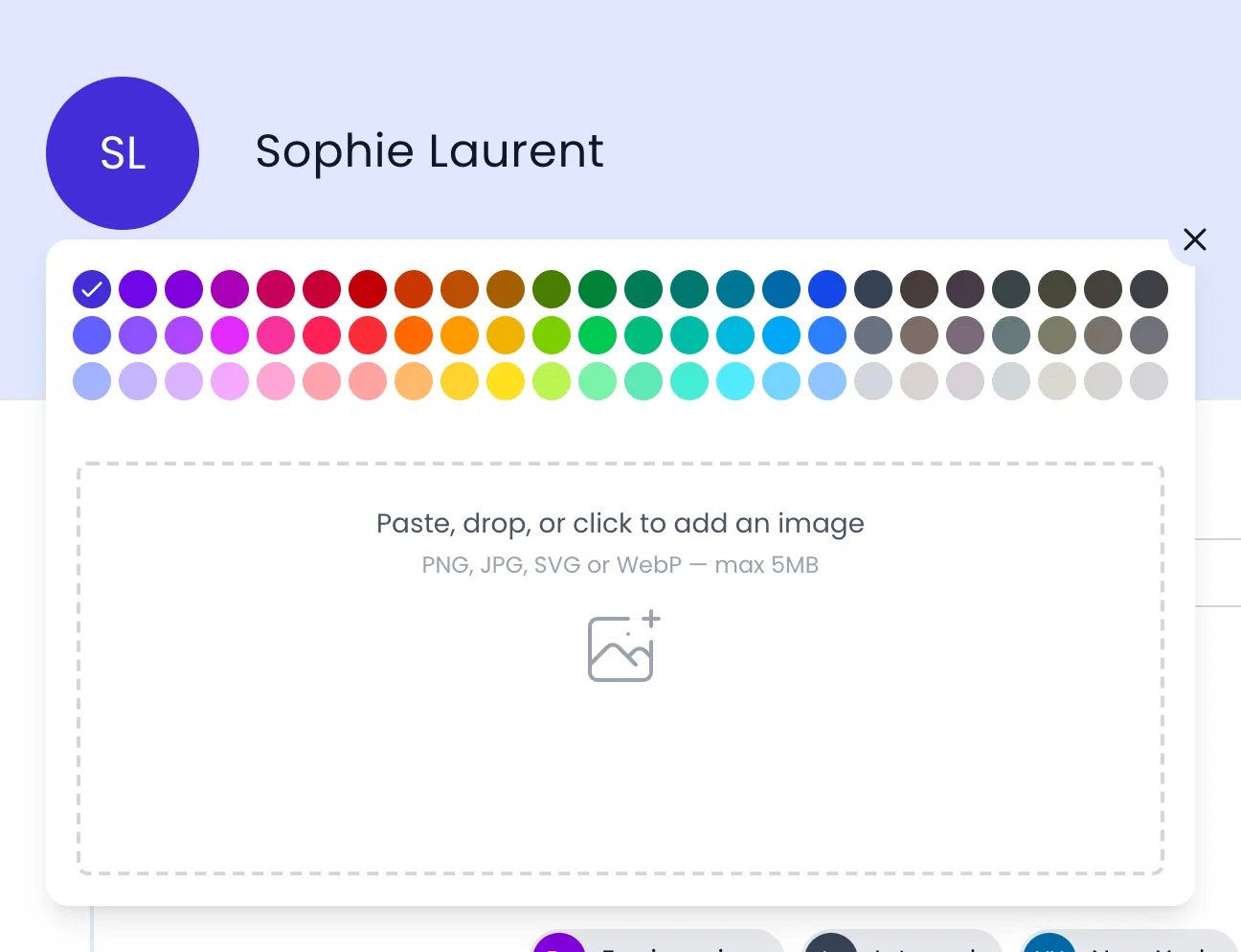
A person's color palette and picture drop area, opened from their initials
Badges and parent paths
Projects, tasks, and tags appear throughout Beebole as badges — in lists, on Gantt and Kanban rows, in relation and tag panels, and on task bar tooltips. A badge spells out the parent path of what it names, so a subproject reads as Acme Corp: Website Redesign. When the badge has less room than the path needs, the label is cut short with an ellipsis (…) instead of being abbreviated. Names shown as plain text rather than as a badge, such as timesheet row names, suggestion cards, and the mobile screens, spell out the path while it stays short and shorten the parent levels to their initials when it runs long (AC. Website Redesign), so the item’s own name stays readable. The floating timer always uses initials, to stay compact. Hover a badge for more in a tooltip: the complete path whenever the badge does not show all of it, and for a project or task, its description. Project and task names in the timesheet show their description on hover too, both in the grid’s row names and at the top of an entry’s details.Version update notifications
When a new version of Beebole is deployed, a banner labeled Update available appears in the interface. Click the banner (Click to reload) to reload the app and apply the latest version. This ensures you always have access to new features and fixes without needing to clear your cache manually.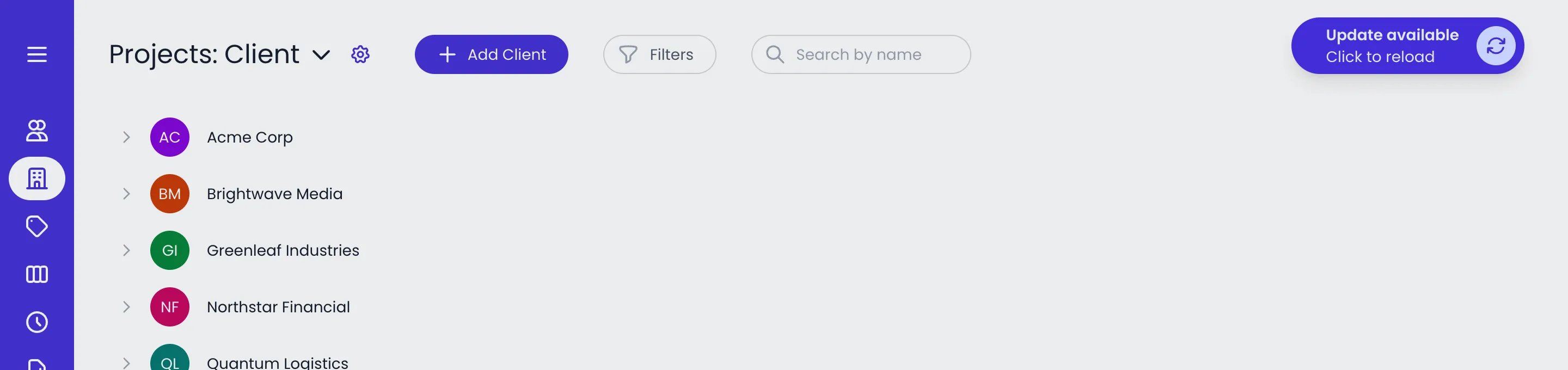
The Update available banner at the top right, over the dimmed page
Related content
Quickstart
Projects
People
Timesheets
Frequently asked questions
Do I need to set up all four building blocks before my team can track time?
Do I need to set up all four building blocks before my team can track time?
What's the difference between a subproject and a task?
What's the difference between a subproject and a task?
What's the difference between a tag and a project category?
What's the difference between a tag and a project category?
If rates are set at several levels, which one applies?
If rates are set at several levels, which one applies?
Can I change my structure after my team has started tracking time?
Can I change my structure after my team has started tracking time?