Export your Timesheets to QuickBooks

Timesheet for Quickbooks

You can now export all your timesheet entries from BeeBole to QuickBooks.

Once the integration is configured, you can use the QuickBooks Export module to get an IIF file that you will import in QuickBooks.

Find the complete documentation on our help website.

It works with QuickBooks Windows (2006 – 2011).

Please note that this feature is only available to paying customers and trial accounts.

Would you like to start a free 30-day trial to test this integration, just send en email to info (at) beebole.com.

Import your old data & DCAA

We are in the middle of an exciting run to provide new features while welcoming new clients, and providing an outstanding support.
This makes us almost forgot to communicate product news on our blog.

Here is a list of changes that occurred since June 22nd:

  • Billable %, to show the percentage of billable hours against non-billable ones.
  • A new help site, explaining the main features.
    In addition, a description of each module is available directly from the application. Just click the question mark that appears next to the module name.
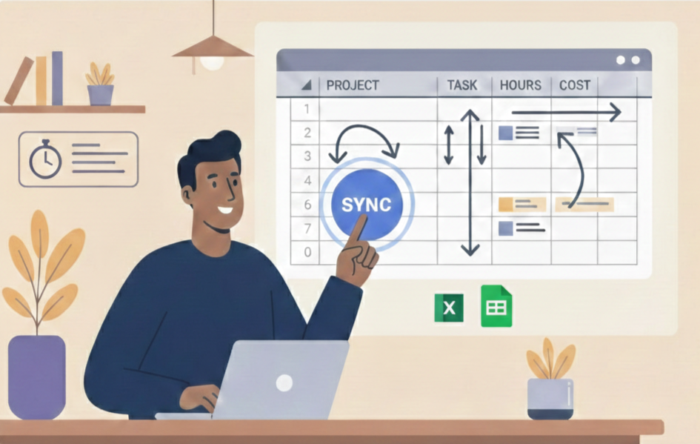
  • Data Import. You can import your clients, projects, tasks, people and hours from spreadsheet files.
    This is particularly useful if you come from another system, and want to keep a consistant reporting.
  • Specific tasks by project or client.
    Set global tasks for your organization, and then filter for each client or project, which task is available.
  • DCAA compliance.
    Check the option, and some additional checks take places. And get a very detailed log of timesheet changes.
  • Allow the admin to lock screen for some user groups, using the Screen module.
    If you don’t want your staff to mess around with their screen, you can now lock the screen for define user groups.
  • Plenty of UI & feature improvements, and some bug corrections.

Other product news are coming, so stay tuned!

Fill your timesheet easier and faster than ever

Here are few improvements that will make you fill your weekly timesheet faster and easier than before:

weekly online timesheet with comment

  • You can start to type a note in the hour field, the sticky note appears automatically.
    No need to click the yellow icon anymore.
     
  • The notes can be resized to fit the size of your text(on all major browsers but Internet Explorer 8).
    At the bottom right of the note, there is a little grip that you can drag and drop to resize the note.
     
  • To edit or view an existing note, hit the space bar, while in the hour field. The note will appear.
     
  • To close the note, either click the top left icon on the note. Or hit the TAB or ESC key.
     
  • You can use the arrows keys to go from one cell to the other in the four direction.
    The normal behavior stay available:
    Hit TAB to go to the next cell at the right.
    Hit SHIFT+TAB to move to the previous cell on the left.
     
  • Works better with IE8 in general
  •  

These new shortcuts will let you fill your timesheet faster and more easily with almost no usage of the mouse.

We hope you’ll like them.

Export your timesheets to other systems: accounting, payroll, project management

Here are the main features of today’s release:

  • Using your own ID’s to export data to other systems:
    When exporting your time data to another system like accounting or payroll you can define your own IDs
  • Set a maximum of hours for a day:
    You can limit the number of yours the users will be able to record for a day.
  • Improving and fixing the mobile version of the app:
    Performances were improved, and some navigation bugs were fixed.

Read more details about this release.

Now back to work with the daily timesheet and data imports!

Customer testimonials as reward

What started as a simple item in our website redesign to do list ended up as one of the most rewarding exercise since we started BeeBole.

We had been missing a proper Customer Testimonials page since we had customers. A few weeks ago, we decided to take action.

The answers we received from our users ended up most of the time with forwards between the members of our team with “Wow!” comments.

You can read a few of those here: happy timesheet users

To all who participated, thank you again for the time you invested in writing those extremely positive reviews.

It is definitively a milestone for our team.

All Major Web Browsers Supported

We recently added the support of Internet Explorer 8 and Opera11.

Until now, we had concentrated our efforts on FireFox, Google Chrome and Safari.
These tend to strictly follow the W3C standards and are much faster and safer.

Although it is fully functional, the app is slower, and a bit uglier with Internet Explorer 8.
There is nothing we can do about it and that’s why we still recommend to use another browser if possible. Your general experience using the Internet will also considerably improve.

Modern browsers such as FireFox, Google Chrome, Opera and Safari are newer, faster and safer.

We won’t support IE6 and IE7.

Introducing Timesheet Approval and Automatic Reminders

We have just introduced one of the most wanted features:
Timesheet approval and automatic email reminders

To enable this new feature, go to the screen of your company.
It should be something like: https://***your-account-name-here***.beebole-apps.com/#company-3

Click the top-right menu Customize.

Locate Timesheet settings in the catalog:

Timesheet Approval Settings in the Catalog

And drag it to your screen. You should see the module below:

Timesheet Approval Settings

Timesheet settings has 2 modes:

  1. No approval.
    As above. Hours remain open for change and there is no approval.
  2. Yes, there is an approval.
    Choose this option if you want to get an approval process in your company.
    You should get the screen below:

Timesheet Approval Settings

In addition to enabling the approval, you can set an email reminder option.
This will send an email reminder to all people who have not yet submitted their hours.
You can choose a day of the week, or the first or last day of the month.

In this mode hours entered by your team, will be part of the approval process below:

Approval process

The staff members record hours in their timesheets as before.
A new button appears at the top right of the timesheet: Send for approval

Timesheet - Hours ready to be submitted for approval

Click this button to submit the hours.
The hours that were submitted can’t be changed anymore and they appear in green color.

Timesheet - Submitted Hours

Admin and managers can now approve or reject the hours.
To do so, add to your home screen the modue Timesheet approval

Go to the home screen and click the top right menu Customize
Locate Timesheet approval

Timesheet Approval in the Catalog

And drag it to your screen. You should see the module below:

Timesheet Approval Module

You can view the hours for a week or for a month.
The available actions are Accept or Reject

If you click the name of the person you go to the person’s screen.
If you click the number of hours, you get the details of theses hours.

When you click Accept the hours will be approved.
And these hours remain locked in the timesheet.

When you click Reject the hours appears as rejected in the timesheet and can be corrected or changed by the person who filled her timesheet.

Hours that are approved, can still be rejected.
This is to allow you to make some modifications in case of errors.

Categorize Your Work with Tasks

People doing the exact same set of tasks for each of their customers will be delighted.
Let’s welcome the new “Tasks” module!

Tasks are categories of work you produce across all your clients or internally.
For example: an accountant will “Encode Receipts” for each client.

Tasks Module

To start using the module:

  • Drag and drop the module “Tasks” from the catalog into your own company screen,
  • Define the tasks you want to track,
  • Your employees will directly see them appearing in their timesheet.

The reporting module has been updated accordingly to let you have a nice and visual summary of your tasks.

Tasks Report

New: Track Absences

Start tracking absences (holidays, leaves, sickness, …) for you team/company with the new “Absences” module.

Absence Module

  • Add the module to your own company,
  • Define the absence types you want to track,
  • Your employees will directly see them appearing in their timesheet.

Absence Timesheet

And of course, you can get an overview and exports to Excel in the reporting module under the results of your company.

Absences Report

Retrieve the other smaller changes introduced in the latest release, on the support forum.