

Table of Contents
Like our content?
Prefer us on Google.
Add as preferred Prefer us on Google.
source on Google
Beebole is a key staple of our back office operations.

Finance teams live in spreadsheets. Whether it’s payroll validation, project cost analysis, utilization reporting, or client profitability, timesheet data often ends up in Excel or Google Sheets. The current challenge isn’t whether you can export time data to a spreadsheet—it’s how cleanly, automatically, and reliably that gets there.
This guide is written for finance leaders, controllers, and operations managers who need accurate, auditable time data in Excel or Google Sheets—without the manual work of exporting, importing, and hoping for the best.
TL;DR
- Yes, you can automatically send time tracking data to Excel and Google Sheets.
- No-code tools like Zapier can automate workflows, but native integrations are usually cleaner.
- Learn exactly how to import timesheet data into Excel and Google Sheets.
- Finance teams should prioritize structured exports, stable fields, and auditability.
- Discover the tools that are designed specifically for spreadsheet-driven reporting and cost analysis.
Why finance teams need more than manual timesheets
Manual Excel or Google Sheets timesheets work until they don’t. And even if they do work, manually exporting and importing timesheet data into Google Sheets and Excel is an invitation for user error and mistakes.
As soon as you need multiple contributors, project or client costing, overtime rules, billable vs non-billable splits, audit trails, or repeatable monthly reporting, manual spreadsheets become fragile. Instead, it’s time for finance teams to take a modern approach. And that means tracking time in a project time tracking tool that easily syncs with the spreadsheet tool of their choice. That means that with the click of a single button, your project time tracking data loads in Excel or Google Sheets, and you’re ready for instant, error-free reporting and analysis. Time tracking with spreadsheet integration is a must in today’s landscape, and we’ll show you why eliminating manual consolidation is the only way to achieve the audit-ready accuracy and real-time profitability analysis that will set you apart.
When is tracking time in Excel or Sheets enough, and when is it time for a time tracking tool?
If you’re wondering if you need to upgrade from simple spreadsheets to a project time tracking tool, you’re not alone. Below, we look at various scenarios where a spreadsheet alone might suffice. But take note: The scenarios are few and far between.
| Scenario | Spreadsheet Only | Time Tracking Tool + Sheets/Excel |
| 1–2 people, occasional tracking | ✅ | ❌ |
| Payroll or invoicing | ❌ | ✅ |
| Multiple projects / cost centers | ❌ | ✅ |
| Monthly or recurring reports | ⚠️ | ✅ |
| Audit & compliance requirements | ❌ | ✅ |
| Finance-led reporting workflows | ⚠️ | ✅ |
KEY:
✅: Yes
❌: No
⚠️: Possible but not ideal
Breaking it down:
If you are frequently tracking time with a team of more than two people, your time data affects money, or you are dealing with audits and compliance, it’s time to consider using a time tracking tool that can seamlessly feed that data into spreadsheets.
How time tracking data gets into Excel or Google Sheets
If you’re asking yourself how time tracking data actually gets into Excel or Google Sheets, we’re here to show you the way. Finance teams typically encounter three different paths to data integration.
1. Manual export (CSV / Excel download)
How it works:
- Users track time in an app
- Finance exports a CSV or XLSX file
- Data is copied or imported into Excel or Sheets
Pros: This is simple and straightforward; it can be done with almost any tool.
Cons: This requires manual effort each and every time you want to transfer data, be it daily, weekly, or monthly. With manual export, you risk formatting changes and human error. And of course, this manual method is not automated and runs the risk of straining resources.
Ideal for: Manual exports are best for teams with low-frequency and low-volume reporting.
2. Automated export (scheduled or one-click)
How it works:
- Time tracking tool generates files on demand or on schedule
- Files drop into email, Drive, or a shared folder
Pros: This is faster than manual exports, and reports can be exported in finance-friendly formats.
Cons: Scheduled or one-click exports are still batch-based and not completely automated. That means reports, unless clicked, are not real-time.
Ideal for: Scheduled exports work well for teams handling payroll or time-rooted tasks like month-end close.
3. Live sync to Google Sheets (or structured Excel imports)
How it works:
- Time entries automatically appear in a spreadsheet
- Data refreshes daily or near-real-time
Pros: Live syncs are always up to date, which makes them ideal for dashboards and on-the-go analysis. There’s less manual handling, which means a smaller margin for error.
Cons: There’s some upfront work required for better data modeling, and not all tools offer this function. Keep in mind that Google Sheets allows for automatic import, while Excel still requires a data refresh click.
Ideal for: Live syncs are great for ongoing financial analysis and management reporting.
How to automatically send time data to Excel or Google Sheets
Now that we’ve seen how crucial automatically exporting time tracking data to spreadsheets is for meaningful analysis, let’s explore exactly how that can be achieved. We’ll be looking at three paths: via a native integration or API, a no-code automation tool like Zapier, and finally, integrated Excel add-ins and Google Sheets add-ons.
Option A: Native integrations or via API
Some project tools are built with direct Google Sheets connectors, Excel-ready exports, and stable schemas that smooth out the process of exporting time tracking data into spreadsheets. Using an open API is another way to directly connect project time tracking software to spreadsheets. This is a seamless option for finance teams.
Option B: No-code automation (Zapier, Make)
You can connect many time tracking tools to Google Sheets using no-code automations with tools like Zapier and Make. While these tools require basic knowledge of how they work, they don’t demand engineering skills. This makes it a relatively easy way to automatically get time-tracking data into spreadsheets. Keep in mind that these automations often have low tolerance to changes and might not be as moldable as you’d like them to be. This is a good option for lightweight finance teams but not for core financial systems.
Option C: Excel add-in or Google Sheets add-on
Excel add-ins and Google Sheets add-ons are pre-built extensions that enhance your spreadsheet use with other tools without committing to a full-on integration. Here’s a great real-world example: Beebole is designed for project time tracking and cost analysis, which closely aligns with finance workflows. Thanks to its Google Sheets add-on and Excel add-in, you can automate integration of your time tracking and finance data in one place for advanced analysis and reporting.
How to integrate Beebole with Google Sheets and Excel:
- Time entries sync into structured spreadsheets (Keep in mind that in Google Sheets, this can be automated, and the updated sheets can be sent via email; in Excel, you must still push a button to sync).
- Separate raw data from reporting tabs
- Build pivot tables for:
- Cost by project
- Utilization by team
- Billable vs non-billable analysis
What are the pros of integrating time tracking data with Google Sheets or Excel?
- Break down data silos: Using an add-on or add-in allows your team to integrate time tracking data with other existing business metrics from other tools and data sources—it’s your opportunity to break down data silos for better analysis and deeper understanding.
- Clean data that’s ready to work with: Easily export clean, normalized sets, making stable fields for employee, project, cost center, time, and rates. If you have advanced reporting needs, such as payroll validation, invoicing, and forecasting, this is the way to go. This is an upper hand for finance teams: Integrating your project time tracking data with spreadsheets is not just about time capture; it’s about report-ready data that can be easily downloaded, analyzed, and understood.
- Collaboration made easy: Google Sheets lets you automatically distribute time reports. This means you can have the right data in the right hands exactly when you want. Because most businesses are used to working with spreadsheets, Excel and Google Sheets are a universal language, so running analysis in these programs only facilitates cross-departmental collaboration.
Mini Beebole + Google Sheets tutorial
1. From your Google Sheets document, you simply need to install the Beebole Google Sheets Add-On, available via Extensions → Add-ons → Manage Add-ons
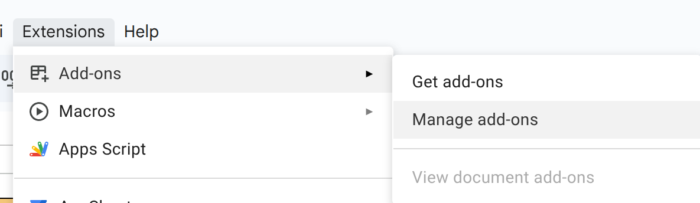
Search for: “Beebole for Google Sheets”

2. Go through the Authorization screen and approve.
3. Once installed, it will be available for all your Google Sheets, accessible via Extensions → Add-ons → Beebole for Google Sheets
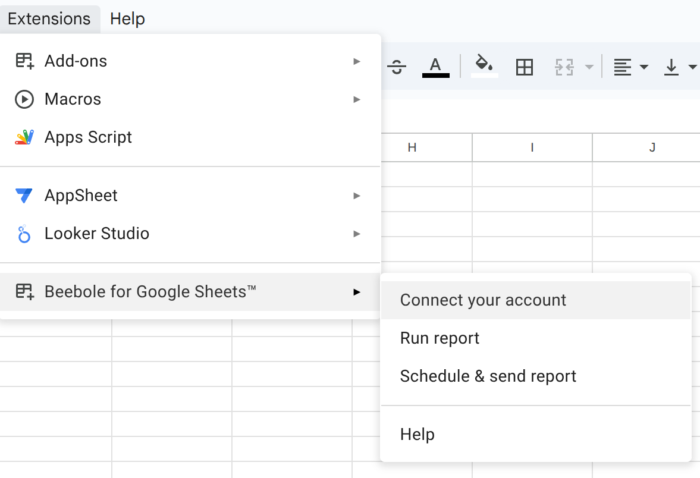
4. The first time you use it, you have to connect to your Beebole account so that Google Sheets knows who you are and can retrieve the right data. Please note that the Add-on can only display the data that you are allowed to see from your Beebole account.
You need to get your API Token from your Beebole account. This is available from your home page. Simply click Customize, then drag the API Token module onto your screen.
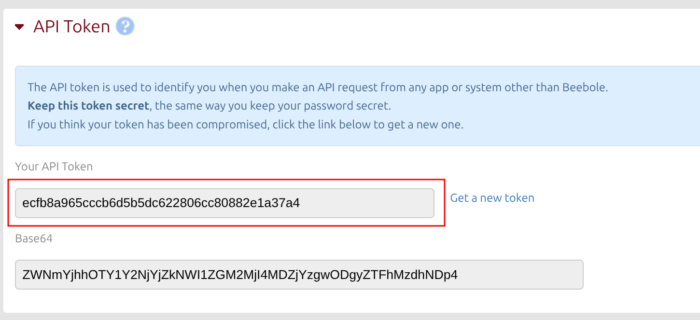
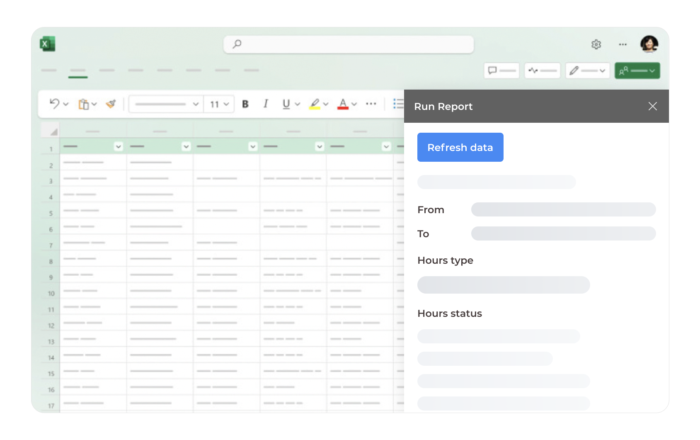
7. Paste it into the Google Sheets screen, and you will be connected. Now you can open the selection screen and define your selection criteria to retrieve the data from your Beebole account by clicking on Beebole for Google Sheets → Run report.
8. This is where the fun begins! You can tailor any report using your time entries, assigned rates, and any custom fields and groups you might have defined in your Beebole account. The content will always be updated under the Results tab, which you can then reference from your other tabs to maximize your reports. You can combine Beebole’s data with other sheets containing your planning, HR, or budget data.
CUSTOMER SUCCESS STORY
With 100+ employees worldwide and more than 50 ongoing projects at once find out how HungaroTrial removed guesswork from project time tracking and planning by integrating with Excel.
So what does it look like when you integrate your time tracking data with Google Sheets?
Here’s an example from a small construction company running their quarterly billing validation.
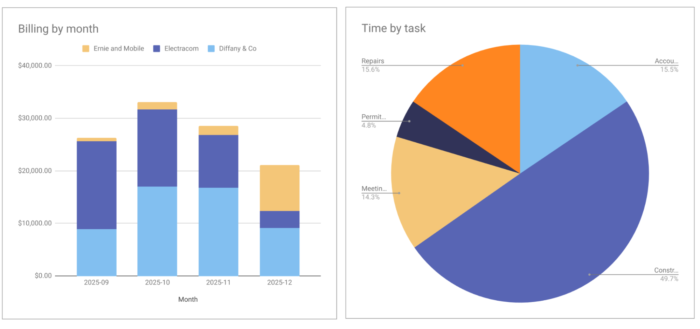
You can also generate different outputs to dynamically review the data. Here’s another example to review the billing now by contractor, department, and region, including subtotals.
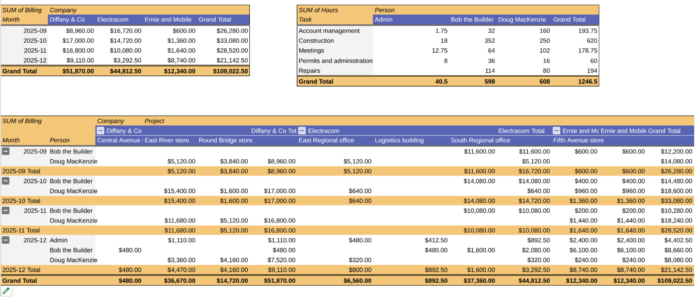
The finance reports that you can easily run once Beebole is integrated with Excel or Google Sheets
Connecting your Sheets or Excel to project time tracking data is so much more than getting a few nice-looking reports. It’s a chance to access crucial insights to help better understand your team and to lead them (and your projects!) to greater success. Here are a few more examples of the types of reports you can run once Beebole’s integrated with your spreadsheet of choice.
- Compensation reports: They’re particularly useful for hourly employees, but also come in handy for HR teams tracking absences in the timesheet.
- Bespoke billing and invoicing reports: This can be done with rates that can be manually updated when adjustments are required from the hours tracked in the timesheet.
- Profitability reports: You can get profit directly from Beebole’s app, but in a spreadsheet, you can add other costs like office space, training, legal, and any other linked data that you maintain directly in a spreadsheet.
- Reporting with custom filters: Use cost centers, departments, divisions, or any other bespoke distribution you use to organize your activities.
- Utilization and Capacity: Highlight activity pockets where your employees might be over- or under-booked, and make sure you have all the resources you need for the tasks ahead.
- Executive summaries: Take your data in spreadsheets to the next level with visual charts and high-level data that can be automatically sent via email with Google Sheets or exported and sent via Excel.
Top 10 time tracking tools that integrate with Google Sheets & Excel
There are a plethora of time tracking tools that integrate with Excel and Google Sheets. We’ve compiled the top 10 here, taking care to select the ones best suited to finance teams’ needs and daily functions.
1. Beebole – The gold standard for spreadsheet-driven business intelligence
Beebole isn’t just a time tracker; it’s a data engine. Since 2008, we’ve focused on providing the granular data that growing companies need to stay profitable. Our dedicated Google Sheets add-on and Excel add-in allow you to bypass manual CSV exports entirely. You can link your spreadsheets directly to your Beebole account, enabling you to refresh project hours, costs, and budgets with a single click. This makes it a great choice for organizations that require amped up business intelligence, as it supports everything from custom VBA scripts in Excel to live Looker Studio visualizations via Google Sheets.
- G2 Rating: 4.5/5
- Price: $9.99 per user/month (flat pricing, no hidden tiers)
- Pros: Seamless real-time data syncing; enterprise-grade security (GDPR/DCAA compliant); highly customizable reporting for cost-to-revenue ratios, project profitability, utilization %, billable vs. non-billable hours, and more
- Cons: The interface is focused on utility and power rather than “flashy” design.
- Take it from real users: “My company needs a timekeeping system that is DCAA compliant, and we looked at a few alternatives. Beebole integrates easily into our GOOGLE WORKSPACE, it looks professional, and of course, is DCAA compliant. As we started to get more familiar with the application, we realized there are a lot of things we didn’t NEED at first, but now we can’t live without them (e.g., an easy-to-use API). We’ll be Beebole users for life!” – G2, May 2023
2. Clockify – Broad adoption but not without friction
Clockify has gained popularity due to its generous free tier and simple interface. For spreadsheet users, it offers reliable manual exports in CSV and Excel formats. While it doesn’t have a native “live sync” add-on for Google Sheets like Beebole, many users bridge this gap using third-party tools like Make or Zapier to automate data flow into their sheets for payroll and resource allocation.
- G2 Rating: 4.5/5
- Price: Free; Paid plans from $5.49 per user/month
- Pros: Unlimited users on the free version; intuitive start/stop timer; broad set of basic features
- Cons: Advanced reporting and labor cost features are locked behind higher-paid tiers; no built-in add-ins or add-ons for Excel or Google Sheets
- Take it from real users: “I’m not a big fan of exporting to create timesheets. It’s functional, but I do wish it were easier to finalize the document. I end up editing the end spreadsheet before I need to turn it in each month.” – G2, November 2021
3. Harvest – A time tracking tool with a focus on billing
Harvest is built for agencies that live and die by the invoice. Its integration with spreadsheets is primarily focused on the financial side—exporting detailed time and expense reports that can be easily massaged in Excel for client billing. It also supports automated data flows to Google Sheets via third-party connectors like Coupler.io, which is helpful for teams wanting to combine Harvest data with other financial tools like Xero or QuickBooks.
- G2 Rating: 4.3/5
- Price: $9 per user/month
- Pros: Excellent invoicing integrations so you can copy your invoices and payments into QuickBooks Online or Xero; a great option for teams who want to visualize budgets and team capacity
- Cons: Lacks deep project planning features; some users find it difficult to edit historical entries. While you can manually sync Harvest to spreadsheets, it doesn’t offer its own dedicated integration
- Take it from real users: “There are a limited number of visualization tools available, and the export function to Excel is very basic.” G2, November 2019
4. Toggl Track – Simple tracking with clean spreadsheet output
Toggl Track is the go-to for teams that want the least friction possible when hitting “Start.” Its spreadsheet capabilities are straightforward: you can export any filtered report to Excel or CSV. While it lacks a native live-sync plugin for Excel, its organized data structure means that when you do export your data, it requires very little “cleaning” before you can start running analysis or building pivot tables.
- G2 Rating: 4.6/5
- Price: Free; Paid plans from $10 per user/month
- Pros: One of the best user interfaces on the market; useful browser extension
- Cons: The Premium plan is quite expensive ($20/user) compared to competitors with similar features
- Take it from real users: “The data export isn’t 100% what I need. The CSV file is OK, but I still need to process it in a custom pivot table in Excel to merge together multiple times for a single day into something that can actually be put into a detailed invoice.” G2, November 2020
5. TimeCamp – Automated tracking that supports attendance and leave management
TimeCamp stands out for its automatic tracking—it can log time based on the apps and websites you use. When it comes to spreadsheets, TimeCamp provides one-click exports to Excel and Google Sheets. You can also share online time reports with team members or clients via guest view or email.
- G2 Rating: 4.7/5
- Price: Free; Paid plans start at $3.99 per user/month
- Pros: Powerful automatic time tracking; good for attendance and leave management
- Cons: The mobile app is less feature-rich than the web version; setup can be complex
- Take it from real users: “The level of detail available in exported records, in Excel or PDF, is not the same as is viewable on screen, which is disappointing. As such, these exports are not all that useful as they don’t seem to be able to be manipulated easily by other programs.” – G2, September 2024
6. Jibble – Attendance-focused with Chrome extension
Jibble is designed for teams that need to clock in and out, often using GPS or facial recognition. Its Google Sheets integration is a popular way for HR managers to maintain a live attendance board. By connecting Jibble’s Chrome extension to a spreadsheet, you can automatically populate daily logs, making it much easier to track overtime and absences without manual entry.
- G2 Rating: 4.6/5
- Price: Free for unlimited users with custom pricing plan options for advanced cases
- Pros: Great mobile experience for field teams; focus on compliance and attendance
- Cons: Lacks deep project-level profitability reporting found in tools like Beebole
- Take it from real users: “Settings changes sometimes require logging out and back in to sync properly, and PDF export isn’t available for reports, only CSV and Excel formats, which require extra steps for client presentations.” – G2, 6/15/2025
7. TrackingTime – Browser extensions that reduce manual effort
TrackingTime also offers dedicated Chrome and Firefox extensions that integrate directly with Google Workspace. This allows you to track time while you are actually working inside a Google Sheet or Doc. For reporting, it allows you to export your data to Excel, which users have praised for reducing the “manual effort” of summing hours for monthly invoicing.
- G2 Rating: 4.2/5
- Price: Free; Paid plans from $3.75 per user/month
- Pros: Unique “button” integration within other apps (like Todoist and Sheets); simple setup
- Cons: Reporting filters can be less flexible than specialized BI tools.
- Take it from real users: “Too complicated, many errors, lack of synchronization, editing-intensive (effort), almost all employees complain, support seems to be running only AI-based.” –G2, February 2026
8. TMetric – Project-based tracking with detailed exports
TMetric is a robust, no-frills tracker that excels at capturing billable hours across different projects. Its spreadsheet functionality is centered on providing “audit-ready” exports. Users often export their project data to Excel to perform more granular budget analysis that the standard TMetric dashboard might not cover, specifically for large-scale professional service teams.
- G2 Rating: 4.6/5
- Price: Free; Paid plans from $5.83 per user per month
- Pros: Affordable; offers various integrations and browser extensions to easily integrate with other tools
- Cons: Advanced task management requires higher tiers
- Take it from real users: “TMetric primarily focuses on time tracking and productivity management, but it doesn’t include built-in budgeting or invoicing features.” –G2, May 2023
9. Hubstaff – Workforce management with CSV/Excel exports
Hubstaff is frequently used by remote teams that need proof-of-work features like screenshots and activity levels. Users can download Hubstaff for Windows, Mac, Linux, Android, or iOS, or simply use the Google Chrome extension. When running reports, you can schedule to send them in an email in either CSV or PDF, but they don’t offer a built-in spreadsheet add-on or add-in like Beebole’s.
- G2 Rating: 4.3/5
- Price: Free; Paid plans from $4.99 per user/month
- Pros: Detailed employee monitoring and GPS tracking; automated payroll integrations
- Cons: The “surveillance” features (screenshots) can be a turn-off for trust-based cultures
- Take it from real users: “Late data syncing: Sometimes the Excel weekly totals are not matching the real time data from site. -G2, May 2024
10. Everhour – Integrations with project management tools
Everhour is unique because it “lives” inside your project management tool (like Asana, Jira, or Notion). With Everhour, you can also export Excel, PDF, or CSV format reports, which can also be automatically sent to team members on a weekly or monthly basis. Their real-time reports also offer valuable insights.
- G2 Rating: 4.7/5
- Price: Paid plans from $8.50 per user per month
- Pros: Best-in-class integration with Asana and Notion; handles project budgets well
- Cons: Reporting can occasionally suffer from sync delays between the PM tool and the tracker
- Take it from real users: “The reporting looks good on the surface, but is missing some fundamental functions. For example, we are unable to generate a backlog report directly from EverHour. Backlog is a critical metric to a PS organisation, but we have to pull the data from EverHour and manipulate it in Excel to see our backlog.”- G2, April 2021
Frequently asked questions (FAQs)
Can I automatically send time tracking data to Excel?
While there are many timesheet software with Excel export options, because it’s not a web-based app, it still requires the push of a button for data to sync.
How do I automatically send my time logs to a spreadsheet?
You can:
- Use native Google Sheets integrations (which automatically update) or an open API
- Schedule exports
- Use no-code tools like Zapier
The right choice depends on how critical the data is.
What’s the easiest way to get work hours into Google Sheets automatically?
A tool with native Google Sheets sync or structured exports minimizes manual effort and reduces errors, or a feature like Beebole’s add-on for Google Sheets.
Which tools export detailed timesheets into Excel?
Most modern time trackers do—but not all exports are equal. Beebole also has an add-in for Excel to automate this process as much as possible. Finance teams should be sure to look for:
- Stable column names
- Consistent time formats
- Clear cost and project fields
What’s the difference between syncing and CSV export?
Sync keeps data updated automatically. CSV export requires manual handling. Sync is better for ongoing analysis; export is fine for periodic reporting.
Final thoughts for finance teams looking for time tracking software that works well with Google Sheets or Excel
Time tracking tools are not just about monitoring hours—they’re data sources. For finance and operations, the real value comes from:
- Clean data
- Predictable structure that you can customize to your exact needs
- Minimal manual handling
- Strong spreadsheet compatibility
Whether you choose Beebole or another solution, prioritize how the data lands in Excel or Google Sheets, not just how it’s captured. That’s where valuable financial insight actually happens.

Katie is a digital marketer who researches and writes about project management, leadership, and best practices in business operations. She's on a mission to spread the word about the value of accurate and easy project time tracking. Through her interviews, research, and articles, Katie hopes to help professionals on their journey to a happier, more efficient work day.
Related posts

The ultimate balancing act for project success: Billable vs non-billable hours
Achieving the perfect balance between billable and non-billable hours is both an art and a science. Both operations and finance leaders need to understand what makes their organization profitable, and a big piece of that is knowing how many billable and non-billable hours to plan for. If you’d like to prioritize your company’s financial health, […]

20 project time tracking tools for enhanced project financial management
There are a considerable number of project time tracking tools on the market. Because there are so many options, we’ve created this guide to today’s top project time tracking tools, making sure to include tools that offer features and price points to meet the needs of teams and businesses of all sizes. Project time tracking […]

Top 12 best time tracking tools with automated timesheet approval workflows for managers
Timesheet approvals are the backbone of billing and payroll—and a dependable source of insight into pricing, productivity, and profitability. Done right, people are paid correctly and on time, errors and unauthorized overtime drop, and labor-law compliance gets easier. Manual chains are slow and brittle. Automated workflows route timesheets to the right manager, enforce edit windows […]