

Sign-in methods
Beebole offers four ways to sign in. A person can use whichever is most convenient on a given device. Every method also works for the desktop app: signing in there hands off to your browser to complete the sign-in — passkeys, Google or Microsoft, and SSO included — and returns you to the app signed in.Email code
The email code is the default method. Enter your email address on the Beebole sign-in page, and Beebole sends a one-time 6-digit code to your inbox. Type the code on the same page to finish signing in. The code is single-use and expires after 5 minutes. The code works on the sign-in page that asked for it. If you reload that page, or want to finish signing in on another device, enter your email address there to ask for a code again. Beebole then sends the same code with a fresh expiry rather than a new one, and so does Didn’t receive the code? Resend under the code fields. As long as the code still works, every email you receive holds that same code, so it does not matter which one you open. If no email arrives, check your spam folder before asking again. A wrong code shows “The code you entered is not valid. Please try again.” After 5 wrong attempts, the code stops working and Beebole shows “The sign-in code has expired. Please request a new one.” Asking for a code then sends a new one. If five codes for the same email address get used up this way, Beebole stops sending codes for a while and shows “Too many codes requested for this email. Please try again in N minutes.”, with the number of minutes to wait.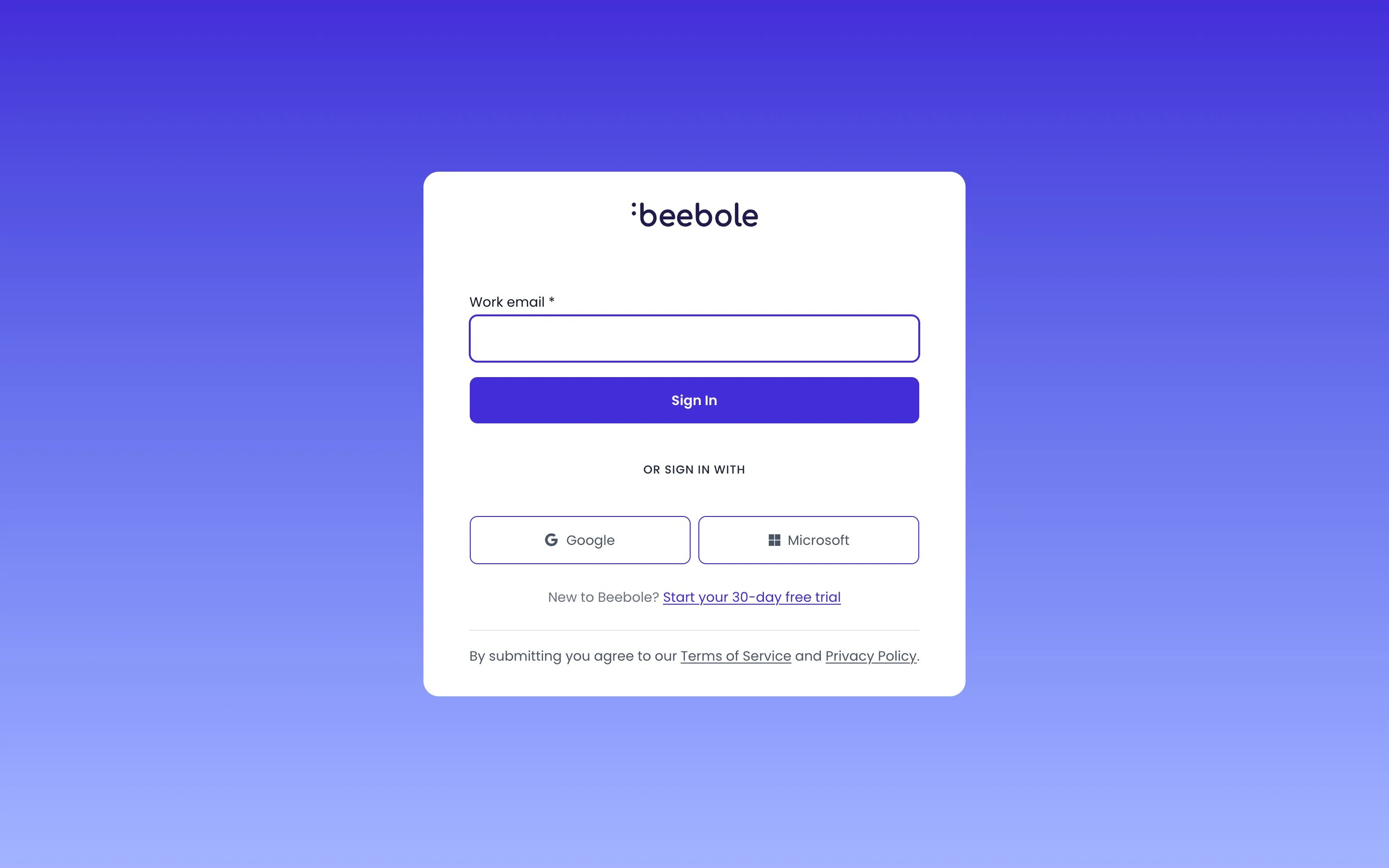
The sign-in page: your work email for a code, or Google and Microsoft
When your email belongs to several accounts
The same email address can belong to more than one Beebole account, for example if you work for two organizations. In that case, an Account list appears under the email field once you have typed your email. It lists each account by organization name, with the one you used most recently already selected. Keep it and click Sign In, or pick another account in the list, which continues the sign-in with that account. Beebole sends the code, or opens the passkey dialog, for the account you chose. The same choice appears after you sign in with Google, Microsoft, or your organization’s SSO provider: Beebole returns you to the sign-in page with the list under Choose which existing account to sign in with, and picking an account completes the sign-in.Passkey
A passkey signs you in with your device’s built-in security (a fingerprint, face recognition, your screen lock, or a hardware security key), so you skip the email code entirely. Passkeys are phishing-resistant because they only work on Beebole’s own site. A passkey is not necessarily tied to one device: one saved in a password manager follows you to your other devices. There are two ways to set up a passkey:- After you sign in with an email code on a device that supports passkeys, Beebole shows Set up faster sign-in. Click Set up passkey and follow your browser’s prompts. Click Not now to skip it: Beebole then stops offering it for that email in that browser.
- At any time, click the button with your initials at the bottom of the sidebar, then click Enable passkey and follow your browser’s prompts.
Google and Microsoft sign-in
You can sign in with an existing Google or Microsoft account, which is convenient for teams already using Google Workspace or Microsoft 365. Beebole matches the Google or Microsoft account’s email address to your Beebole profile, so the two must use the same email address.Single sign-on (SSO)
Single sign-on lets your whole team authenticate through your organization’s identity provider using OpenID Connect. An administrator configures it on the Single Sign-On panel of Account Settings. Beebole supports three providers, each on its own tab: Google, Microsoft, and Custom OpenID (for providers such as Okta, Auth0, or Microsoft Entra ID).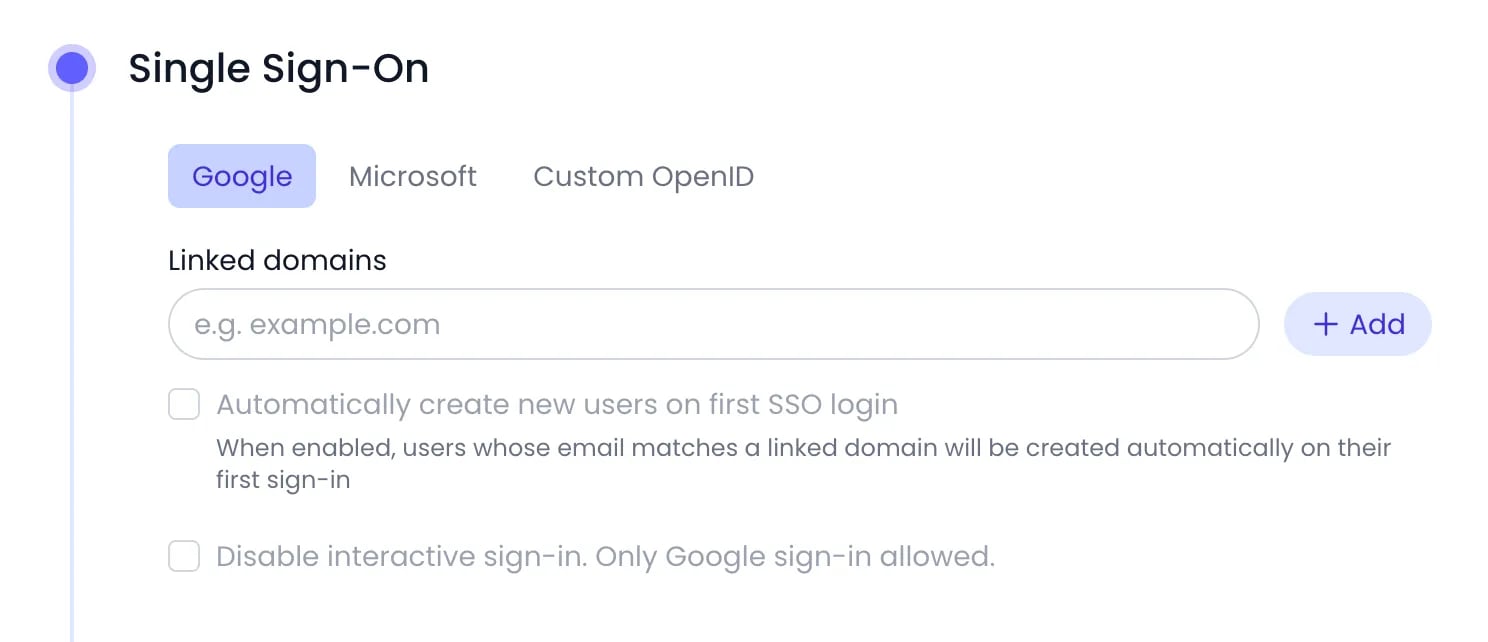
The Single Sign-On panel on its Google tab
Google SSO
Open the Google tab
Link a domain
Finish the setup in the Google Workspace Marketplace
Provision new people automatically (optional)
Turn off email-code sign-in (optional)
Microsoft SSO
On Account Settings, open the Single Sign-On panel and select the Microsoft tab. To block the email-code method for your organization, turn on Disable interactive sign-in. Only Microsoft sign-in allowed.Custom OpenID
The Custom OpenID tab connects any OpenID Connect-compatible provider.Open the Custom OpenID tab
Enter your provider details
Configure your provider
Turn off email-code sign-in (optional)
API keys
Each person has one API key for Beebole’s GraphQL API. Beebole creates the key automatically the first time you open it — there is no key to add, and no expiration to set.Open the user menu
Open Your API key
Copy or reset the key
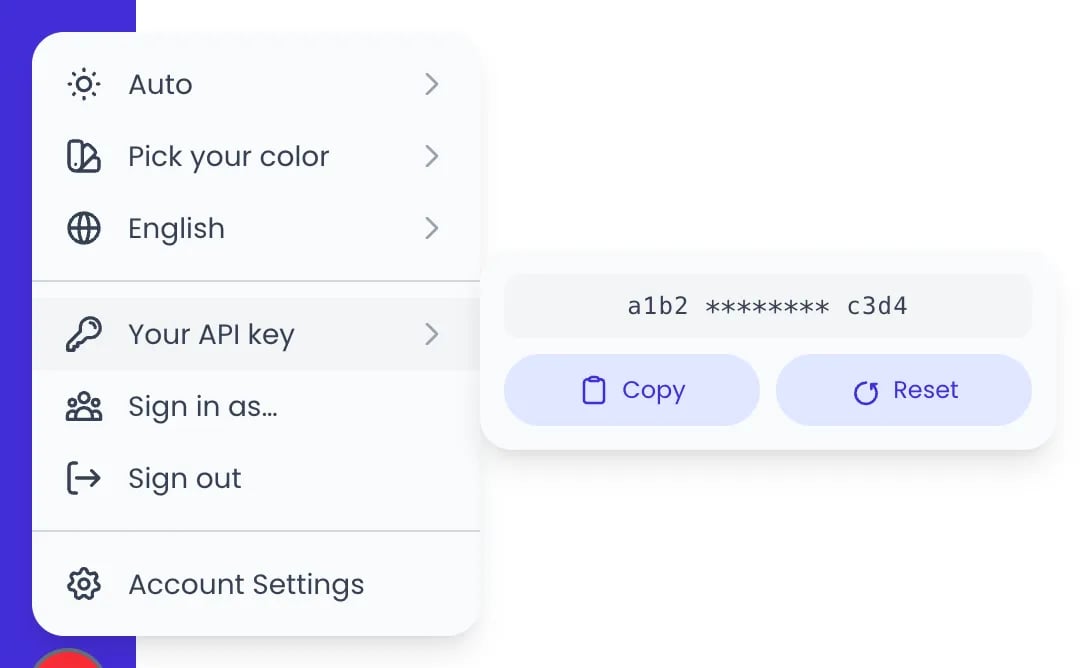
Your API key, in the menu of the initials button
Sign in as another person
Administrators can sign in as another person to troubleshoot a problem or confirm what that person sees. You start this from your own user menu, not from the other person’s profile.Open the user menu
Choose Sign in as…
Return to your own account
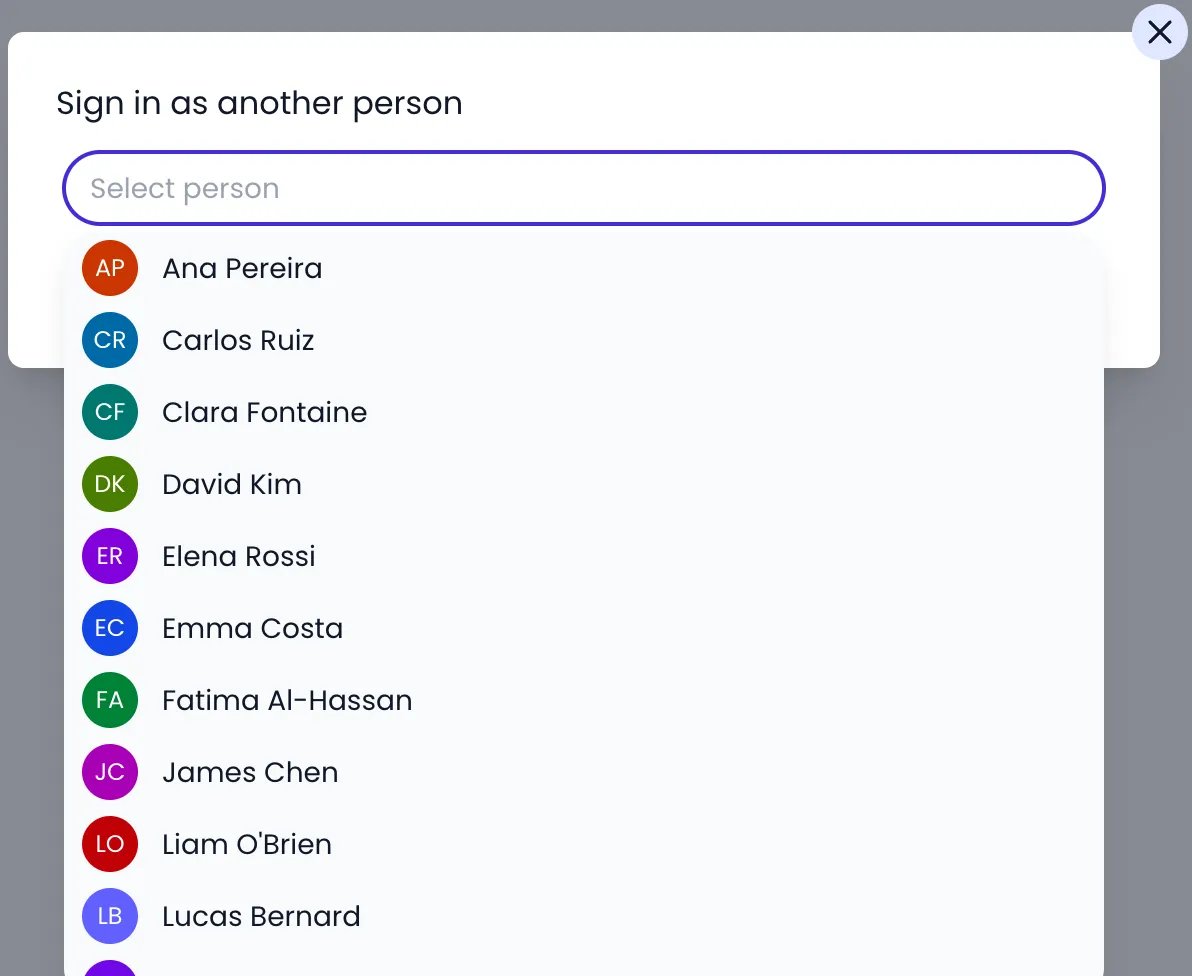
The Sign in as another person dialog, listing the people in the account
Related content
Account Settings
Roles & permissions
Audit Trail
API Introduction
Frequently asked questions
Why doesn't Beebole ask me for a password?
Why doesn't Beebole ask me for a password?
How do I make everyone sign in through SSO?
How do I make everyone sign in through SSO?
A team member can't sign in — what should I check?
A team member can't sign in — what should I check?
My email belongs to two Beebole accounts. How do I choose which one to sign in to?
My email belongs to two Beebole accounts. How do I choose which one to sign in to?
How many API keys can I have?
How many API keys can I have?