

How roles work
Roles live in Settings > Person Roles — click the button with your initials at the bottom of the sidebar to open Settings. Each role is a grid of permissions with three pieces:- Permission — the area of Beebole it controls, such as Timesheet entries or Billing rates.
- Edit — the targets whose data the role can create, change, or delete.
- View — the targets whose data the role can see.
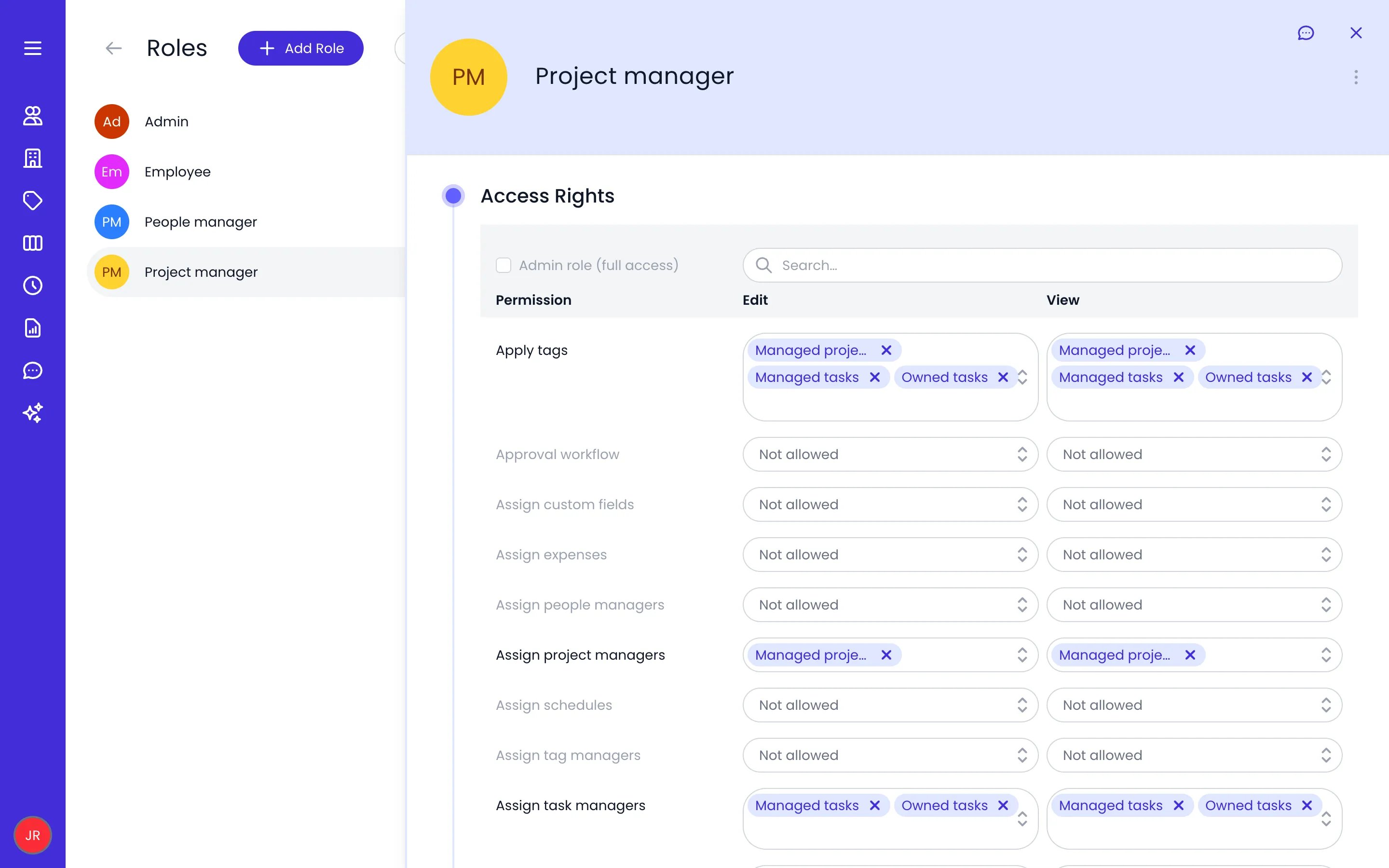
The permission grid of the Project manager role, with the Edit and View targets of each permission
Creating and managing roles
Open the roles page
Add a role
Set the permissions
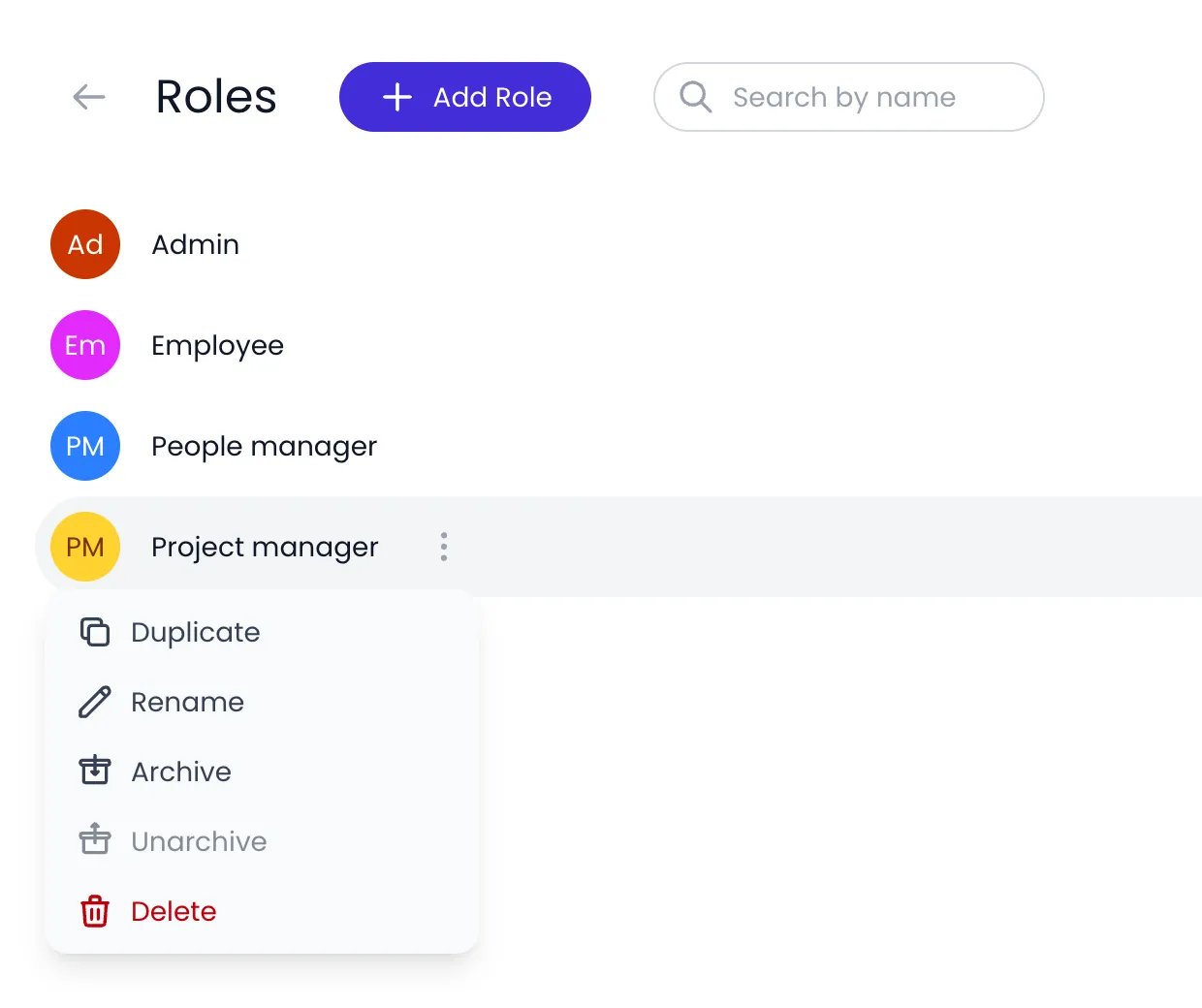
The roles list with a role's action menu open
Permission scopes
For permissions with target selectors, the targets you pick under Edit and View define whose data the permission covers. Each permission only offers the targets that make sense for it. The targets separate what the person manages from their colleagues — and, for tasks, what they own from what they manage: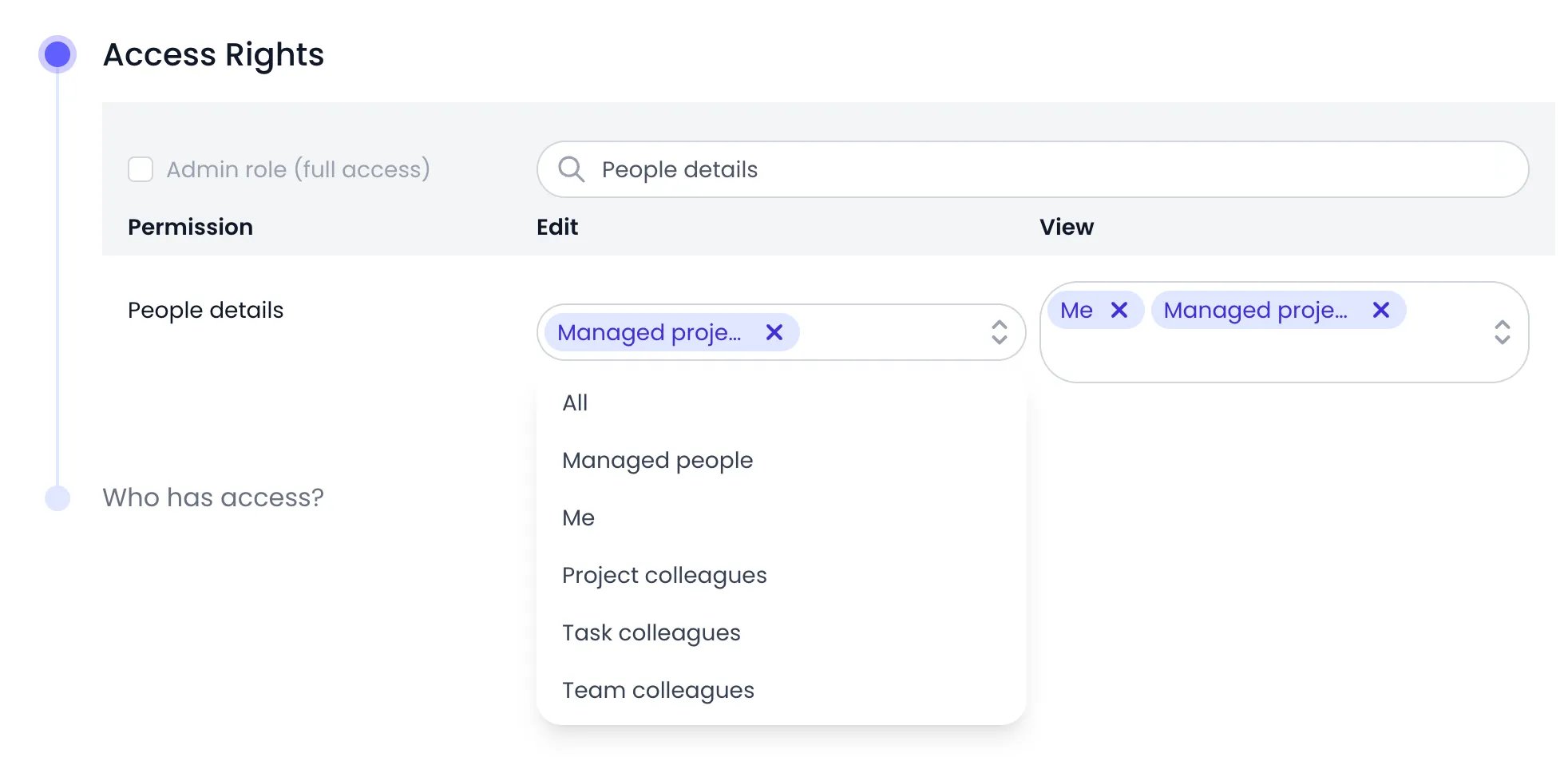
The Edit targets offered for People details, with Managed project members already picked
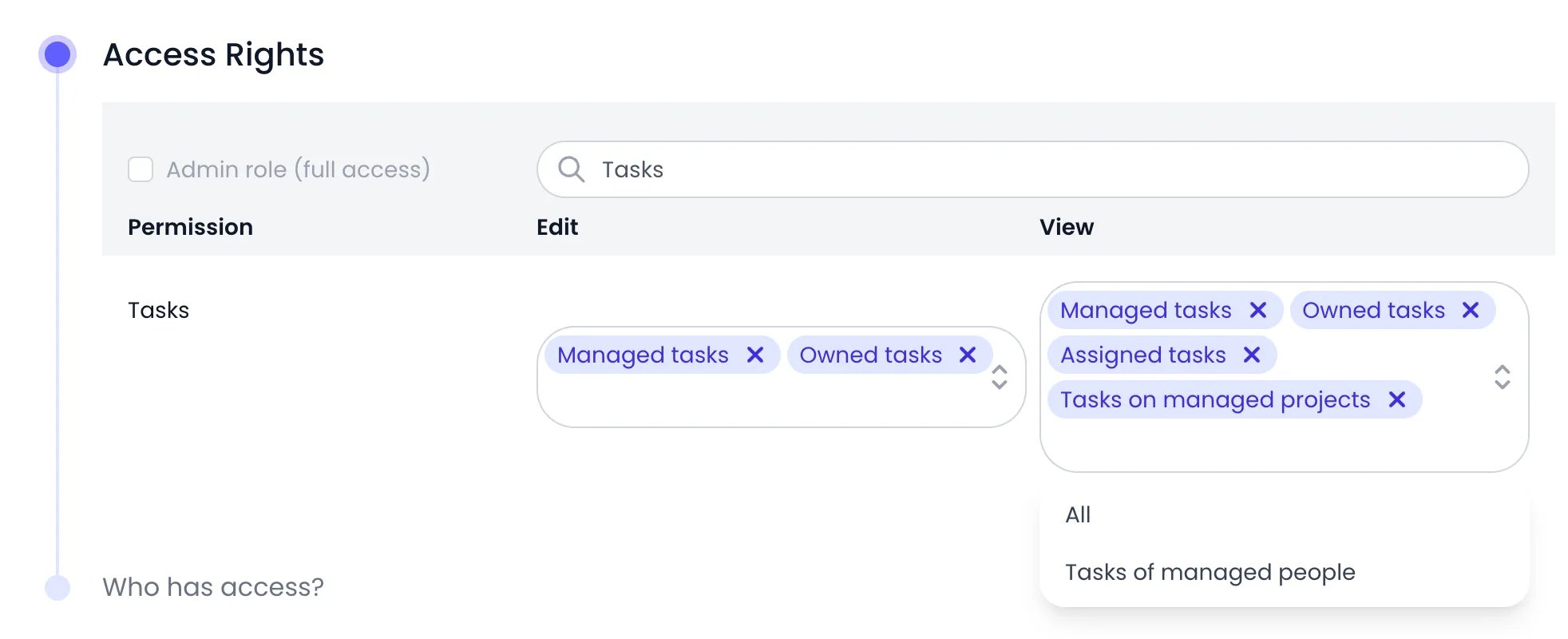
The View targets of the Tasks permission, with Tasks on managed projects picked and Tasks of managed people offered
Time entries on someone else’s timesheet
On another person’s timesheet, only what you manage counts. Beebole lets you see, add, or change a time entry there when you reach it through the person (Managed people), one of the entry’s projects (Managed projects), or its task (Managed tasks, or a project you manage that the task is linked to). Tasks you own or are assigned to, and projects you are only assigned to, don’t count for someone else’s timesheet: an entry you could reach only that way is refused. A target of All still covers every entry, and on your own timesheet your role’s targets apply as usual.Timesheet, time off, and schedule permissions
These permissions control day-to-day time tracking data.Approval permissions
Billing, cost, and budget permissions
Expense permissions
People permissions
Project and task permissions
Assignment permissions
Assignment permissions separate changing data from deciding who works on what. A role can be allowed to edit projects without being allowed to assign people to them — or the reverse. When a role lacks an assignment permission, the matching controls simply don’t appear for its holders.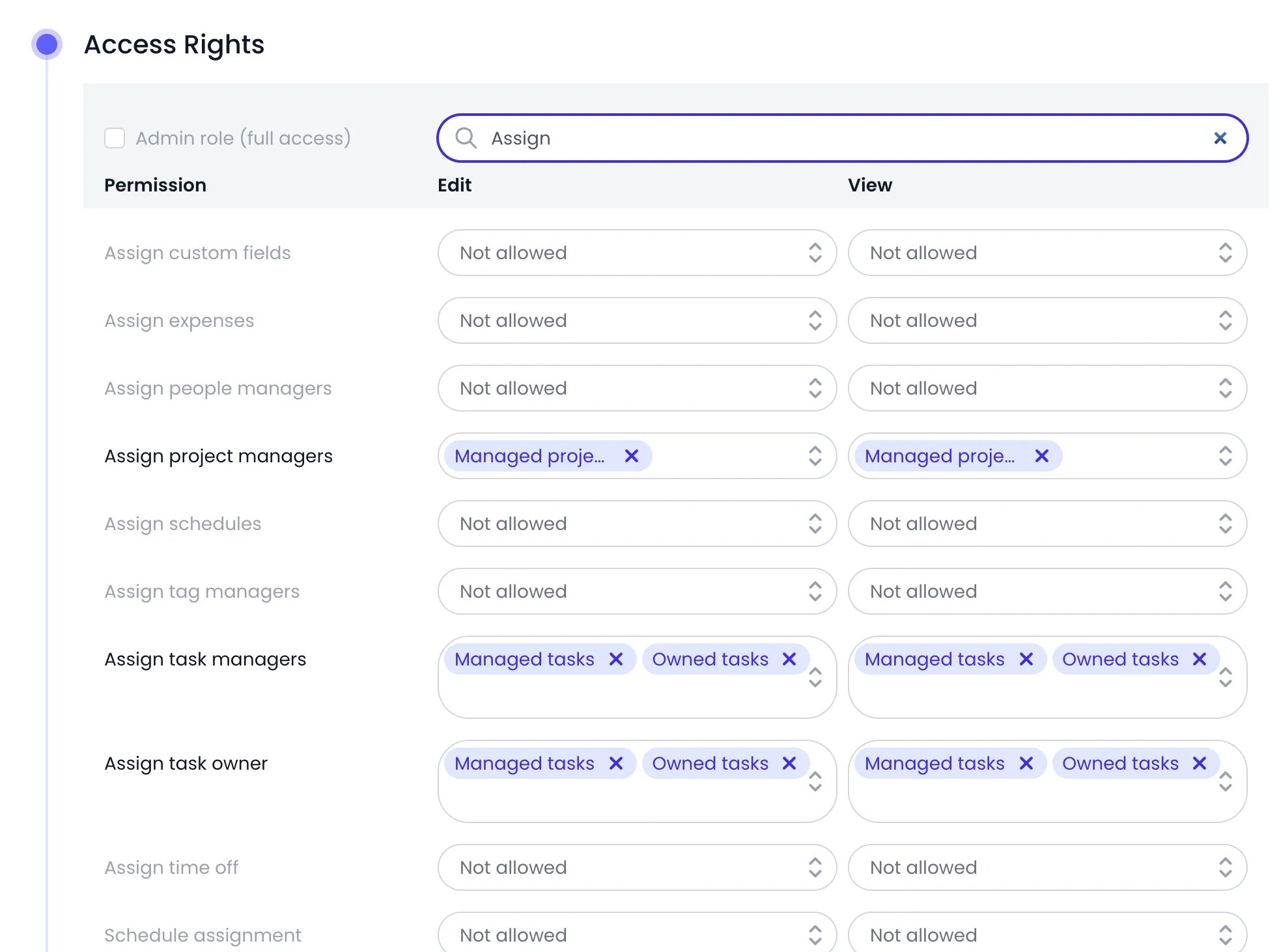
Searching for Assign narrows the Project manager role to its assignment permissions
Custom field permissions
Journal and report permissions
Account and visibility permissions
These permissions cover account configuration and the access-control settings themselves.Assigning a role to a person
Open the person
Open the Email & role panel
Pick the role
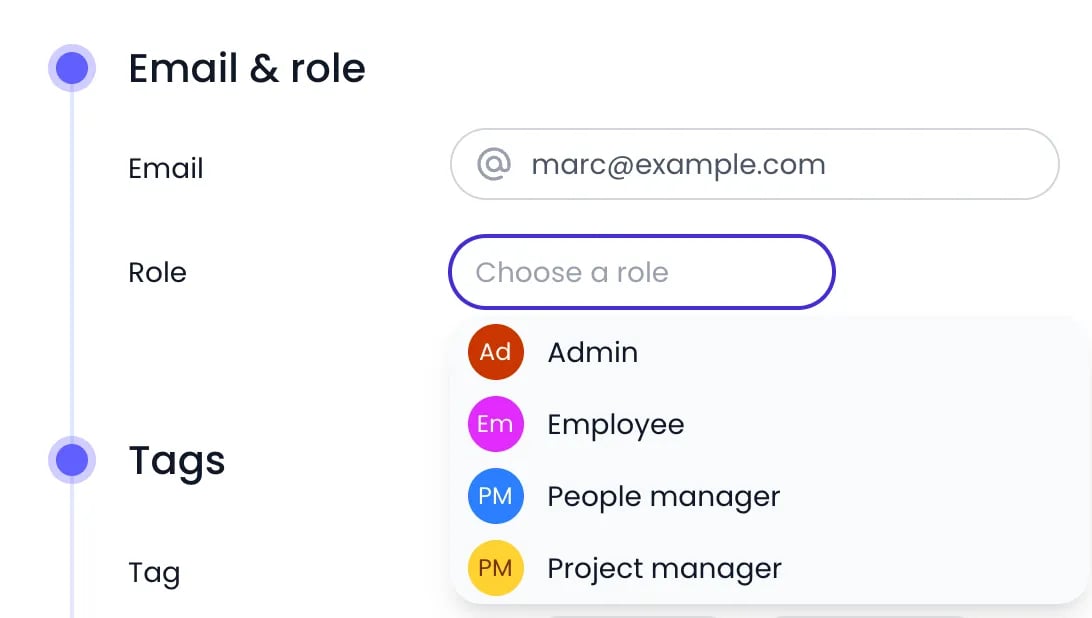
The Choose a role selector in a person's Email & role panel
Common setups
The built-in roles cover the situations most teams ask about. Which time entries a role sees follows the people and projects it can view: Timesheet entries and Reports switch the features on, and the targets on People details and Project details decide whose time, on which projects, shows up.Project managers see every hour logged on their projects
Give project managers the built-in Project manager role, or a copy of it. It is scoped to their projects rather than to a team: Project details at View: Managed projects, Assigned projects, People details at View: Me, Managed project members, with Timesheet entries and Reports switched on. Whoever logs time on a project they manage — employee or freelancer — appears in their reports and in the Team pane of the timesheet, and time on other projects stays out of sight. Then make them manager of the projects, or of a whole project category at once, in the Manages panel of their profile — see Assignments.Freelancers and contractors see only their own time
Give them the built-in Employee role, or a copy of it: People details at View: Me, Project details at View: Assigned projects, and Timesheet entries on. They see their own timesheet and the projects assigned to them, and nothing about colleagues. If they must not see billing or cost figures either, keep Billing rates and Costs at Not allowed — the default on Employee.Both at once
The two setups combine without a third role: project managers hold Project manager, everyone else holds Employee. A freelancer sees only their own time, while the manager of the project they work on sees the freelancer’s hours next to the staff’s. A separate role is only needed when a group wants something different — a finance role with View: All on Billing rates and Costs, for example, built by duplicating Project manager.Best practices
- Grant the least access that works. Start from Not allowed and add View before Edit, only for the targets each role really needs.
- Name roles after responsibilities. Names like Project Lead or Finance make it obvious who should hold them.
- Prefer few roles over many. Targets like Managed people and Managed projects adapt to each holder, so a single manager role can serve every manager.
- Review roles when your structure changes. Targets follow manager and tag relationships — check that permissions still reach the right people after a reorganization.
Related content
Assignments
People
Tags
Account Settings
Frequently asked questions
What is the difference between roles and assignments in Beebole?
What is the difference between roles and assignments in Beebole?
Can a person have more than one role?
Can a person have more than one role?
What do Edit, View, and Not allowed mean?
What do Edit, View, and Not allowed mean?
Which roles does a new Beebole account include?
Which roles does a new Beebole account include?
Do I need to save after changing a role?
Do I need to save after changing a role?
Why can't a project manager see all the hours on their project?
Why can't a project manager see all the hours on their project?
Why can't I record time on a team member's task?
Why can't I record time on a team member's task?