

The spreadsheet import is for administrators only, and you reach it from a computer: the phone’s settings menu has no Import entry. For a short list of names, the paste box of the add panel is quicker (see Adding a short list by pasting).
Where to find the import
Go to Settings > Import: click the button with your initials at the bottom of the sidebar, then Import in the Settings menu. Two other places lead to the same page:- The add panel of People, Projects, Planning, and Tags. Its Adding more than one …? box ends with Open the import.
- The Getting started checklist. The Add your people and Add your projects steps carry an Import from a spreadsheet link.
Creating an import
An import is about one kind of item (people, or the projects, tasks, or tags of one category) and one kind of data for it, such as their basic details or their billing rates. The page walks you through four numbered steps: Choose what to import, Download it, Add or change the data you want to import in your preferred spreadsheet editor, and Import it.1
Add an import
Click Add an import. Beebole creates one named New import, about people, with its name ready to type over. Type a name and press Enter.
2
Choose the kind of item
Under Choose what to import, click the button that names what the import lists and pick People, Projects, Tasks, or Tags. For projects, tasks, and tags, point to a category (for tasks, a planning), then pick Lowest level to cover every level, or a named level to stop the sheet there.
3
Choose the kind of data
In the menu next to that button, pick what each row of the sheet holds, for example Basic details or Billing. Under the two choices, Beebole shows the sheet’s columns over the first rows your account holds today.
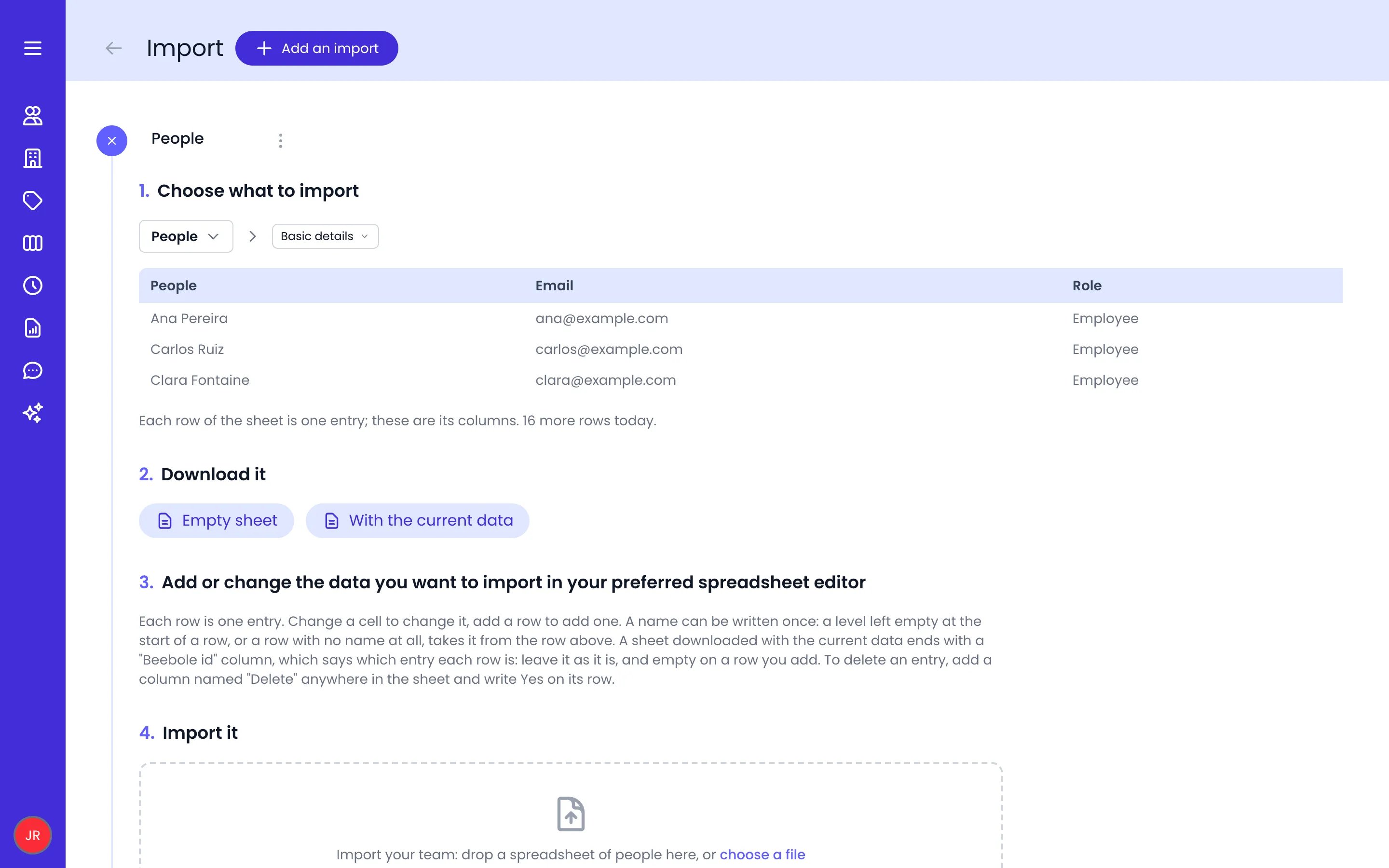
An open import: what it lists, the kind of data, and the sheet's columns over today's first rows
What you can import
Each kind of data makes its own sheet, with one row per item or one row per record of the item.
Everything except Basic details and the bookings changes items that already exist. A row that names an item your account doesn’t have is refused with “does not exist: add it first”, so import the basic details first. See Assignments for what the access links do, and Staffing for bookings.
Downloading the sheet
Under Download it, pick how the sheet comes:- Empty sheet gives the columns only, with a row of examples under the header (such as “e.g. 2027-01-01”) that the import skips when you upload the file.
- With the current data lists every active item of the import, one row per record, so you edit what is there instead of retyping it. An item with no record yet (a person with no allowance, say) gets a row with its name alone, ready to fill.
The Beebole id column
A sheet downloaded With the current data ends with a Beebole id column. It ties each row to the entry it came from, so when you import the edited sheet back, each row updates that same entry, whatever you changed in its other cells:- On the Basic details sheet, a renamed client, project, or subproject is renamed instead of created again, and a project given another client or parent on its row moves under it.
- Leave the column as it is on existing rows, and empty on the rows you add.
- A row whose names no longer match its id is refused with the reason, for example a client renamed on one of its rows but not on the others. Names are changed on the Basic details sheet only. The other rows still import.
Writing names once in indented sheets
You don’t have to repeat a client or project name on every row. A level left empty at the start of a row takes its name from the row above, and so does a row with no name at all. The preview shows these borrowed names grayed out. On the Absence allowances sheet, for example, a row with no name adds another allowance for the person above.Branches that stop at different levels
Projects, tasks, and tags don’t all go down to the same level: a client may have no projects yet, or a department no teams. A downloaded sheet and the preview list every branch where it stops, so a client with no projects gets its own row, and so does a department with no teams. When you pick a named level instead of Lowest level, the sheet stops at that level, and a row that fills a level below it is refused.The custom fields sheet
The Custom fields sheet has one column per custom field that applies to that kind of item, filled with each item’s current value when you download it with the current data. Change a cell to change the value, or empty it to clear the value.Uploading the file and reading the preview
Under Import it, drop the file on the dashed area or click choose a file. Beebole reads Excel workbooks (.xlsx, .xlsm, .xltx) and CSV or text files separated by commas, semicolons, or tabs. It reads the first sheet that holds rows, takes its first filled row as the header, and finds each column by its header, written in your language or in English. Write dates as 2027-01-01 or in your own date format; a spreadsheet’s date cells are read as dates. A header that matches no column is listed under “Not read, no column of the sheet goes by that name”. Pick the column it stands for in Read as…, or leave it unread. When Beebole AI is available on your account, Beebole also suggests a column for each one, as a Use button followed by the column name. Only the header text is sent for this, never the cells.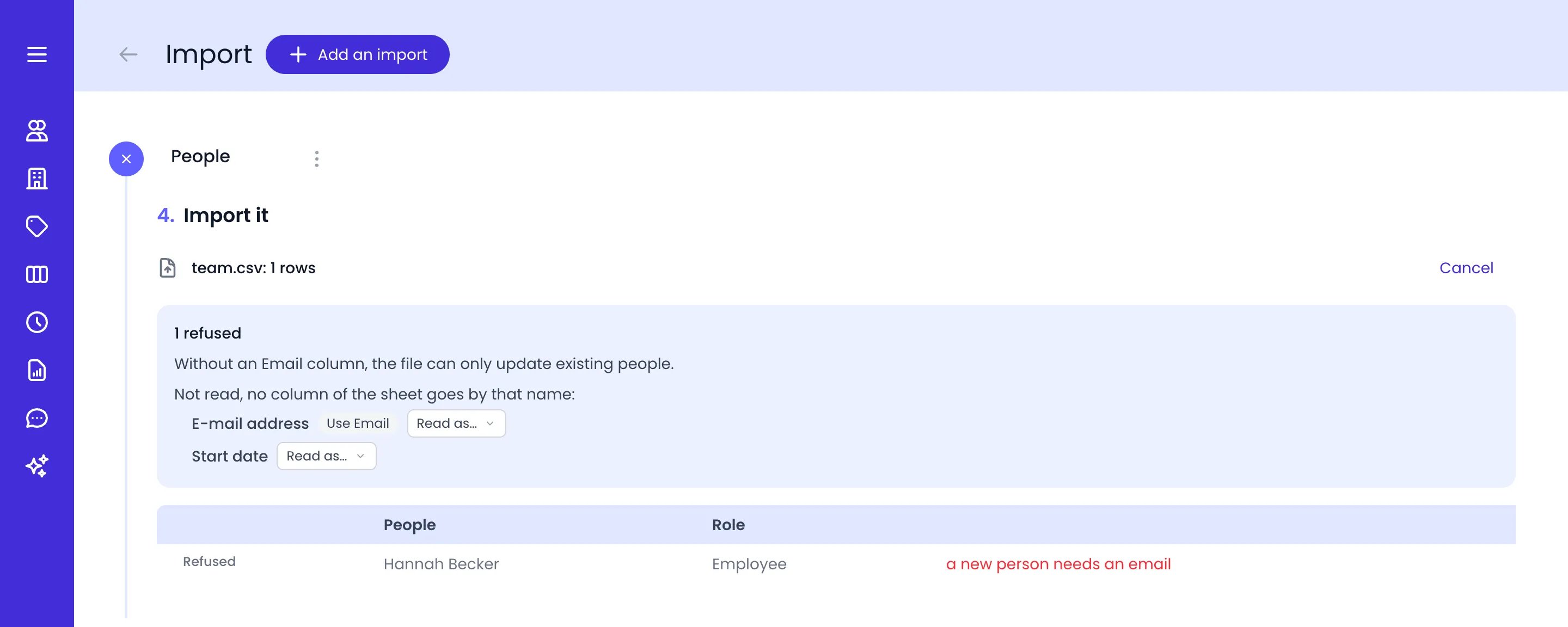
A file with headers Beebole doesn't recognize, and a row it refuses
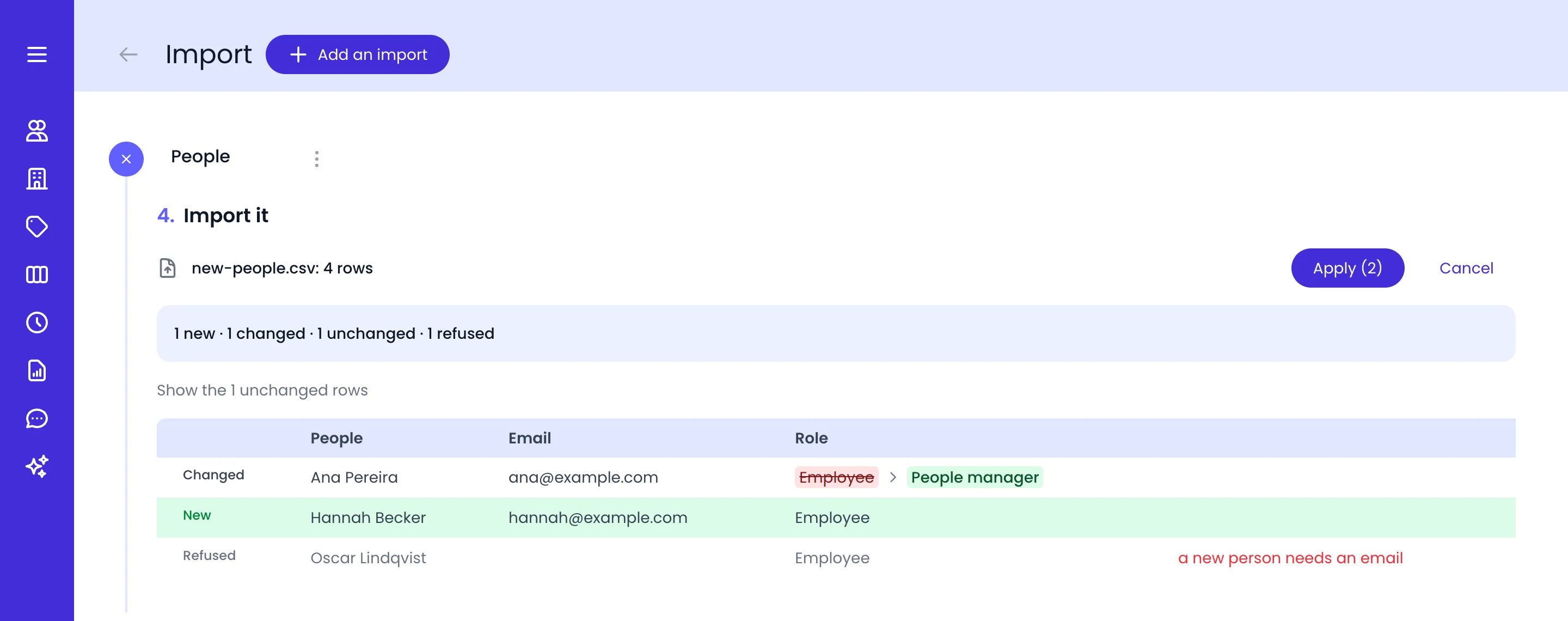
The preview of an imported file, before Apply
A refused row never stops the others: every row that can be imported still is. The reason says what to fix, for example “a new person needs an email”, “a level is missing between filled ones”, “same entry as line 4”, or, when several items share a name, that you should write it with what it sits under, as a downloaded sheet does. Fix the file and upload it again to see a fresh preview.
The box above the rows may also show:
- “Created along the way:”, followed by the parent levels a Basic details row names and your account lacks. Beebole creates them before the row’s own item.
- How many values the file empties or records it deletes, and how many items it deletes for good.
- For people, the role new people get when the file has no Role column, and the seat warning described in New people and seats.
Deleting entries
To delete entries with an import, add a column named Delete anywhere in the sheet and write Yes on the rows to delete. What goes depends on the sheet:- On the Basic details sheet, the row’s item is deleted.
- On a sheet of records (rates, allowances, public holidays, assignments, bookings), the row’s record is deleted.
- On the Custom fields sheet, Delete is refused: empty the cell to clear a value.
New people and seats
On the Basic details sheet of people, Beebole finds each person by their email, or by their name when the row has no email. A row with an email that matches nobody creates a new person, even when someone already has that name. A new person needs a name, an email, and a role:- The role comes from the Role column. When the file has no such column, pick the role in the preview, next to “Without a Role column, new people get this role:”.
- A file without an Email column can only update people who already exist.
Applying the import
Click Apply: the button shows how many changes the file makes. Beebole runs them and ticks each row as it goes. When it’s done, the lists of people, projects, tasks, or tags reload with the new data. If some changes fail, the message ”… changes failed — the rows say why.” appears and the failed rows stay on screen with their error. Click Apply again to run what failed, or Cancel to put the file away.Undoing the last import
After an import has run, Undo the last import appears next to Import it, followed by the file name. Click it to see first what the undo will put back: each row the import changed, under the name of the imported file. Click Undo to run it, or Cancel to keep the import. Only the very last import can be undone, from the import it was applied on: applying another file replaces it. Items the import deleted don’t come back.Adding a short list by pasting
For a short list, you don’t need a file. The add panel of People, Projects, Planning, and Tags has a box headed Adding more than one …?, named after what you add, such as Adding more than one person? or Adding more than one client?.1
Copy the rows
Copy rows from a spreadsheet. For people, one person per line: the name, then Tab, then the email. For projects, tasks, and tags, one name per line, indented with Tab or spaces to go under the line above.
2
Paste them
Click Paste. For people, Beebole first asks for one role for the whole batch (“Please select a role for the people you want to add”). In Safari, paste into the Paste here field instead.
3
Check and import
Review the list in the Import preview and click Import entries. If something looks wrong afterwards, click Undo to remove everything the paste created.
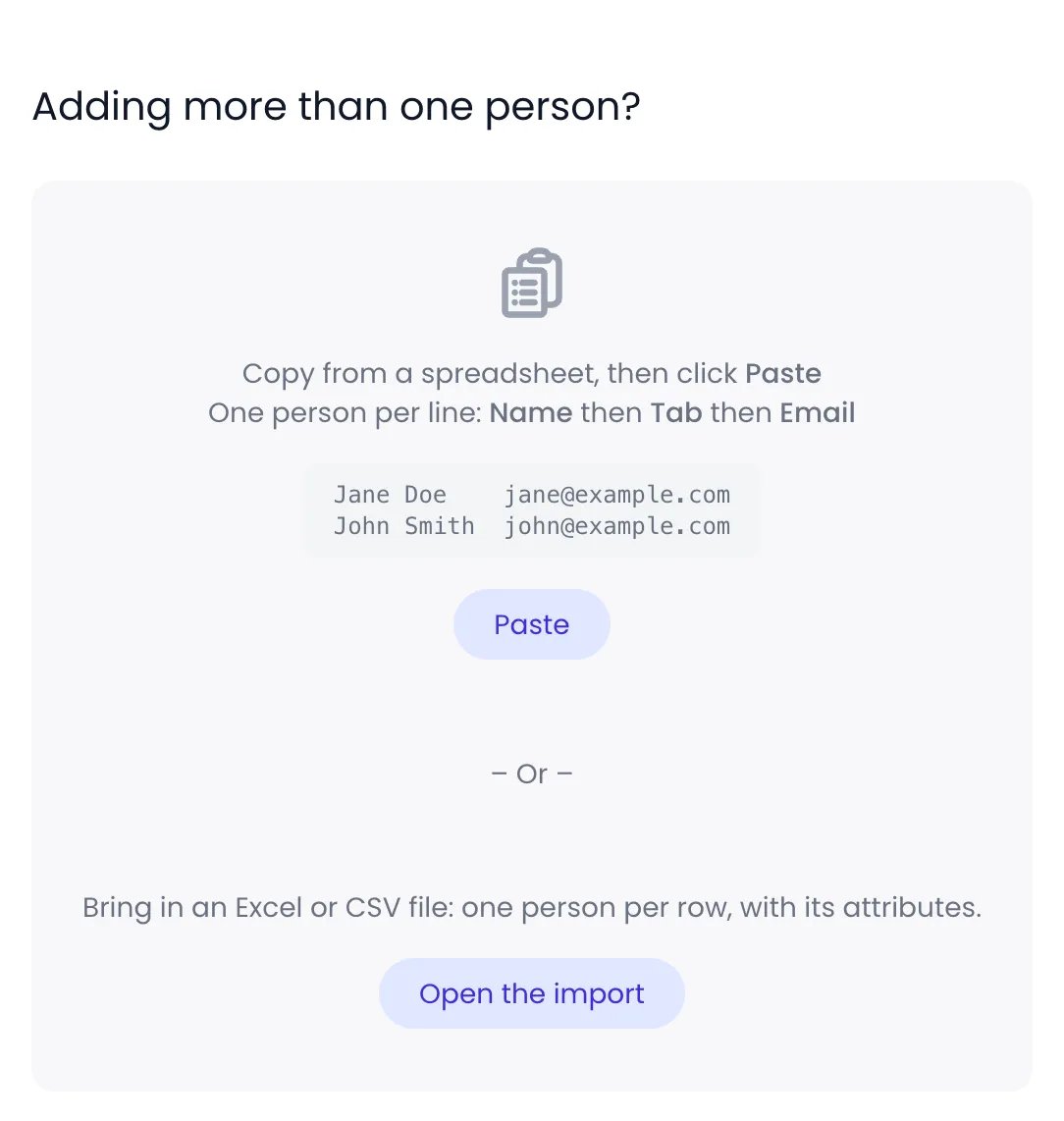
The paste box of the add panel, with Open the import under the paste
What the import can’t do
- Time entries, expenses, and time off records can’t be imported from a spreadsheet. To load time entries in bulk, see Importing time entries in bulk.
- Only people, projects, tasks, and tags can be imported. Time off types, work schedules, expense types, and roles are created in Beebole, one by one or by pasting a list of names into the Adding more than one …? box of their add panel. Custom field definitions are created in Custom Fields.
- Managers can’t be set by an import: name them in each item’s panels.
- The import doesn’t archive or unarchive items. It deletes them only, through the Delete column.
- One import handles one kind of data for one kind of item, and reads one sheet of the file. To bring in people with their allowances, import their basic details, then their allowances with a second import.
- Public holidays go only on a person or tag that has a calendar of its own. Give it one in Beebole first: a row for an item without one is refused.
Related content
Master data review
Review your configuration data in a table, export it, and change it in bulk.
People
Add people one by one or by pasting a list, invite them, and set up their profiles.
Projects
Build the project hierarchy, name its levels, and add several projects at once.
Assignments
Control which projects, time off types, expense types, and work schedules each person can use.
Frequently asked questions
Who can import data from a spreadsheet into Beebole?
Who can import data from a spreadsheet into Beebole?
Only administrators. Beebole’s Import page is in the Settings menu on a computer, not in the phone’s menu. Other people who can add items still have the paste box of the add panel, for a list of names.
Can I import time entries from a spreadsheet?
Can I import time entries from a spreadsheet?
No. Beebole’s spreadsheet import covers people, projects, tasks, and tags with their settings, not time entries, expenses, or time off records. Time entries can be loaded in bulk through the MCP server or the API, as described in Importing time entries in bulk.
Why is a row of my import refused?
Why is a row of my import refused?
Beebole refuses a row it can’t apply as written, and shows the reason at the end of the row: a new person without an email, a name that matches several items, a level missing between filled ones, or an item that doesn’t exist yet. A refused row changes nothing, and the other rows still import. Fix the file and upload it again to see a new preview.
Can I rename or move projects with an import?
Can I rename or move projects with an import?
Yes, with a sheet downloaded With the current data. Its Beebole id column ties each row to its entry, so on the Basic details sheet a new name renames the project, client, or subproject, and a new client or parent moves the project under it. Without the id, a new name creates a new item instead.
Can I undo an import in Beebole?
Can I undo an import in Beebole?
Yes, the last one. Undo the last import shows what it will put back, then runs when you click Undo. Only the very last import can be undone, and items it deleted can’t be brought back, which is why Beebole asks you to confirm deletions before it applies them.
What happens if I import more people than I have seats?
What happens if I import more people than I have seats?
Beebole creates the people beyond your free seats as inactive (archived), and the preview warns you before you apply. Add seats from Subscription, then unarchive them. During the free trial, seats aren’t counted.