

Open Account Settings
You reach Account Settings from the user menu, not from the sidebar’s top-level features.Open the user menu
Choose Account Settings
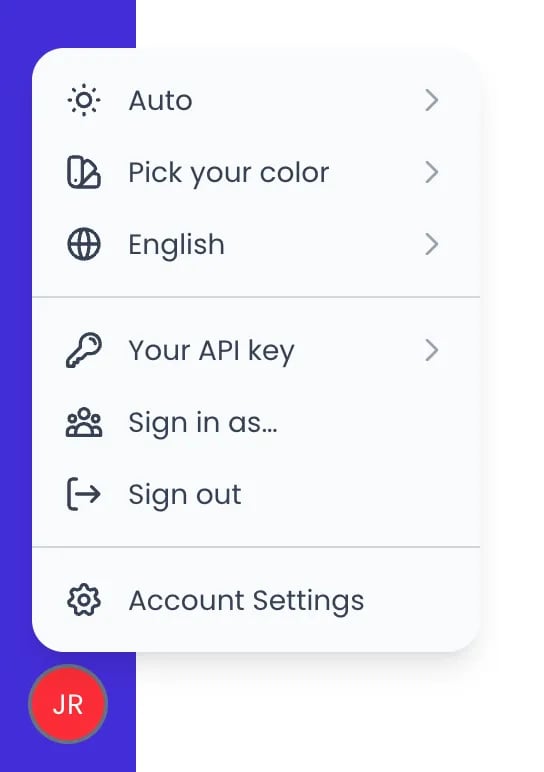
The user menu, opened from your initials at the bottom of the sidebar
Organization identity
The header at the top of Account Settings holds your organization’s name, logo, and accent color. Each edit saves automatically. Account Settings has no company address: the address on your Beebole invoices is the billing address kept in the billing portal, which you open with Manage on the Subscription page. The logo and the accent color share one control: the square at the left of the header, which shows your logo or your organization’s initials. Click it to open the color palette, with the logo drop area below it.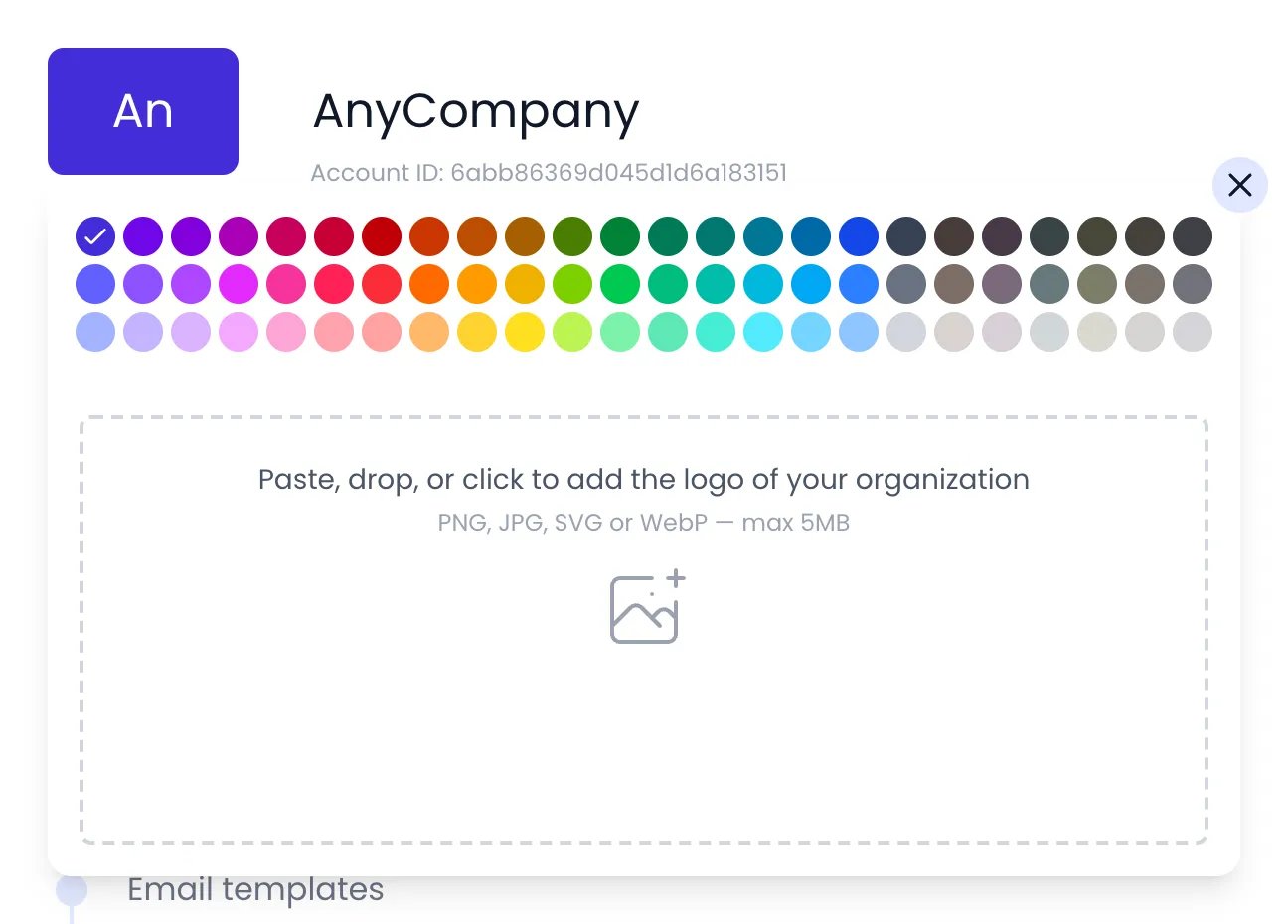
The organization's color palette and logo drop area, opened from the square in the header
Name
Click the organization name in the header and type a new one. The change is saved automatically.Logo
Click the square in the header. Below the palette, you can Paste, drop, or click to add the logo of your organization. Beebole crops the logo to fit the header, and a crop tool lets you adjust the framing before it saves. The logo appears in the sidebar and in emails Beebole sends. To remove it, open the logo again and clear it.Accent color
Click the square in the header and pick a color from the palette. The accent color updates immediately for everyone in the organization — it colors buttons, highlights, and other branded elements. To clear it, open the picker again and click the swatch that is currently selected.Settings panels
Below the header, Account Settings is organized into panels. Each panel sets a default for the organization, and every edit saves automatically. The panels available are: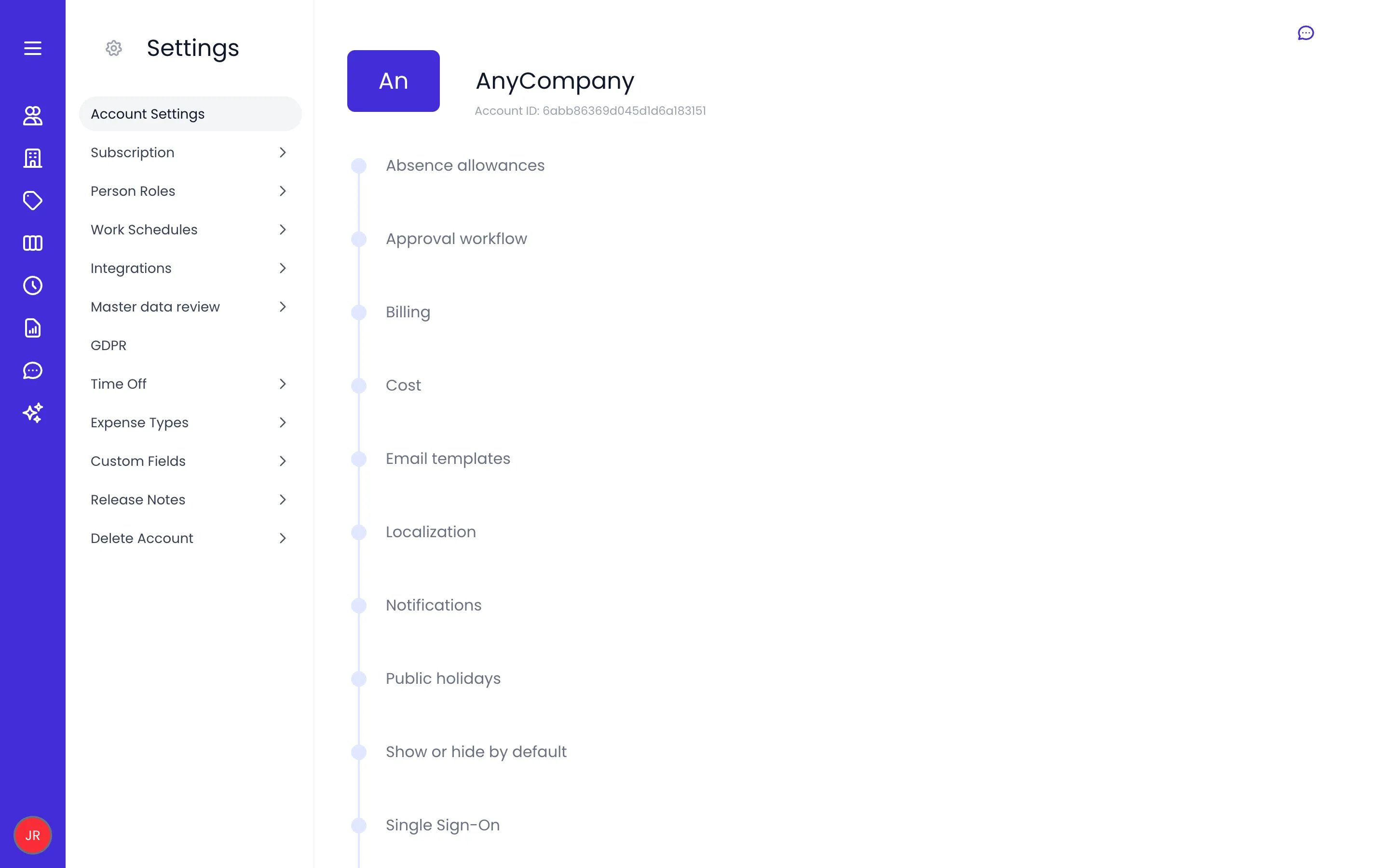
Account Settings, with the organization header above the settings panels and the Settings menu on the left
Localization
The Localization panel sets the regional defaults for the whole organization:- Time zone — The default time zone for date and time calculations.
- First day of the week — Whether the week starts on Monday, Sunday, or another day. This affects timesheets, calendars, and reports.
- Currency — The currency used for billing rates, costs, budgets, and expenses.
- Decimal format — The decimal separator used in numbers.
- Thousands separator — The separator used to group large numbers.
- Clock format: a 12-hour clock (3:45 PM) or a 24-hour clock (15:45).
- Date format — How dates display throughout Beebole.
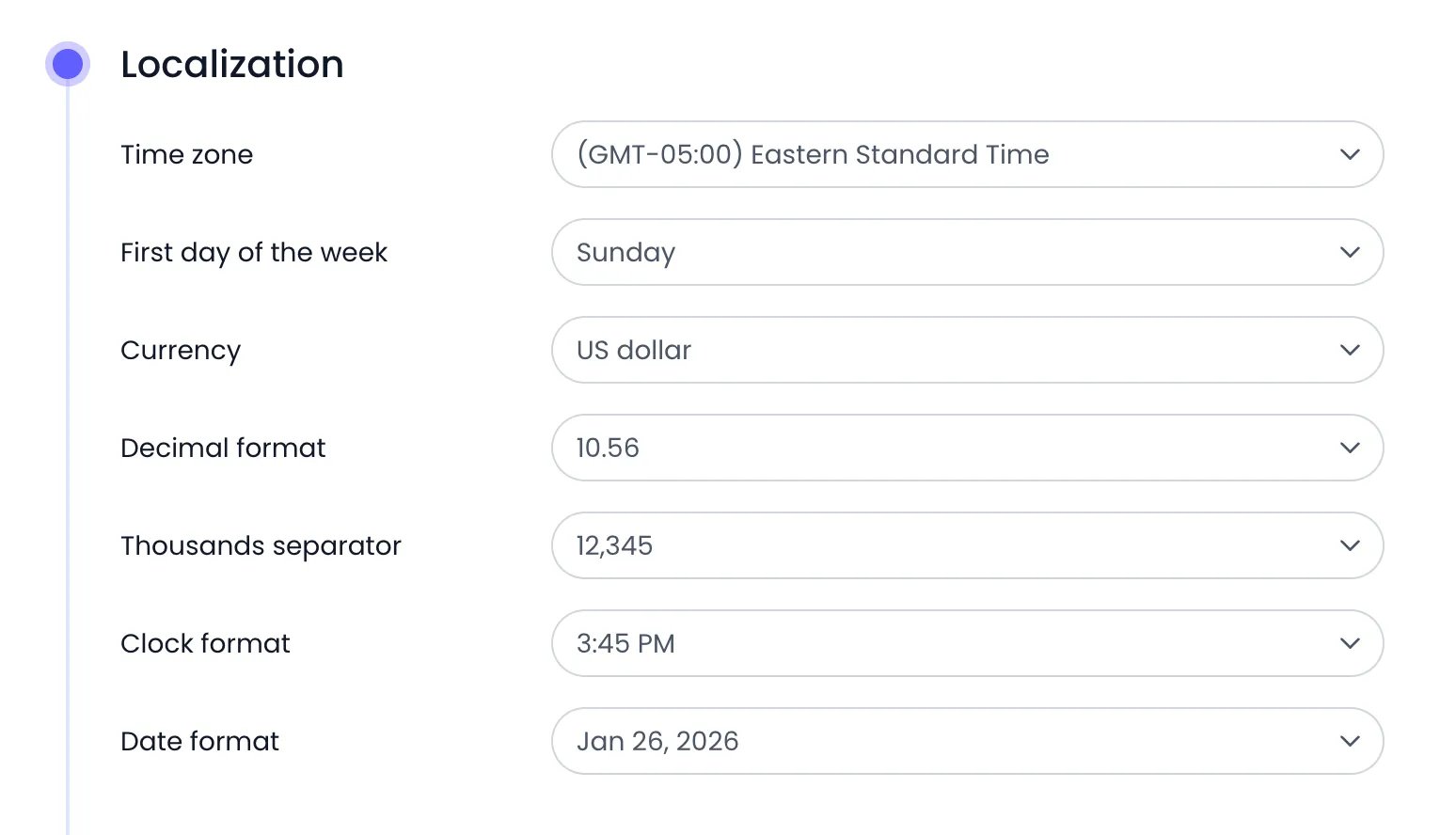
The Localization panel of an organization on New York time with weeks starting on Sunday
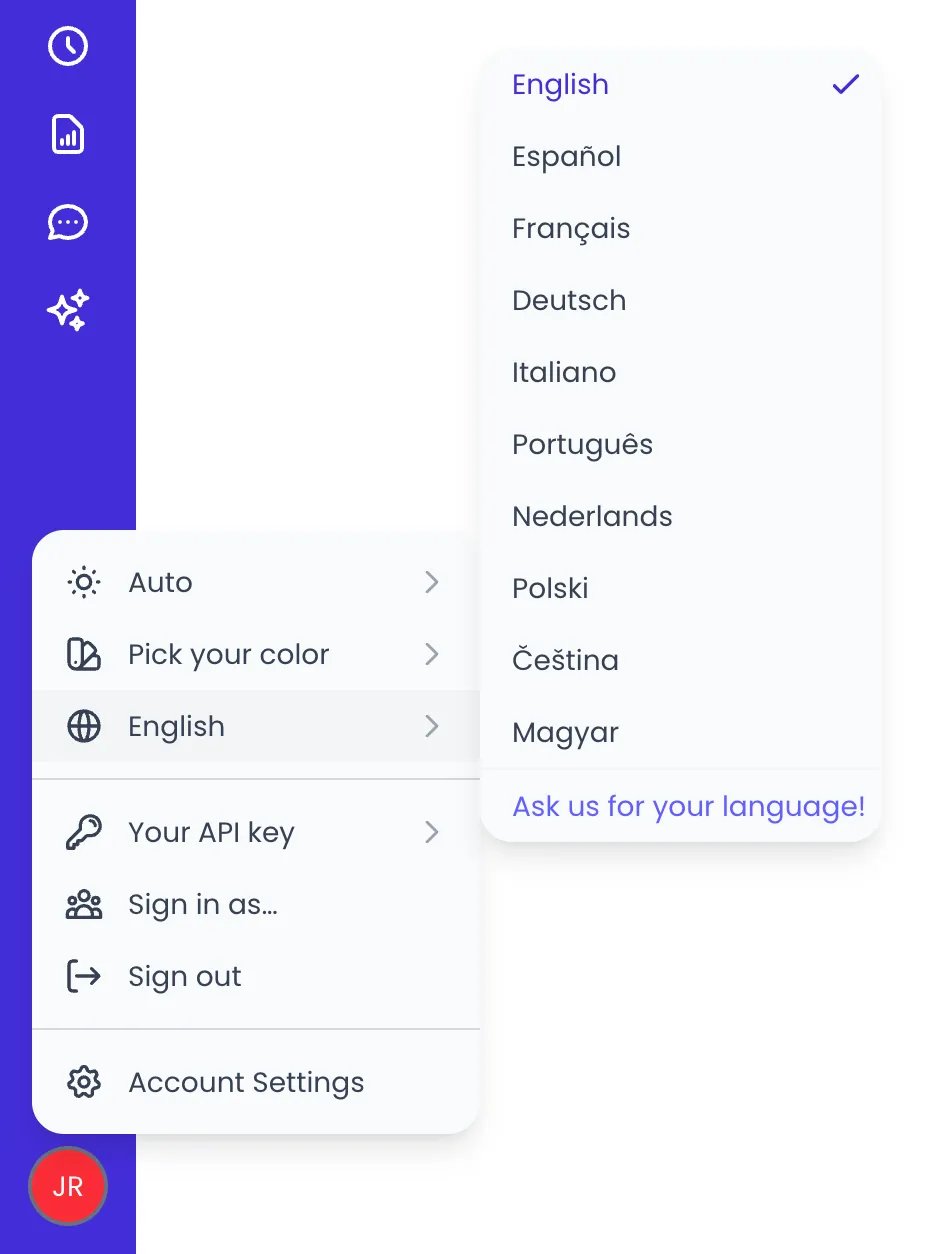
The language submenu of the user menu, with Ask us for your language! at the end
Show or hide by default
The Show or hide by default panel decides which optional elements are switched on across the account. You can show or hide Show all time off, Show all expenses, Show all schedules, Show all tasks, Show all custom fields, Show all secondary projects, and Show all projects. If you disable one globally, you can still enable it for specific tags, people, or projects under their own Show or hide settings.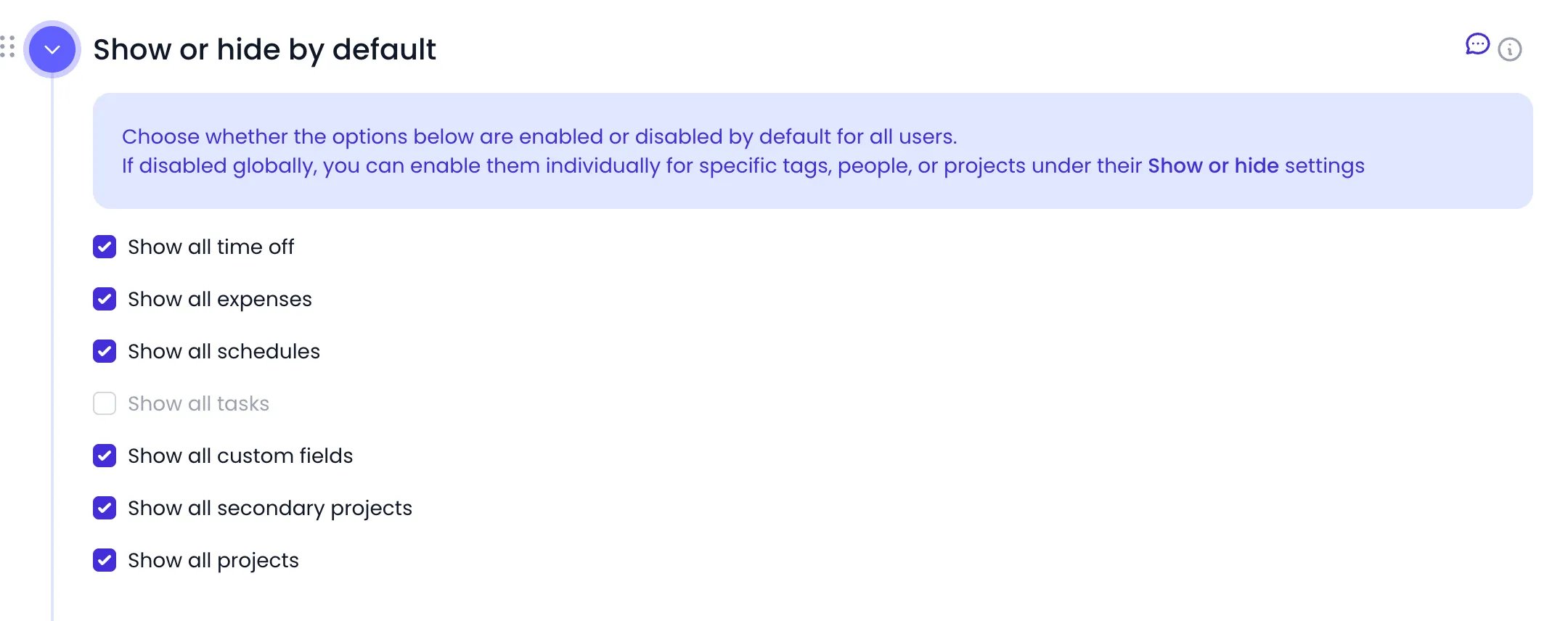
The Show or hide by default panel
Timesheet and Planning Settings
The Timesheet and Planning Settings panel controls the timesheet experience — default periodicity, duration format, time entry rules, the categories your team tracks against, and reminders. Because it is a deep configuration area, it has its own reference page.Release notes Admin only
Click Release Notes in the Settings menu to read what changed in Beebole with each production release. Each release is listed under its date, newest first. The screen shows ten releases at a time: click Load older at the bottom to see earlier ones. For a monthly summary of the main changes, see Product updates.Delete your account Admin only
You can schedule your Beebole organization for deletion from the Delete Account entry of the Settings menu. Beebole does not delete everything instantly: it gives you a grace period so you can change your mind. This is also how you honor a right-to-erasure request that covers the whole organization. For individual requests, see GDPR and personal data. Only administrators can reach Delete Account: the Account Settings entry in the initials menu, and the Settings menu behind it, are not shown to other roles. A person who cannot find Delete Account either needs an administrator to do it, or is still on the Legacy platform, where the account is deleted from the Account module (see the legacy FAQ).Open Delete Account
Schedule the deletion
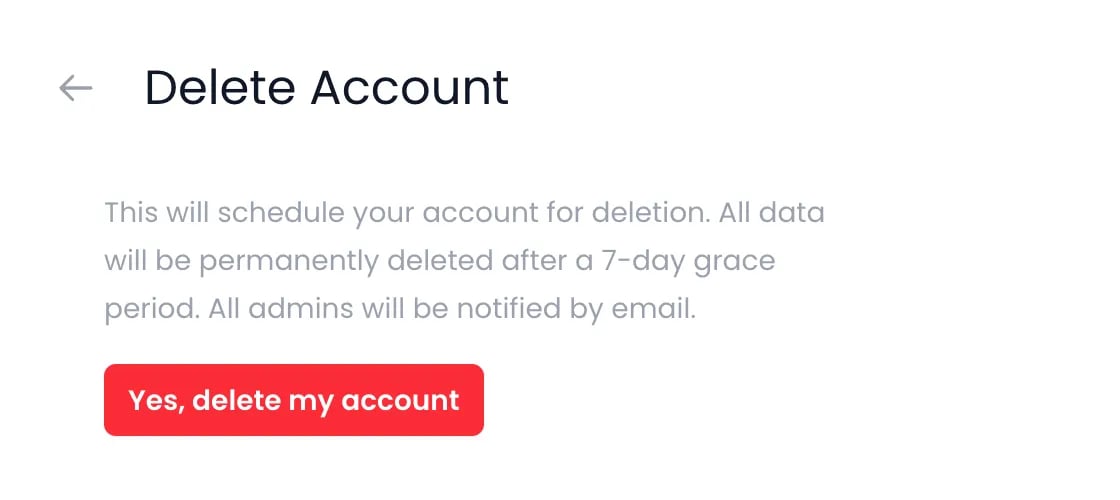
The Delete Account screen, before a deletion is scheduled
Cancel if you change your mind
Contact support
To reach the Beebole team from inside Beebole, click the round chat button in the bottom-right corner of the screen. It opens a conversation with the Beebole support team. Everyone signed in to Beebole has it, whatever their role. The chat button is hidden on phones. From a phone, write to support@beebole.com instead. On the Subscription page, the We’re happy to set up your account manually link under Wire transfer instead? opens the same chat, with a message about paying by wire transfer already filled in.Related content
Timesheet and Planning Settings
Roles & permissions
Authentication
Subscription
Frequently asked questions
Who can change Account Settings in Beebole?
Who can change Account Settings in Beebole?
Can I undo deleting my Beebole account?
Can I undo deleting my Beebole account?
Can I change the currency after I have started tracking costs?
Can I change the currency after I have started tracking costs?
How do I contact Beebole support from the app?
How do I contact Beebole support from the app?