

Only administrators see and manage the subscription. To open it, click the button with your initials at the bottom of the sidebar, choose Account Settings, then click Subscription in the Settings menu on the left. On a phone, tap your initials, then Account Settings, then Subscription.
Plans
Beebole has three plans. Each higher plan includes everything in the one below it.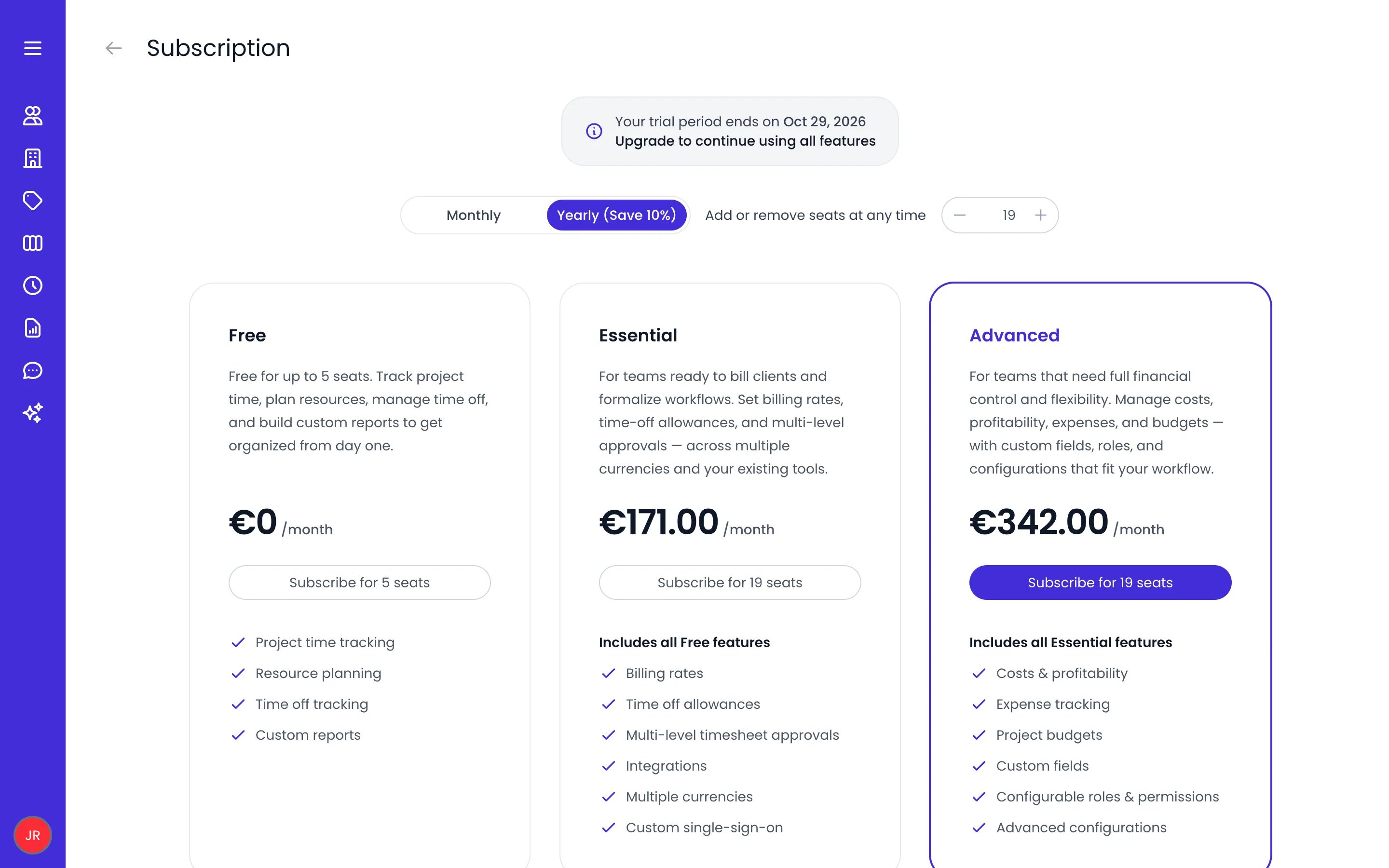
The subscription page with the billing interval, the seat stepper and the three plans
The Free plan is limited to 5 seats. The paid plans bill for the number of seats you set.
Features outside your plan
A feature your plan does not include stays visible in Beebole, marked with an upgrade icon (its tooltip reads Upgrade your subscription). Opening it shows a short preview of what the feature does instead of its settings, with an Upgrade your plan link that takes you to the subscription page.Free trial
Every new Beebole account starts with a 30-day free trial. During the trial, every feature is available, there is no seat limit, and no credit card is needed. While the trial runs, the subscription page shows Your trial period ends on and the end date above the plan cards. Before that date, either subscribe to a paid plan or switch to the Free plan: on the Free card, click Subscribe for 5 seats, then Confirm. If you do neither, the account locks when the trial ends. See When the account is locked.Subscribe to a paid plan
You subscribe from the plan cards, which appear during the trial, on the Free plan, and after an account has been deactivated.1
Choose the billing interval
On the subscription page, select Monthly or Yearly.
2
Set the number of seats
Use the stepper next to Add or remove seats at any time. You cannot set fewer seats than the number of active people in your account.
3
Choose a plan
Click the subscribe button on the Essential or Advanced card. It shows the seat count, for example Subscribe for 12 seats.
4
Pay on the checkout page
Beebole opens a secure checkout page. Enter your billing address, company name, tax ID if it applies, and card details, accept the terms, and confirm the payment.
Promotion codes
Beebole has no field for a discount code. If you have a promotion code, enter it on the checkout page when you first subscribe.Pay by wire transfer
Under the plan cards, Wire transfer instead? is followed by the link We’re happy to set up your account manually, with the note Only accepted for yearly payments. Click the link to open a chat with the Beebole team, with a message already filled in that names the plan, billing interval and number of seats you selected, and asks for your company name, full address, and VAT or tax ID. Add those details and send the message so the team can reply with the payment details and the invoice.Manage a paid subscription
Once you subscribe, the subscription page shows a Current plan card with your plan, the number of seats it includes, the Next payment date, and a Manage button. The sections below it let you change the seats, the billing interval, the add-ons, and the plan.Adjust seats
Seats are not added or removed automatically when you add or archive people. You set the seat count yourself, and a paid change is confirmed before it takes effect.1
Open the subscription page
Go to Settings > Subscription.
2
Set the new seat count
Under Seats, use the stepper to change the number. You cannot set fewer seats than the number of active people in your account.
3
Confirm the prorated charge
Beebole shows the prorated amount due for the rest of the current period. Click Confirm to authorize that amount and update your seats.
To reduce your seat count, archive people first so the active count drops. When you reach the limit, the subscription page links you to People to do this.
Billing interval
Switch between Monthly and Yearly in the Billing interval section. Beebole shows the amount due for the change, and you click Confirm to apply it. A yearly plan saves 10% over paying monthly.Add-ons
Add-ons extend the Essential plan without moving to a higher tier. They appear under Enhance your plan with add-ons, priced per seat per month:
Click an add-on to select it, check the amount Beebole shows, then click Confirm.
On the Advanced plan, these capabilities are already included, so the add-ons are not shown.
Change plan
The Change plan section offers the other paid plan: Advanced if you are on Essential, or Essential if you are on Advanced. Click the plan’s card to see the amount. Moving up shows Click confirm to be charged the pro-rated difference, and moving down shows Click confirm to finalize the change. Click Confirm to switch. To leave the paid plans altogether, convert to the free plan instead.Payment details and invoices
Click Manage on the Current plan card to open the billing portal. There you can update your credit card and your billing details (name, email, billing address, and tax ID), download invoices, or cancel your subscription. Beebole keeps no company address in its own settings. The address on your invoices is the billing address entered on the checkout page, and you change it in this portal. The new address applies to invoices issued after the change.Cancel your subscription
You cancel from the billing portal: click Manage, then cancel the subscription there. Back in Beebole, the subscription page shows Your subscription has been canceled and You will still have full access to all features until followed by the end date of the period you paid for. Everything keeps working until that date. On that date, the account locks, as described in When the account is locked.Convert to the free plan
The Convert to free plan (up to 5 seats) section moves a paid subscription back to the Free plan. You keep access to your core data, but the features of your paid plan are no longer available.1
Start the conversion
Click Convert. A warning explains that your subscription ends immediately.
2
Reduce the account to 5 active people
If more than 5 people are active, the warning shows Click to archive people and reduce your seat count to 5 instead of the confirm button. Click it to open People, archive people until 5 remain active, then come back and click Convert again.
3
Confirm
Click Confirm. The account moves to the Free plan right away.
When the account is locked
A Beebole account locks when its trial ends without a plan, or when a canceled subscription reaches its end date. Nothing is deleted: your people, projects, time entries, and settings stay as they are, and subscribing again restores access for everyone. While the account is locked:- Administrators who sign in see Account inactive, with Your account is currently locked. Update your subscription to restore access for your team. Update subscription opens the subscription page, which shows when the trial ended or the account was deactivated, above the plan cards. Sign out leaves the account.
- Everyone else sees Account inactive with This account is inactive. Please contact an administrator to restore access. and can only sign out. They cannot sign in again until the account is active.
- API keys and connected AI assistants stop working. Requests to the Beebole API answer
402 Payment RequiredwithAccountIsInactive. - Integrations stop syncing.
Related content
Account Settings
Manage your organization profile, feature settings, and SSO.
Billing Rates
Set billing rates to track billable revenue on your projects.
Frequently asked questions
How does seat-based pricing work in Beebole?
How does seat-based pricing work in Beebole?
Beebole bills per seat per month, in pounds sterling, US dollars, or euros depending on your organization’s country. You set the seat count yourself on the subscription page, it is not adjusted automatically when you add or archive people, and you cannot set fewer seats than the number of active people in your account. When you add seats mid-cycle, Beebole shows the prorated amount for the rest of the current period, and the new seats apply only after you click Confirm.
What happens when my Beebole trial ends or my subscription is canceled?
What happens when my Beebole trial ends or my subscription is canceled?
The account locks on the trial’s end date, or at the end of the period you paid for after a cancellation. Administrators can still sign in to subscribe again, everyone else sees an Account inactive message, and API keys stop working. No data is deleted, and choosing a plan restores access for the whole team.
Where do I enter a promotion code?
Where do I enter a promotion code?
On the checkout page that opens when you first subscribe to a paid plan. Beebole itself has no field for discount codes, so keep the code at hand when you click the plan’s subscribe button.
Where do I find my invoices?
Where do I find my invoices?
In Beebole, go to Settings > Subscription and click Manage to open the billing portal. Download past invoices, update your card or billing details, or cancel from there.
How do I change the company address on my invoices?
How do I change the company address on my invoices?
In the billing portal, not in Beebole’s settings. Beebole keeps no company address of its own: your invoices show the billing address entered on the checkout page when you subscribed. Go to Settings > Subscription and click Manage to open the billing portal, where you can update the name, email, billing address, and tax ID on your invoices. The new details apply to invoices issued after the change. For an invoice already issued, contact support@beebole.com.
What happens if I downgrade to the free plan?
What happens if I downgrade to the free plan?
Your paid subscription ends immediately and no refund is issued for the remaining period. You keep access to your core data on the Beebole Free plan (up to 5 seats), but the paid features your plan included are no longer available. If more than 5 people are active, archive some first.