

Accrual policies are not available yet. This page previews how they will work once they ship. Today, you add earned time by hand in the allowance’s Accrued field. The carry-forward rules and accrued balances described below already work.
How accruals will work
An accrual policy will belong to an absence type and define three things:- How much time off is awarded per period (the Quantity).
- How often the accrual is awarded (the Frequency).
- When, within each period, the accrual is credited to the person’s balance (the Awarded on setting).
Planned policy settings
The policy is planned as an Accruals panel on each absence type, under Settings > Time Off, switched on and off with a toggle. Once it is on, it will offer these settings:Frequency settings
The accrual frequency will set the cadence at which time off accrues. The planned options are:To spread a yearly amount evenly, divide it by the number of periods in a year. For example, 20 days a year accrued monthly is about 1.67 days per month.
Award timing explained
The Awarded on setting will control the moment within each accrual period when the time is credited:- first day of the period: the time is available as soon as the period starts. For monthly accruals, this means the 1st of each month.
- last day of the period: the time is credited on the final day of the period, so the person earns it by the end of the accrual window.
- day after the period: the time is credited on the first day of the following period, once the person has fully completed the period.
Award timing decides when a person can use accrued time off. With day after the period, January’s accrual becomes available on February 1, not during January. Pick first day of the period if people should use their time right away.
Carry-forward rules
Carry-forward decides what happens to unused time off when an allowance period ends. It already works today, and it is set on the allowance, not on the accrual policy. Two fields on each allowance control it:
Once the new period starts, Beebole spends the carried balance first, before the new period’s allowance, so the time that expires soonest is used first. A negative balance at the end of a period carries nothing. Any Accrued amount is part of the balance, so it carries over under the same rules.
1
Open the allowance
Open the Absence allowances panel (in Settings > Account Settings for the organization default, or on a person or tag) and click the relevant allowance.
2
Set the validity date
In Valid until, pick the last day the carried time can be used. It must fall after the end of the allowance’s period.
3
Set the limit
Enter the maximum amount that can roll over in Carry forward limit, or leave it at 0 for no cap. Every change is saved automatically.
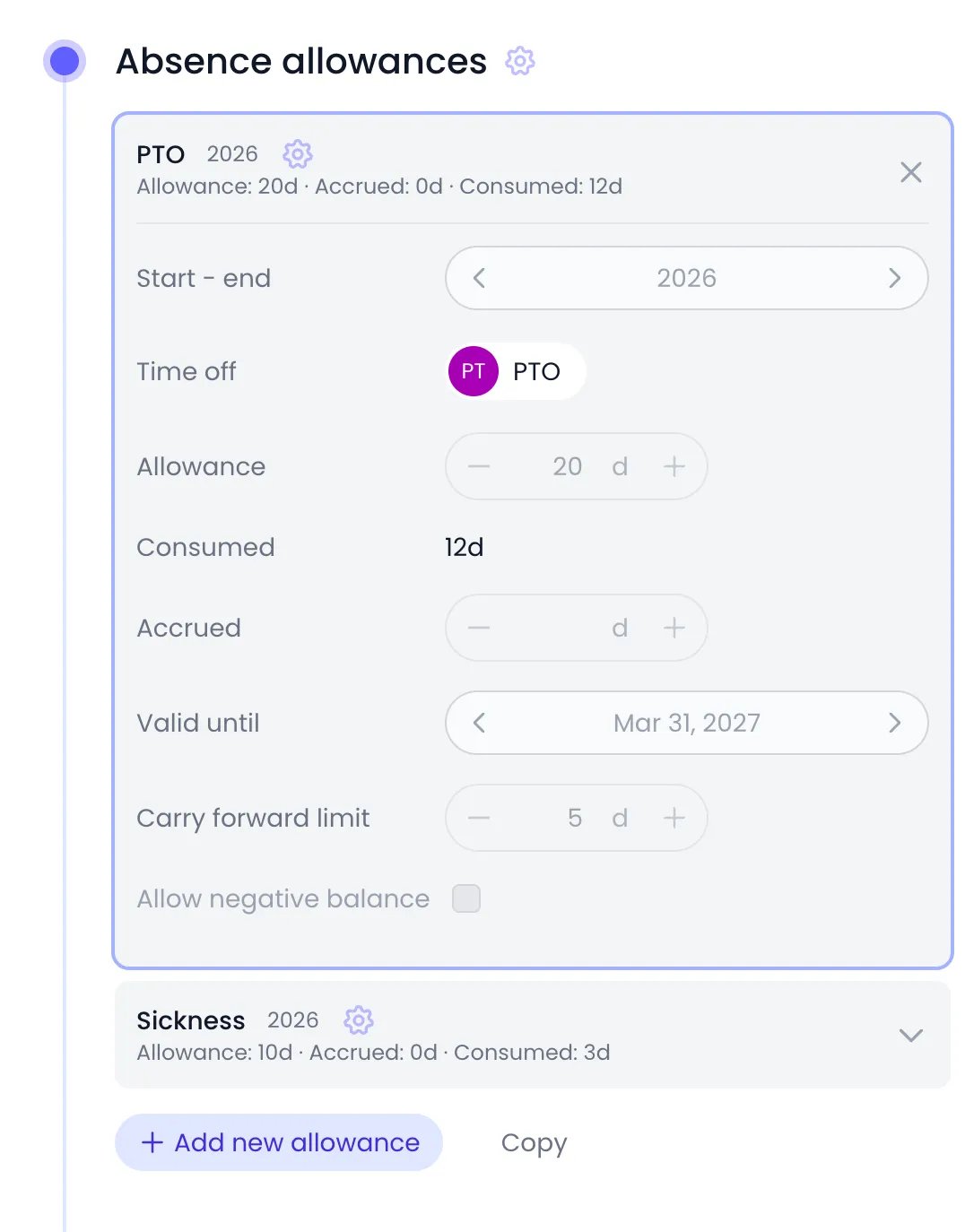
A PTO allowance that carries up to 5 unused days into 2027, usable until March 31
Viewing accrued balances
You can check any person’s balance, including the Accrued amount, from their profile:1
Open the person's profile
Click People in the sidebar and open the person’s profile.
2
Review the balance
In the Absence allowances panel, each allowance’s summary line shows its Allowance, Accrued, and Consumed amounts. Click an allowance to open all of its fields. An allowance inherited from a tag or the organization is read-only on the person.
Related content
Time Off
Configure absence types and allowances, track balances, and record time off on the timesheet.
Public Holidays
Define non-working days that affect capacity and time-off calculations.
Work Schedule
Set working hours used to calculate day-based time off.
Frequently asked questions
Are accrual policies available in Beebole today?
Are accrual policies available in Beebole today?
Not yet. Automatic accrual policies are coming soon to Beebole. Today, each allowance has a manual Accrued field: enter the time a person has earned there, and Beebole adds it to their balance. Carry-forward on allowances already works.
Can I give people different accrued amounts?
Can I give people different accrued amounts?
Yes. In Beebole, the Accrued field belongs to each allowance, so you can enter a different amount for each person whose allowance is set on their own profile. Accrual policies, once available, will be set per absence type.
What happens to unused time off at the end of the period?
What happens to unused time off at the end of the period?
It depends on the allowance. Without a Valid until date after the period end, unused time off expires when the period ends. With one, the unused balance carries over until that date, capped by the Carry forward limit when it is above 0, and Beebole spends it before the next period’s allowance.
Does a Carry forward limit of 0 mean nothing carries over?
Does a Carry forward limit of 0 mean nothing carries over?
No. In Beebole, a Carry forward limit of 0 means no cap: the whole remaining balance carries over, as long as the allowance has a Valid until date after the end of its period. To let nothing carry over, leave Valid until empty.
Will accruals apply to all absence types?
Will accruals apply to all absence types?
No. Beebole’s accrual policies will be optional and set per absence type. You will be able to accrue some types (for example, vacation) and keep a fixed allowance for others (for example, sick leave).