

Expense tracking is not included in every Beebole plan. If you don’t see expense features in your account, review your plan and add-ons on the Subscription page.
How expenses work in Beebole
Expense tracking has two building blocks:- Expense types — The categories of spending your organization recognizes (Travel, Meals, Equipment, …). You create them once in Beebole’s settings.
- Expense records — The individual entries: a date, a category, an amount or quantity, and an optional note. You log them on the Expenses panel of a person or a project.
Creating expense types
1
Open the Expense Type settings
Click the button with your initials at the bottom of the sidebar, then go to Settings > Expense Types.
2
Add an expense type
Click Add Expense Type, enter a Name (e.g., “Travel”, “Meals”, “Mileage”), then click Add Expense Type again to confirm.
3
Configure the Details panel
In the expense type’s Details panel, check Currency if entries of this type are monetary amounts; leave it unchecked for quantity-based expenses such as kilometers or meals. Changes are saved automatically.
expense amount × markup / 100, so a markup of 100 bills the expense at cost.

The Details panel of a currency-based expense type
Adding several expense types at once
To create a whole list of expense types in one go, paste their names from a spreadsheet:1
Open the add panel
Click Add Expense Type. Below the name field, find the Or add multiple entries area.
2
Paste your list
Copy the names from a spreadsheet, one name per line, then click Paste.
3
Review the preview
Check the entries in the Import preview. Click the × on a row to leave it out.
4
Import the entries
Click Import entries. If something looks wrong afterwards, click Undo.
Controlling who can use an expense type
Each expense type has a Who has access? panel where you assign it to specific people, tags, or projects — for example, mileage reimbursement for field staff only. The organization-wide default is the Show all expenses toggle in your organization’s Show or hide by default panel: when it’s on, every expense type is available unless you exclude it; when it’s off, an expense type is only available where you assign it. See Assignments for the full availability model.Archiving and deleting expense types
To manage an existing expense type, open it in Settings > Expense Types and click the ⋯ action menu next to its name. The menu offers Duplicate, Rename, Archive, Unarchive, and Delete. Archive a type you no longer use. It leaves the list and the Select expense category picker, so nobody can log new expenses with it, while its past expense records stay in place and still count in reports. When archived types exist, click Show Archived on the Expense Types page to display them, then use the ⋯ action menu and Unarchive to restore one. Hide Archived hides them again.Logging expenses
You log expense records on the Expenses panel of a person or a project:1
Open the person or project
Click People or Projects in the sidebar and select the person who incurred the expense or the project it is charged to.
2
Open the Expenses panel
In the detail panel, open the Expenses panel.
3
Add the expense
Click Add, then pick a category with Select expense category. Beebole creates the record, dated today, and saves it automatically.
4
Fill in the details
Adjust the Date, enter the Amount (for currency-based categories, with its own currency) or Quantity (for unit-based categories), link the Project — or the Person when you started from a project — and add an optional Note. Every change is saved automatically.
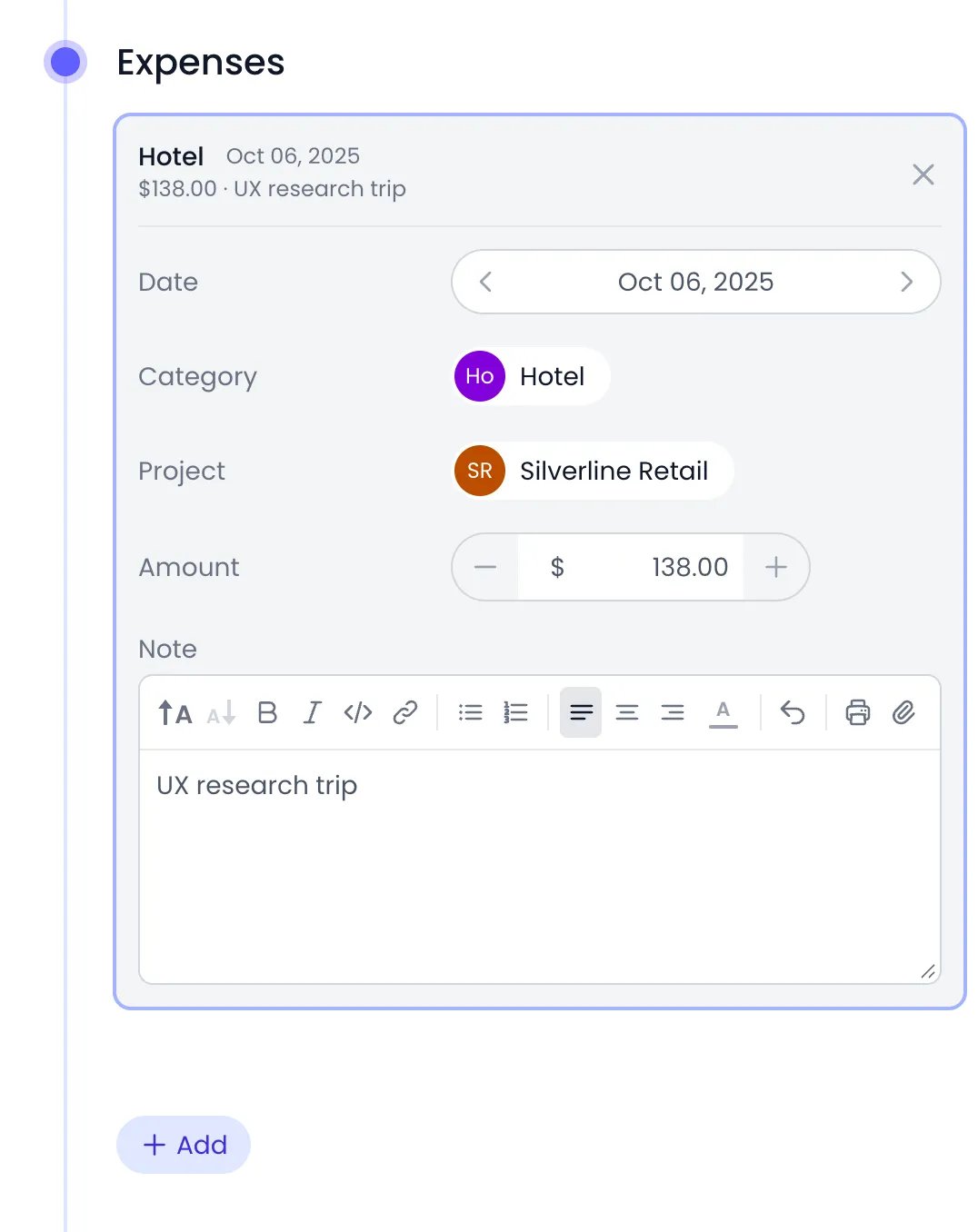
An expense record open in a person's Expenses panel
What a person can see and do in the Expenses panel depends on the Expense records permission of their role. See Roles and authorizations.
Expenses in reports
To analyze spending, click Reports in the sidebar and add an Expense column to a report. You can group expense records by expense type, person, project, tag, or period, and filter them like any other report. Expense columns include Amount, Quantity, and Expense billing — the billed amount with the category’s markup applied (in the report matrix they appear as Expense amount and Expense quantity). See Reports for folders, charts, sharing, and exports.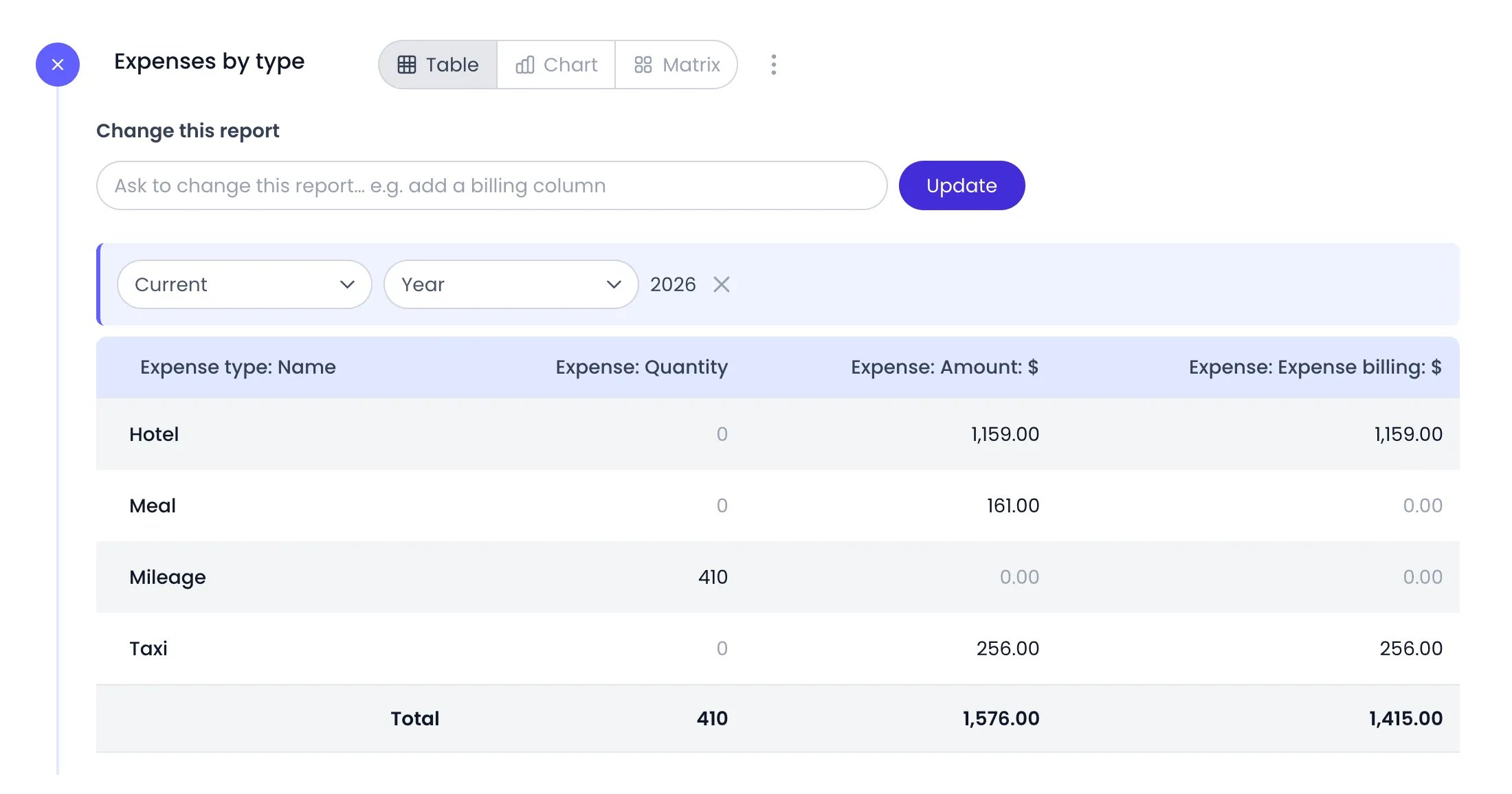
A report of expense records grouped by expense type
Related content
Budgets
Set billing, cost, and hours targets on projects and monitor consumption — including expenses.
Reports
Build, filter, and share reports on time and expense records.
Assignments
Control which expense types, projects, and absence types are available to each person.
Projects
Create the projects that expenses and budgets are tracked against.
Frequently asked questions
Do expenses go through the approval workflow?
Do expenses go through the approval workflow?
No. Beebole’s approval workflow covers timesheets and time-off requests. Expense records are not submitted or approved — anyone with the Expense records permission can add and edit them directly.
Can I track mileage or other unit-based expenses?
Can I track mileage or other unit-based expenses?
Yes. Leave the Currency setting unchecked on the expense type, and Beebole records a Quantity instead of a monetary amount — useful for kilometers, meals, or any per-unit expense. Quantities show in reports but don’t count toward project budgets, which only add up currency-based expenses.
How does the billing markup work?
How does the billing markup work?
Each currency-based expense type has a Billing markup in % setting. In reports, the Expense billing column shows
expense amount × markup / 100 — so a markup of 100 bills the expense at cost, and a markup of 120 adds 20%.How do I stop using an expense type without losing its records?
How do I stop using an expense type without losing its records?
Archive it. In Settings > Expense Types, click the type’s ⋯ action menu, then Archive. Beebole removes it from the Select expense category picker, and its past expense records stay in reports. Deleting is refused while records use the type. Click Show Archived, then Unarchive in the type’s menu, to bring it back.
What currency is an expense recorded in?
What currency is an expense recorded in?
The default is your own currency setting; you can change it on the Amount field.