

Create a report
Open Reports
Choose a folder
Add the report
Build the output
Add output columns
A report’s definition is a row of column badges above the results. Click Add a column… to open the column menu, which is organized into two groups.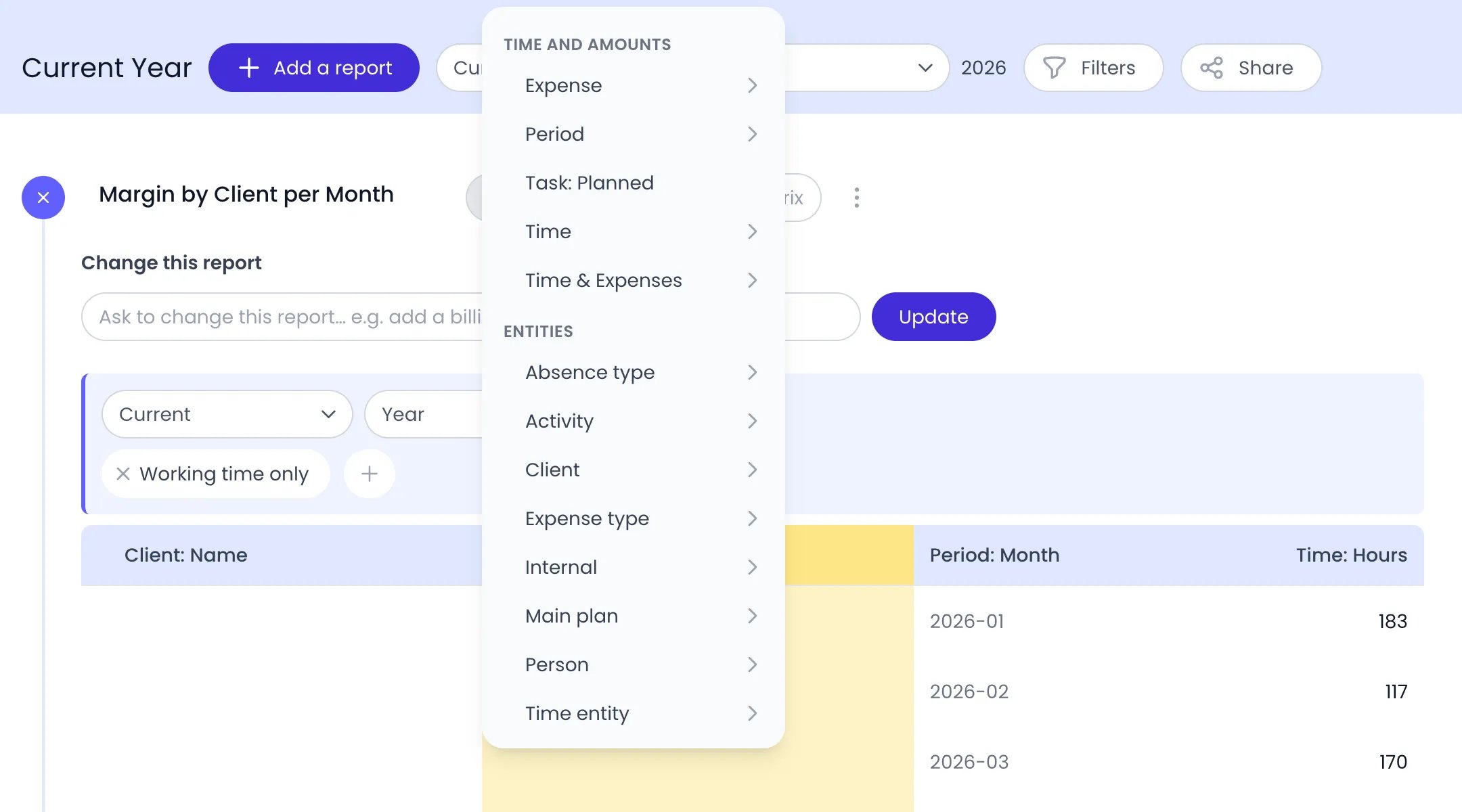
The column menu, opened from Add a column… in a column header's menu; the new column's place is highlighted
Time and amounts
These columns carry the numbers. Each column type offers a choice of fields:Entities
These columns define what each row represents:- One entry per project category and task category, named after the category (for example, Client). For these hierarchical columns you also pick a level: Root, a named level, or All levels. On planned work, a project category column groups each task under the projects it is linked to, so a Client column next to Task: Planned totals the planned hours per client.
- A task category column, named after its planning (for example, Main plan), also shows the details of each task: Owner, FTE% (the % FTE set next to the task’s owner, as a percentage), Planned (days), Planned (hours), Start, End, Assigned to (the task’s potential owners), and Status, besides Name, ID, and Description. These fields describe the whole task: Planned (hours) is all of its planned time, whatever the report period, and Planned (days) converts it at 8 hours a day.
- Person — with fields such as Name, ID, Email, Description, Role, and Managed by.
- Time entity — the project, task, or absence type a time entry was logged on, with Full path, Name, or ID.
- Absence type and Expense type.
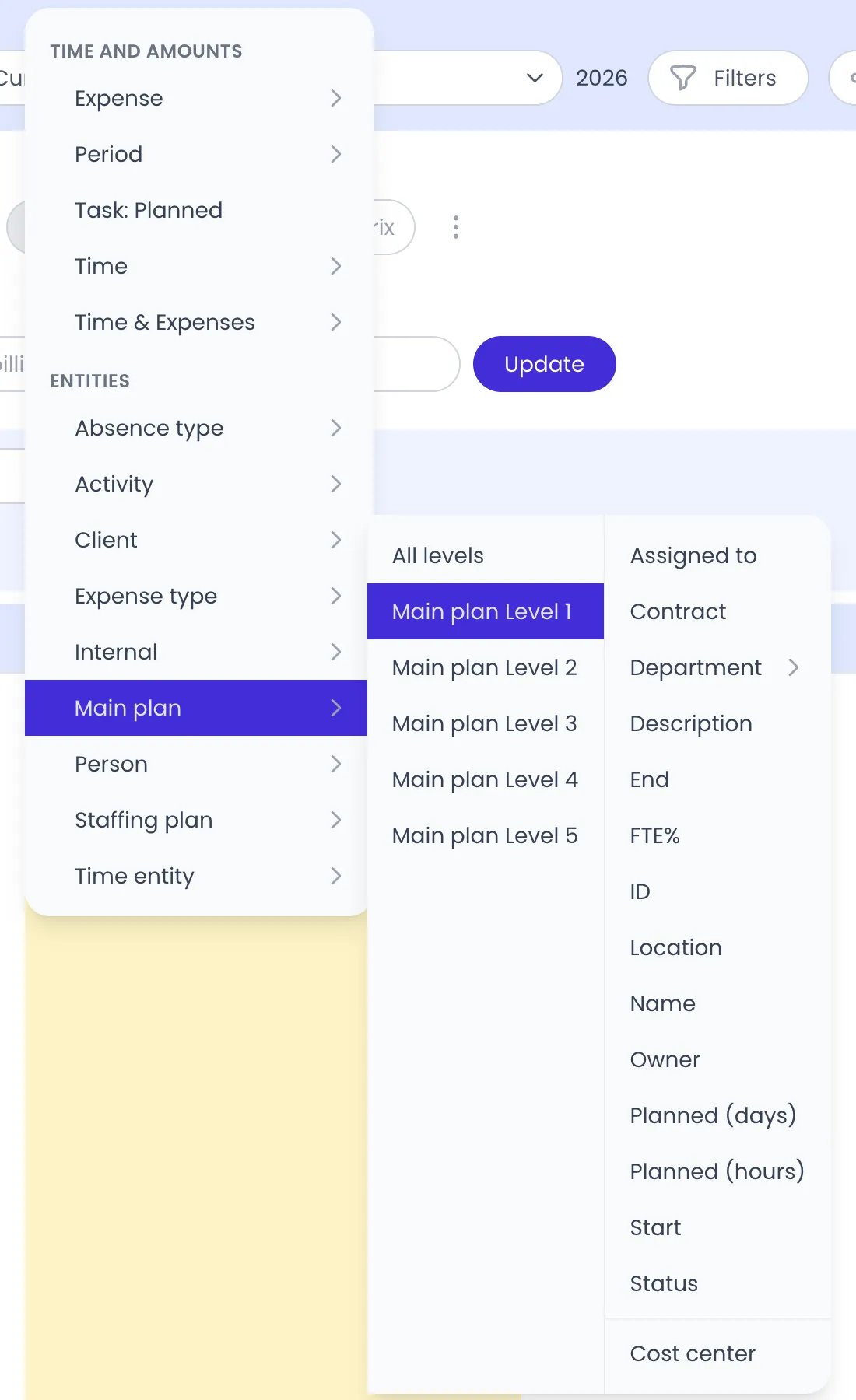
The fields of a task category column: Main plan in the column menu, its levels, and the fields of its first level
Arrange and refine columns
- Drag a column’s badge to reorder the columns. The order determines the grouping.
- Click a badge to change its field, level, or category, or to Remove it.
- Subtotal — toggle subtotal rows for a grouping column; groups can collapse and expand in the table.
- Hide empty values — hide rows where the column is empty.
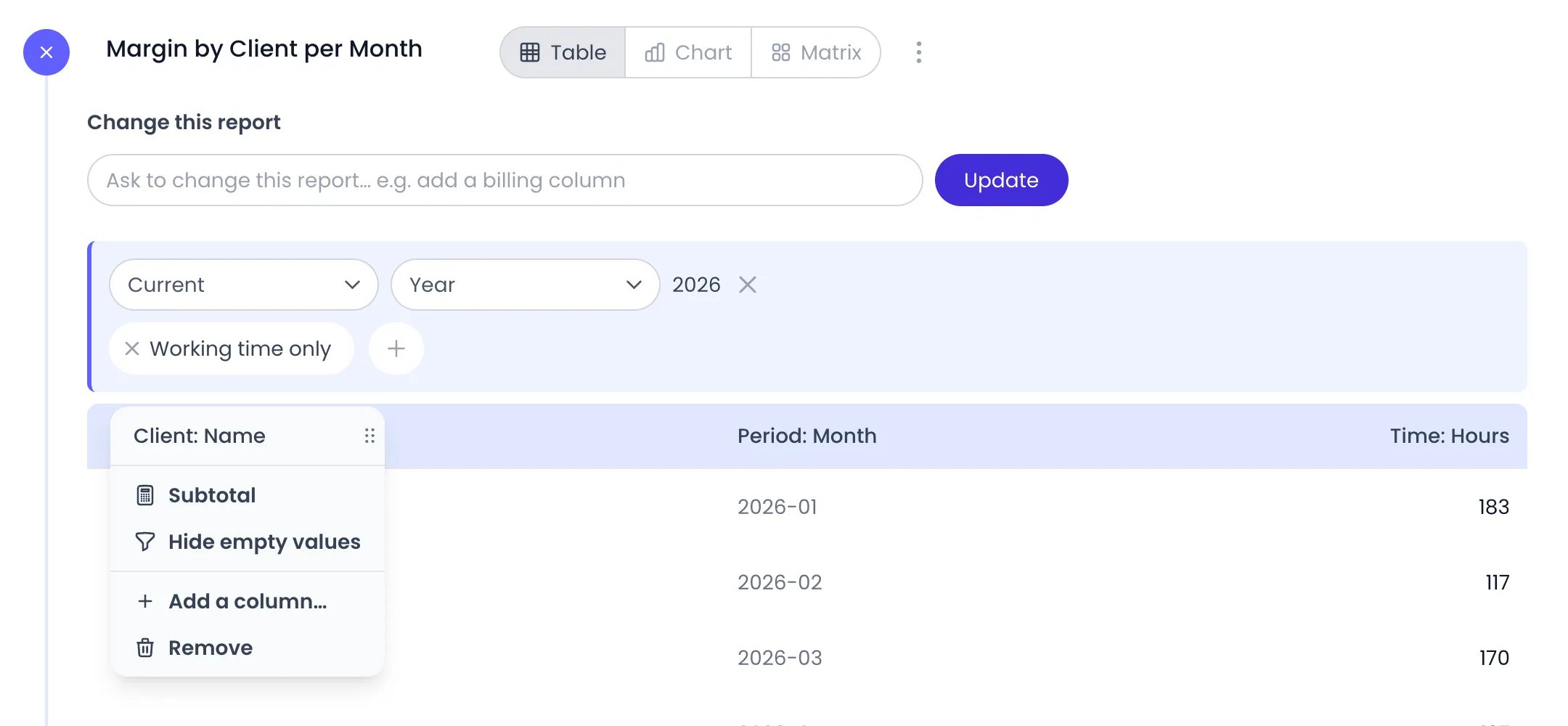
The menu of the Client: Name column, opened from its header in the table
Amounts in several currencies
Rates and expenses can be entered in different currencies, so a report that carries billing, cost, or expense amounts also carries a currency picker: the first currency-based column adds it to the column’s badge, preset to your default currency. Beebole converts every amount into that currency before totaling. Each time entry or expense is converted at the exchange rate of its own date, using the daily rates Beebole fetches from an exchange-rate service — so a euro rate on a January entry and a dollar rate on a June entry both land in the report’s currency at the rates that applied on those days. Pick another currency in the badge and the whole report is recalculated. The stored data never moves: a rate stays in the currency you entered it in, and changing your organization’s currency in Account Settings converts nothing either — it only changes the default the picker starts from.Filter and scope the data
Filters and periods work the same on every report and are covered on the Reports page: set a date range per folder or per report, and filter by people, projects, tasks, tags, project categories or plannings, work location, the approval status of the timesheet, or owner and status for tasks. Every condition can include (is) or exclude (is not), except Approval status, which only offers is. What a filter covers is wider than the entity you name, so a report answers the question you meant:- Project, Project tag, and Project category filters include the project’s whole subtree, and also the time logged on tasks linked to those projects. Time your team booked on a task of the Acme project shows up when you filter on Acme, without adding a task filter.
- Tag filters follow the tag hierarchy: a filter on a parent tag also matches the tags below it. And when a tag sits on a parent project, everything under that project is covered too.
- Task and Planning filters follow the task, even when the time was recorded as project time. If a suggested entry had to be logged on a project because your timesheet does not accept time on that planning, the entry still counts as that task’s time here — and an is not condition still excludes it.
Chart view
Click Chart next to the report name to display results as a chart. Table and Chart can be open at the same time — the chart appears above the table. Beebole saves which views are open with each report, along with the chart type, the axis settings, and the chart height, and restores them the next time you open the report.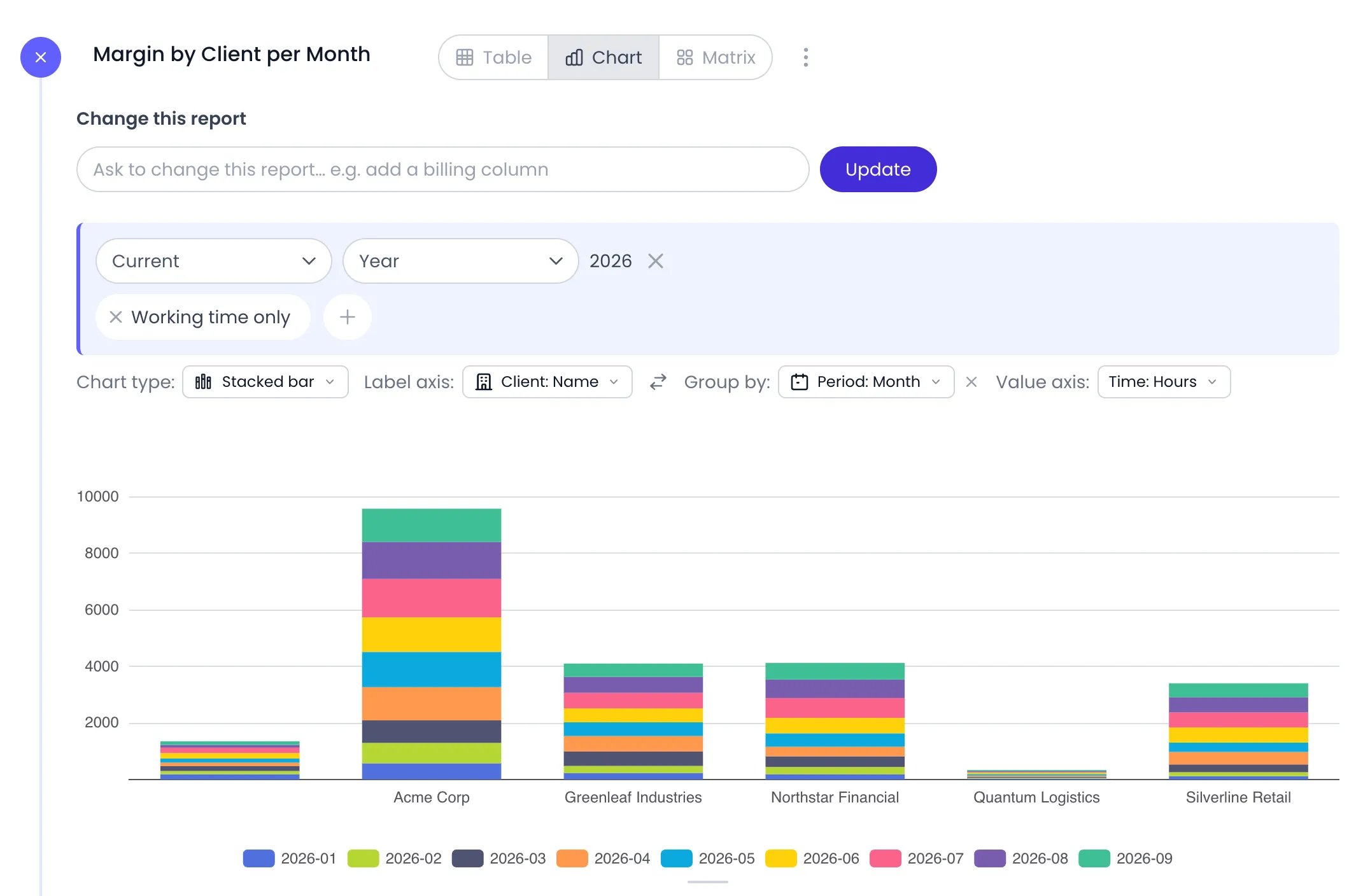
A stacked bar chart of hours per client, split by month
Switching chart type
Click the chart type picker to choose from 11 chart types: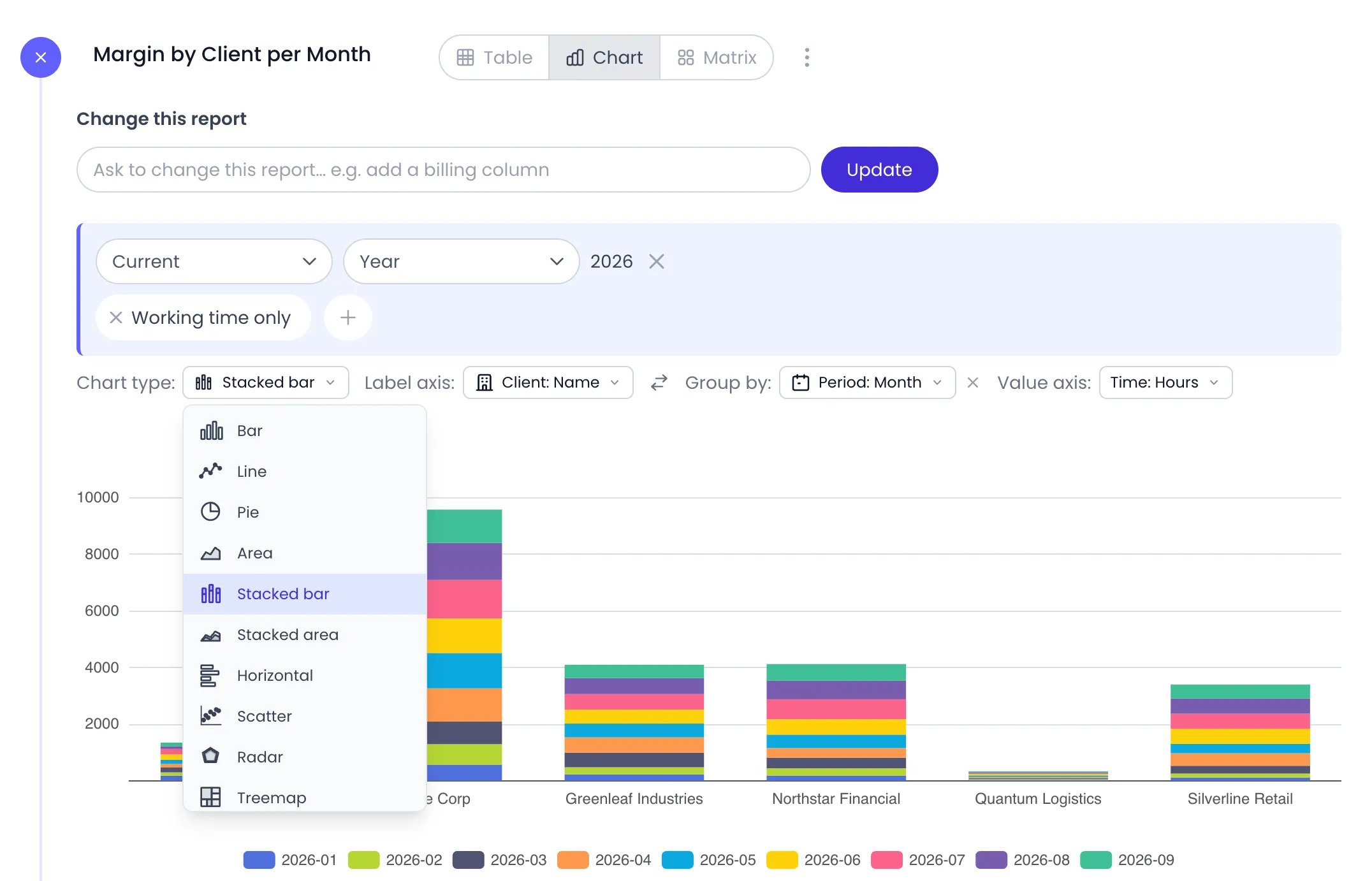
The chart type picker; scroll the list to reach Waterfall
Configuring chart axes
Once you select a chart type, use the axis controls to map your data:- Label axis — Choose the field that supplies the category labels (e.g., project name, person, time period).
- Value axis — Select the numeric field to plot (e.g., hours, billing amount).
- Group by — Add a second label field to split each bar or line into separate series.
- Swap label axis and group by — Click the swap button to exchange the label axis and the group-by column.
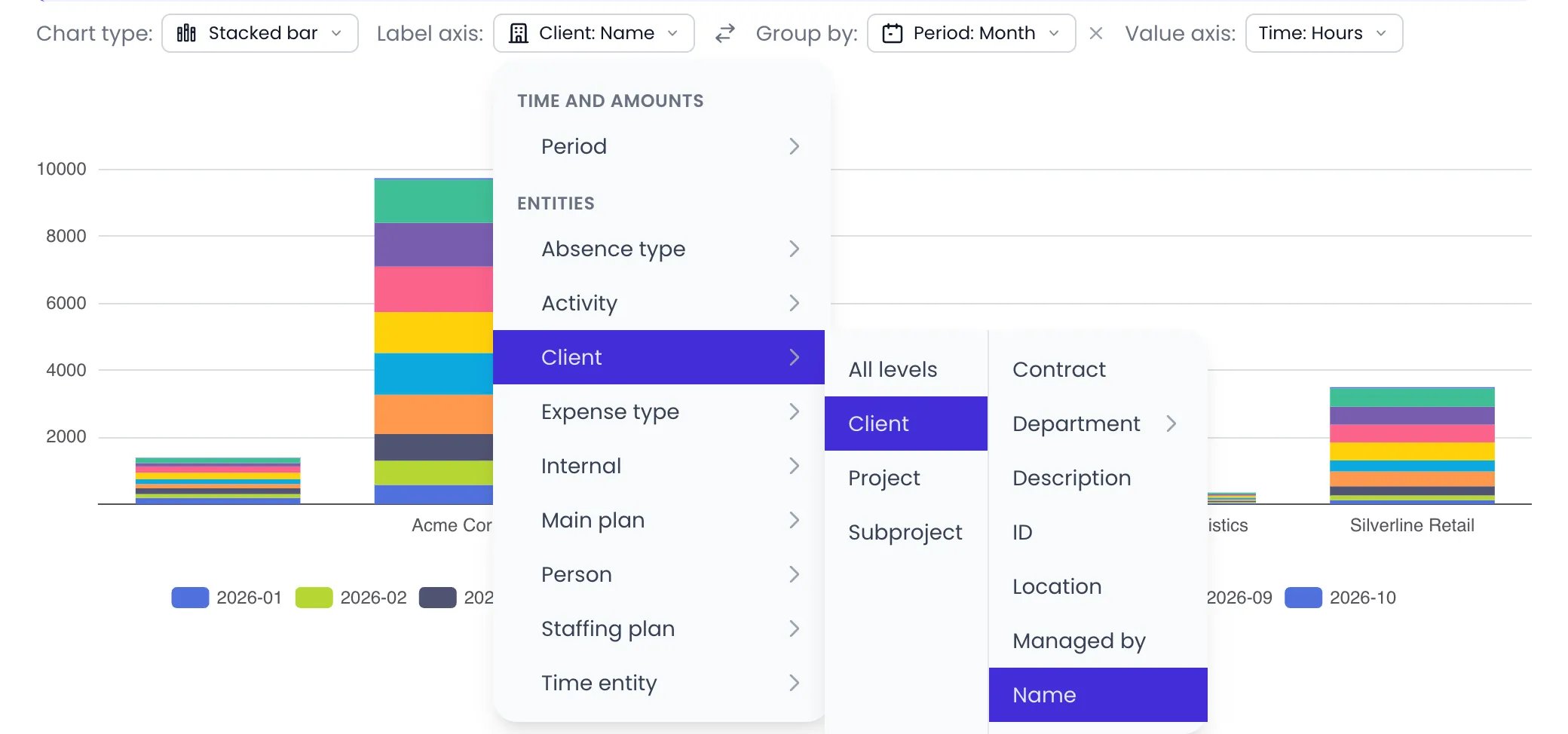
The Label axis selector, open on the field the chart is labeled by
Adjusting chart height
Drag the resize handle at the bottom of the chart area to make the chart taller or shorter. The height is saved with the report so it is restored the next time you open it.Matrix view
Click Matrix next to the report name to pivot the results into a grid: one dimension on each axis and a metric in every cell, with row, column, and grand totals. The controls above the grid configure it:- Rows — the dimension down the side. Click the picker to choose, and use the second picker to add an optional second row dimension (the arrows button swaps the two, and × clears the second one).
- Columns — the dimension across the top.
- Metric — the number shown in each cell, derived from the report’s numeric columns: hours, billing, cost, margin, planned hours, expense amounts, totals, and more.
- Heat map — shades each cell by its value, so the largest numbers stand out at a glance.
- The swap button (Swap rows and columns) flips the two axes in one click.
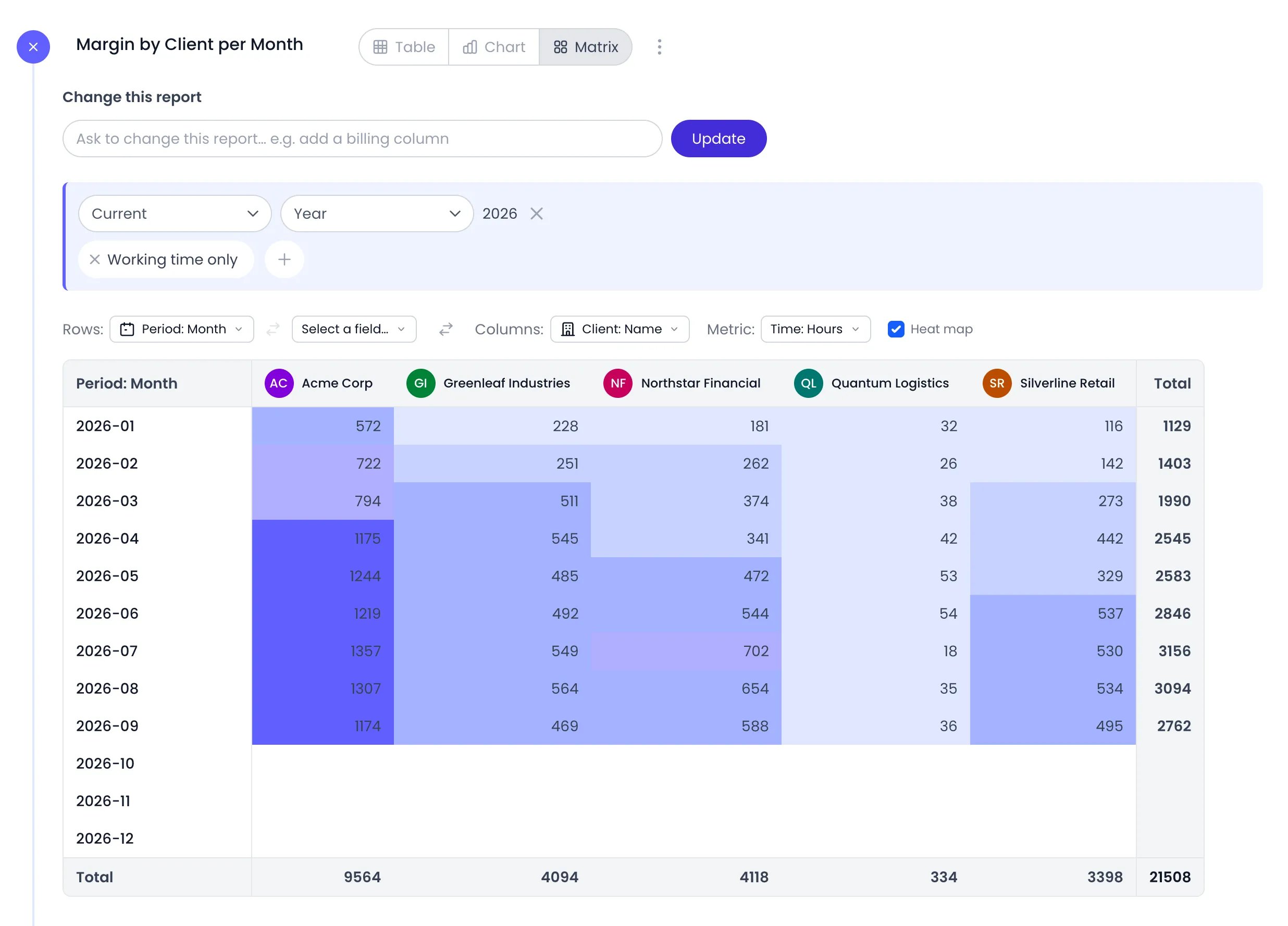
A matrix of hours per month and client, with the heat map on
Organize reports in folders
Folders group related reports in the Reports menu, and each folder’s period and filters apply to every report inside — see Reports for those settings.- Click New folder at the bottom of the Reports menu to add a folder.
- Each folder’s ⋯ action menu offers Duplicate, Rename, Filter, Paste (when you have copied a report), and Delete. Sharing is not in the menu — click Share next to the folder’s name, as described on the Reports page.
- To copy a report into another folder, open the report’s ⋯ action menu, click Copy, then click Paste in the target folder’s menu. Duplicate copies a report within its own folder, and the action menu can also move a report straight to another folder.
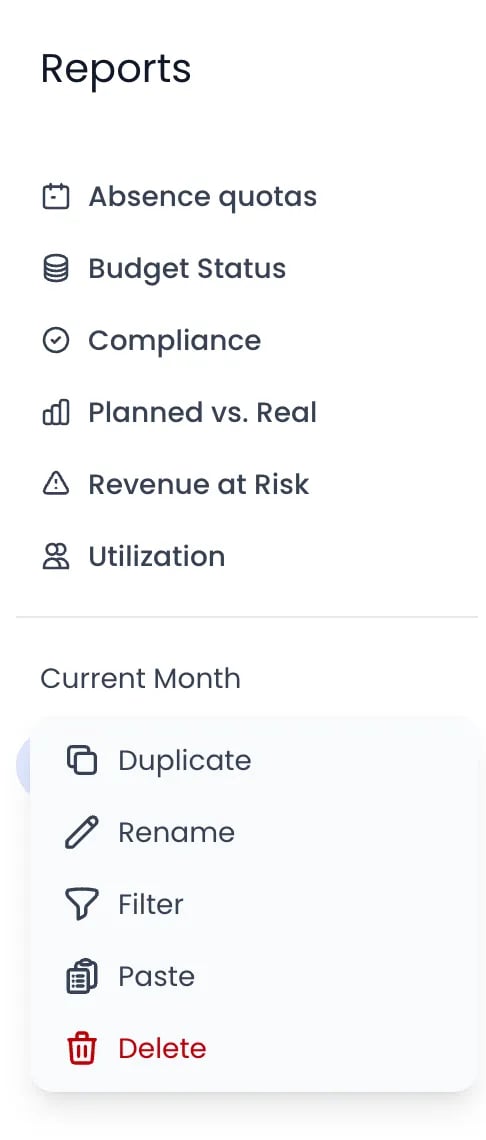
A folder's action menu after a report was copied
Related content
Reports
Billing Rates
Cost Rates
Custom Fields
Frequently asked questions
Do I need to save my report?
Do I need to save my report?
Can other people see my reports?
Can other people see my reports?
How many grouping levels can I use?
How many grouping levels can I use?
Do custom fields appear in reports automatically?
Do custom fields appear in reports automatically?
How does Beebole handle rates in different currencies in a report?
How does Beebole handle rates in different currencies in a report?
How do I report overtime?
How do I report overtime?