Timesheet Settings Module
Use the Timesheet Settings module to configure the formatting and behavior of users’ timesheets. The Timesheet Settings module allows you to define the behavior of your employees’ timesheets, reminders, approval workflow, etc., and to activate SOX reports or DCAA compliance. The module can be found in the Settings screen, but you can also use it on individual company or employee pages if they require a unique configuration.Tracking Time and Submitting Timesheets
You can record hours on a desktop using the daily, weekly, or monthly view. Depending on your company’s timesheet settings, you may use the timer, enter a start and end time, or enter a duration. To submit a timesheet click the button “Send for approval”. Please check our other documentation pages to read more about tracking and submitting time on a desktop and on a mobile device.Approving, Rejecting, and Locking Hours
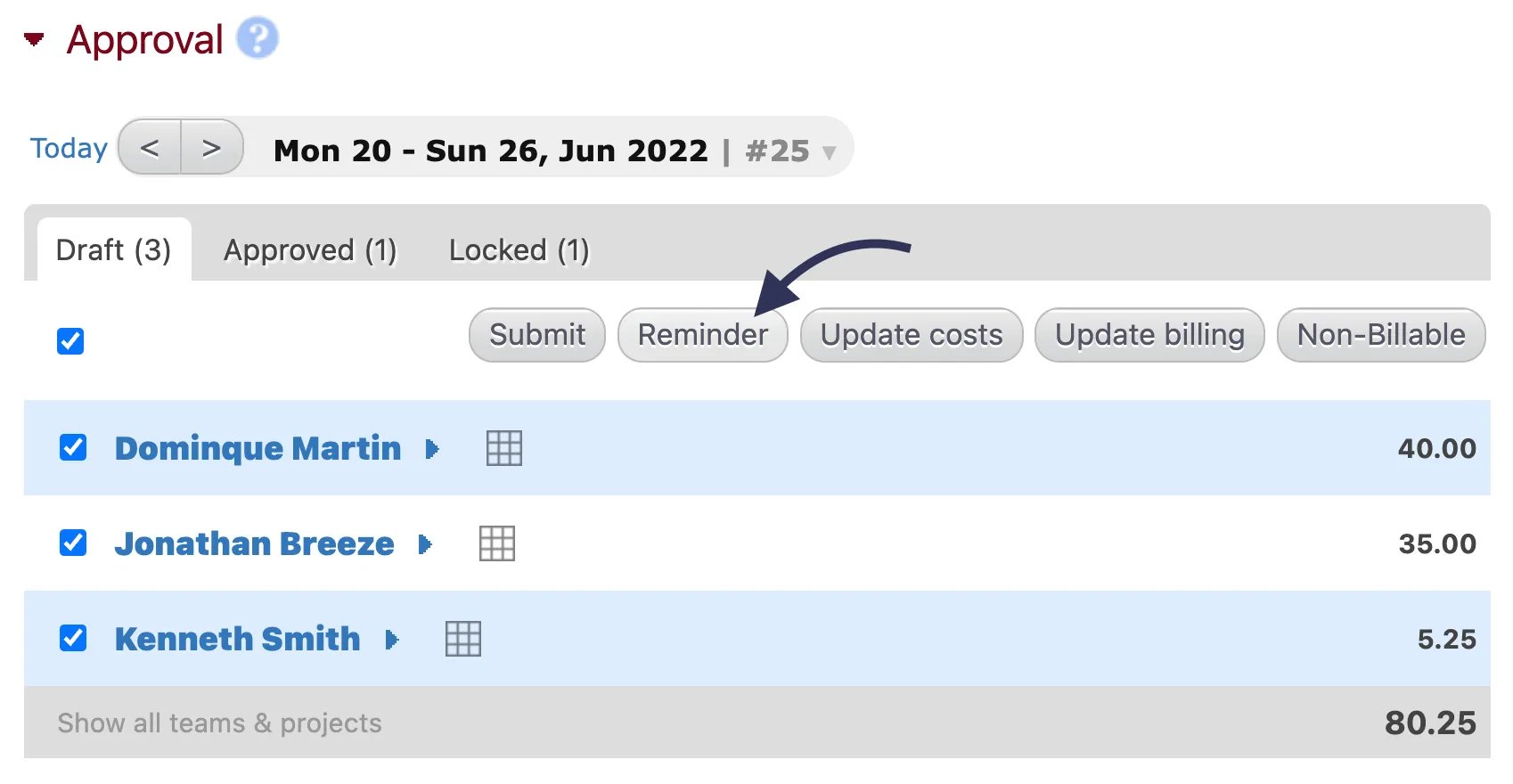
Timesheets are approved, rejected, locked or unlocked with the Approval module. The module is available to administrators, team leaders, and project managers by default.- Administrators can approve, reject, or lock anyone’s hours.
- Team leaders can approve or reject the hours of anyone on their team.
- Project managers can approve or reject any hours tracked on the projects that they manage. A project manager with no projects assigned to them will be able to approve or reject hours on any project.
- Only administrators can lock and unlock hours.
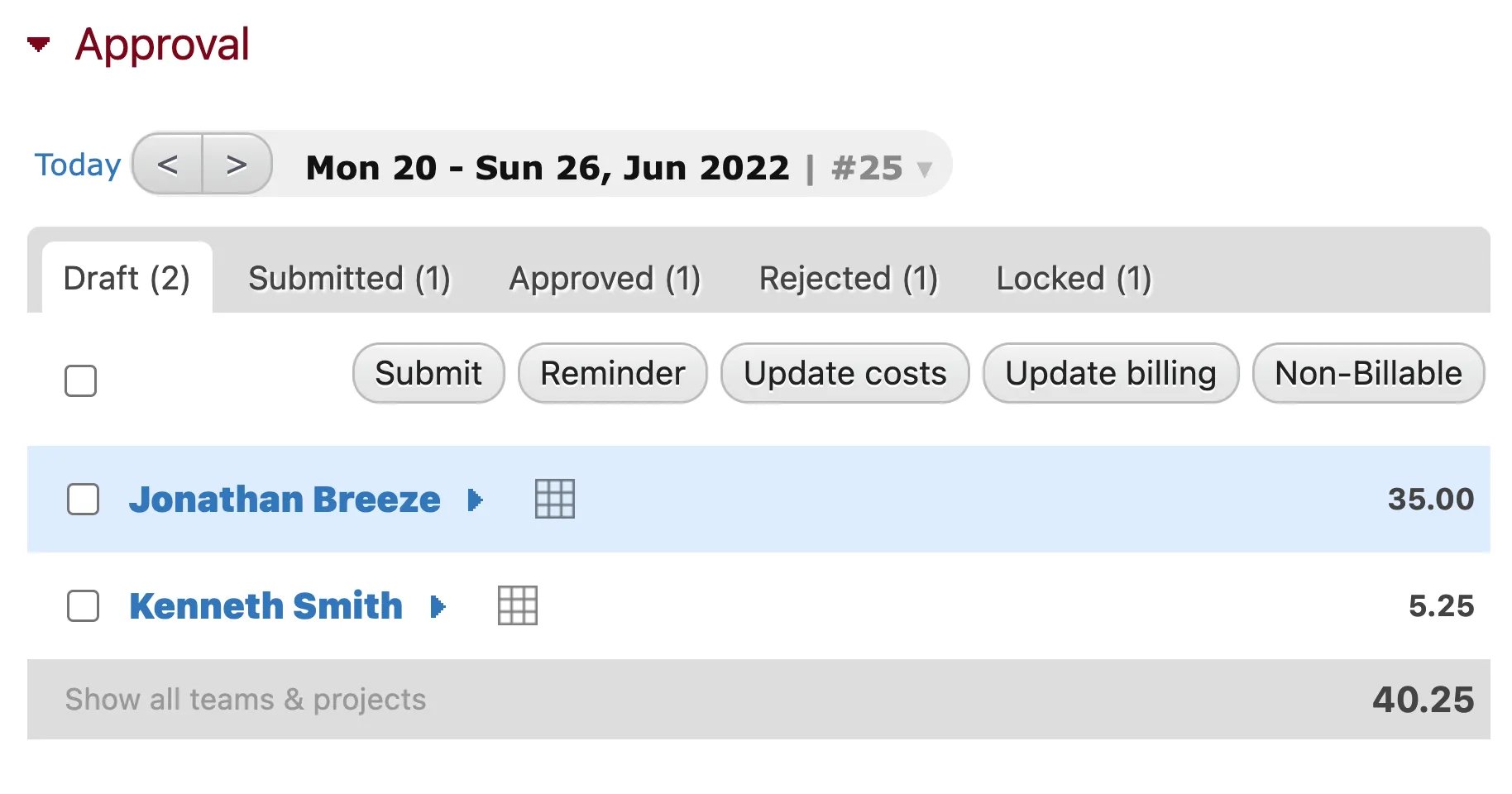
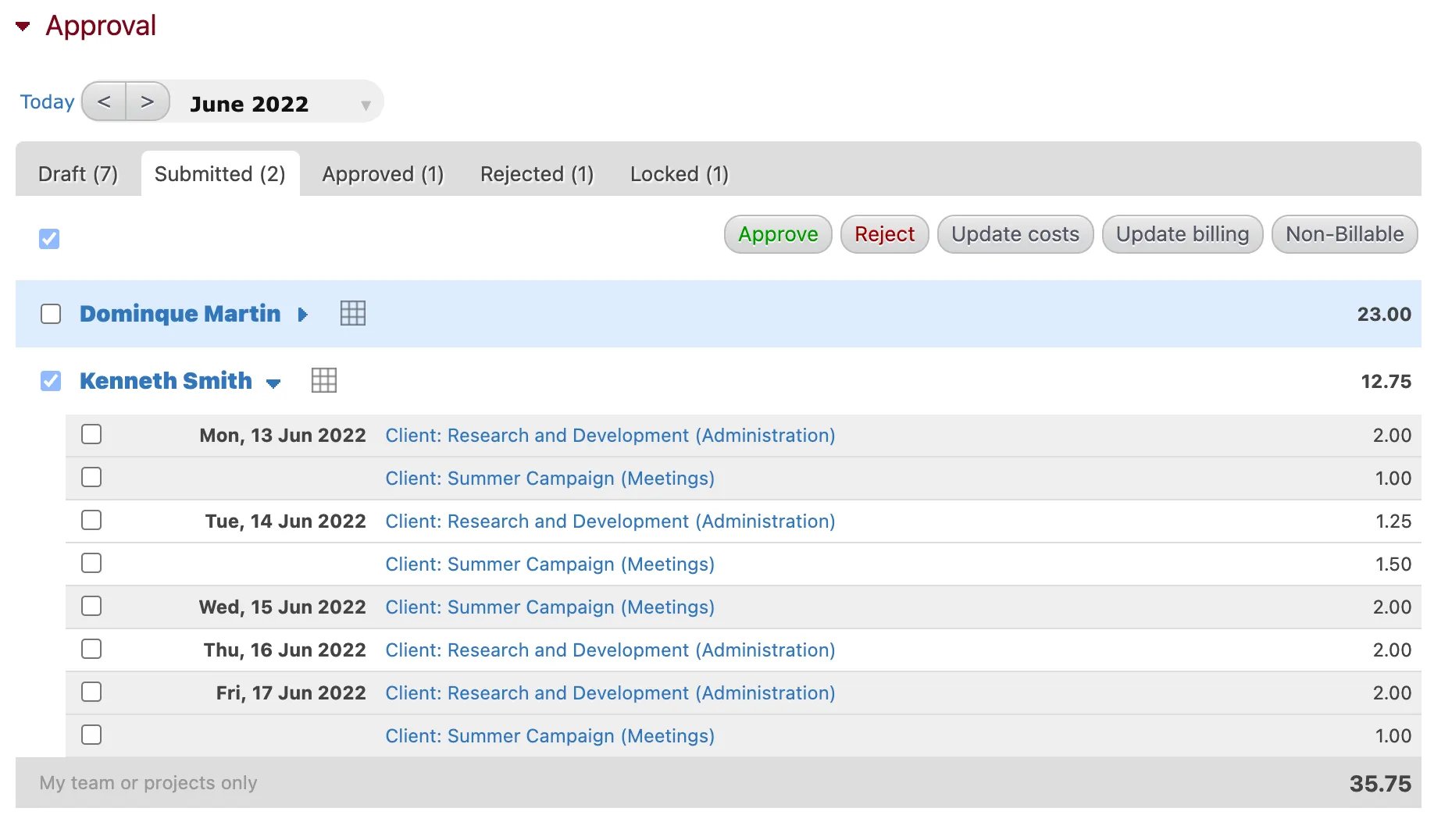
- When an employee submits hours an email notification will be sent to the administrator, team leader, or project manager who is responsible for approving them.
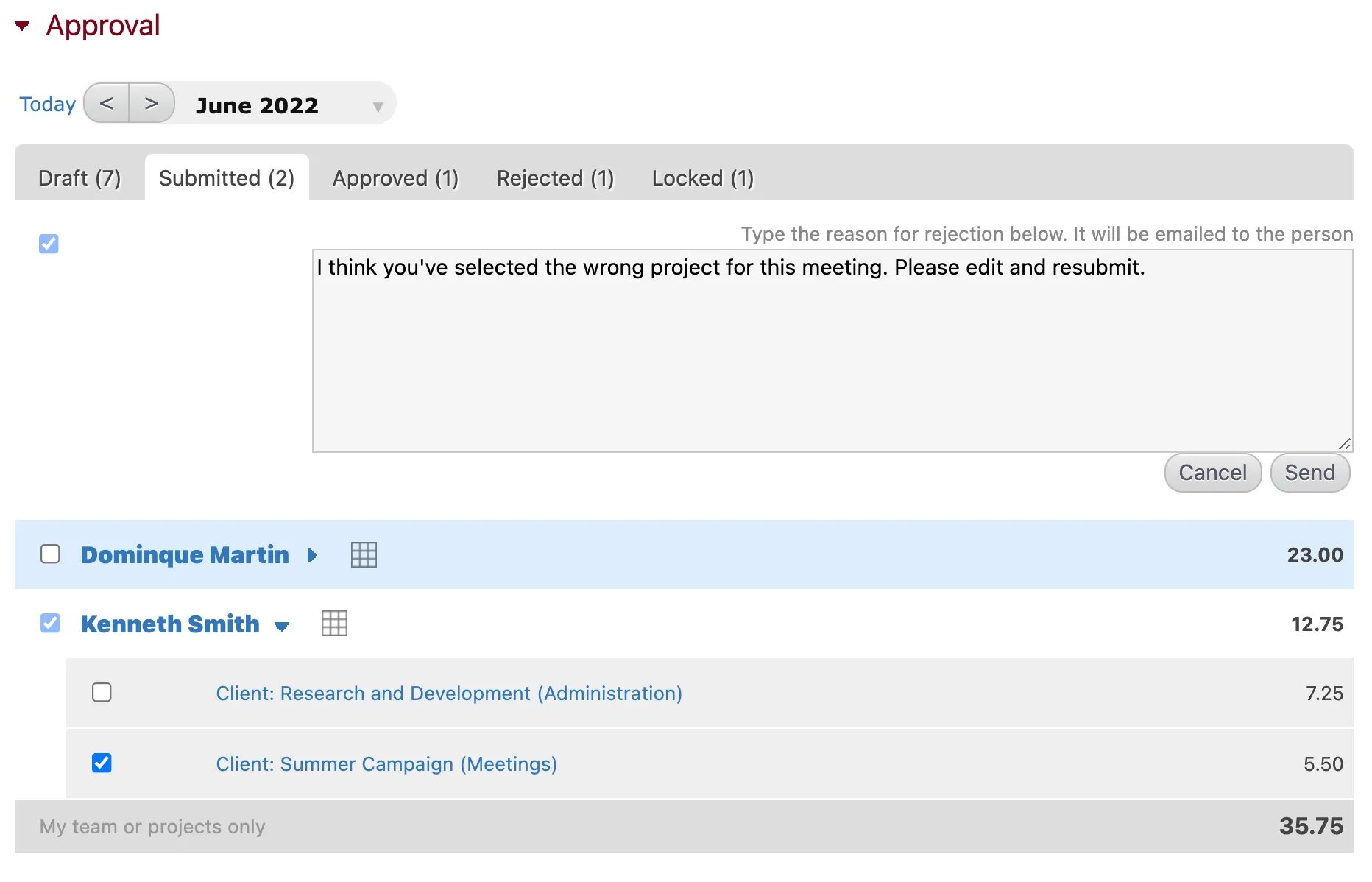
- When hours are rejected an email notification will be sent to the employee. When rejecting hours, you can add a comment or reason for the rejection, which will be included in this email.
How to Motivate Your Team to Submit Their Timesheets
Here are our top tips for encouraging employees to consistently track their time
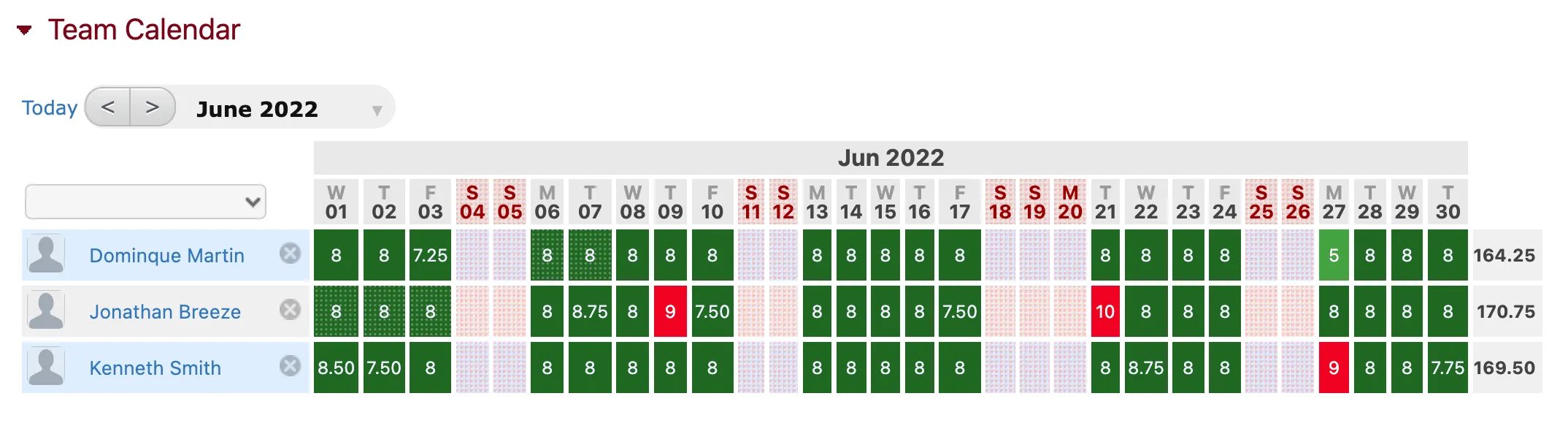
Team Overview of Time
Administrators and team leaders can use the Team Calendar module to get a weekly, bi-weekly, or monthly overview of all hours tracked by their team. The module can be added to the home screen by clicking “Customize” in the top right corner and dragging and dropping the module anywhere on the screen. For team leaders, the module will show all members of their team by default. People can be added to the module using the dropdown menu and removed by clicking the “X” beside their name. Clicking on a person’s name will take you to their page.