

How to Configure Billing
Billing is what you invoice your clients for the work done. In Beebole, it can be configured for an external client or for another department within your organization. Using the Billing Methods module, you can set fixed fees or a billing rate per entity (person, project, client, task, etc.). To set a billing rate or a fixed fee, go to the client, project, or person page where you want to configure billing. If it does not already appear, add the Billing Methods module to the screen by clicking “Customize” in the top right corner and dragging and dropping the module anywhere on the screen.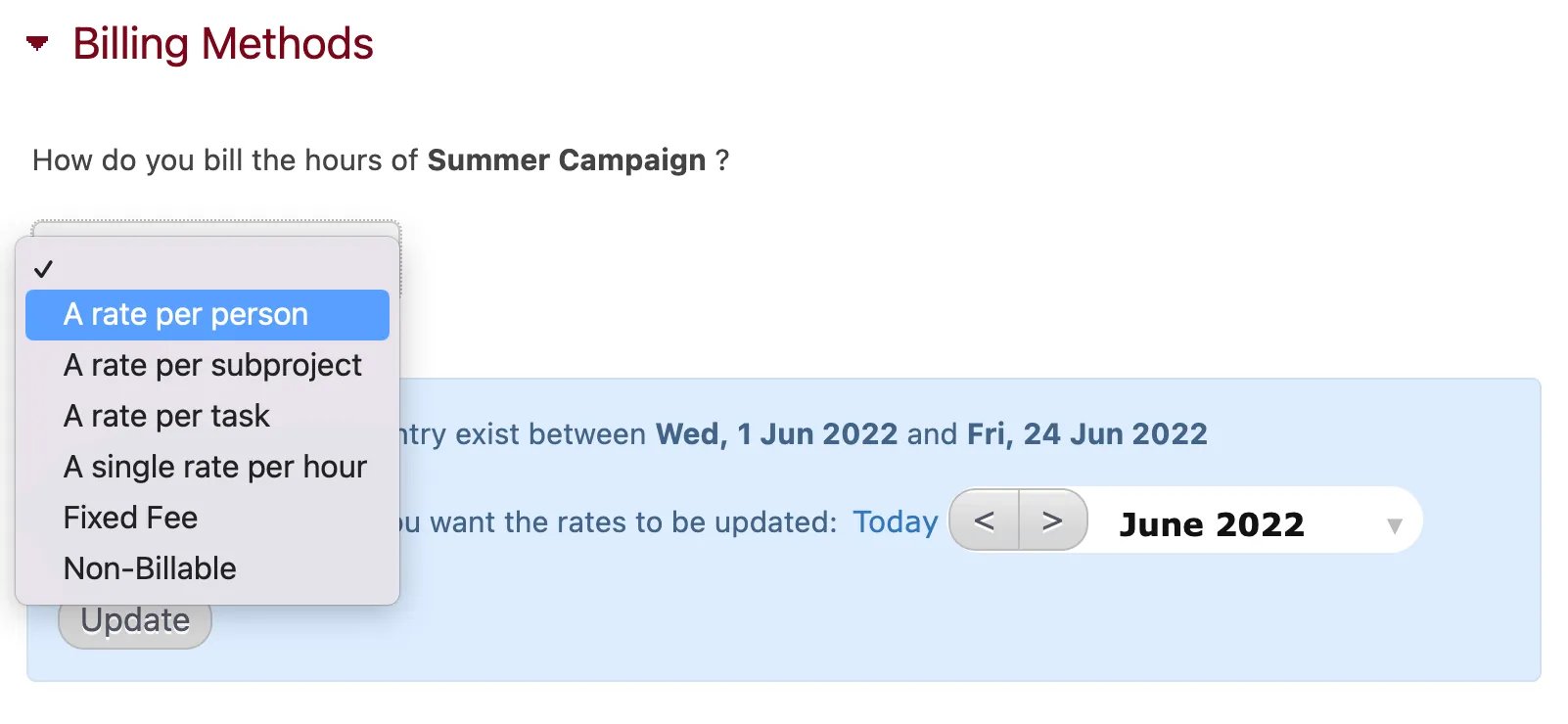
- A rate per person: note that you can only set a billing rate per person on a project if they have been added to the project as an exclusive member.
- A rate per subproject: if you want to set a different billing rate for each subproject within a project. Note that this option is only available when using the Billing Methods module on a project page. Alternatively, you can use the module directly on a subproject page.
- A rate per task: if you want to set a different billing rate per task. Remember that tasks are defined by administrators via the Tasks and Specific Tasks modules.
- A single rate per hour: if everyone has the same billing rate for that project, customer, etc.
- A fixed fee: fixed fees can be set on projects, subprojects, or customers. The billing rate will be automatically recalculated each time hours are added to the project. For example, if a project has a fixed fee of 500 USD per hour. If 20 hours are added to the project, the billing rate per hour will automatically change to $250 USD.
- Non-billable: note that selecting “non-billable” is not the same as just leaving the billing methods blank. When the Billing Methods module on an entity is left blank, the billing configuration could be taken from a different, related entity. For example, hours worked on a project with no billing method defined can still be billed using the rate defined at the company level. On the other hand, if you select “Non-billable” for the same project, those hours will not be billed regardless of the configuration at the company level.
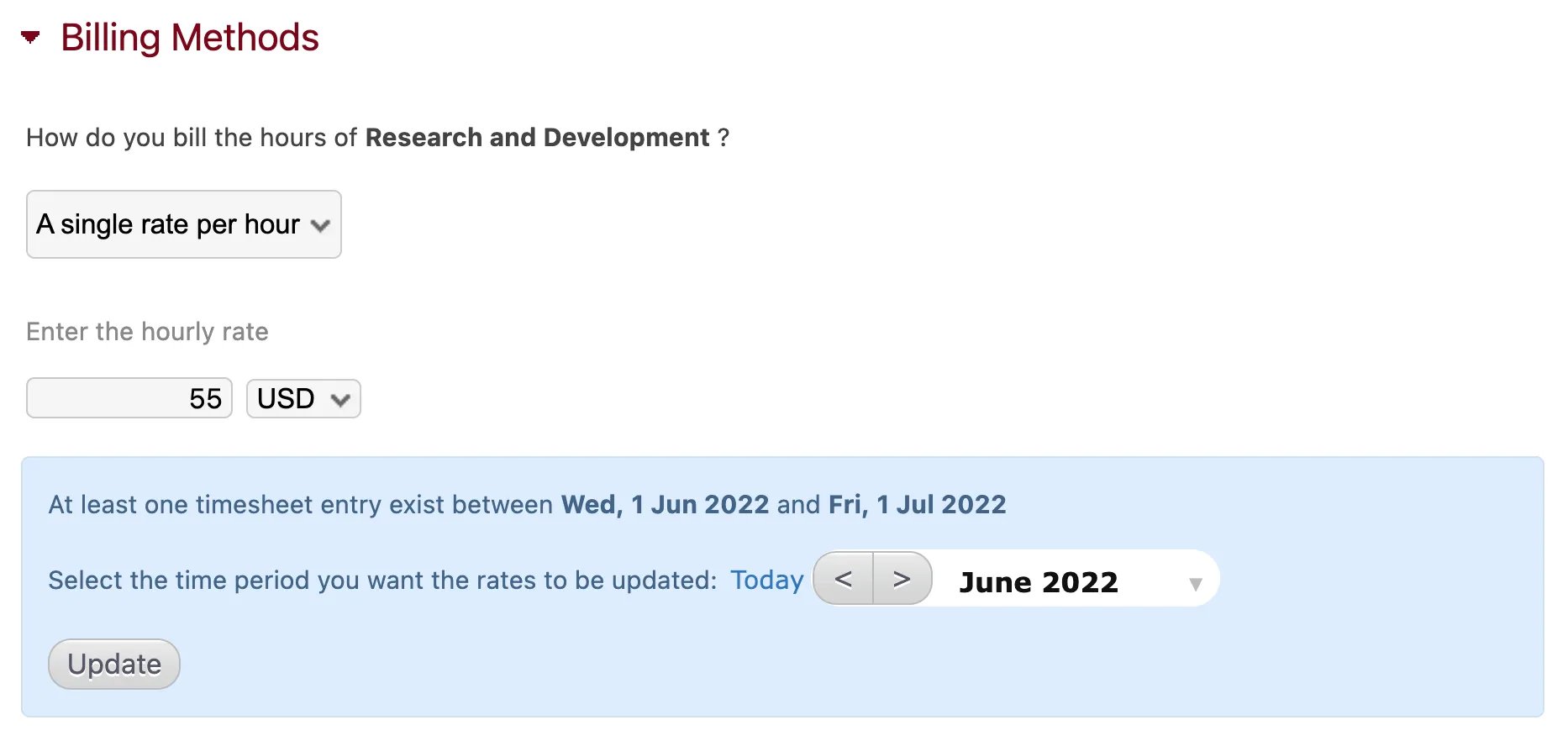
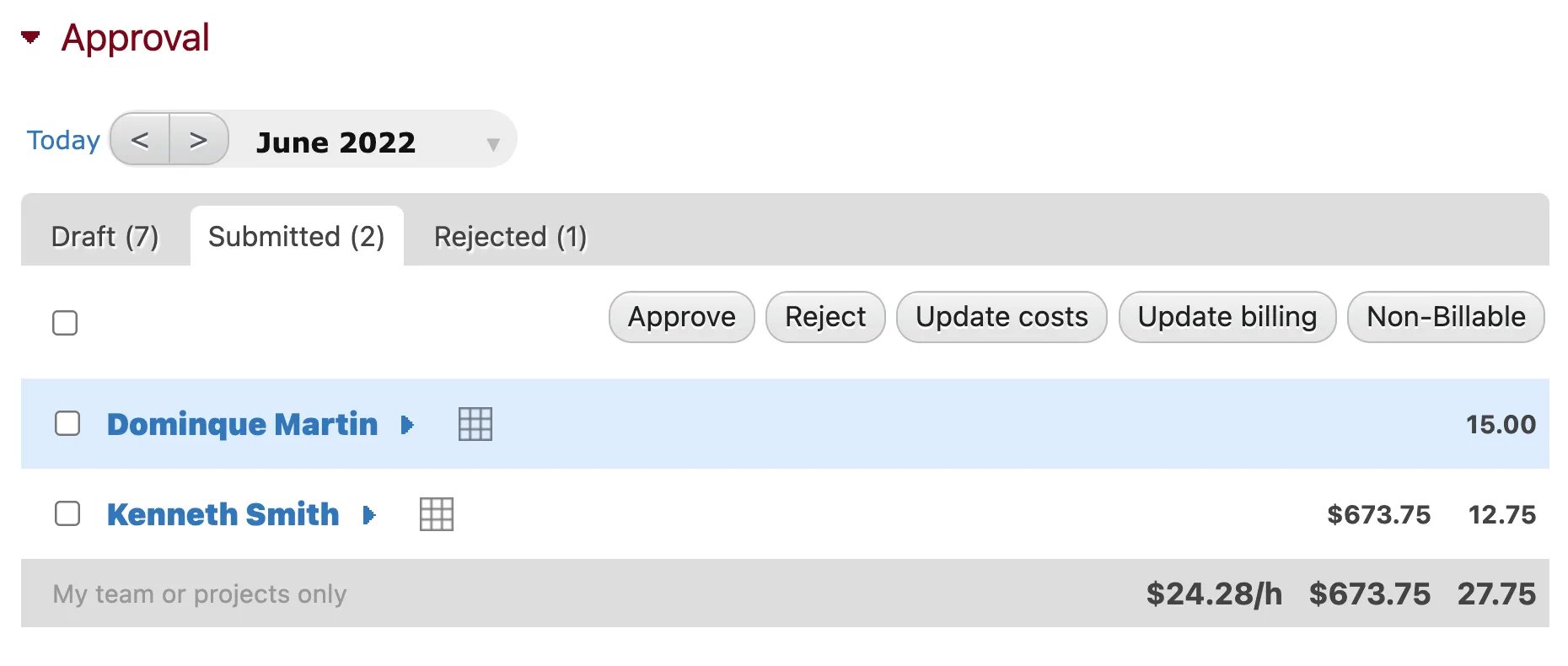
- The subproject
- The project
- The project’s company
- The company of the employee filling out the timesheet
- The employee
- The main company
- Unbillable
How to Configure Costs
You can set an hourly cost for any person in your organization using the Standard Cost module. Bear in mind that Beebole is not an expense tracking tool; the standard costs that you add to the platform should be previously calculated figures based on things like salaries, benefits, insurance, additional expenses, etc.How to Calculate the True Cost of an Employee
Explore the main variables to help calculate the actual annual cost of your workforce
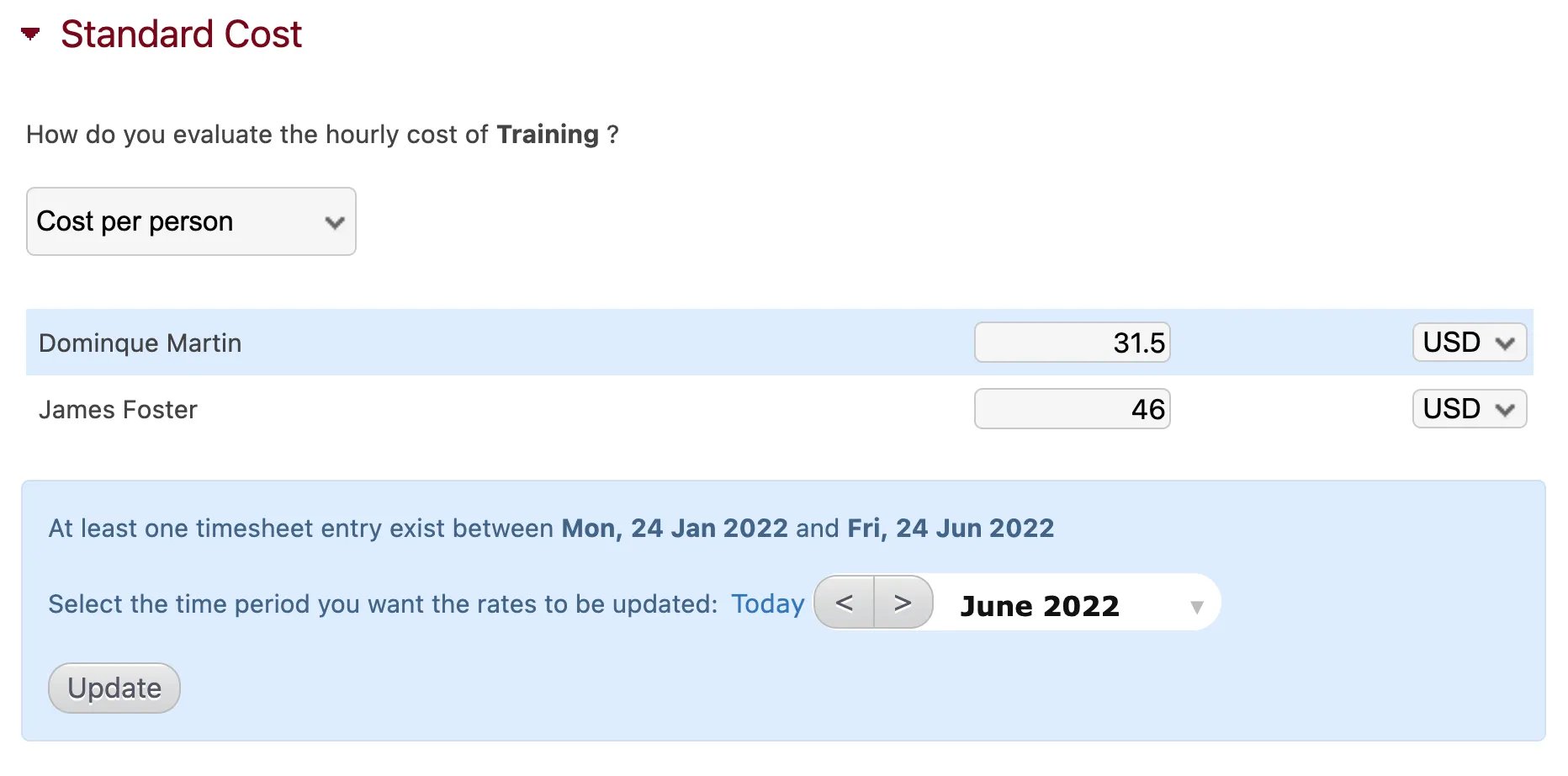
- The subproject
- The project
- The client or company
- The employee
How to Configure Budgets
Budgets can be set for projects and/or subprojects and may be either monetary or a number of hours. To configure a budget, use the Budget module on the chosen project’s screen. “No budget” will be selected in the dropdown menu by default. Choose “Budget amount” or “Budget in hours”. Additional fields will appear where you can enter the initial budget and a purchase order, if applicable.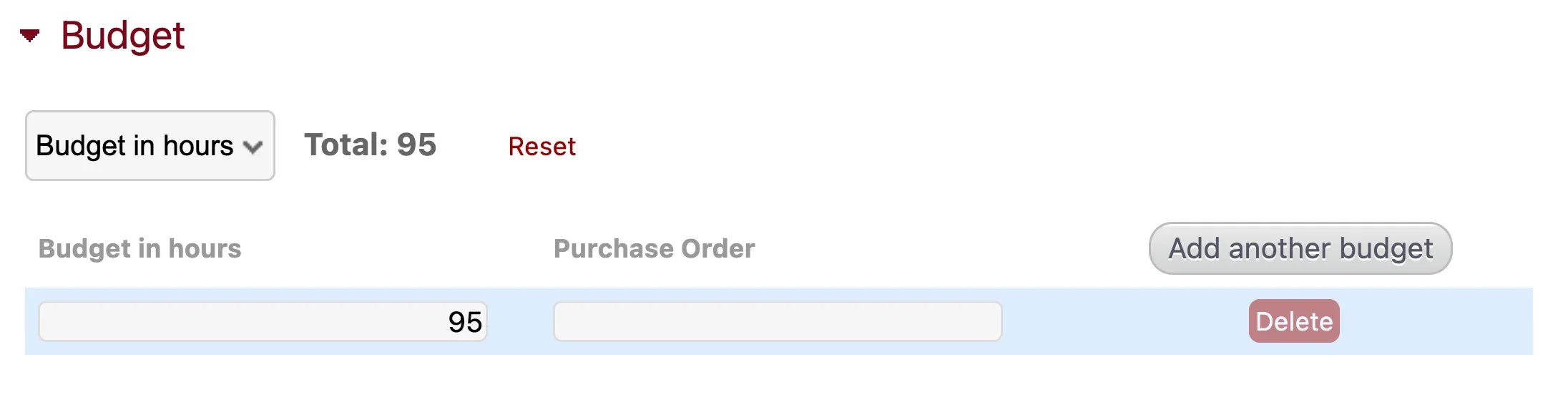
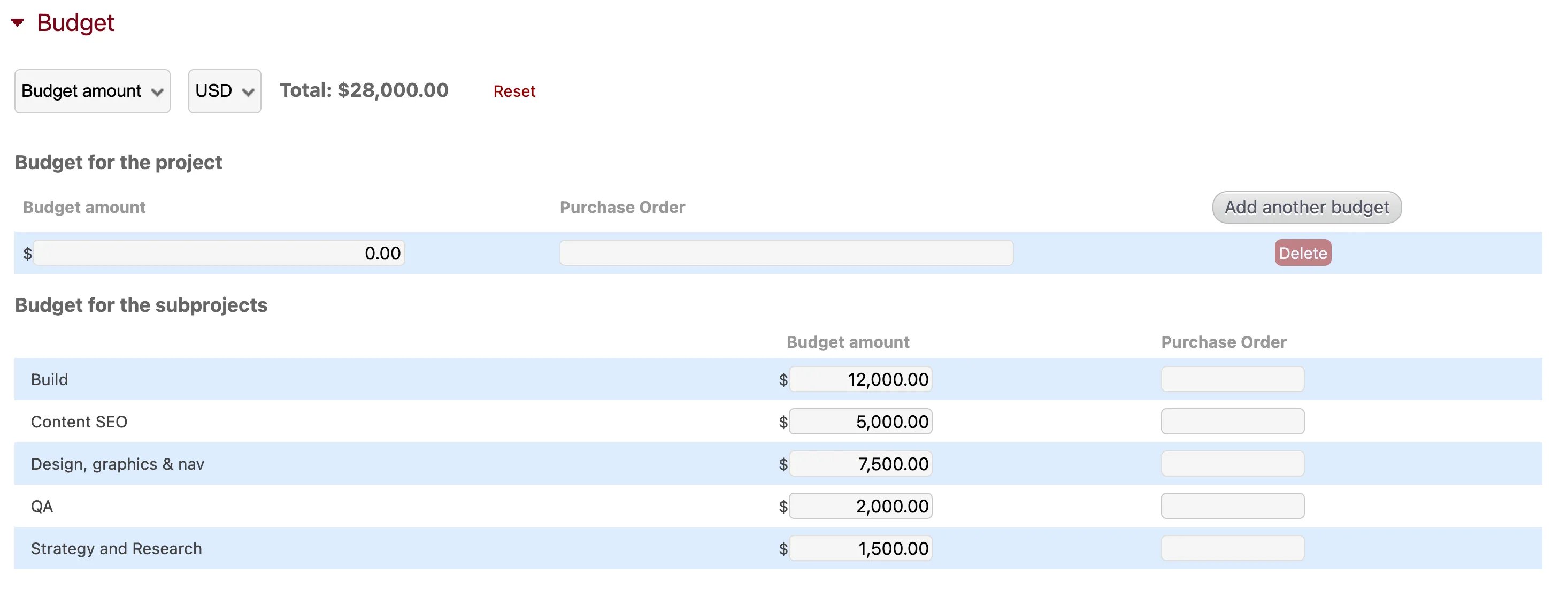
- If using a monetary budget on a project, the currency is set by default to the currency of the company owning said project. You can, however, change the budget currency in the Budget module.
- If you are using multiple currencies, the exchange rate used by Beebole is updated daily. All data like billing, costs, etc. are stored in the currencies in which they were defined. In other words, if you define costs in euros and billing in US dollars, the information will be stored that way. However, when viewing reports, charts, or the approval module, amounts will be converted and shown in the currency of the user viewing the module.
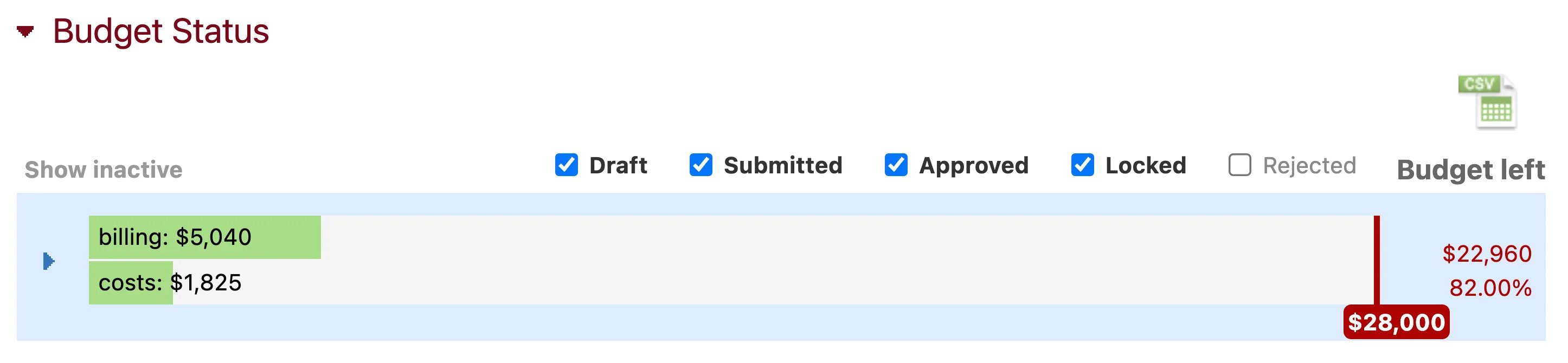
- On your home screen, showing all active projects that have a budget set.
- On a company screen, showing all projects for that company that have a budget set.
- On a project screen, showing the budget for that single project.
Budget vs. Actuals: An Excel Template
Learn how to set up a dynamic model in Excel using Power Query and Power Pivot