

Creating Absence Types
By default, the system comes with three absences: holidays, leave, and sickness. You can delete or rename these, as well as add more using the Absences module in the Settings screen. Click the “Add a new absence” button as many times as you need to create new absence types. Changes in Beebole are always saved automatically.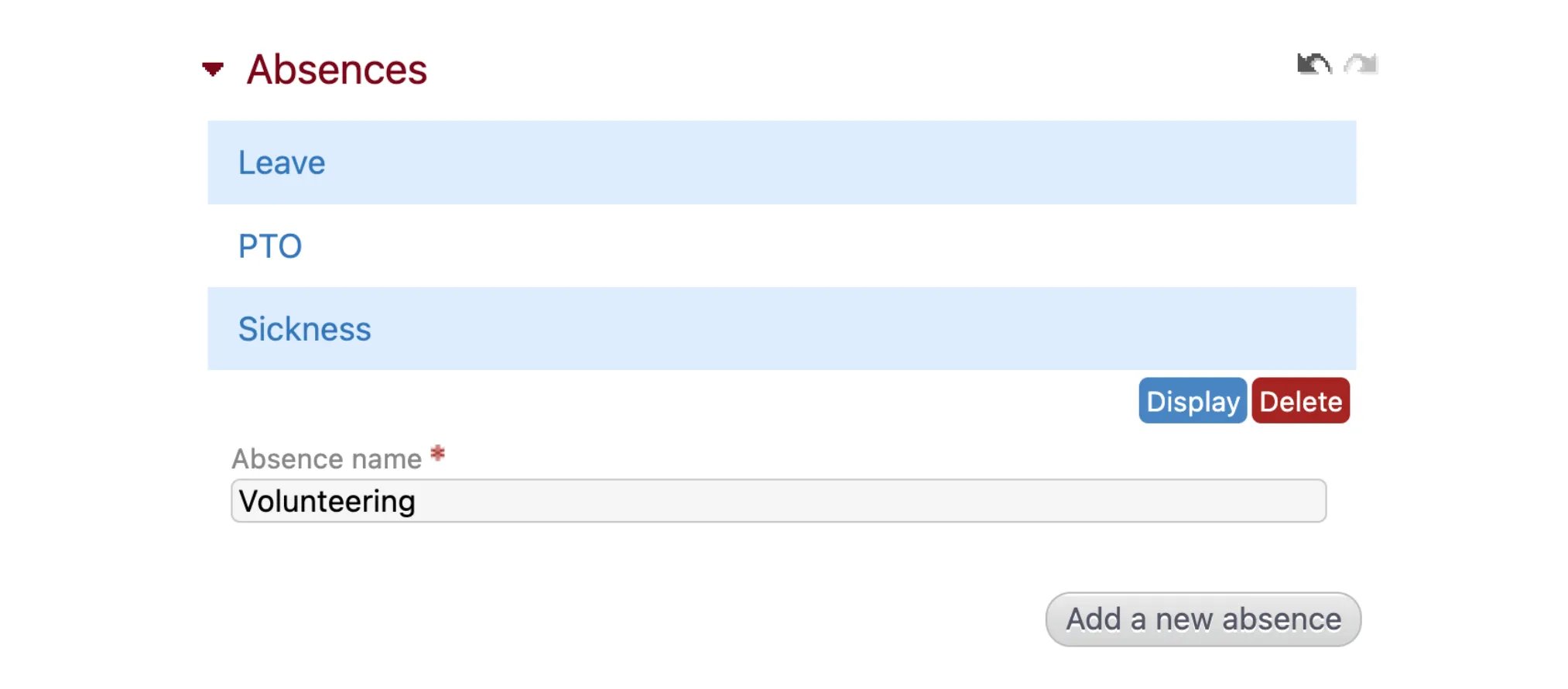
- Absences that are configured only as half or full days must be tracked using the Time Off module. Absences in hours can be tracked using either the Timesheet or Time Off module.
- Remember that in Beebole absences are not the same as bank holidays. You can also configure bank holidays on the settings page.
Tracking Time Off in Timesheets
Tracking time off in timesheets works in the same way as tracking time on projects and tasks. In the Timesheet module, click “Add a row” and use the dropdown menu to select “Absences” and the absence type you want to add time for. Then, simply fill in the time for the absence. You can add absences to a timesheet in the future as a way to request time off. Remember, only absences that are configured to be tracked in hours can be added in the Timesheet module. Absences configured to be tracked as full or half days must be added in the Time Off module.
Tracking Time Off With Time Off Module
The Time Off module is located on a user’s home screen. If it does not appear you can add the module to your screen by clicking “Customize” in the top right corner and dragging and dropping the module anywhere on the page. To add an absence, first navigate to the period of time you want to request off using the date menu at the top of the module. Then select an absence type from the dropdown menu labeled “Add a new time off”. If the selected absence type is configured to be tracked only as half or full days, this option will appear. Otherwise, you will see the option to track the absence as a full day or with a start and end time. Fill in the time you want to request off and then click to select the day(s) from the calendar. To select multiple consecutive days, you can also click, hold, and drag to select all of the days at once. The new absence will now appear at the bottom of the module under “Existing Time Off” with the status “Draft”. Here you can quickly review all of your existing time off requests at a glance.
 When you hover over an existing time off entry, you will see the option to “Delete” or “Send for approval”.
How and Why to Calculate Your Employee Absence Rate
Plus tips for preventing and managing absenteeism in a hybrid workplace (well-being matters!)
Approving Time Off Requests
Managers will receive an email notification whenever one of their team members requests new time off. Time off can be approved or rejected in the* Approval* module in the exact same way as timesheets. Team members will also be notified via email when their time off request is approved or rejected. Check our time tracking documentation to read more about the Approval module.Absence Quotas
Finally, you can define quotas for each absence type and for a specific time period using the Absence Quota module. For example, the amount of vacation time or sick time that an employee has per year. This module can be added to a person’s page by clicking “Customize” in the top right corner and then dragging and dropping the module anywhere on the screen. To add an absence quota click the “Add a quota” button and select the absence type, the date range, and the total number of hours permitted. Check the box if you want to “allow a negative balance”. Otherwise, once the available quota is exhausted, the user will receive an error message when they attempt to record more hours for the given absence type. It can be a hassle to add absence quotas for each individual employee, particularly when most are granted the same number of vacation days and sick days. You can **create all quotas at once by importing the data via the **Import** module**.
The Absence Quota module on each person’s page will show an updated balance of the available time they have left for each absence type. This balance is also visible in reports.
It can be a hassle to add absence quotas for each individual employee, particularly when most are granted the same number of vacation days and sick days. You can **create all quotas at once by importing the data via the **Import** module**.
The Absence Quota module on each person’s page will show an updated balance of the available time they have left for each absence type. This balance is also visible in reports.