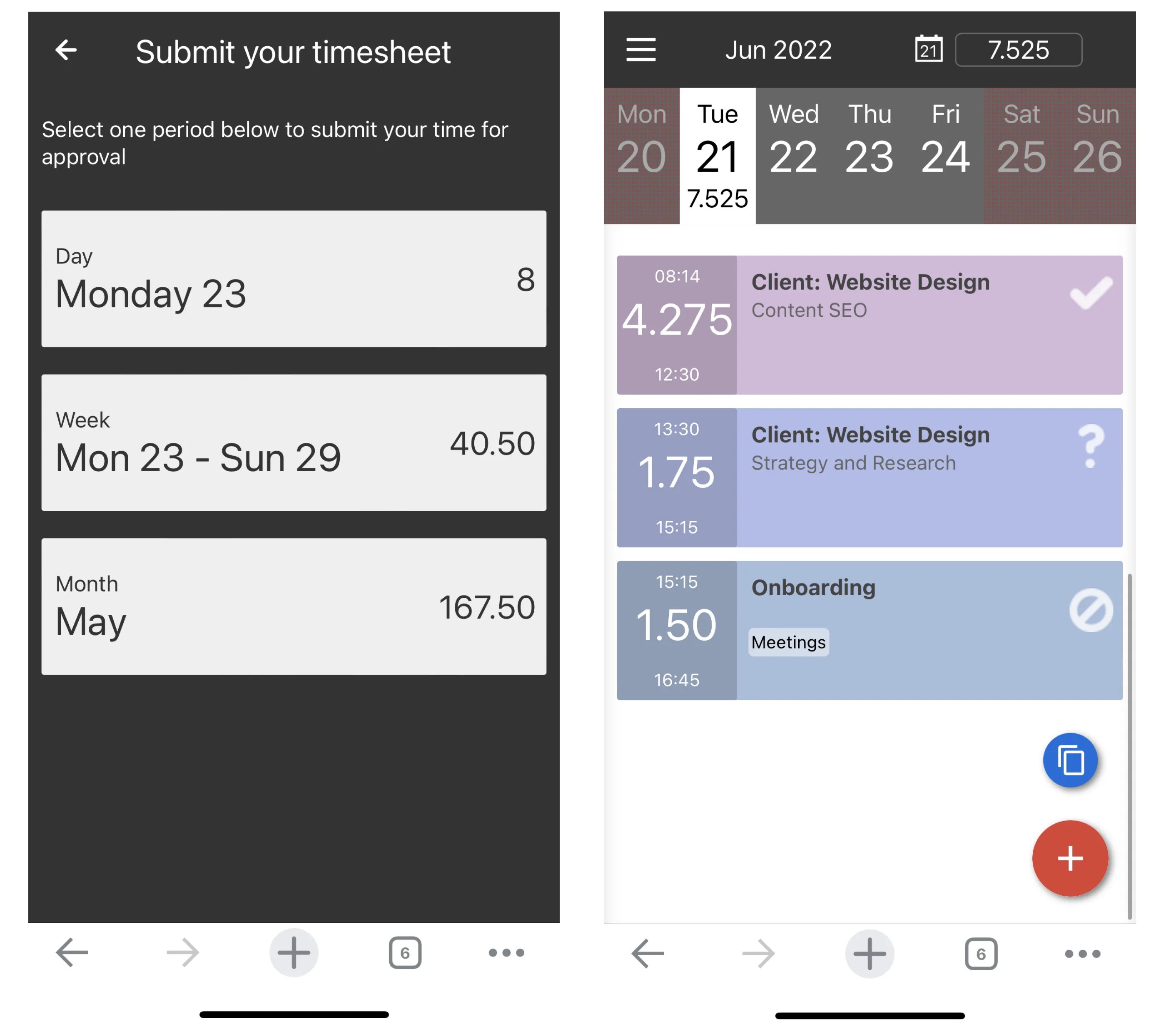
How to Get the Mobile App
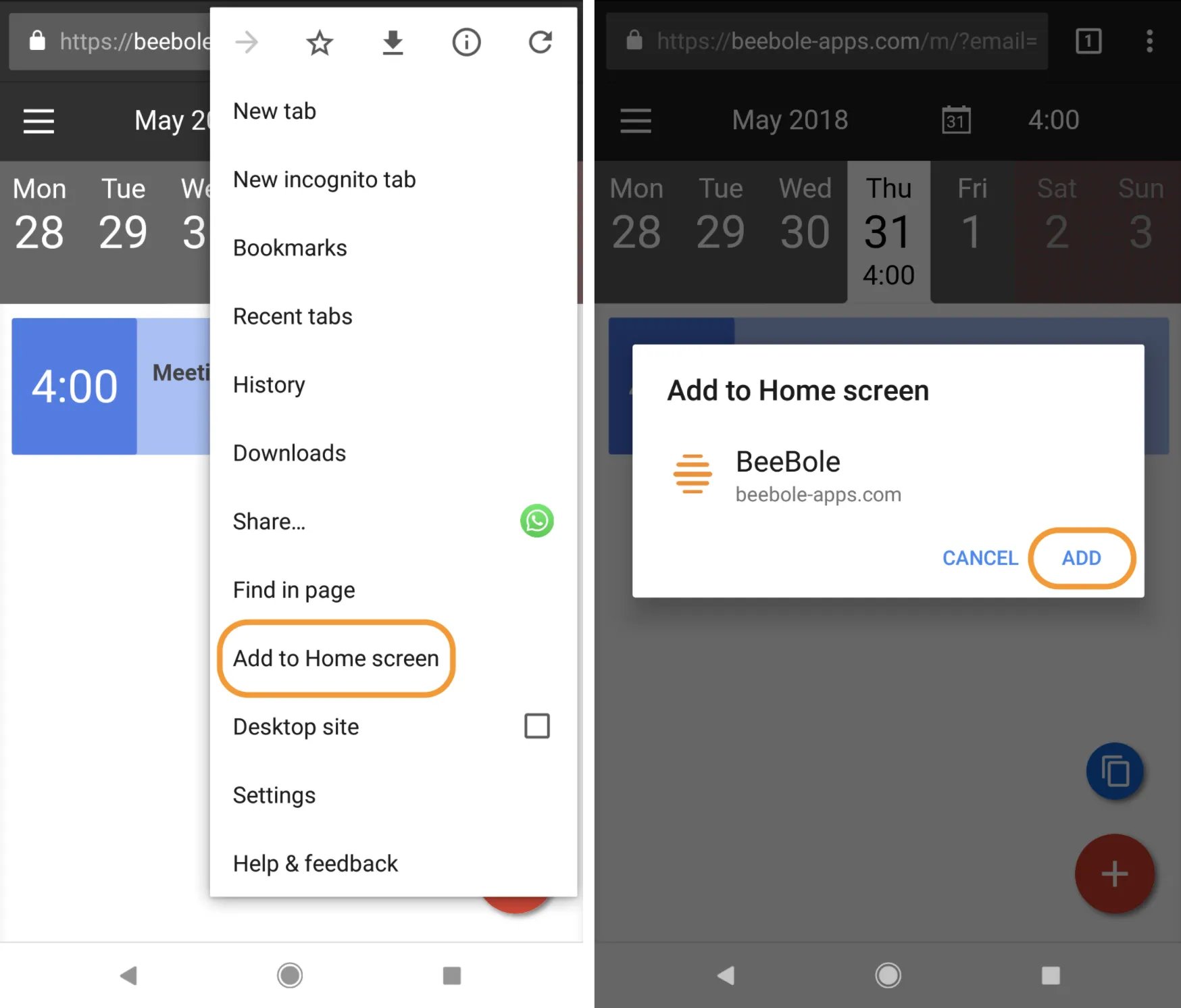
To download the app on any operating system, open the web browser on your device and go to https://beebole-apps.com. Enter your login information (you will need to have previously created a Beebole account) and you will be automatically redirected to the mobile app. To add the app to your home screen on iOS, tap the share button at the bottom of your screen. The iOS “share sheet” will be displayed. Scroll and tap the option “Add to Home Screen”. The option to change the display name and link will appear. Tap “Add” in the top right corner. The Beebole icon will now appear on your home screen. Note that the option to “Add to Home Screen” may only appear on iOS when using Safari as a browser.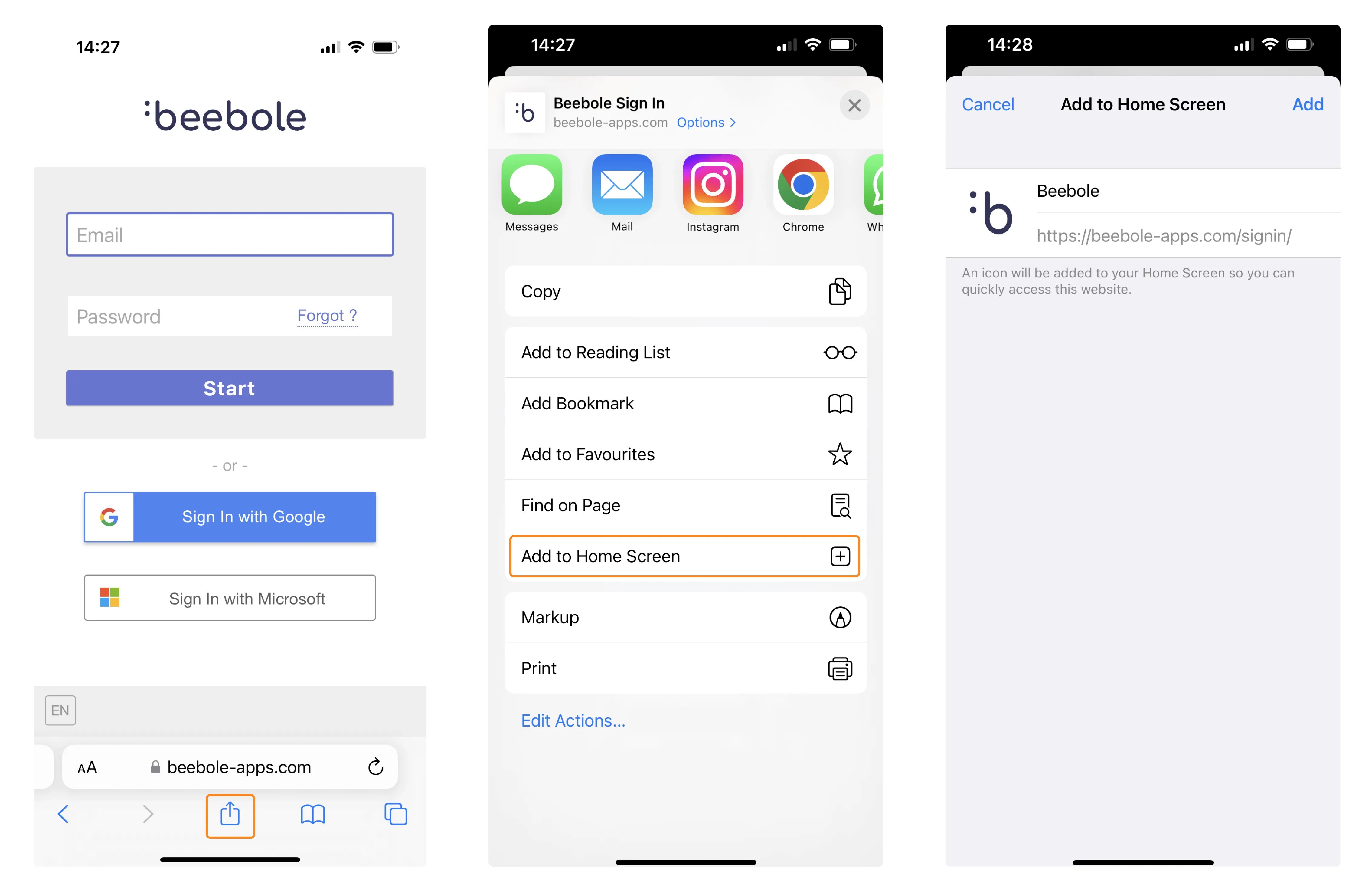
How to Track Time on the Mobile App
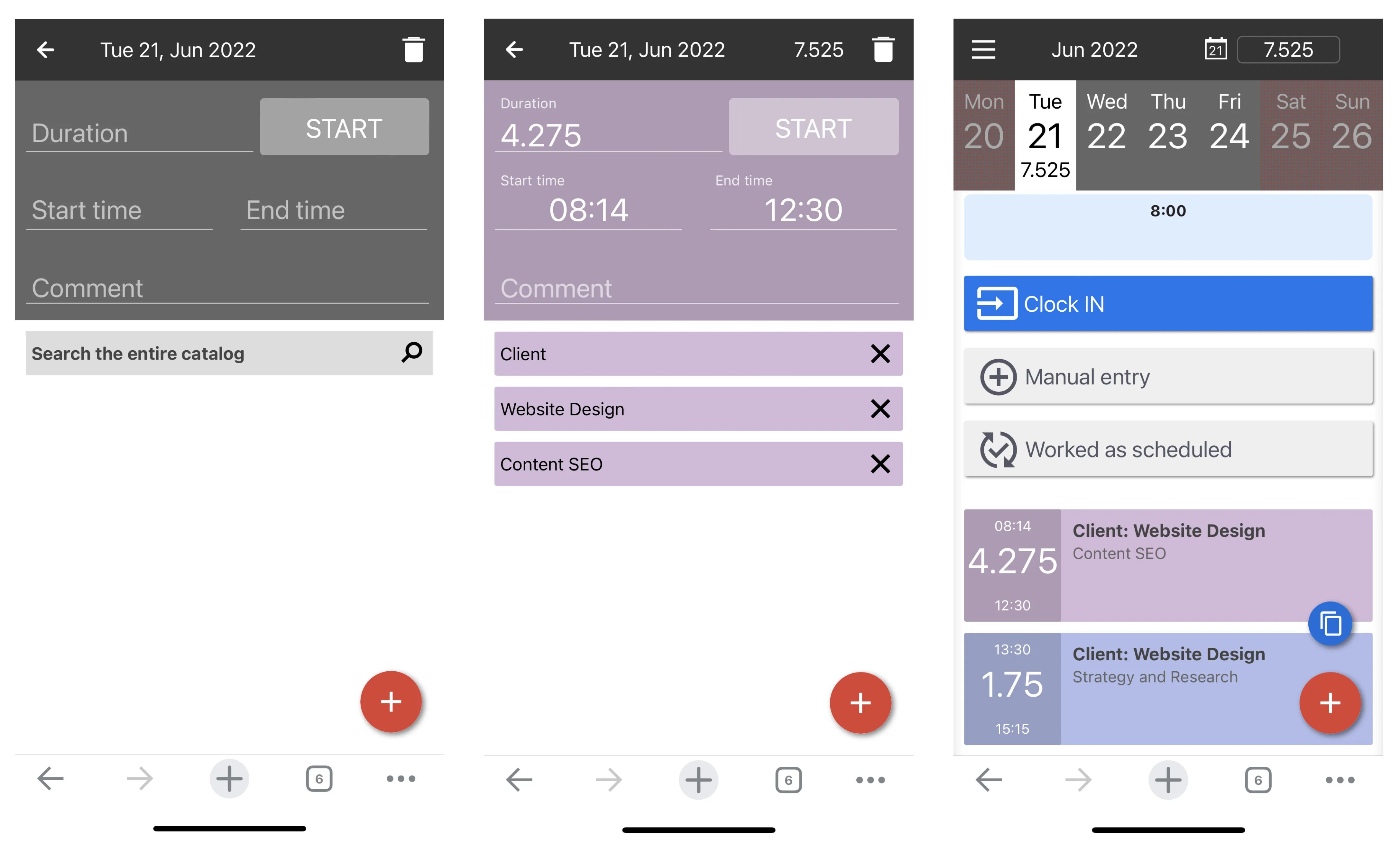
- Enter the full duration of the entry.
- Enter the start time and end time individually.
- Tap the stopwatch button to start a timer. Tap the stop button when you wish to end the timer.
How to Submit Time Entries and Request Time Off
Tracking absences and time off on the mobile app works in the same way as tracking time on projects. To add a new time off entry:- Navigate to the date you wish to add time off for and tap the red ”+” button in the lower right corner.
- Tap “Search the entire catalog” then “Absences”. The absence types that have been previously configured will appear here.
- Depending on how the chosen absence type is configured, the option will appear to track a full day, half day, or by hours. You can also add a comment if needed.