Sign in to Beebole with Google — SSO and Domain Links
Sign in to Beebole with a Google account, link your Google Workspace domains, auto-provision people, and turn off email-code sign-in for your organization.
Google sign-in lets anyone in your organization sign in to Beebole with their existing Google account, which is convenient for teams already on Google Workspace. It is a built-in sign-in option — no administrator setup is required to use it. Linking your Google domains adds automatic provisioning, and an administrator can also turn off sign-in by emailed code for the whole organization.
This page covers the Google-specific controls. For the full picture of how sign-in and single sign-on work in Beebole — email codes, passkeys, and the Single Sign-On panel — see Sign-in, passkeys, SSO, and API keys.
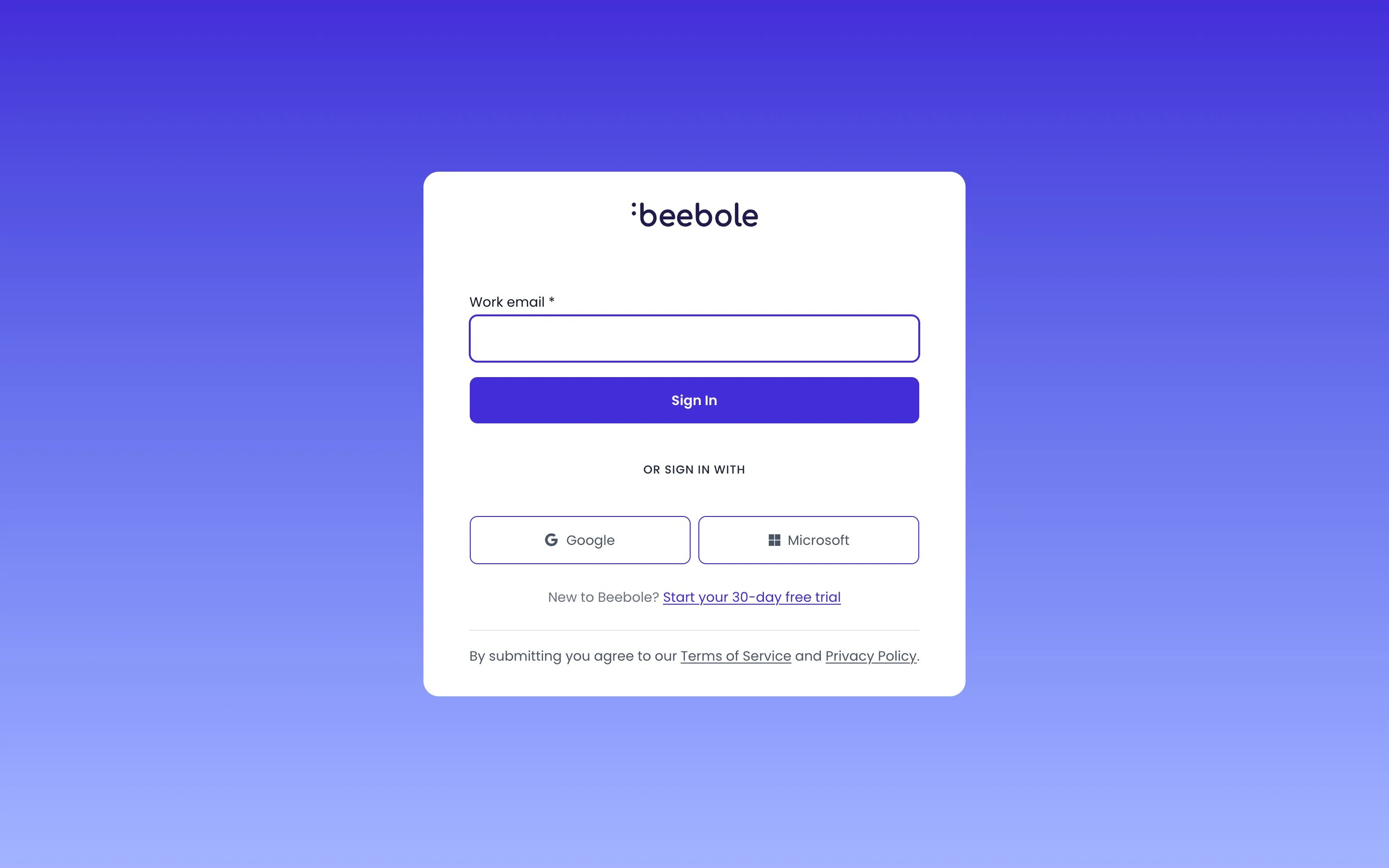
Google sign-in is always available on the Beebole sign-in screen. Under Or Sign in with, click the Google button, then authenticate with your Google account. Beebole matches the Google account’s email address to your Beebole profile, so both must use the same email address.
The Beebole sign-in page, with the Google button under Or sign in with
Because Google sign-in is built in, you do not need to turn anything on for your team to use it. Linking domains, described below, is optional and unlocks the organization-level controls.
Linking a domain ties your Google Workspace organization to your Beebole account and enables the controls that follow. You configure this on the Single Sign-On panel of Account Settings, on the Google tab.
1
Open the Google tab
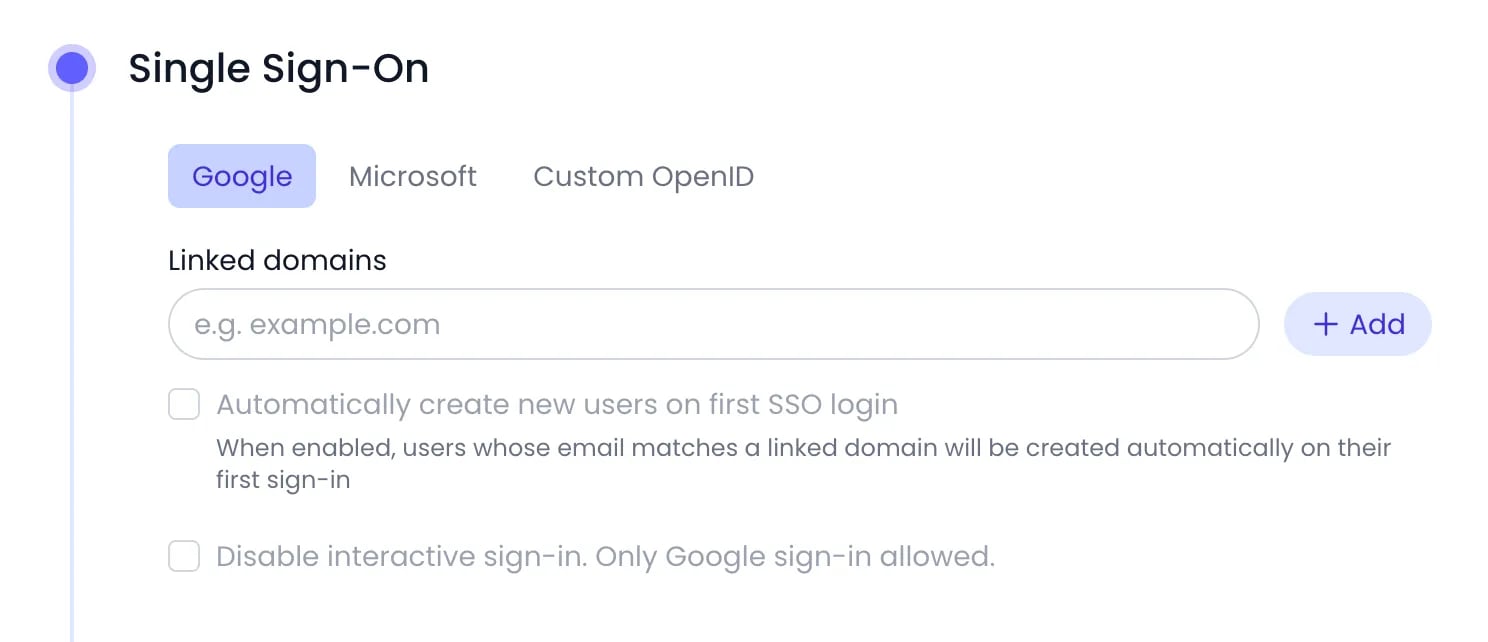
Go to Settings > Account Settings, open the Single Sign-On panel, and select the Google tab.
The Google tab of the Single Sign-On panel
2
Add a domain
Type your organization’s email domain in the Linked domains field and click Add. To unlink a domain, click Remove next to it. Changes save automatically.
3
Finish in Google Marketplace
Once a domain is linked, Beebole shows a Go to Google Marketplace link. Follow it to complete the setup in the Google Workspace Marketplace.
On the Google tab, turn on Automatically create new users on first SSO login to create a Beebole person automatically the first time someone with a matching linked domain signs in. With this setting off, a matching person must already exist in your Beebole account before they can sign in with Google. The setting saves automatically.A person created this way gets the first role in your account without administrator rights. You can change it afterwards on their profile in People.Each new person takes a seat in your subscription, so automatic creation works only while a seat is free (there is no seat limit during the free trial). When no seat is left, Beebole does not create the person and the sign-in fails. The sign-in page then shows only the generic message Sign-in failed. Please try again. It does not mention seats, so check your seat count when a new colleague reports this error. Add seats to your subscription, or archive people who no longer need access, then ask the person to sign in again.
If you install Beebole from the Google Workspace Marketplace with an email that does not belong to a Beebole account yet, Beebole creates a new account for you with your domain already linked and Automatically create new users on first SSO login turned on.
Open the Google tab of the Single Sign-On panel, in Settings > Account Settings.
2
Test Google sign-in
Ask a test user to sign in with the Google button under Or Sign in with on the sign-in screen, and check that they reach their account.
3
Turn off email-code sign-in
Check Disable interactive sign-in. Only Google sign-in allowed. Beebole then refuses sign-in by emailed code for everyone in your organization. The other sign-in methods keep working, so people can still sign in with Microsoft, with your Custom OpenID provider, or with a passkey they already set up. This lets your organization use several sign-in providers side by side. The setting saves automatically.
Before turning on Disable interactive sign-in. Only Google sign-in allowed., confirm Google sign-in works for a test user. Once it is on, people who have no other way in (Microsoft, a Custom OpenID provider, or a passkey) can’t sign in while Google sign-in is unavailable. If you are locked out, contact support@beebole.com.
Do I need to set anything up to sign in with Google?
No. Google sign-in is a built-in option on the Beebole sign-in screen — click the Google button under Or Sign in with. Linking your Google domains is optional and adds organization-level controls such as automatic provisioning.
Does Google sign-in create Beebole people automatically?
Only if you turn on Automatically create new users on first SSO login on the Google tab of the Single Sign-On panel, and only for emails on one of your linked domains. The new person gets the first role in your Beebole account without administrator rights, and needs a free seat in your subscription. When every seat is taken, the person is not created and the sign-in fails with a generic Sign-in failed. Please try again. message. With the setting off, a person with a matching email must already exist in your Beebole account before they can sign in with Google. When your Beebole account was created by installing Beebole from the Google Workspace Marketplace, the setting is already on.
What if my Google email is different from my Beebole email?
Beebole matches accounts by email address. If your Google email does not match the email on your Beebole profile, Google sign-in does not find your account. Make the two email addresses match, or contact support@beebole.com.
Can I stop my team from signing in with an email code?
Yes. On the Google tab of the Single Sign-On panel, turn on Disable interactive sign-in. Only Google sign-in allowed. Beebole then refuses sign-in by emailed code for everyone in your organization, while Microsoft sign-in, a Custom OpenID provider, and passkeys keep working. Confirm Google sign-in works for a test user first.
Where do I find the Google settings in Beebole?
Go to Settings > Account Settings, open the Single Sign-On panel, and select the Google tab. SSO is configured on the organization itself, not as a separate menu item, and all settings save automatically.
Was this page helpful?
⌘I
Assistant
Responses are generated using AI and may contain mistakes.