Import Asana projects, tasks, and subtasks into Beebole for time tracking. Automatic webhook-based sync keeps your Asana workspace and Beebole account in sync.
Beebole’s Asana integration imports your Asana projects, tasks, and subtasks into Beebole so your team can track time against their Asana work. The integration keeps your Asana workspace and Beebole account in sync automatically — when a project or task is created or renamed in Asana, the change is reflected in Beebole.You can import your Asana structure into Beebole’s Projects and activities for time tracking with costs, billing, and expenses, or into Planning and tasks for resource assignment.
Active projects, tasks, and subtasks at the time of enabling the integration are created in Beebole. Any name change to those items is reflected in Beebole while the integration is active. New projects and tasks created in Asana are also automatically added to Beebole.
Asana users
All active users in your Asana workspace are automatically created as people in Beebole when you first enable the integration. You choose a default role for these imported employees during setup.
Items managed in Beebole
Timesheet entries, approval workflows, billing rates, budgets, and expenses remain in Beebole and are not affected by the integration.
Deletions and moves
Deleting an Asana project or task that already has time logged against it in Beebole keeps the Beebole record instead of removing it, so the tracked history is preserved: a Beebole project is archived, and a Beebole task is marked Done. Restoring the item in Asana brings it back. Tasks moved between projects in Asana keep syncing to their new parent.
Beebole recognizes repeated or retried deliveries from Asana and processes each change once, so a retry never creates duplicate projects or tasks. When Asana rate-limits a request, Beebole backs off and retries rather than failing the sync, and any error Asana returns is reported with its actual reason instead of a generic failure.
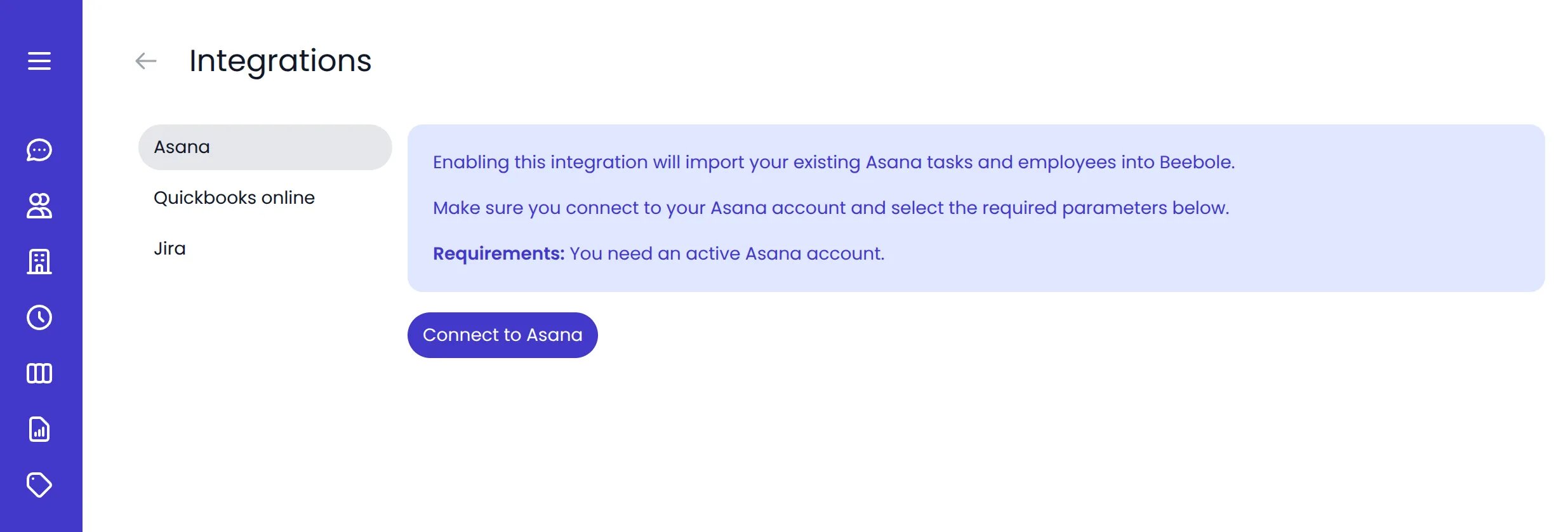
Go to Settings > Integrations > Asana. Click Connect to Asana.
Beebole Asana integration connect button
Follow the instructions in the popup to authorize Beebole to access your Asana workspace. The popup closes automatically when the connection is complete.
2
Configure integration parameters
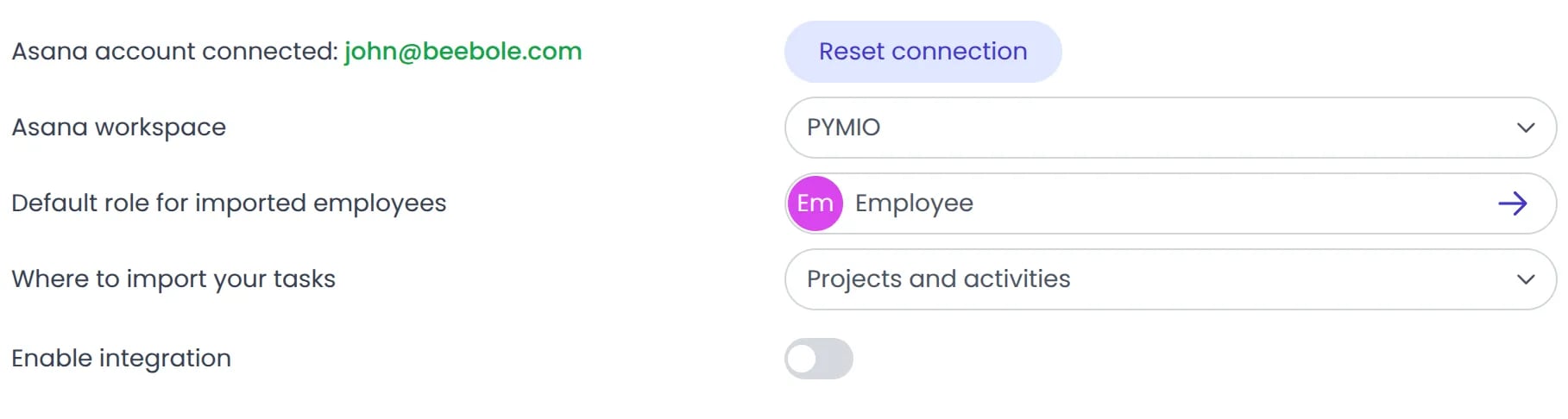
Once connected, configure the following options:
Asana workspace — If your Asana account is linked to more than one workspace, select the one you want to sync with Beebole.
Default role for imported employees — Select the role to assign to Asana users when they are imported into Beebole.
Where to import your tasks — Choose between Projects and activities (for project time tracking with rates and billing) or Planning and tasks (for resource planning and assignment).
Beebole Asana integration parameters
You can review and manage existing roles in Settings > Person Roles.
3
Enable the integration
Click the toggle to Enable integration. Beebole imports all your active Asana projects, tasks, and subtasks.
Beebole Asana integration updating
The initial import may take a few moments depending on the size of your Asana workspace. You can continue using Beebole while the import runs in the background.
Once complete, the integration is active. All future changes in Asana are automatically reflected in Beebole.
4
Validate the integration
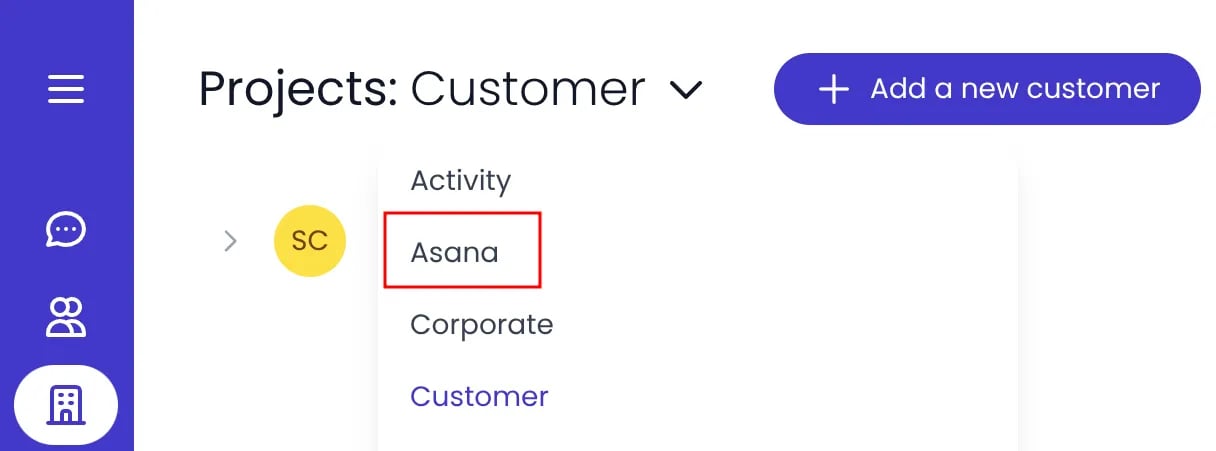
Click Projects in the sidebar to open the Projects page. Expand the categories — you should see a new category called Asana containing all your imported projects and tasks. You can rename this category if needed. If you chose Planning and tasks, click Planning in the sidebar instead: the import is a new planning named Asana.
If you want the new Asana category to appear in the timesheet, go to Settings > Account Settings, open the Timesheet and Planning Settings panel, and in its Categories tab select the Asana category under Record time on these project categories, or the Asana planning under Record time on these plannings. See Timesheet and Planning Settings.
If you disable the integration, any future changes made in Asana will no longer sync to Beebole. Previously imported data remains in Beebole as local records.
To disable the integration, go to Settings > Integrations > Asana and toggle the integration off. You can re-enable it at any time to resume syncing. If the change can’t be applied, the toggle reverts to its previous state and Beebole reports the error — it never stays stuck mid-update.To disconnect your Asana account entirely, click Reset connection.
What is the difference between Projects and activities and Planning and tasks?
Beebole’s time management has two structures. Projects and activities can be configured with billing rates, costs, budgets, and expenses. Planning and tasks is a list of tasks you can assign in resource planning charts. Both can be used in the timesheet to track time. Choose the option that best fits how your organization manages work.
How often does Beebole sync with Asana?
Changes made in Asana (new projects, tasks, or name updates) are reflected in Beebole automatically via webhooks. In most cases this happens within minutes. If a change is not reflected within 24 hours, contact support@beebole.com.
Can I choose which Asana projects to import?
The integration imports all active projects and tasks from your Asana workspace. You cannot selectively import individual projects. However, you can organize and filter imported items within Beebole after the import.
What happens to imported data if I disable the integration?
All previously imported projects, tasks, and people remain in Beebole as local records. They are not deleted. Only future changes from Asana will stop syncing until you re-enable the integration.
Do I need admin access in both Asana and Beebole?
Yes. You need administrative privileges in both your Asana workspace and your Beebole account to set up and configure the integration.
Was this page helpful?
⌘I
Assistant
Responses are generated using AI and may contain mistakes.